Customise page privileges
Page privileges let you control which users can access a specific page. By assigning privileges to a page, only users whose roles include those privileges will be able to view it. This integrates with the KAIZEN IAM system to enforce page-level access control.
Before assigning privileges to a page, ensure the required privileges have been created in the Config Privileges window.
Assign privileges to a page
Only users whose roles include the assigned privileges will be able to access the page at runtime.
To assign privileges to a page, perform the following:
-
Open the App Designer. In the Resources panel, find the page you want to configure under Pages.
-
Select the page and click Edit Page.
-
In the Edit Page window, locate the Privileges dropdown.
For more information on each field, refer to this table.
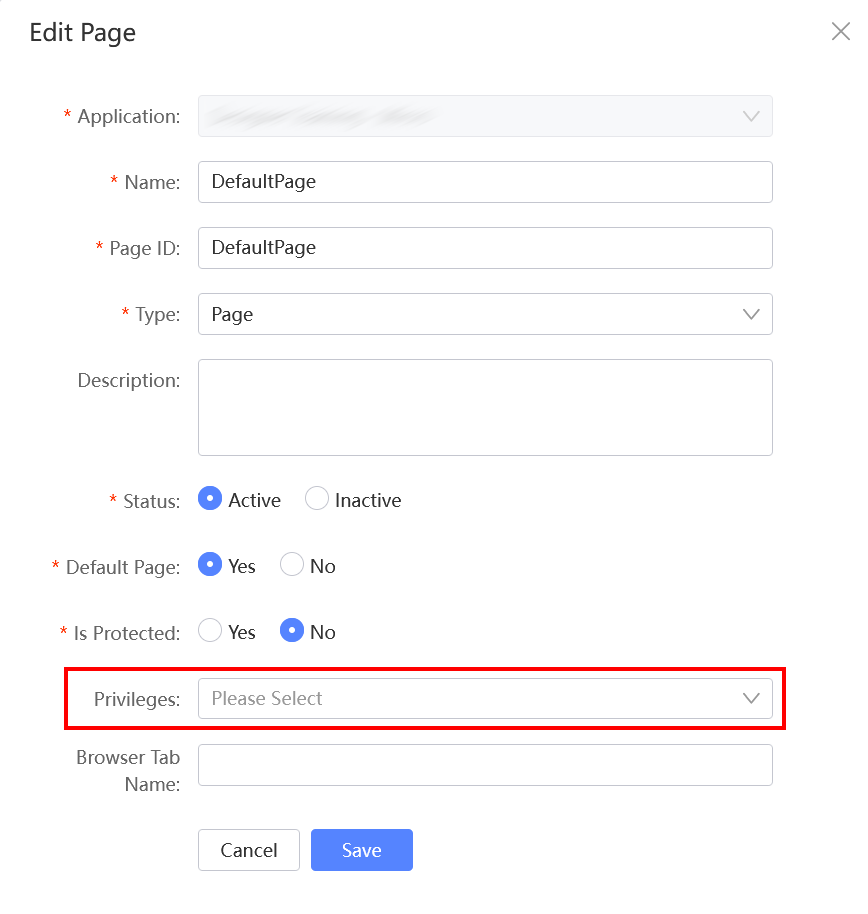
The dropdown displays a hierarchical list of available privileges, organised by user domain. Expand a domain to view its privileges.
-
Select one or more privileges from the list. Each selected privilege appears as a tag in the field.
To remove a privilege, click the x on the tag.
-
Click Save.
Edit Page window fields
The following table describes each field in the Edit Page window:
| Field | Mandatory | Description |
|---|---|---|
| Application | Yes | The application the page belongs to. Read-only. |
| Name | Yes | The display name of the page. |
| Page ID | Yes | The unique identifier for the page, used in navigation and URLs. |
| Type | Yes | The functional role of the page (e.g., Page, Action, Banner, Menu Header, Footer). |
| Description | No | An optional description of the page's purpose. |
| Status | Yes | Select Active or Inactive. |
| Default Page | Yes | Select Yes if this page should be the application's entry point; otherwise, select No. |
| Is Protected | Yes | Select Yes to require authentication before accessing this page; otherwise, select No. |
| Privileges | No | Select one or more privileges from the dropdown to restrict access to this page. |
| Browser Tab Name | No | An optional name displayed on the browser tab. |
Last updated on 20 May 2026