Configure navigators (menus)
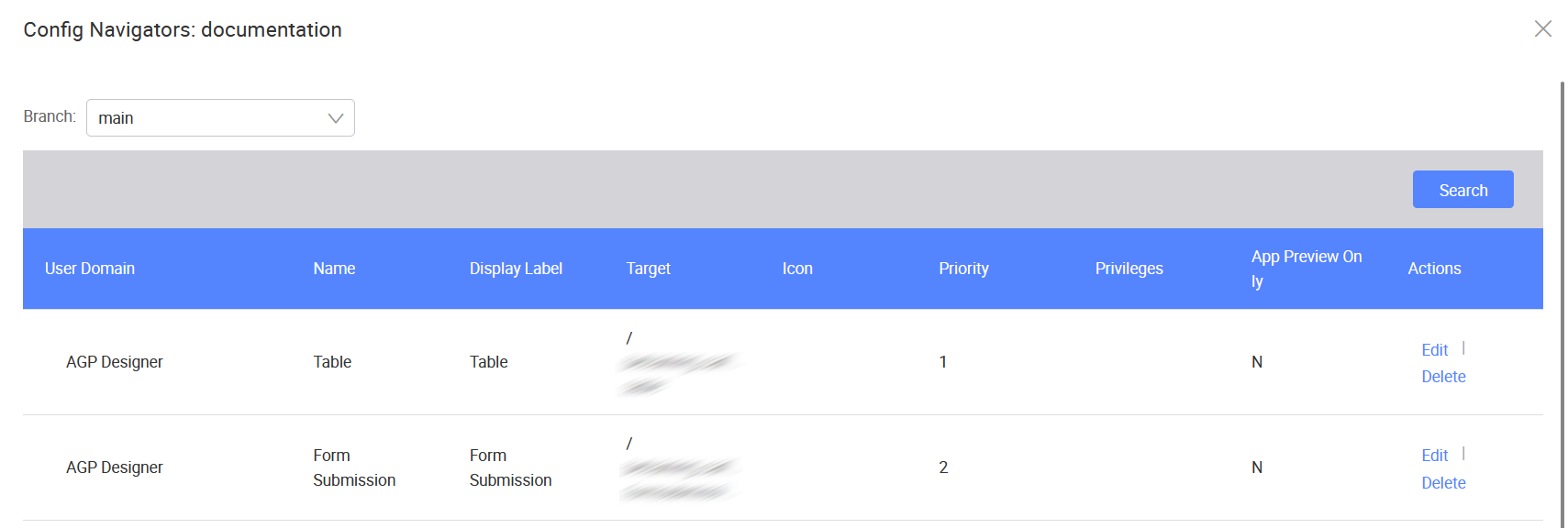
Navigators define the menu structure and navigation paths of your application. You can create and manage navigators from the Config Navigators window.
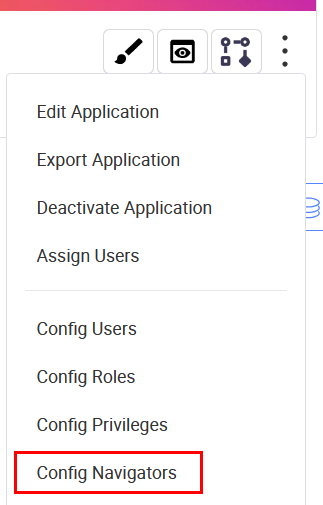
To open the Config Navigators window, click the three-dot icon  on the application card and select Config Navigators.
Create a navigator
To add a new navigator, refer to this article.
Export a navigator
To export navigators as an XML file, perform the following:
-
In the Config Navigators window, select the target branch from the Branch dropdown.
-
Click Export.
-
In the Confirm dialog, click OK to proceed.
An XML file containing the information about all these navigators will be downloaded to your local machine.
Export navigators by user domain
To export all navigators under a specific user domain as an XML file, perform the following:
-
In the Config Navigators window, select the target branch from the Branch dropdown.
-
Click Export By UserDomain.
-
In the Select Domain window, select a User Domain from the dropdown.
-
Click Export.
An XML file containing the navigator information for the selected domain will be downloaded to your local machine.
Edit a navigator
After creating a navigator, you can edit the information by clicking the Edit button on the same row.
Except User Domain, most fields can be updated. Refer to this table for more details.
After making the changes, click Save.
Delete a navigator
To delete a navigator, perform the following:
-
In the Config Navigators window, select the navigators you want to delete.
-
Under the Actions, Click Delete.
-
In the confirmation dialog, click OK. The selected navigators will be removed.
Last updated on 20 May 2026