Import or export a page
KAIZEN supports reusability through importing and exporting. You can create your own templates to start with, instead of creating from scratch. This approach reduces repetition and shortens the timeline for development. It also helps you build on top of existing resources with a higher level of consistency.
Importing and exporting pages provides the flexibility to restructure your project. It simplifies the process when you need to move pages between applications.
Export a page
To export an existing page as a reusable template, perform the following:
-
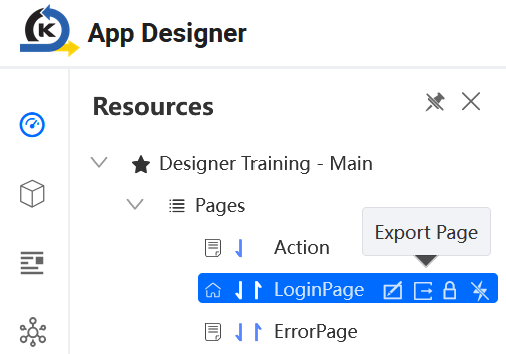
In the App Designer, expand the Pages list.
-
Select the page you want to export.
-
Click Export Page. A window pops up, asking for confirmation. Click OK.
A
ZIPpackage will be downloaded in your browser, containing a JSON file for the page template and a PNG file for preview.
Import a page
To import a page from a template, perform the following:
-
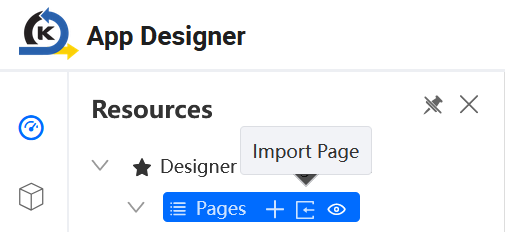
In the App Designer, click Pages.
-
Click Import Page. The File Explorer window opens.
-
Browse to the page template (in
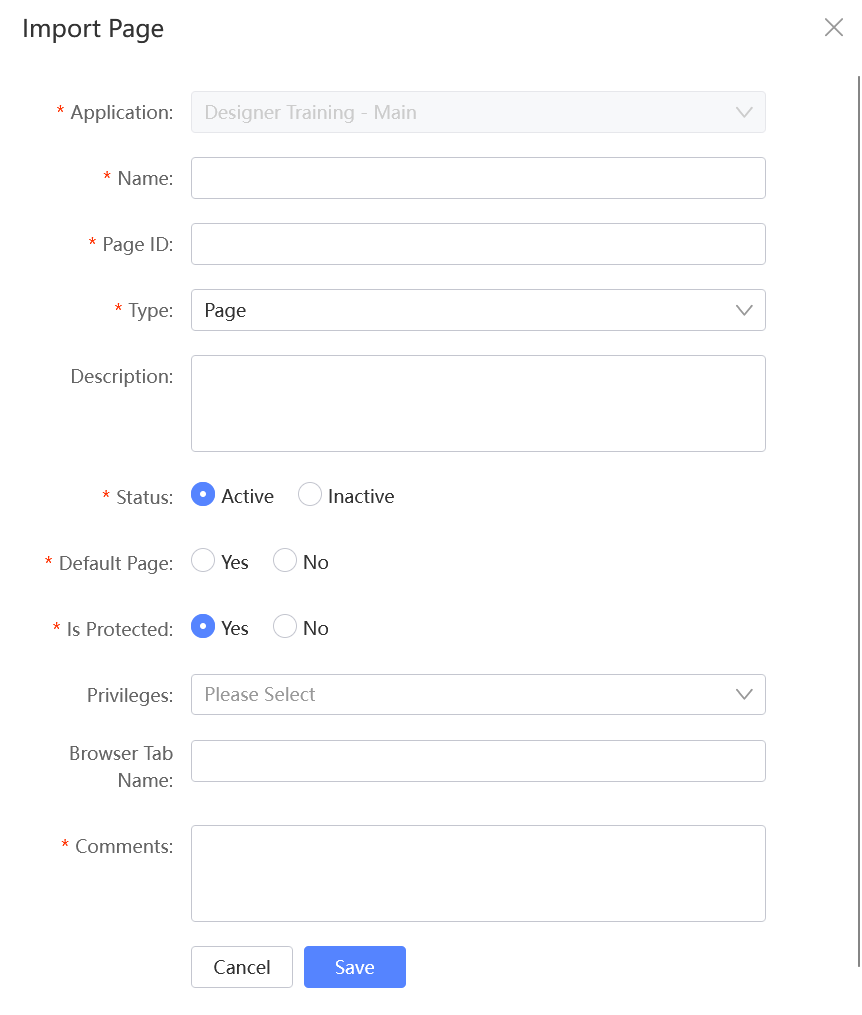
ZIPformat). Click Open. The Import Page window displays.-
The application name is pre-filled and does not allow any change.
-
The page name and page ID are also pre-filled, but you can still modify them.
-
-
Fill in the remaining fields. When you complete it, click Save.
The page will be successfully imported and appear in the Pages list.
Last updated on 20 May 2026