Import or export a project
This feature is for Project Managers. You need the admin rights to perform these actions.
Export a project
Exporting a project bundles all applications and their associated configurations into one downloadable ZIP package.
To export a project, perform the following:
-
Navigate to the KAIZEN Studio Console.
-
Use one of the following options:
- From the project toolbar
- From the Application Management menu
Locate the project to be exported. Click
 and select Export Project.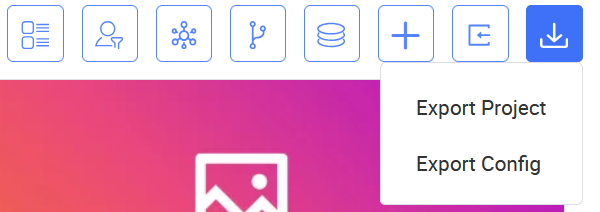
Alternatively, on the left panel, click Application Management > Projects.
On the right, find your project in the list. Click More in the same row and select Export.
-
Enter the encryption key. Its length is only allowed to be 16, 24, or 32.
-
The project package will be generated and downloaded in a
ZIPpackage.The exported file contains all applications within the project, including their pages, services, database schemas, workflows, assets, and related configurations.
Import a project
Importing a project allows recreation of an entire project structure from a previously exported project package file.
Only the admin user has the access to import projects.
To import a project, perform the following:
-
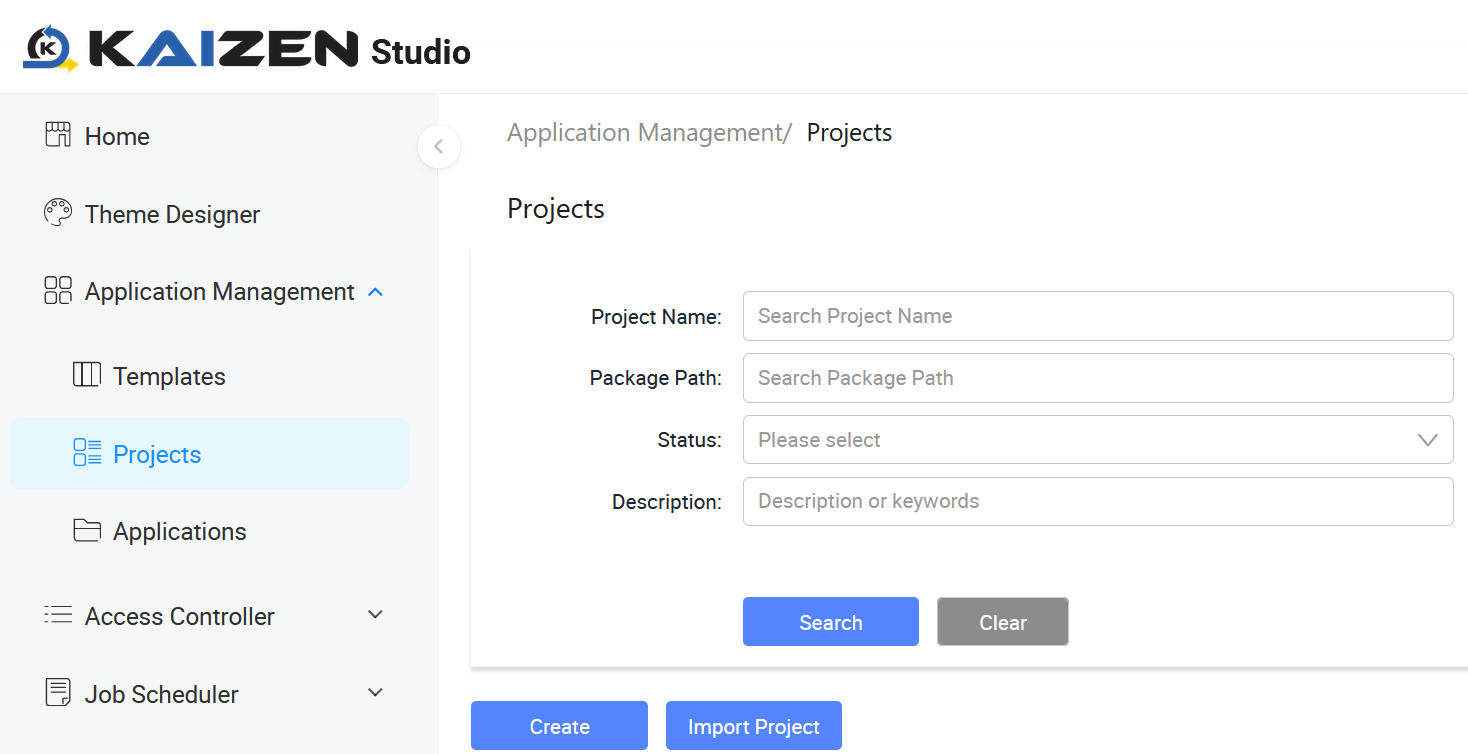
Navigate to the Application Management > Projects menu.
-
On the Projects page, click Import Project. The File Explorer window opens.
-
Browse to the
ZIPfile. Click Open. The Import Project window opens. -
KAIZEN will process the
ZIPfile and recreate the full project, including all contained applications and configurations.Upon successful import, the project will appear in the Projects page. It can be accessed and managed like any other project within the environment.
Last updated on 20 May 2026