Import or export an application
When you export an app, KAIZEN bundles all its pages, assets, and configurations into a single file. This file can be imported into another project as a reusable template. This approach helps you create backups, move the app between projects, or migrate it to a different environment.
Export an app
To export an app, perform the following:
-
In KAIZEN studio console, find the app you want to export.
-
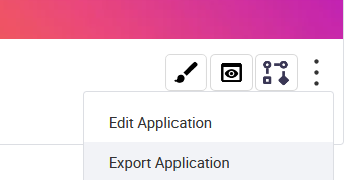
At the app's bottom right corner, click the three-dot icon. From the menu, click Export Application.
-
The Export Application window pops up, asking for confirmation. The window displays the name of the application being exported. Click OK.
A package in
ZIPformat will be downloaded in your browser.
Import an app
To import an app from an existing ZIP file, perform the following:
-
In KAIZEN Studio Console, find the project where you want the app to reside.
-
At the project's top right menu, click Import. The File Explorer window opens.

-
Browse to the
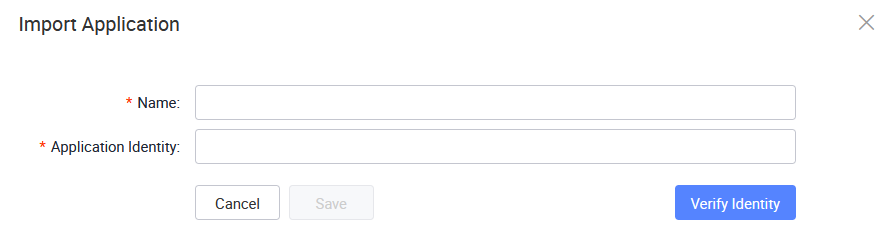
ZIPfile. Click Open. The Import Application window displays.- The application name is pre-filled. You can change it into another name.
- The application identity is also pre-filled. Be sure to change it into a unique identifier.
cautionThe Application Identity field is validated during import. If the identity already exists in the target environment, the import will fail. Verify that the application identity is unique before proceeding.
-
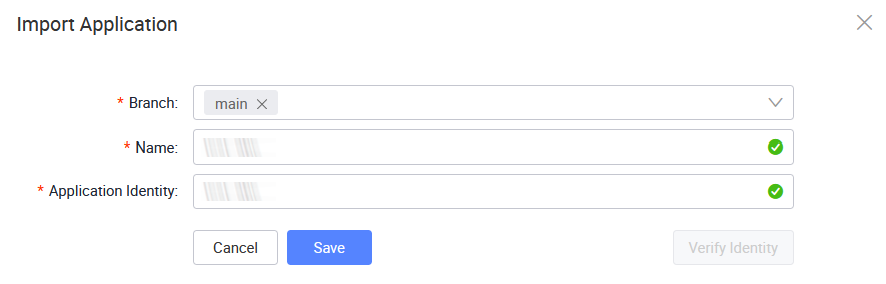
Click Verify identity. Once the verification is successful, you need to choose the branch for Git version control.
-
Click Save.
The app will be successfully imported and appear in the Studio Console under the project.
Last updated on 20 May 2026