Manage page assets
The Resources panel at the top left of App Designer helps you manage all the pages and assets that make up the application. It provides a tree structure that gives the option to navigate and organise every UI component.
The panel includes two main categories, Pages and Assets.
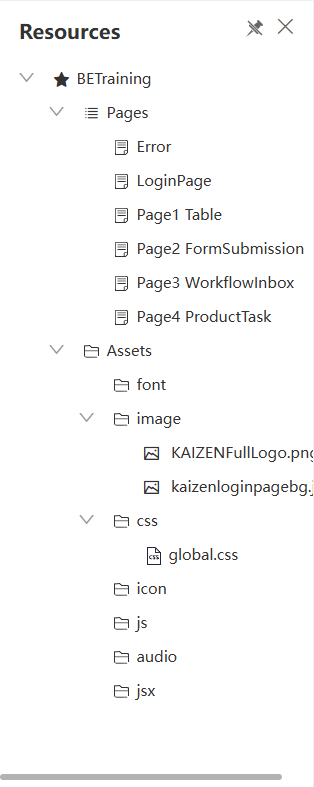
Pages
This is a list of all the individual screens in the application. From here, you can perform the following:
-
Create a new page: By hovering over "Pages", click the + icon to create a blank page, start from a template, or import a page from a file.
-
Import page: Import pages from the local directory.
-
Show/hide inactive page: Show or hide deactivated pages. You have the option to delete a page when it is inactive.
-
Navigate between pages: Simply click on any page name in the list to open it for editing on the canvas.
-
Manage pages: When you select a page, several icons appear, allowing you to:
-
Edit a page: Click Edit next to a page name to open the Page Properties window. You can configure the page name, ID, type, and security privileges.
-
Export a page to get a reusable template.
-
Lock a page to prevent others from editing.
-
Deactivate/Activate a page to change its status.
-
Assets
Assets are the static files used in the application. The Resources panel organises the assets in a folder structure. You can upload and manage static files in the App Designer.
Common types of assets include:
-
image: Contains all the images (e.g., logos, backgrounds, and icons) used in the application. To upload new images, select a folder and click the + icon. You can upload multiple images at a time. -
css: Contains custom style sheets if the user need to apply any, which are not available in Theme Designer.global.css: A specific file for Cascading Style Sheets (CSS) you want to apply globally at the project level. When you select a component, a list of child classnames will appear in Styles > Css. You can reference these child classnames from there.
-
icon: Stores icon files. -
js: Stores custom JavaScript files. -
audio: Contains any audio files. -
jsx: Custom React JSX files. -
font: Custom font files for typography.The Resources panel keeps all the pages and assets in one place, to ensure your project remains organised.
Last updated on 20 May 2026