Create the main menu navigation
Menus and navigation provide a clear and intuitive way for the users to move between different pages and features. In KAIZEN, navigation is managed through the Navigator system, which allows you to create a main menu, customise its appearance, and link pages based on user actions.
The main navigation menu, such as a sidebar or top bar, is the primary way for the users to explore the application.
In a Main and Micro Application architecture, this global menu is defined in the Main Application. This is a critical architectural rule that ensures a consistent and seamless navigation experience for the user across all features, even as they move between different micro applications.
Create a new navigator
To add a new navigator as a menu item, perform the following:
-
Access the Navigator settings:
From the Studio Console, find the application. Click the three-dot icon
 and click Config Navigators on its card.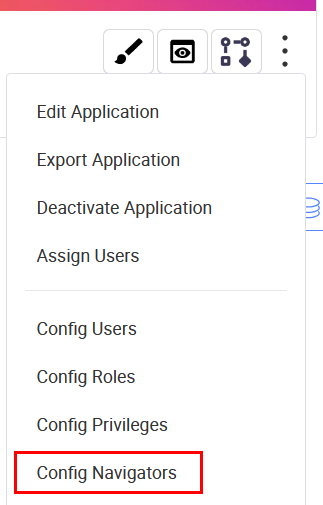
-
Create a new menu item:
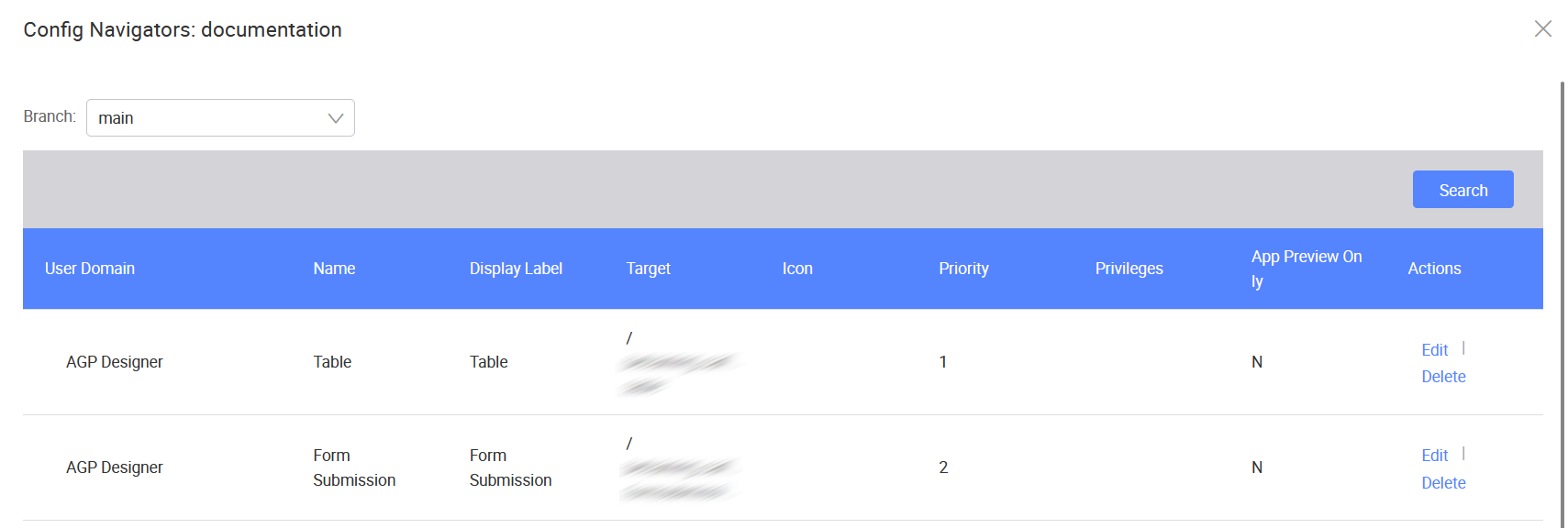
In the Config Navigators window, click Create to add a new menu link.
-
Configure the menu item properties:
The Create Navigator window opens.
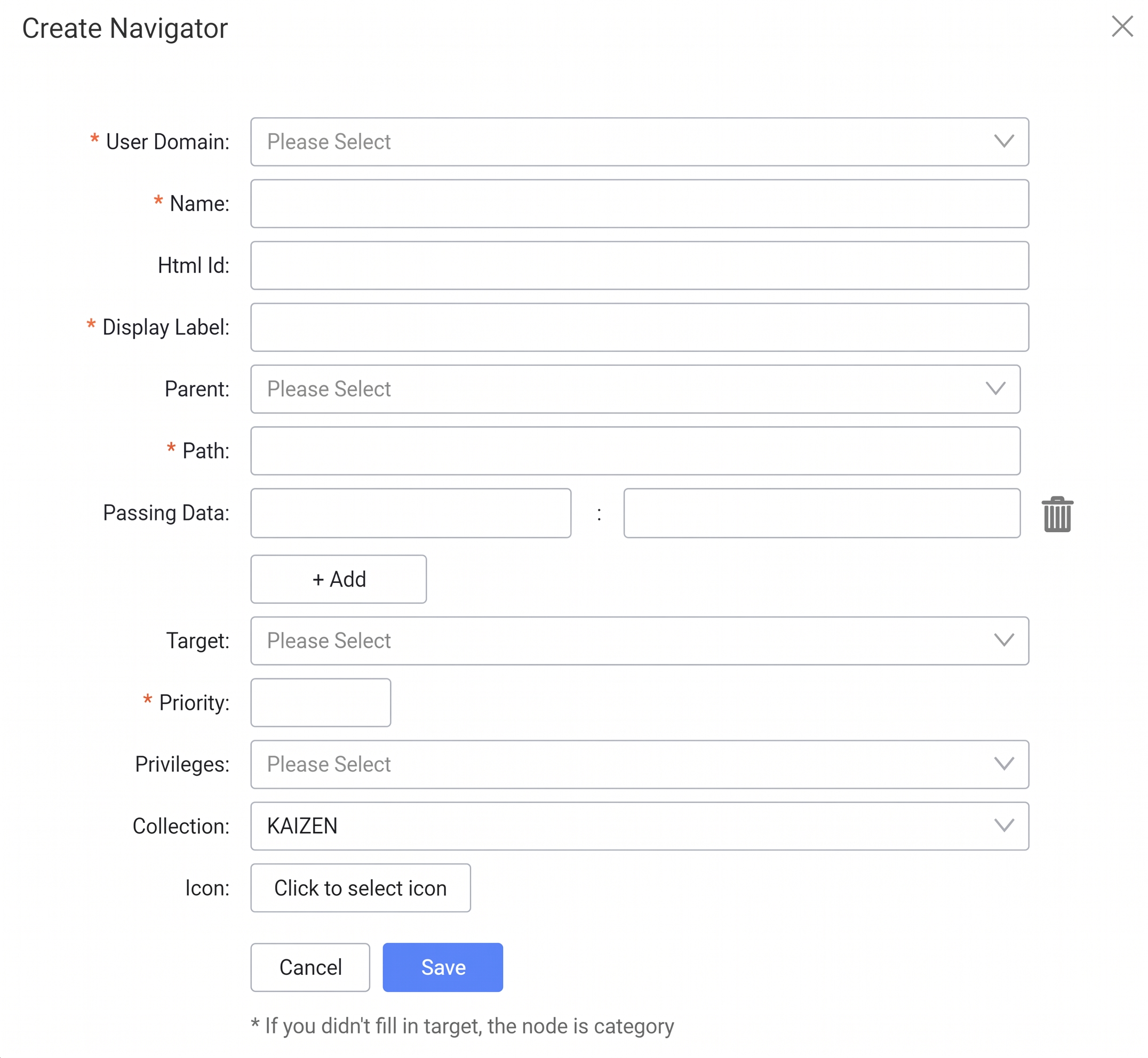
Fill in the following fields to define the link:
Field Name Mandatory Description User Domain Yes This dropdown menu gives the option to select the security domain the navigator will belong to. This is crucial for multi-domain applications where the user need to maintain separate navigation menus for different user groups (e.g., an internal staff portal vs. a public customer portal). Name Yes A unique, system-readable name for the navigator item. This is used internally to identify the navigator. Html Id No A reference ID for the navigator. Display Label Yes The text that will actually be visible to the user in the menu (e.g., "Application Listing," "My Profile"). Parent No This gives the option to create nested or hierarchical menus. By selecting another navigator as a parent, the user can create sub-menus (e.g., placing "Create Form" and "View Forms" under an "Manage Forms" parent menu). Path Yes The URL path for this navigation link (e.g., /landing,/contact). This path will be displayed in the browser's address bar when the user navigates to the page.Passing Data No Allows you to pass key-value pairs as data to the target page. Enter a key in the first field and its corresponding value in the second field. Click the + Add button to add more key-value pairs, or click the trash bin icon to remove an entry. Target No This dropdown links the navigator item to a child navigation page in the application. When a user clicks the navigator, they will be taken to the child navigation page selected here. Open Method Yes Select how the navigation link opens. For example, Current Tab opens the page in the same browser tab. This field only appears when the user selects a child navigation page in the Target field. Priority Yes A number that determines the order of the navigator items in the menu. Items with a lower number will appear first. For example, a priority of 1 will appear before a priority of 2. Privileges No This is a critical security setting that links the navigator to a specific privilege. Only users with a role that has this privilege will be able to see and access this navigator item in the menu. This ensures that users are only shown links to pages they are authorised to view. Collection No Select an icon collection (e.g., KAIZEN) to enable icon selection for this navigator item. Icon No Select a visual icon to appear next to the display label in the menu. This field appears only when a Collection is specified. -
Save the Navigator:
After configuring the menu items, click Save. When you preview the application, the new menu will be visible.
Edit the navigator
To edit the existing navigators, perform the following:
-
Click Edit in the Config Navigators window.
-
In the Edit Navigators window, fill in the fields in this table based on your project requirements.
You also need to fill in the additional fields below:
Additional Field Name Mandatory Description Open Method Yes Select how the navigation link opens. For example, Current Tab opens the page in the same browser tab. This field only appears in the Edit Navigator window. App Preview Only No Select Yes to make this navigator item visible in the application; select No to make it invisible. This field only appears in the Edit Navigator window. -
Click Save to apply the changes.
Last updated on 20 May 2026