Manage users
You need the admin rights to use this feature.
A super admin account kaizenadmin is created by default in the KAIZEN Default domain. Each domain is provisioned with a default admin user upon creation.
Admins can create additional users as required, assign roles accordingly, and export or import user accounts for backup or migration purpose:
-
A user belongs to only one domain.
-
A user may be assigned one or more roles, depending on their responsibilities.
-
Privileges are granted through role assignments, allowing users to inherit access rights indirectly.
Manage the users
To manage the users, perform the following:
-
In the KAIZEN studio console, on the left panel, click Access Controller > Users.
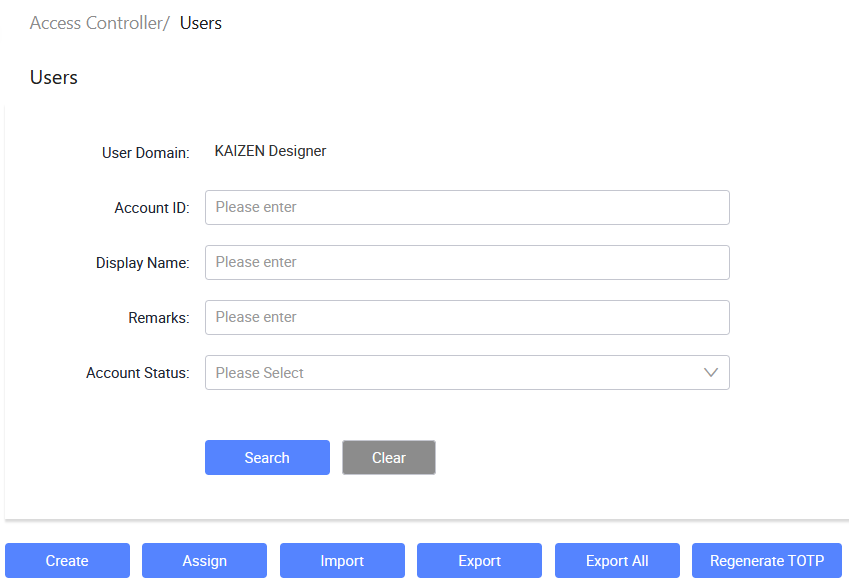
The Access Controller/ Users page displays.
-
You can use the filter fields at the top of the page to search for users by Account ID, Display Name, Remarks, or Account Status. The Account Status dropdown provides the following options:
Account Status Description Active The user account is active and can log in normally. Inactive The user account has been deactivated and cannot log in. Locked The user account has been locked, typically due to repeated failed login attempts. Terminated The user account has been permanently terminated. Suspended The user account has been temporarily suspended. Expired The user account has passed its expiry date. -
From here, you can create new users, import or export users, assign roles, regenerate TOTP and so on. Each user row in the table provides the following actions under the Actions column:
- View: Opens the user details in read-only mode.
- Edit: Opens the user details for editing.
- More: Expands a dropdown with additional actions: Deactivate, Terminate, Suspend, Assign Role, Reset Password, and Export.
noteOnce a user account has been deactivated or terminated, a Delete option becomes available in the More dropdown, allowing you to permanently delete the user.
noteAfter the deactivation, you have the option to reactivate it following the on-screen instructions.
Import user accounts
When importing user accounts from a file, a Select Overwrite Fields window appears, allowing you to choose which fields in the imported file will overwrite existing values for matched users. The window provides a Select All Or Not toggle at the top to quickly select or deselect all fields.
| Category | Fields |
|---|---|
| Account & security | Password & Salt, Account Status, Is First Time Login, Password Change Required, Password Last Changed Datetime, Service Account User |
| Personal information | Display Name, Salutation, First Name, Middle Name, Last Name, Gender, Nationality, Birthday, Marital Status |
| Contact details | Email, Login Alias, Mobile Country Code, Mobile No., Other Contact No. |
| Address | Address, Postal Code, Address State, Address Country Code |
| Identity & documents | Identity No., Passport No., User Picture, E-Signature |
| Password recovery | Password Challenge Question, Password Challenge Answer, Password Challenge Hint |
| Account lifecycle | Account Activate Datetime, Account Deactivate Datetime |
| Other | Remarks |
Create a new user
-
In Access Controller/ Users, click Create.
-
In the Create User window, enter the user information in these fields and click Save.
Last updated on 20 May 2026