Push project
After designing your application or configuring your service, you can commit your changes and push the generated code to the connected Git repository directly from KAIZEN. This process bundles code generation with version control, ensuring that every commit contains the latest generated code alongside your design definitions. This integration enhances the CI/CD pipeline by automating the process of committing and pushing changes, improving efficiency and collaboration.
Open the Push Project window
There are two methods to open the Push Project window:
-
At the project toolbar, click the Git icon
 .
. -
Use one of the following methods to push changes to your project:
- At the project toolbar
- From Manage Branch
From the dropdown menu, select Push Project.
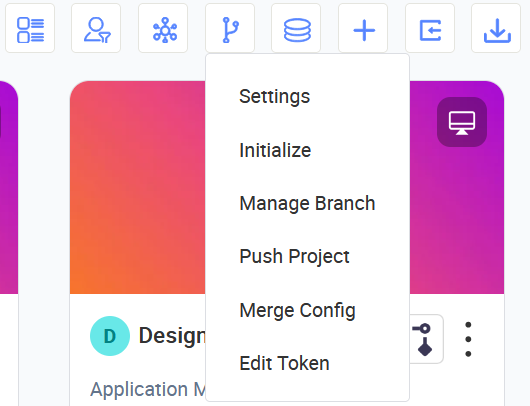
The Push Project window opens with the Branch dropdown at the top, allowing you to select the target branch before pushing.
From the dropdown menu, select Manage Branch.
In the Manage Branch window, select the target branch and click Push Project.
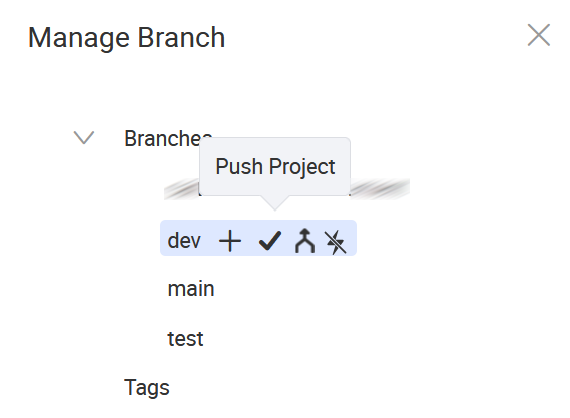
The Push Project window opens.
-
Provide details in the Push Project window.
-
Click Ok to commit and push the selected items to the connected Git repository.
Push Project window
The Push Project window contains the following sections:
Branch
This dropdown appears only when you open the Push Project window at the project toolbar. Select the target branch to push your changes to.
The Branch field is required (marked with an asterisk).
Applications
The Applications table lists each application in the project. Select the checkbox next to an application to include it in the push.
| Column | Description |
|---|---|
| Name | The name of the application. |
| Latest Revision | Indicates whether there are unpublished changes to the application. |
| Latest Published Revision | Indicates whether the latest revision has been published. |
| Code Generate Version | A dropdown to select the code generation version for the application. |
| History | Click the history icon to view previous push records for the application. |
Services
The Services table lists each service in the project. Select the checkbox next to a service to include it in the push.
| Column | Description |
|---|---|
| Name | The name of the service. |
| Service Layer Classes | A checkbox that indicates whether service layer classes are included. |
| Custom Configuration | A checkbox that indicates whether custom configuration files are included. |
| KAIZEN Version | A dropdown to select the KAIZEN version for the service. |
| History | Click the history icon to view previous push records for the service. |
Config
The Config table lists the configuration items in the project. Select the checkbox to include configuration in the push.
| Column | Description |
|---|---|
| Config | Lists the configuration categories included in the push (e.g., User Domain, User Groups, Memberships, MasterCode, Navigator, Endpoint). |
| History | Click the history icon to view previous push records for configuration. |
Comments
Enter a descriptive commit message. This field is required (marked with an asterisk).
View commit history
The Push Project window displays a History section that shows the commit history for each application and service. This allows you to track previous pushes and verify version details directly within the push workflow.
-
Click the Git icon
at the project level and select Push Project. -
In the Push Project window, scroll down to the History section. The history is displayed with tabs for each application component.
The commit history table displays the following information for each entry:
Column Description Commit ID The unique identifier for the commit. Author The author associated with the Git token used for the connection. Commit By The system that performed the commit (for example, KAIZEN). Status The result of the commit operation (for example, Success). Message The commit message entered when pushing the code. Commit Time The date and time when the commit was made.
Commit history is branch-specific. Commits made on one branch are only visible within that branch and will not appear when viewing history from a different branch.
What happens when you commit and push
When you commit and push, KAIZEN pushes to the following under the connected Git repository:
| Repository | Description |
|---|---|
fe-<name> | Frontend generated React code. |
fe-<name>-definition | Frontend screen pages which store the JSON schema (JS definitions etc). This schema is rendered during runtime and on preview to load the page. |
be-<name> | Backend generated code. |
Commit and push code to the repository
For more information on how to commit and push your code to the connected Git repository, refer to Generate frontend code and Generate backend code.
Last updated on 20 May 2026