Work on a service
A service in KAIZEN represents an independent microservice responsible for a specific business function. KAIZEN Service Designer helps you create, configure, and manage these services, including their package structure and database connections.
Create a new service
Each microservice is a foundational component of the backend architecture in KAIZEN, designed to handle a specific business function. This modular approach ensures the application is scalable and easy to manage.
-
In the Service Designer, click the Add Service button located in the Setting panel.
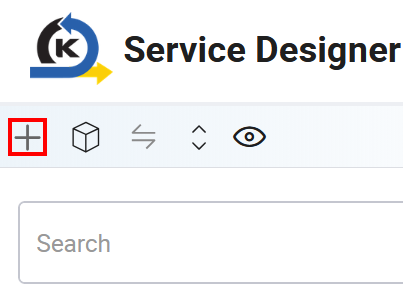
The Add Service window appears for you to define the structure and properties of the new service. For more details, refer to the table below.
Service configuration fields
This table describes each field in the Add Service or Edit Service window.
| Field | Description |
|---|---|
| Name | A descriptive name that reflects the service's function (e.g., "Product" or "UserAuth"). |
| Artifact ID | The unique identifier for the service's build artifact, used for repository management and the build process. |
| Service Package Path | The base Java package for this service (e.g., com.company.project.service). All other packages are created relative to this path. |
| Controller Package | The sub-package for controller classes, which handle incoming API requests. |
| Service Package | The sub-package for service classes, which contain the core business logic. |
| Model Package | The sub-package for data models or entities. |
| DAO Package | The sub-package for Data Access Objects (DAOs), which handle database interactions. |
| VO Package | The sub-package for Value Objects (VOs), which are simple data-holding objects. |
| KAIZEN Version | The KAIZEN platform version this service will be built against. Select a version from the dropdown. |
| Generate service layer classes | When enabled, KAIZEN automatically generates the basic service layer Java classes, reducing boilerplate code. |
| Priority | A number that defines the service's importance or load order relative to other services. |
| Databases | Use the Add Database button to link the service to one or more database connections. For more details, refer to Add a database to a service. |
| API Document URL | An optional URL pointing to the service's external API documentation. |
After filling in the details, click Apply to create the service. It will then appear in the Service panel on the left.
Edit an existing service
As an application develops, you may need to modify existing microservices; for example, add new API endpoints, change database connections, or adjust configurations.
To edit a service, perform the following:
-
Open the Service Designer from the KAIZEN studio console.
-
In the Setting panel, click the name of the service to modify (e.g.,
Product).The Edit Service window opens in the Configuration panel, where you can update any of the service configuration fields, such as name, package paths, and database connections.
-
Click Apply to save your changes.
Add a database to a service
To add a database to an existing service, perform the following:
-
While creating a new service or editing an existing one, scroll down to the Databases section in the Configuration panel.
-
Click the Add Database button.
The Add Database window appears. Configure the connection using the fields described in the table below.
Database configuration fields
This table describes each field in the Add Database or Edit Database window.
| Field | Description |
|---|---|
| Connection | The database server connection to use. Select one from the dropdown. These connections must first be set up in the Database Designer. |
| Password | The password for the selected database connection. Click the Test Connect button to verify the credentials. |
| Database | The specific database to connect to, selected from the list of available databases on the server. |
| DAO Package Path | The Java package path where the Data Access Object (DAO) classes for this database connection will be generated. |
| Tables | A dual-list interface for selecting which database tables to associate with this service. Move tables into the Assigned list to have KAIZEN automatically generate the corresponding DAO code. This gives you precise control over which tables the microservice can interact with. |
After configuring the fields, click Save to link the database to the service.
Last updated on 20 May 2026