Manage datasources
A datasource in the KAIZEN Service Designer represents an API endpoint. It is the specific URL and HTTP method that the frontend calls to communicate with a backend service. By configuring datasources, you connect UI components to live APIs for fetching, creating, or updating data.
Add a new datasource
To add a datasource to a controller, perform the following:
-
In the Setting panel, select the controller. Click the + sign at the Datasource dropdown.
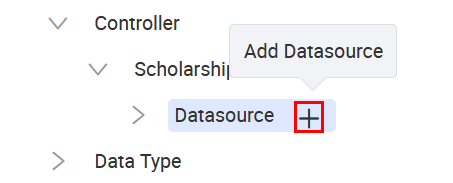
The Add Datasource window appears in the Configuration panel. Define the endpoint's behaviour and parameters. For more information, refer to this table.
Datasource configuration fields
This table describes each field in the Add Datasource or Edit Datasource window.
| Field | Description |
|---|---|
| Datasource ID | A unique identifier for the endpoint within the designer (e.g., getProducts). |
| Identity | The identity of the datasource. |
| Location URL | The API path for the endpoint. This URL must follow the format /gateway/<service-name>/api/v1/... to ensure requests are correctly routed through the KAIZEN gateway to the microservice. |
| Version | The version number for this API endpoint. |
| Method | The HTTP method for the request (e.g., GET, POST, PUT, DELETE). |
| Params | The data the API expects as input. You can add individual parameters (e.g., pageNo, pageSize) or use a predefined data type (e.g., ProductVO) for more complex data structures. |
| Encode Data | When enabled, encodes the data before sending. This can be useful for security or handling special characters. |
| Response Type | The format of the response data (e.g., JSON, Text) that the frontend should expect from the API. |
| Use Global Timeout | When enabled, the endpoint follows the global timeout setting. |
| Timeout (ms) | The maximum time in milliseconds to wait for a response before the request times out. |
| Request Headers | Key-value pairs added to the API request header, often used for authentication tokens or specifying the content type. |
| Add Function | Allows you to create custom functions to manipulate data or process the response after receiving it from the API. |
After configuring the fields, click Apply.
Edit an existing datasource
You can modify existing datasources at any time within the Service Designer. For example, you can update the URL, add or remove parameters, or change the request method (e.g., from GET to POST).
To edit a datasource, perform the following:
-
In the Service Designer, select the service that contains the datasource to edit.
-
Locate the datasource and click its name (e.g.,
getProducts). The configuration view for that datasource appears, where you can modify any of its properties. For more details, refer to this table. -
Click Apply to save the updated configuration.
Last updated on 20 May 2026