Generate the frontend code
Generating frontend code in KAIZEN streamlines your development of modern, responsive user interfaces by transforming your configured UI designs directly into structured ReactJS components. Based on your application design, layouts, and configurations, KAIZEN automatically produces clean and consistent React code aligned with your application architecture.
Once you have completed designing your screens and configuring the frontend logic within the App Designer, KAIZEN seamlessly converts those configurations into production-ready ReactJS code. Your UI structure, component behaviour, and defined interactions are directly translated into a standardised React implementation, ensuring alignment between design-time configuration and runtime application without additional rework.
Generate FE code & download
The Generate Source Code feature provides the option to create the complete frontend ReactJS code and download it as a zip file. This feature is intended for local development, debugging, and manual codebase management.
You can generate the code for your application frontend and download it in studio console.
From the application card
-
In KAIZEN studio console, switch to the correct branch for your FE application.

-
Click the three-dot icon
 and select Generate FE Code & Download.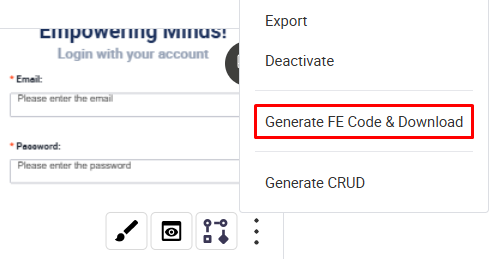
-
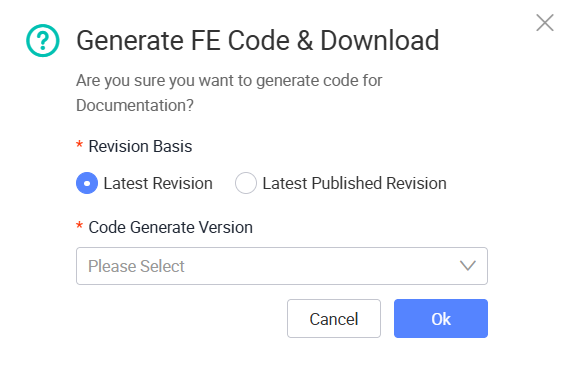
In the Generate FE Code & Download window, you may choose to download the FE Code based on either Latest Revision or Latest Published Revision.
-
Selecting Latest Revision will load the most recent version of the application based on the latest recorded timestamp, regardless of whether it was saved, previewed, or published.
-
In contrast, selecting Latest Published Revision will load the most recent version that was explicitly and manually published, ensuring that only an officially released version of the application is used.
-
The Code Generate Version dropdown allows you to select which version of the code generator to use when producing the output. Choose the appropriate version from the available options to ensure compatibility with your project setup.
For more information about revisions, refer to Revision history.
-
-
Select the Revision Basis, select the Code Generate Version from the dropdown, and click Ok.
A zip file containing the complete ReactJS source code for the service will be downloaded.
Generate FE code & push
The automated Git Push feature is essential for a CI/CD pipeline, streamlining the development and deployment process. Similarly, this feature also generates the frontend code, then automatically commits and pushes the changes to the connected Git repository.
You can generate the code for your application frontend and push it to the connected Git repository either at the project level or in the App Designer.
At the project level
The Push Project option on the project toolbar will commit and push your project applications' FE and BE code into the target branch of your repository. For more details, refer to Push project.
At the application level
-
Use one of the following methods to open the Generate FE Code & Push window:
- In App Designer
- From the application card
In the App Designer, on the Resources panel, click the Git icon
 . The Git panel opens.
Find the target branch and click the Generate FE Code & Push button.
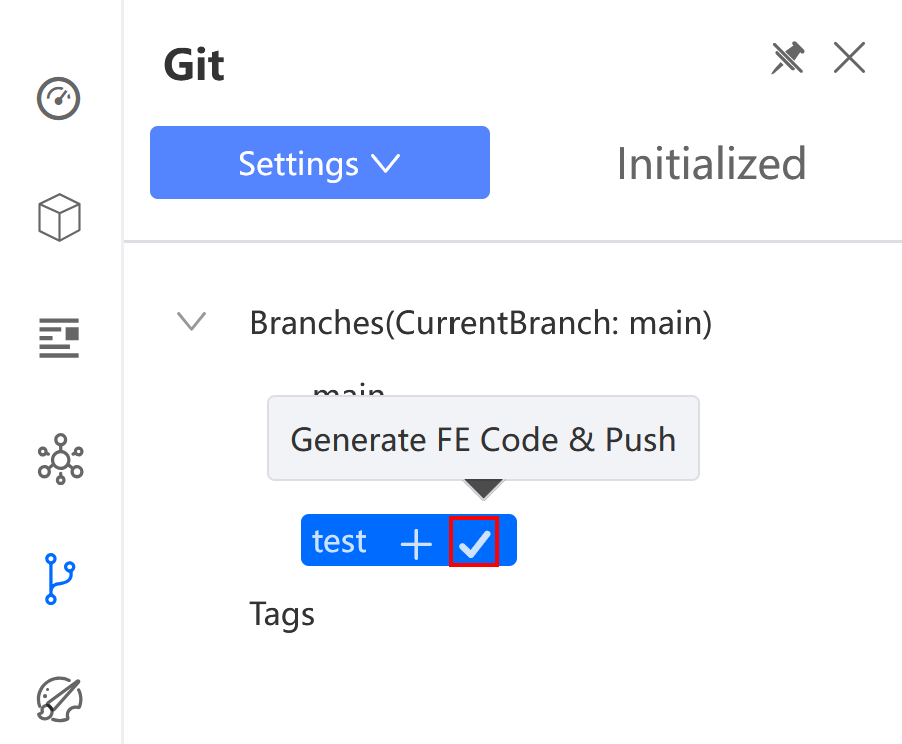
Alternatively, in KAIZEN studio console, switch to the correct branch for your FE application.
Click the three-dot icon
and select Generate FE Code & Push. -
In the Generate FE Code & Push window, provide the following:
-
Commit Message: Enter a descriptive commit message for the push. This field is required.
-
Revision Basis: Select either Latest Revision or Latest Published Revision.
-
Code Generate Version: Select the code generation version from the dropdown.

-
-
Click Commit & Push to start the process. KAIZEN will generate the code and push it to the selected branch in the Git repository, provided that Git integration has been configured and the repository properly initialised.
To view commit history, refer to View commit history.
Last updated on 20 May 2026