Create a new table
To create a table in the Database Designer, perform the following:
-
Start with an empty table
A table is a container for a specific type of data, like the information for products or customers.
-
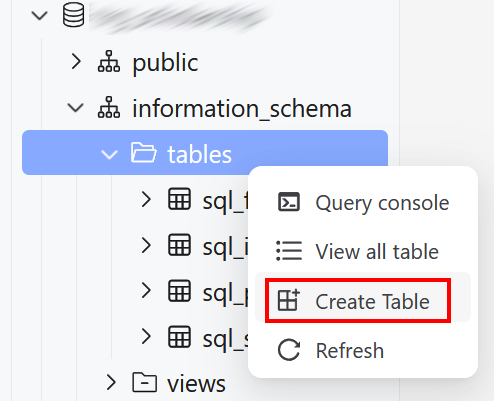
After connecting to your database, on the left side panel, right-click the Tables section within the schema and select Create Table.
-
On the right configuration panel under the Basic tab, enter a descriptive name for the table (e.g.,
product).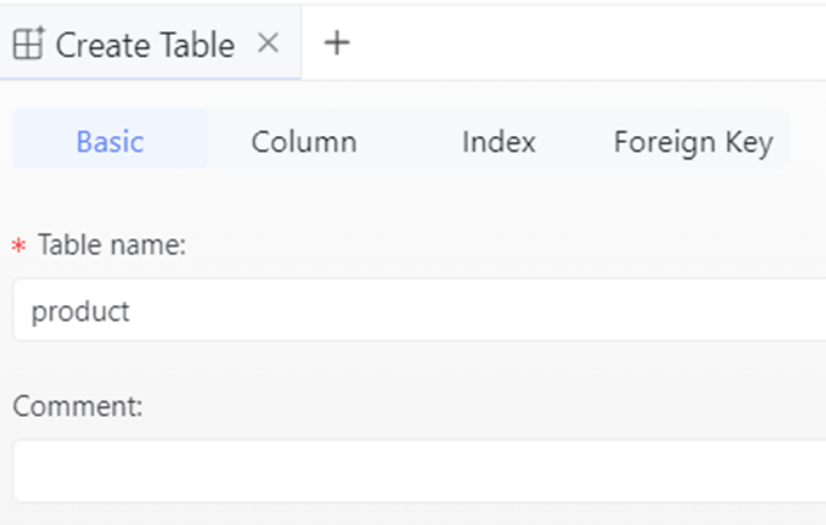
-
-
Define columns and constraints
Columns are the individual fields that make up a table. This is where definition of the structure of the data may be created.
-
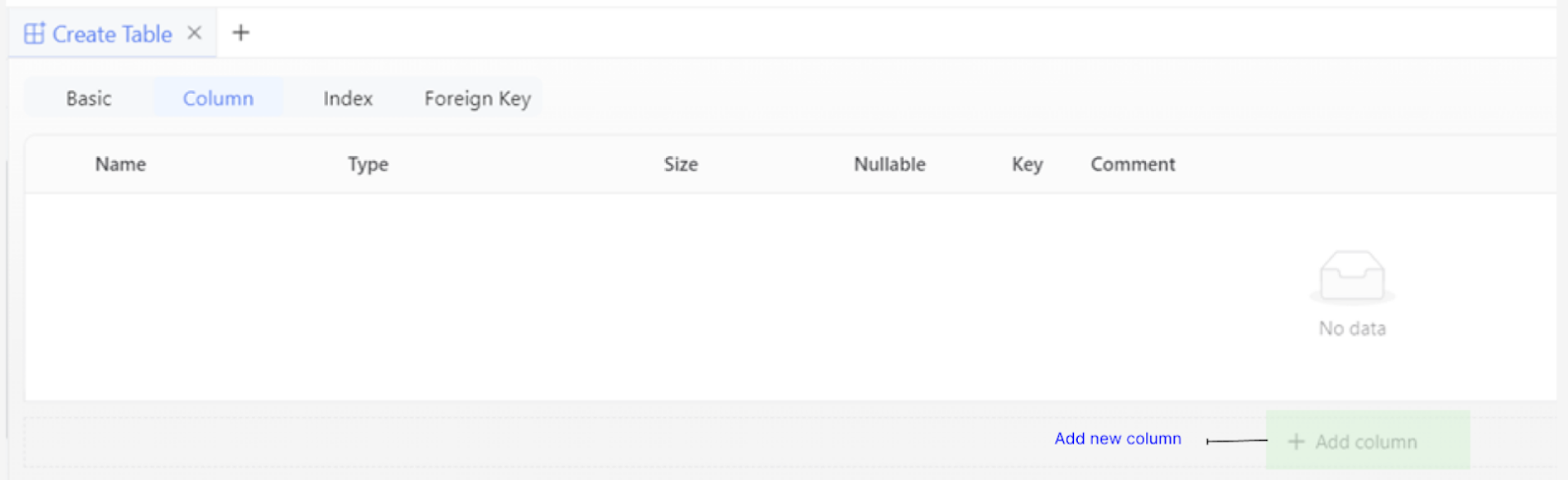
Select the Column tab on the right side panel.
-
Click the Add column button for each field to create.
-
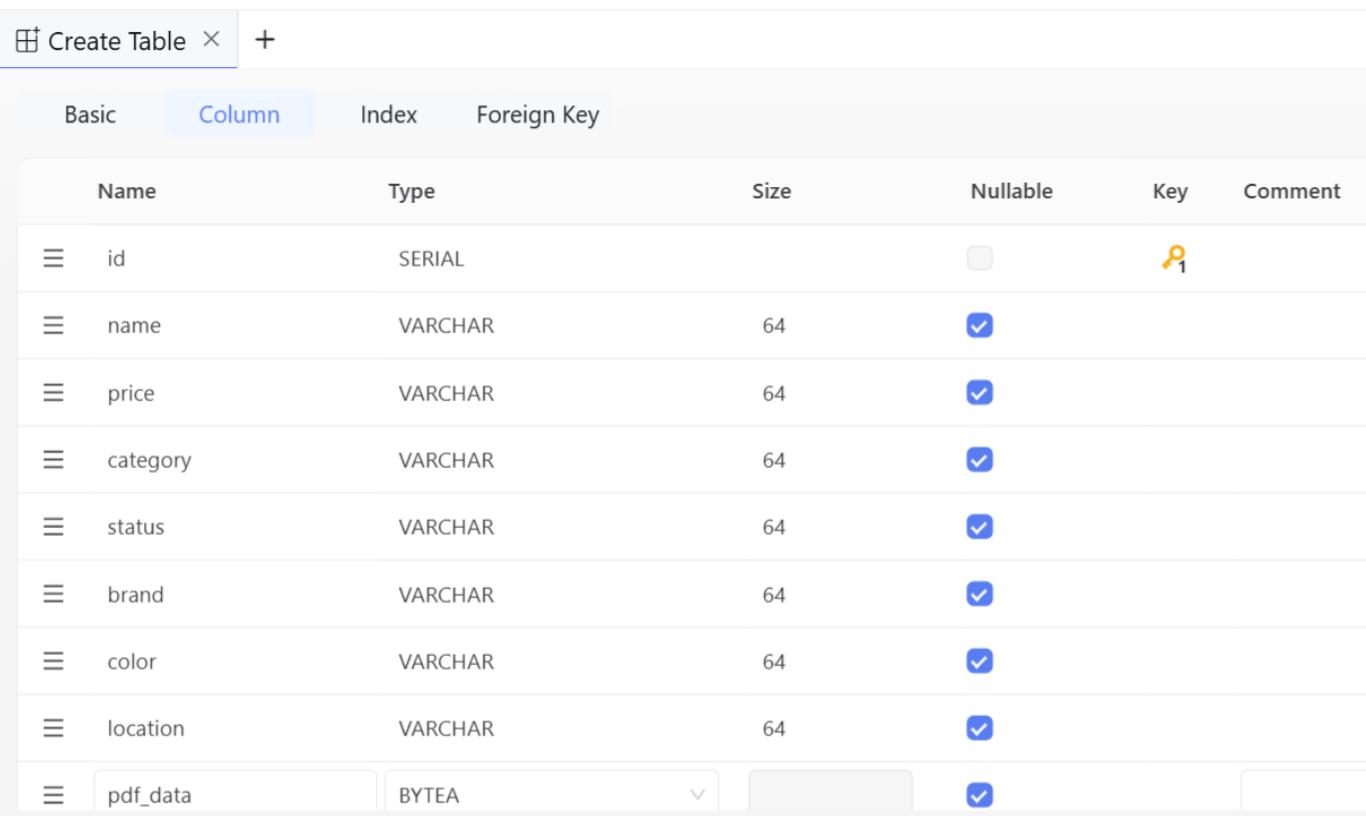
For each column, configure these properties:
-
Column Name: The name of the field (e.g.,
id,name,price,category). -
Data Type: Select the appropriate type from the dropdown, such as SERIAL for an auto-incrementing integer, VARCHAR for text, or BYTEA for binary data like a PDF.
-
Size: Specify the size for variable-length data types like VARCHAR (e.g.,
64). -
Constraints: Apply rules to the column by checking the relevant boxes. The most common constraints are:
-
Key > Primary Key: Marks this column as the unique identifier for each row in the table.
-
Nullable: If unchecked, this field becomes mandatory and must always have a value.
-
-
-
Execute the script and finalise
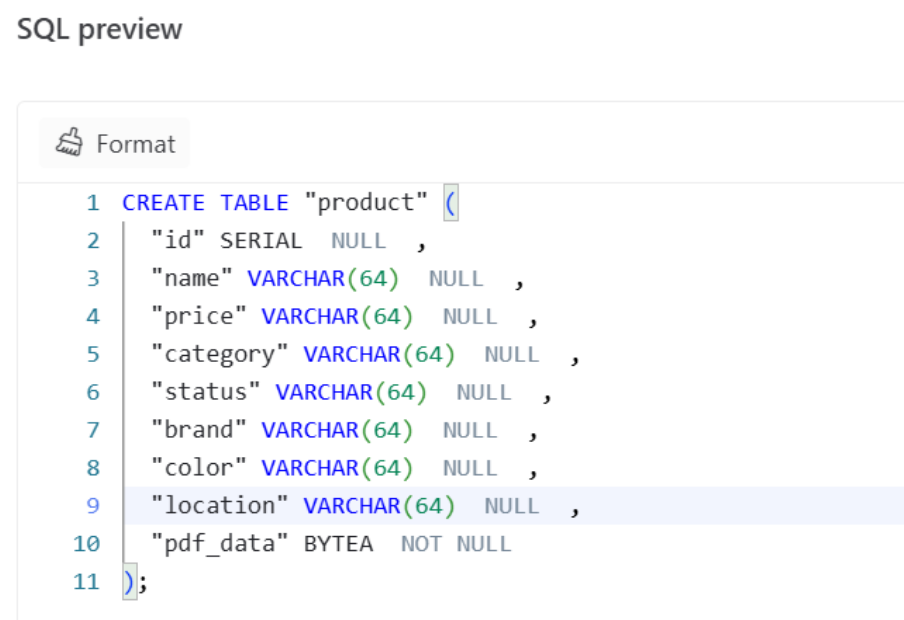
KAIZEN provides a live SQL preview of the CREATE TABLE statement.
-
After all the columns and constraints are defined, review the generated SQL script in the preview panel.
-
Click the Run button to execute the script. KAIZEN will create the physical table in the connected database.
The new table will be listed under the Tables section.
-
Last updated on 20 May 2026