Connect to the database server
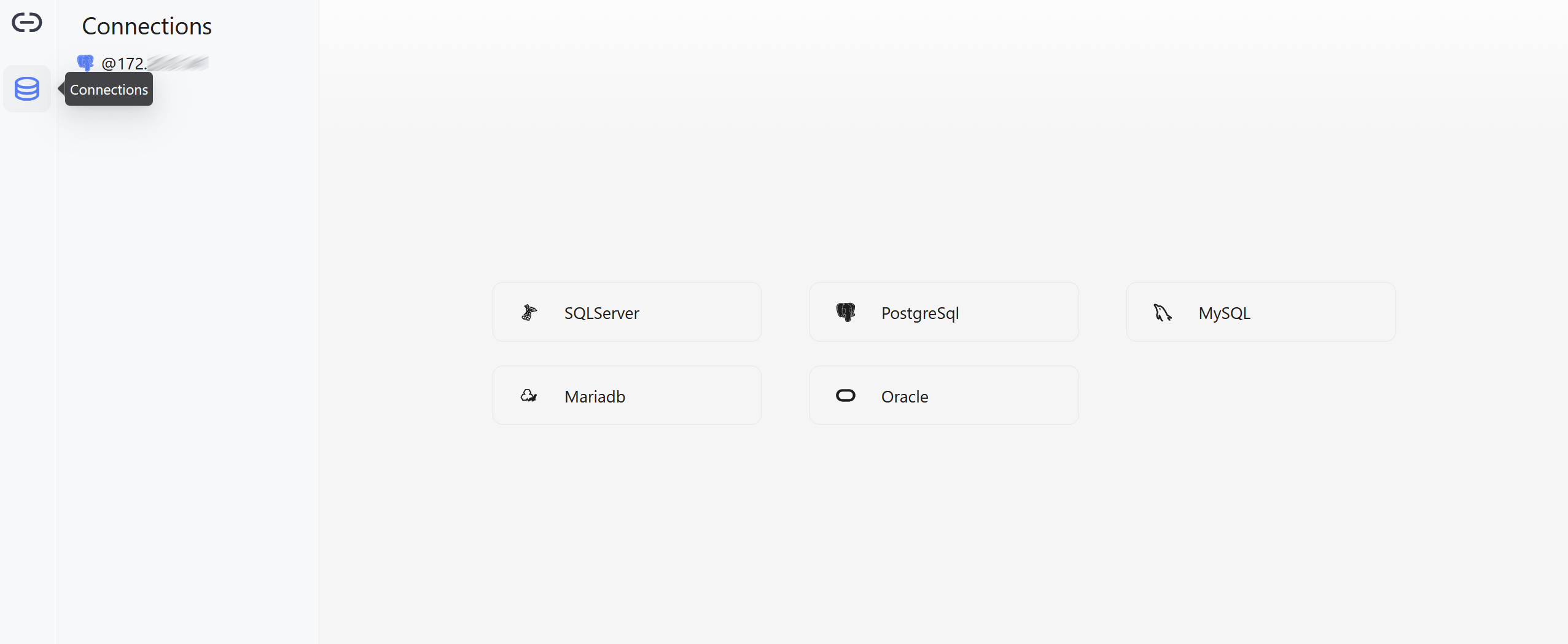
Before designing the physical model, establish a connection to your database server. The Database Designer supports SQLServer, PostgreSql, MySQL, Mariadb, and Oracle.
Create a database connection
-
In KAIZEN Studio Console, find the project and click Database Designer
 .
.
-
In the designer, click Connections on the navigation bar, then click the + sign to create a new connection. Select the target database type.
-
Fill in the connection details in the configuration panel.
Field Mandatory Description Name Yes A unique, descriptive name for the connection. This is used to identify the connection in the Resources panel. Host Yes The hostname or IP address of the database server. Port Yes The port number used by the database server. Authentication Yes The authentication method for the connection. Select from the dropdown (e.g., Username & Password). User Yes The username to authenticate with the database server. Database Yes The name of the specific database to connect to. Supported databases include SQLServer, PostgreSql, MySQL, Mariadb, and Oracle. URL No The JDBC connection URL. This field is auto-generated based on the Host, Port, and Database values. Enable TLS No Toggle to enable TLS encryption for the connection. Optionally, expand Advanced Configuration to add custom connection properties as key-value pairs.
-
Click Test to verify the connection. Once successful, click Save.

Last updated on 20 May 2026