Manage roles
You need the admin rights to use this feature.
To help you get a better understanding of role management, the following list shows the relationship between users and roles:
- Roles define what actions a user can perform by grouping privileges.
- Users can have multiple roles, enabling flexible access control.
- Roles are reusable and can be assigned to multiple users.
KAIZEN offers some predefined roles that can be assigned to users, such as Project Manager, Developer, UI Designer, External Viewer and so on. Each role is tailored with specific access levels, enabling precise control over features and functionalities for managing both applications and the overall project.
| Subject Type | Role Name | Description |
|---|---|---|
| Project | Project Manager | See this table for details on roles at the project level |
| Business Analyst | ||
| Maintainer | ||
| Application | Application Leader | See this table for details on roles at the application level |
| Application Manager | ||
| Developer | ||
| UI Designer | ||
| Internal Viewer | ||
| External Viewer |
Subject definition and example
Subject provides a contextual layer within the RBAC model by defining the scope in which roles and privileges apply. This enables fine-grained access control by allowing roles and privileges to be configured and grouped according to specific functional areas or modules, ensuring that permissions are applied only within the relevant subject context to meet unique business requirements.
For example, in KAIZEN App Designer, we have roles and privileges for Application level. The Application Manager of the application can assign members to access the application.
How a Subject works
We can use Subject to add RBAC control to the data level. In a Recruitment Management system, we can use Subject to control the access rights for each job application.
Imagine a recruitment system where different individuals take on roles such as Hiring Manager, HR, and Job Applicant. Each role comes with specific privileges, but access to the job applications should be restricted based on assignment.
- Admin users may oversee job application management but should not influence any outcomes of the hiring process.
- Job Applicants should only access the job applications they are submitting, but they cannot assign Hiring Managers.
- Hiring Managers should have full decision-making privileges over the job applications they are assigned to, but they cannot access or modify job applications they are not involved in.
In this scenario, the job application itself acts as the Subject. A hiring manager is not simply assigned a role, they are assigned a role in relation to a specific application.
An example of assigning job applications to hiring managers
Consider Hiring ManagerAlice and Hiring ManagerBob. They are having the same role, but their privileges are scoped to the job applications they review.
- Alice is assigned with Hiring Manager role to Job Application #1001. She can review applicant information, download resume, and set interviews.
- Bob is assigned with Hiring Manager role to Job Application #1002. He has similar privileges but only within the context of the job openings he provides.
- Neither Alice nor Bob can interfere in each other's recruitment, even though both are Hiring Managers.
This fine-grained control is achieved by defining the job application as a Subject, ensuring that privileges are only valid within the assigned scope.
Manage the roles
To manage the roles, perform the following:
-
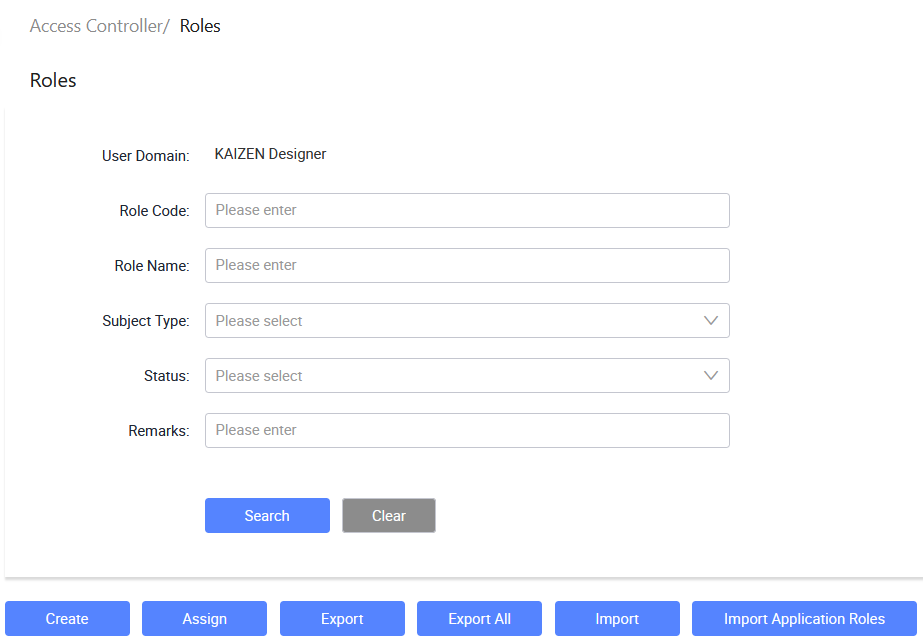
In the KAIZEN studio console, on the left panel, click Access Controller > Roles.
The Access Controller/ Roles page displays.
-
From here, you can create new roles, import or export roles, assign privileges to a role, and so on. Each row in the table provides the following actions under the Actions column:
- View: Opens the role details in read-only mode.
- Edit: Opens the role details for editing.
- More: Expands a dropdown with additional actions: Assign, Deactivate, and Export.
Create a new role
-
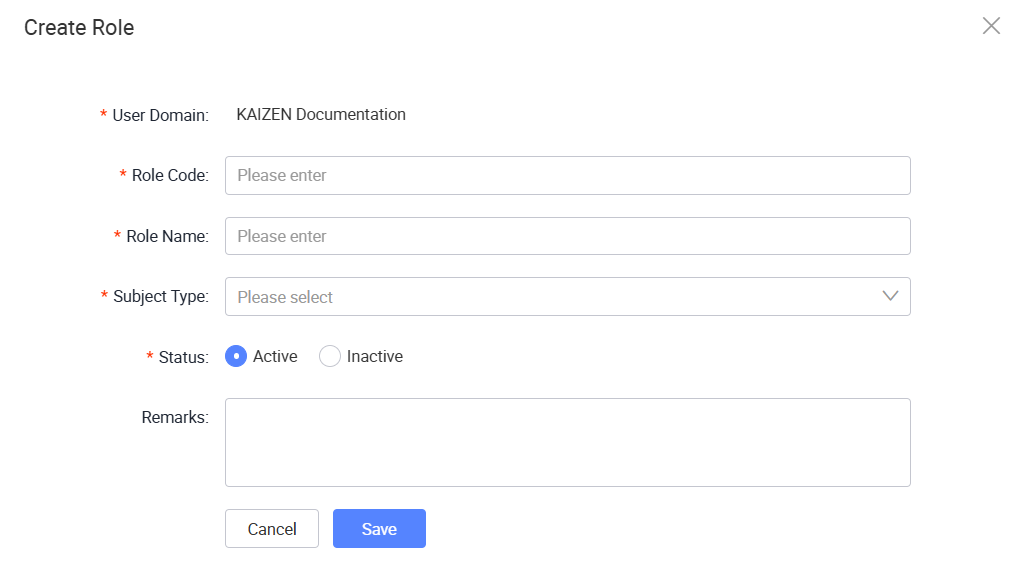
In Access Controller/ Roles, click Create.
-
In the Create Role window, enter the role information in these fields and click Save.
Search roles
To search for roles, perform the following:
-
In Access Controller/ Roles, enter or select the search criteria.
Field Description User Domain Displays the user domain for the current session. Role Code Search for roles by their role code. Role Name Search for roles by their role name. Subject Type Filter roles by subject type. Status Filter roles by their status. Remarks Search for roles by remarks or notes. -
Click Search to find the result.
Assign privileges to a role
To assign privileges to a role, perform the following:
-
In Access Controller/ Roles, open the Role Assignment window using one of the following methods:
- Select the role and click Assign at the top of the page.
- Click More on the same row as the role, then click Assign.
-
In the Role Assignment window, review the selected role and its user domain.
The window contains the following sections:
Section Description Assigned Privileges Lists the privileges that are currently assigned to the role. Available privileges Lists the privileges that can be assigned to the role. -
Use Search in either section to find specific privileges.
-
To assign privileges, select the privileges from the list of available privileges and click Add.
Deactivate a role
You cannot deactivate a Role if it is currently associated with an Active or Scheduled Workflow. Deactivate or complete the associated workflows before deactivating the role.
To deactivate a role, perform the following:
-
Click More on the same row as the role, then click Deactivate.
-
In the confirmation dialog, click OK.
A success message will confirm that the role has been deactivated. The role status will change from Active to Inactive.
After the deactivation, you have the option to reactivate it by clicking More > Activate.
Export roles
To export a role, perform the following:
-
In Access Controller/ Roles, select the role you want to export.
-
Open the Export function using one of the following methods:
- Click Export at the top of the page.
- Click More on the same row as the role, then click Export.
-
The Confirm window pops up, asking for confirmation. Click OK.
An
XMLfile containing the selected role information will be downloaded in your browser.
Export all roles
To export all roles, perform the following:
-
In Access Controller/ Roles, click Export All.
-
The Confirm window pops up, asking for confirmation. Click OK.
An
XMLfile containing the information of all roles will be downloaded in your browser.
Import roles
To import roles from an existing XML file, perform the following:
-
In Access Controller/ Roles, click Import. The File Explorer window opens.
-
Browse to the
XMLfile that contains the role information. Click Open.A message will pop up, showing the import is successful.
Import application roles
To obtain an XML file containing role information at the application level, refer to Export a role.
To import application roles from the XML file, perform the following:
-
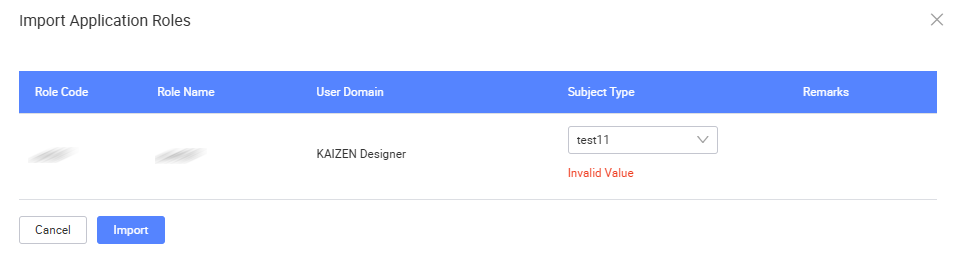
In Access Controller/ Roles, click Import Application Roles. The File Explorer window opens.
-
Browse to the
XMLfile that contains the application-level role information. Click Open. -
The Import Application Roles window opens. Select a Subject Type and make sure it is valid.
-
Click Import. A message will pop up, showing the import is successful.
Last updated on 21 Sep 2026