Workflow Designer overview
Workflow Designer is a visual development tool within KAIZEN for building and managing backend process logic. It uses the BPMN 2.0 standard to model high-level, multi-step business processes such as approval flows, data processing pipelines, and automated task routing. It also supports the Decision Model and Notation (DMN) standard for modeling decision logic such as decision tables and decision diagrams.
In KAIZEN studio console, find your app and click  to open the Workflow Designer.
Workflow Designer layout
The Workflow Designer is organised into these main areas:
-
Element palette (left): A vertical toolbar containing draggable elements that you can place on the canvas. For BPMN models, elements are organised by events, gateways, activities, tasks, and artifacts. Refer to BPMN elements for details. For DMN models, the palette provides decision diagram elements. Refer to DMN elements for details.
-
Canvas (centre): The main workspace where you visually compose your workflow by placing elements and connecting them with sequence flows. You can pan, zoom, and select elements on the canvas. When you select an element, a context pad appears around it with quick actions. Refer to Context pad actions for details.
-
Properties panel (right): Displays the configuration for the currently selected element. For BPMN models, the content changes depending on whether you select the process background, a task, a gateway, or a sequence flow. For DMN models, the content is also based on the selected model.
-
Header bar (top): Contains the Workflow Designer title, a link to the documentation, the active branch indicator, and the current user profile. Click the branch indicator to open the Branches panel and manage branches. Refer to Manage branches for details.
-
Tab bar (bottom): Shows open workflow tabs. Each tab displays the workflow model type (BPMN or DMN), name, and version. Click the arrow icon on a tab to open the bottom menu with actions such as Save, Export, and Deploy.
BPMN elements
The element palette provides the following draggable elements, listed in the order they appear in the palette. For more details on the properties for each task, refer to Workflow elements.
| Element | Description |
|---|---|
| Start Event | Marks the beginning of a process. Every workflow must have at least one start event. |
| Intermediate/Boundary Event | Represents something that happens between the start and end of a process (intermediate), or an event attached to the boundary of an activity that triggers when a specific condition occurs during execution (boundary). |
| End Event | Marks the end of a process path. When all active tokens reach an end event, the workflow instance completes. |
| Gateway | A branching point that controls the flow of the process. Use the context pad to change the gateway type (Exclusive, Parallel, or Inclusive). |
| Task | A generic unit of work within a process. Use the context pad to change the task type to a specific type such as User Task or HTTP Task. |
| Expanded Sub-process | A composite activity that contains a nested set of activities within a single, expandable container on the canvas. |
| Decision Task | Evaluates a DMN decision model. |
| WaitForTrigger Task | Pauses the workflow and waits for an external trigger or cron schedule. |
| User Task | A task performed by a human user. |
| HTTP Task | Makes HTTP requests to external or internal APIs. |
| Javascript Task | Executes JavaScript code within the workflow engine. |
| JDBC Task | Executes SQL queries against a database. |
| AI Agent Task | Executes an AI agent workflow. Requires an advanced subscription. |
| AI Prompt Task | Executes a prompt against an AI model. Requires an advanced subscription. |
| Retrieve Embedding Task | Queries a vector database for stored embeddings. Requires an advanced subscription. |
| Generate Store Embedding Task | Generates vector embeddings and stores them in a vector database. Requires an advanced subscription. |
| Data Object Reference | Represents a data object used or produced during the process. Does not affect process execution. |
| Data Store Reference | Represents a persistent data store that the process reads from or writes to. Does not affect process execution. |
| Pool/Participant | A container that represents a participant in a collaboration. Pools can contain their own process flow. |
| Group | A visual grouping of elements for documentation purposes. Does not affect process execution. |
DMN elements
When editing a DMN model, the element palette provides draggable elements for building a decision diagram. For more details on the properties for each element, refer to Workflow elements.
| Element | Description |
|---|---|
| Decision | Represents a decision to be made. A decision uses input data and/or other decisions to produce an output through decision logic such as a decision table. |
| Input Data | Represents external data used as input to one or more decisions. |
| Knowledge Source | Represents an authority or reference for a decision or business knowledge model, such as a policy document or regulation. |
| Business Knowledge Model | Represents reusable decision logic that can be invoked by one or more decisions. |
Context pad actions
When you select an element on the canvas, a context pad appears around it with quick-action icons:
| Action | Description |
|---|---|
| Append End Event | Add an End Event connected to the selected element. |
| Append Intermediate/Boundary Event | Add an Intermediate/Boundary Event connected to the selected element. |
| Append Gateway | Add an Exclusive Gateway connected to the selected element. |
| Append Task | Add a new Task connected to the selected element. |
| Add Text Annotation | Add a text annotation linked to the selected element for documentation purposes. |
| Connect to Other Element | Draw a sequence flow from the selected element to another element on the canvas. |
| Change Element | Replace the selected element with a different element type (for example, change a Task to a User Task). |
| Delete | Remove the selected element and its connections from the canvas. |
| Set Colour | Set a custom colour for the selected element to visually organise the diagram. |
Create a workflow model
To create a new workflow model:
- Click the + button on the tab bar at the bottom of the Workflow Designer.
- In the Workflow Model dialog, select BPMN for a process workflow or DMN for a decision model.
- Follow the steps for your selected model type.
- BPMN
- DMN
- Select a creation mode from the dropdown:
- Create New Workflow: Start with a blank canvas.
- Create From Template: Select an existing active template as a starting point.
- Import Existing Workflow: Upload a BPMN
XMLfile.
- Enter a name for the model in the Name field.
- Click + Create.
- Enter a name for the model in the Name field.
- Optionally, under Import Existing Model, click Select File to upload an existing DMN file.
- Click + Create.
The new workflow model is created in Draft status.
Open an existing workflow
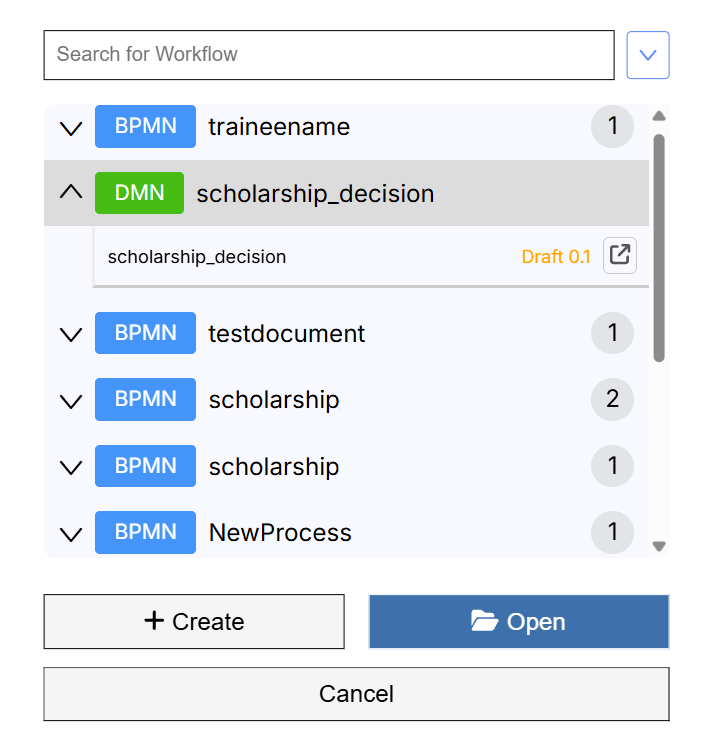
Use the Search for Workflow field to filter workflows by name. The search is case-sensitive. You can also filter by model type (BPMN or DMN). Each workflow in the list shows:
- Model type badge (BPMN or DMN)
- Workflow name
- Version: Deployed workflows display as
Rev. {revision}. Workflow draft(s) will display in an organised dropdown. Select the draft revision you want to open from the dropdown.
Select a workflow and click Open, or double-click a workflow to open it directly.
Canvas tools
The top of the element palette provides four tools for interacting with the canvas:
| Tool | Description |
|---|---|
| Hand Tool | Click and drag to pan around the canvas without selecting or moving elements. |
| Lasso Tool | Click and drag to draw a free-form selection area around multiple elements. |
| Space Tool | Click and drag to create or remove horizontal and vertical space between elements on the canvas. |
| Connect Tool | Click a source element and then click a target element to draw a sequence flow between them. |
Bottom menu actions
Click the arrow icon on the tab bar to open the bottom menu. The available actions depend on the workflow status and editor mode:
| Action | Description | Availability |
|---|---|---|
| Save | Save the current workflow as a draft. | Draft workflows only. |
| Close | Close the current workflow tab. | Designer mode. |
| Clone | Opens the Enter new Process ID window, where you provide a new process ID to duplicate the current workflow under a different name. | Always available. |
| Export as BPMN | Download the workflow definition as a BPMN XML file. | Available unless restricted by subscription. |
| Export as SVG | Download the workflow diagram as an SVG image. | Always available. |
| Git Commit & Push | Commit and push the workflow changes to the Git repository. | Available only when the project has been initialised. |
Token Simulation
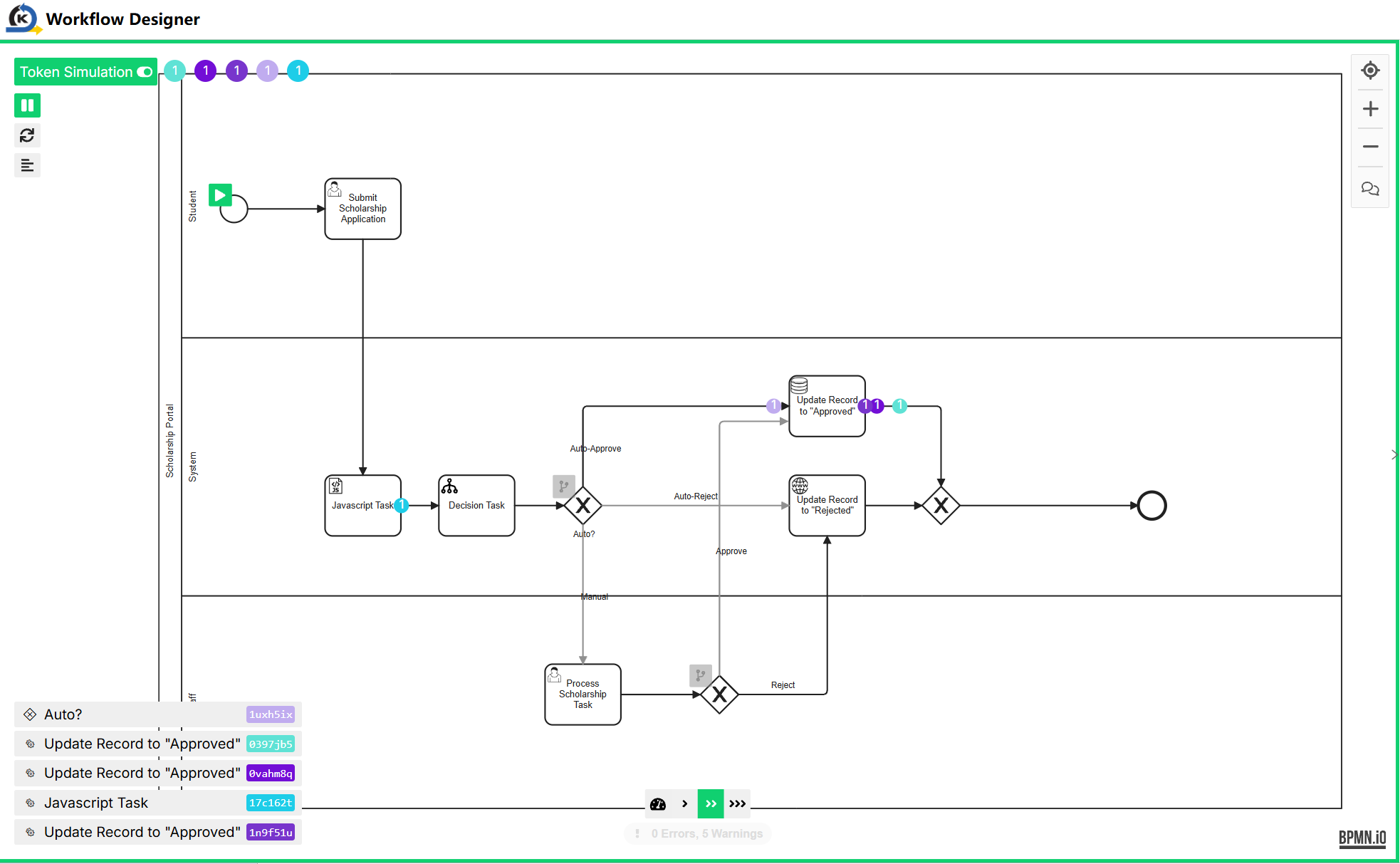
Token Simulation provides a visual representation of workflow execution. You can switch on the Token Simulation toggle on the top left of the Workflow Designer to understand how tokens flow through your process.
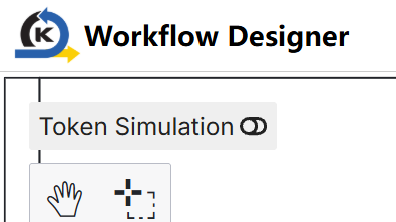
When this toggle is switched on, you can click the arrow icon at the Start Event to view the simulated flow of your BPMN file. The following shows an example:
Last updated on 20 May 2026