Module 3. Workflow Designer
In this module, you will explore the visual process orchestration capabilities of KAIZEN. You will inspect how business processes are represented using standard structural notations, how routing decisions are automated using the platform's decision rule engine, and how external services, database queries, and manual operations execute harmoniously across visual lanes.
3.1 Accessing the Workflow Designer
Goal
Navigate to the Workflow Designer from the console home and load the core process map.
Inspection Tour
-
From your KAIZEN Cloud console home screen, locate your Scholarship application card in the workspace.
-
On its project toolbar, click the Workflow icon
 to launch the Workflow Designer in a new tab.
 -
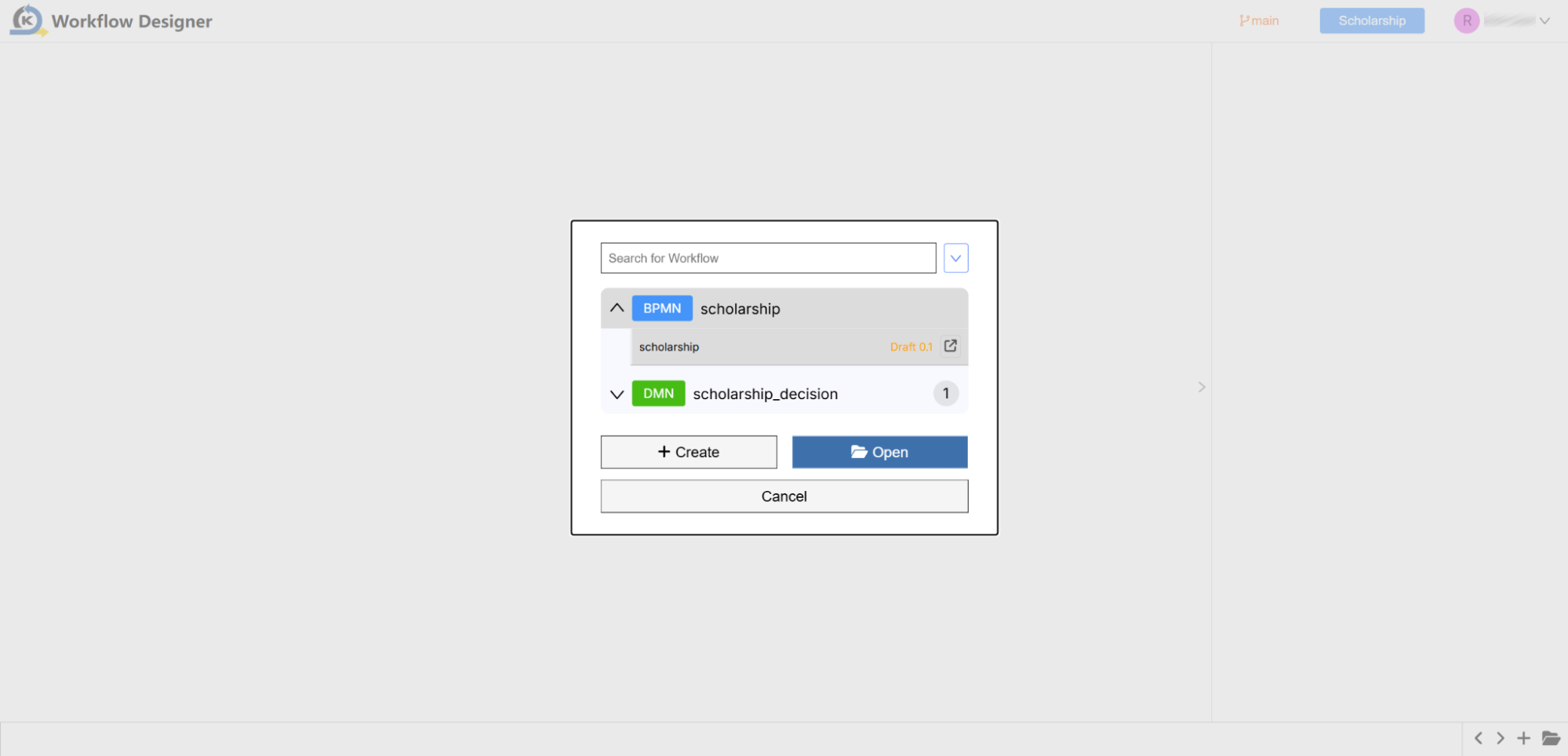
Upon loading, click the folder icon in the bottom-left corner of the workspace to open the project files selection list.
-
Expand the BPMN list, select the pre-built process named scholarship, and click the Open button to render the visual workflow canvas on your screen.
3.2 Why ISO-Standard BPMN 2.0 is Superior
Instead of locking your organisation into a completely proprietary, black-box flowcharting tool, KAIZEN builds on BPMN 2.0 (Business Process Model and Notation)—the global ISO/IEC 19510 standard for business process modelling.
Architectural Advantages of BPMN 2.0
-
Standardised Layout Portability: Standardised BPMN XML schemas are portable. While running specialised, pre-integrated tasks (such as KAIZEN's optimised JDBC or HTTP adapters) relies on KAIZEN's custom runtime engine, your underlying visual process diagrams and logical flow definitions can be easily exported and mapped across standard enterprise suites.
-
Unified Business-IT Language: In proprietary flow engines, visual diagrams are mere "drawings" that developers must manually translate into code. BPMN 2.0 is an executable standard. The visual flowchart is the actual code running on the background orchestration engine, removing manual translation layers.
-
Semantic Rigour: BPMN 2.0 defines precise, unambiguous symbols for events, gateways, loop structures, and task behaviours. This eliminates guesswork, ensuring that auditors, analysts, and system architects share a single source of truth.
3.3 Understanding Swim Lanes & Visual Structure
Concept: Actor Segmentation
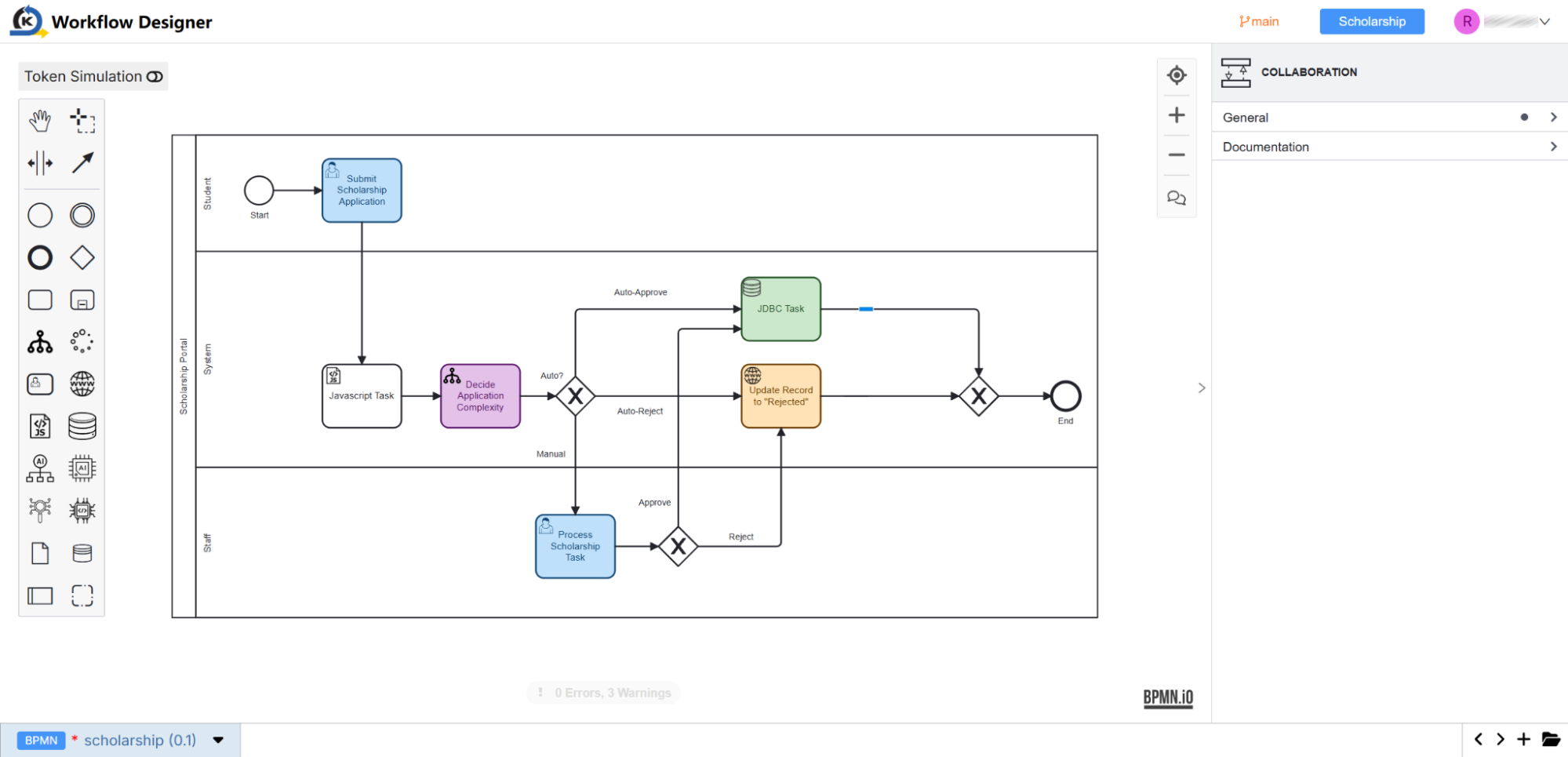
Look closely at the primary visual grid of the scholarship workflow canvas. You will see that the canvas is separated horizontally into distinct boundaries called Swim Lanes.
Inspection Tour
These lanes structure tasks based on the specific actor or subsystem responsible for executing them:
-
Student Lane (Top): Houses actions taken directly by applicants, such as form submissions.
-
System Lane (Middle): Handles automated operations, such as running scripts, calling decision tables, interacting with databases, or invoking APIs.
-
Staff Lane (Bottom): Organises manual tasks requiring back-office human evaluations and interventions.
3.4 Tracing the Application Lifecycle
Goal
Step through the sequential execution path of an application instance.
Inspection Tour
-
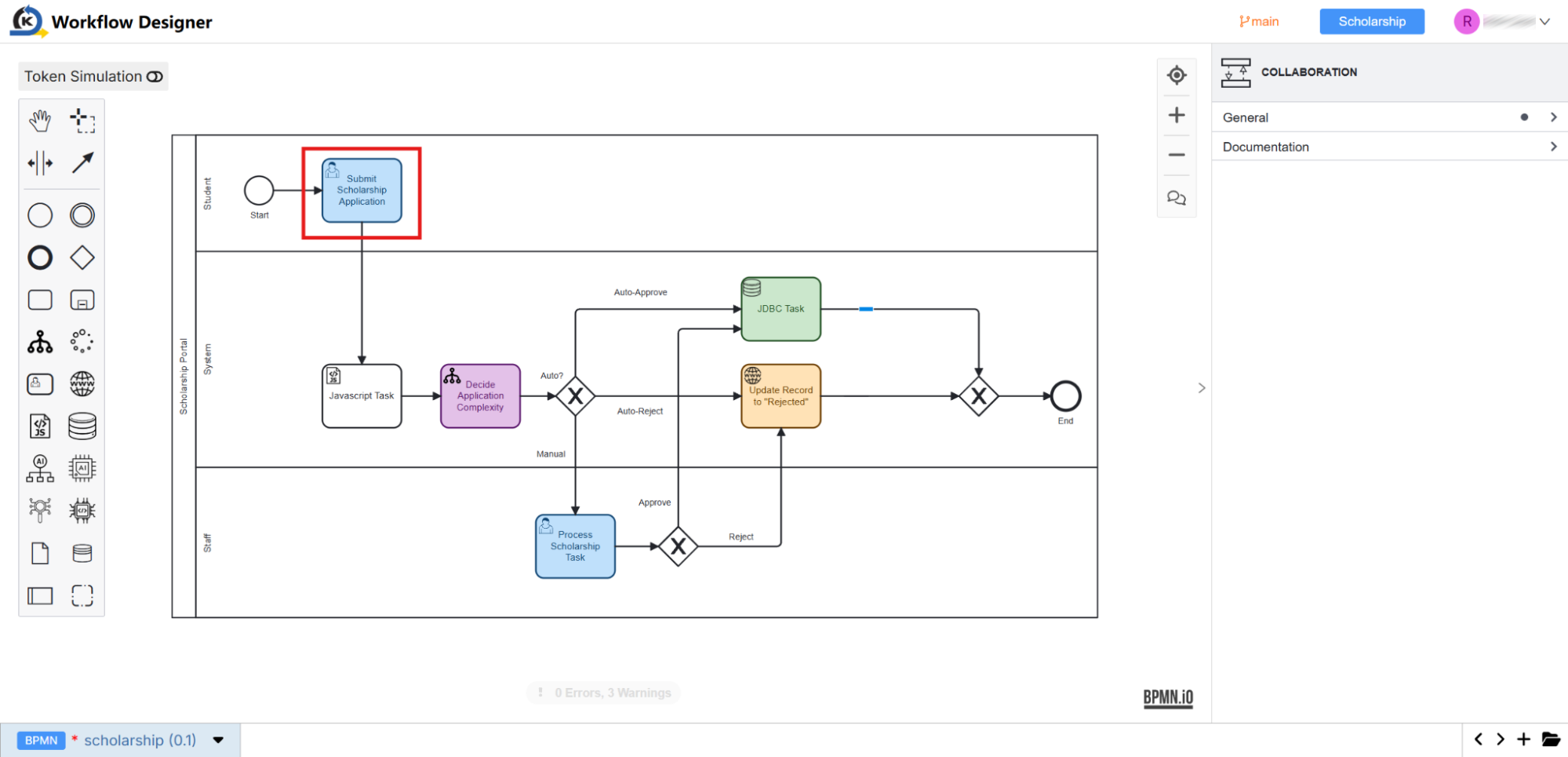
Submit Scholarship Application (User Task)
-
Visual Representation: Find this node at the starting event of the top Student lane.
-
Runtime Mechanics: This represents the student intake form. When you completed and submitted the scholarship application form during the live preview in Module 2, the frontend programmatically triggered this process instance, automatically resolving and completing this initial visual human block.
-
-
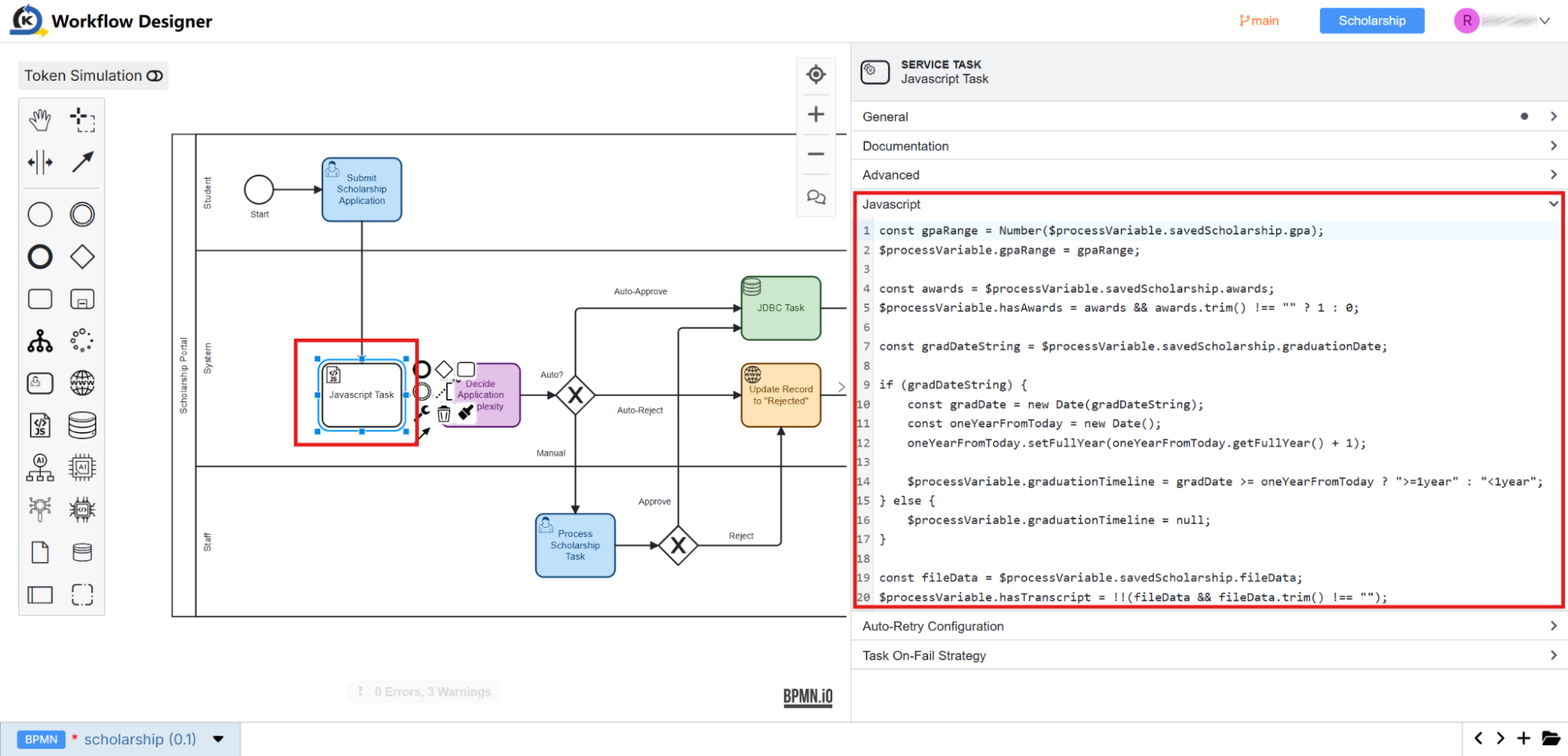
Javascript Task (Data Manipulation)
-
Visual Representation: Situated immediately downstream in the middle System lane.
-
Runtime Mechanics: Once submitted, the active workflow token moves to this system task. Here, KAIZEN executes client-defined, lightweight background scripts to sanitise or format inputs.
-
Process Variable Scope: When this instance initialises, all payload fields submitted from the form are preserved inside the Process Variables namespace. Unlike transient local page states, process variables reside globally within the persistent workflow instance context, ensuring data is safely passed from step to step.
-
3.5 Inspecting the Decision Rule Engine (DMN)
Goal
Examine how complex conditional routing rules are decoupled from backend code and configured visually inside a Decision table.
Concept: Zero-Code Decision Tables
Instead of writing nested programming rules, KAIZEN uses the standard DMN (Decision Model and Notation) framework. The process invokes a centralised decision matrix, receives calculated output variables, and routes elements dynamically based on those values.
Inspection Tour
-
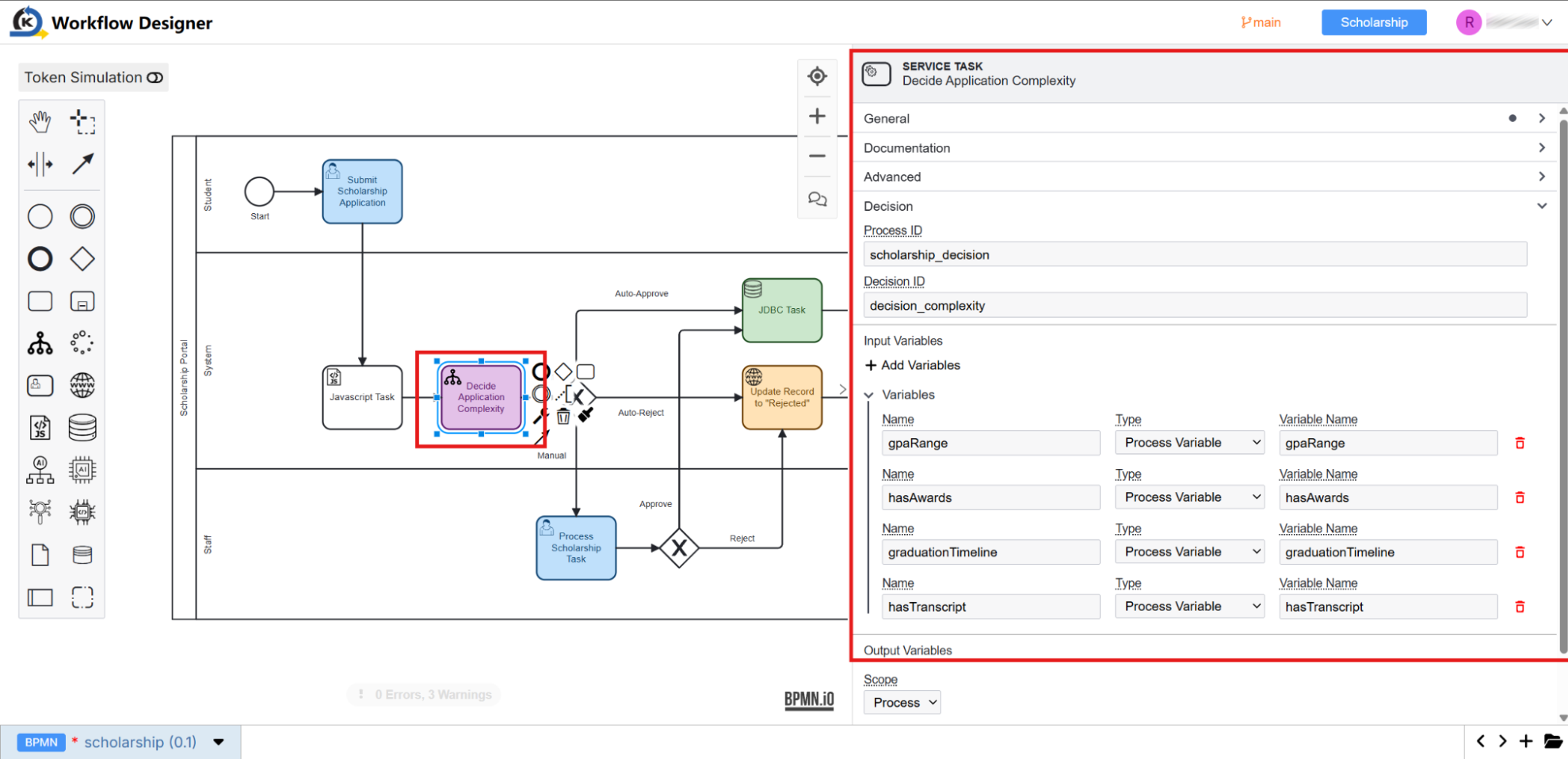
Select the purple Decide Application Complexity node on the main canvas.
-
Look at the properties inspector on the far right under the Decision tab.
noteThe task points to:
- Process ID: scholarship_decision
- Decision ID: decision_complexity
- Input Variables: Binds local process variables (such as gpaRange, hasAwards, graduationTimeline, and hasTranscript) directly to the decision engine schema.
-
Click the folder icon in the bottom left corner, expand the DMN list, select
scholarship_decision, and click Open.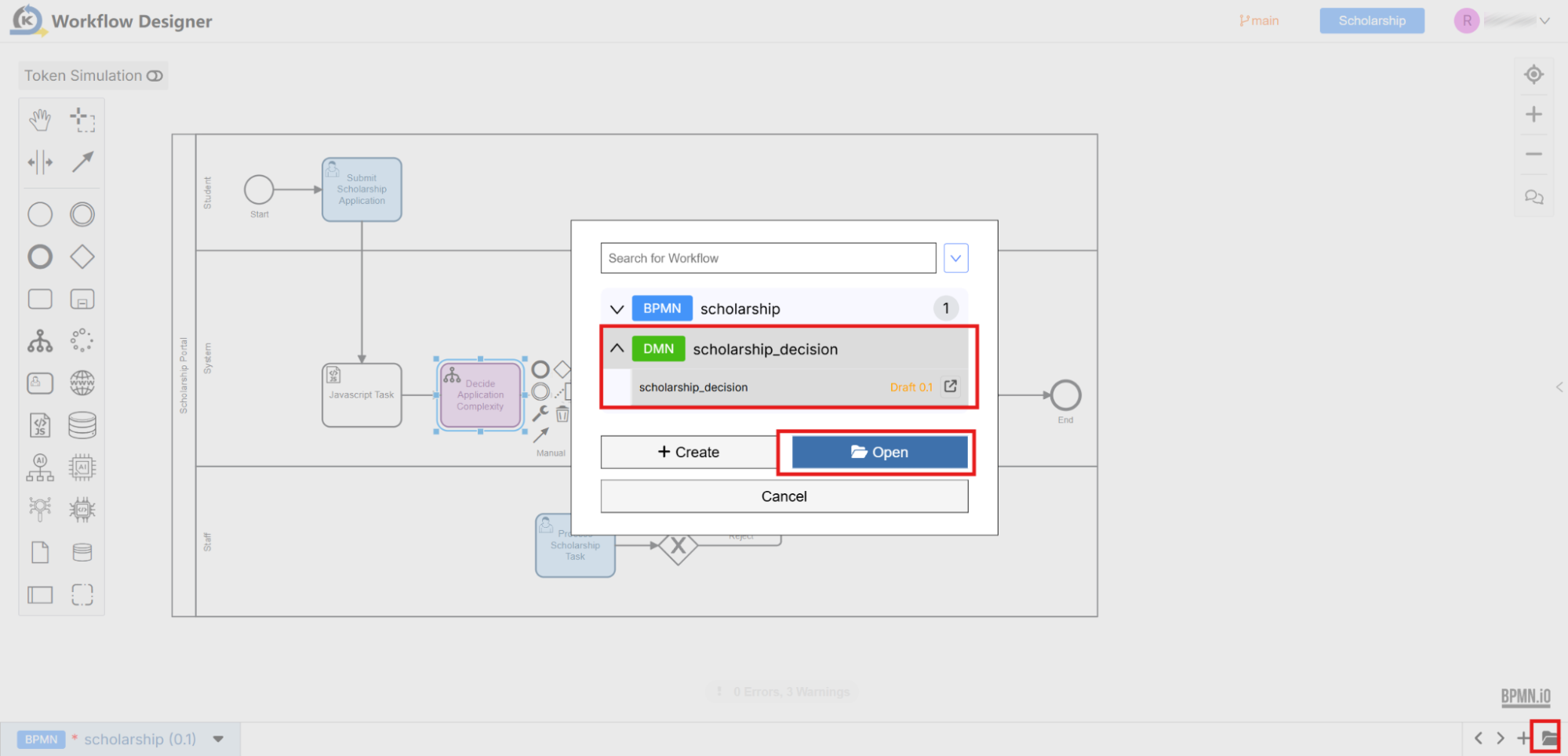
-
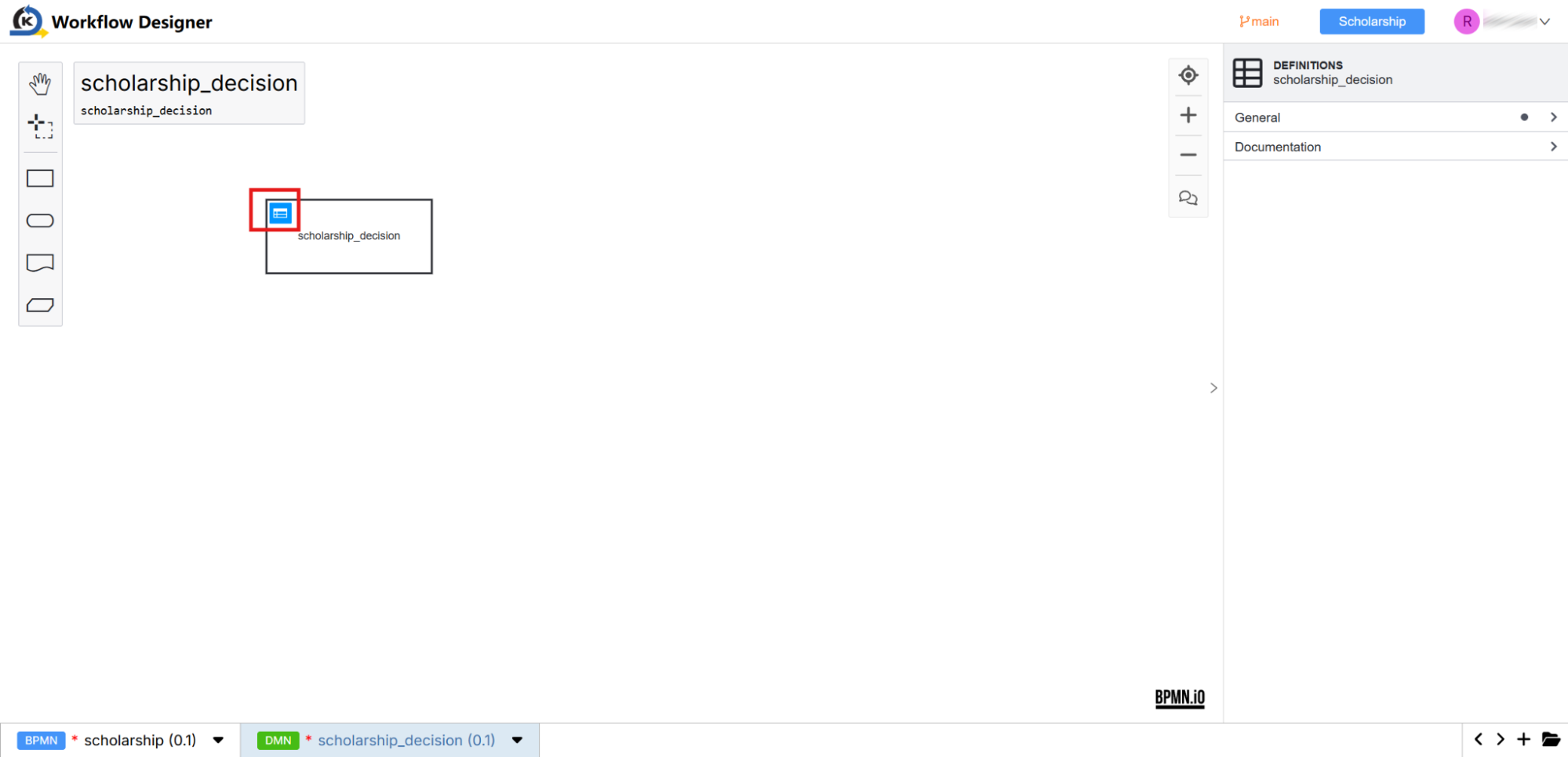
Once the DMN canvas loads, click directly on the table grid icon or click the Open decision table action overlay.
-
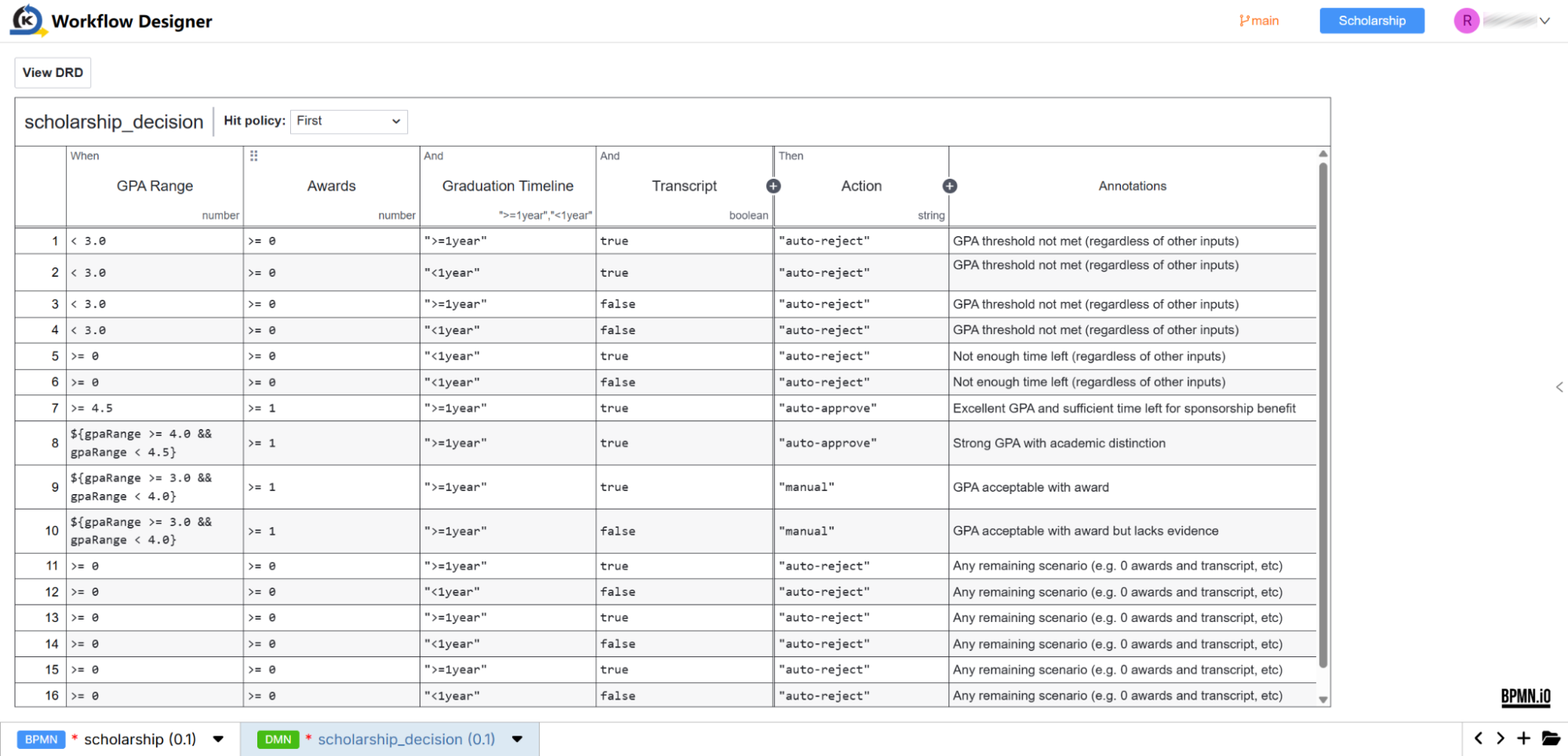
In the loaded Decision Table grid, observe how business rules are visually constructed:
-
Hit Policy (First): Evaluates rules from row 1 downward, stopping and returning output values the moment the first matching row criteria is met.
-
Input Columns (GPA Range, Awards, Graduation Timeline, Transcript): Evaluates conditions (such as GPA ranges formatted as $GPA < 3.0$ or $GPA \ge 3.0$).
-
Output Column (Action): Computes a string value returning "auto-reject", "auto-approve", or "manual".
-
-
This layout allows business managers to modify, adjust, and deploy complex organisational guidelines (e.g., changing GPA cut-offs) in seconds without requesting backend developers to change core code.
3.6 Dynamic Branch Routing & Service Task Actions
Goal
Inspect how the computed output from the DMN engine drives conditional execution down unique specialised system tasks.
Concept: Automated System Integrations
Return to the main scholarship workflow canvas.
Downstream from the Decide Application Complexity task, an Exclusive Gateway (X) evaluates the generated Action output string variable and branches the token down one of three distinct system integration paths.
A. The Auto-Approve Route (Database SQL Persistence)
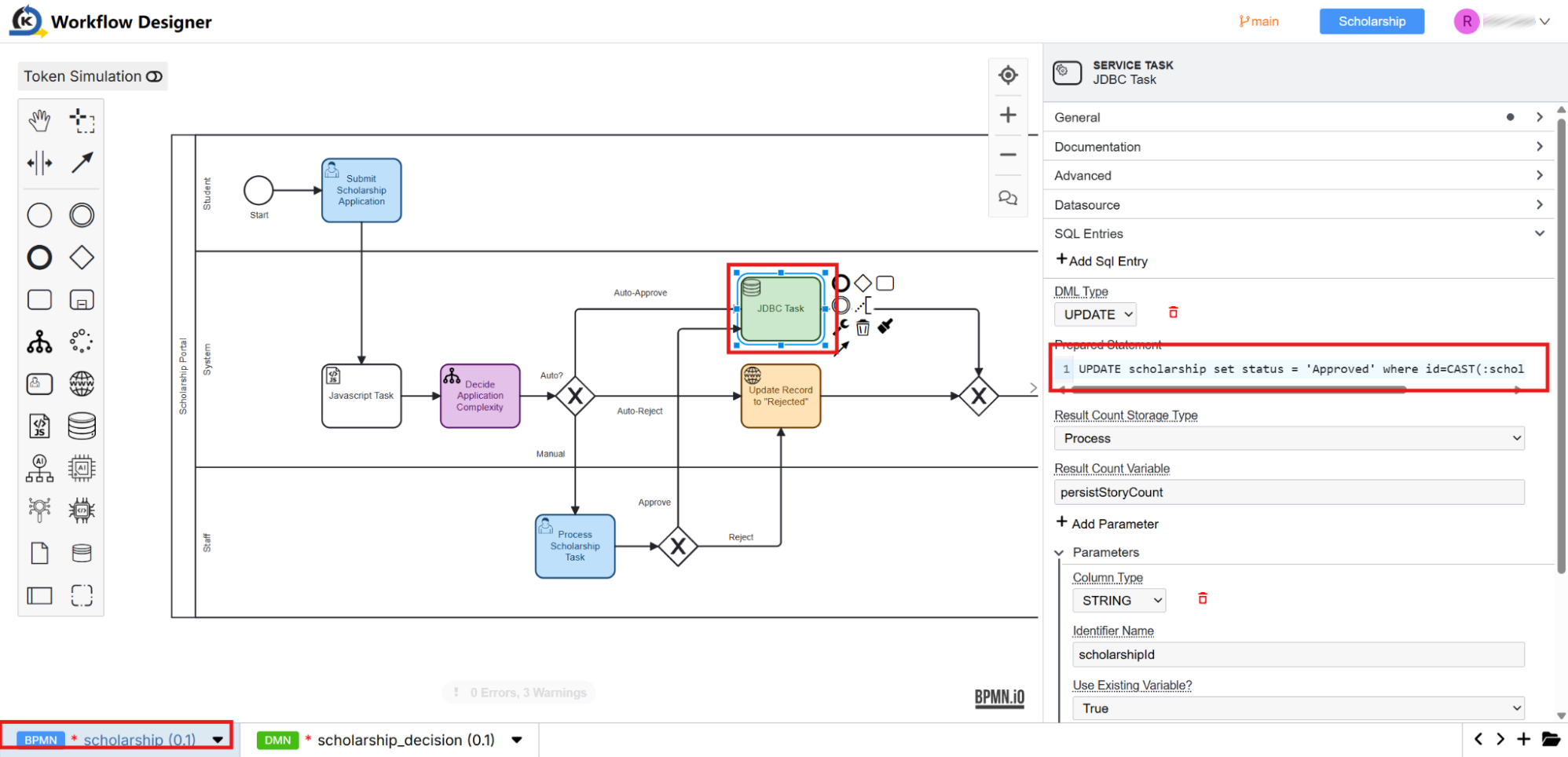
If the student’s academic credentials evaluate to "auto-approve", the workflow branches to the JDBC Task in the System lane.
-
Select the JDBC Task node on the canvas.
-
Look to the properties inspector on the right side under the SQL Entries tab.
-
Notice that KAIZEN enables direct, secure SQL writes. Under Prepared Statement, you will see the compiled database write:
UPDATE scholarship set status = 'Approved' where id=CAST(:scholarshipId AS INTEGER) -
This ensures that records are immediately synchronised inside your production transactional tables upon automated system clearance.
B. The Auto-Reject Route (HTTP API Integrations)
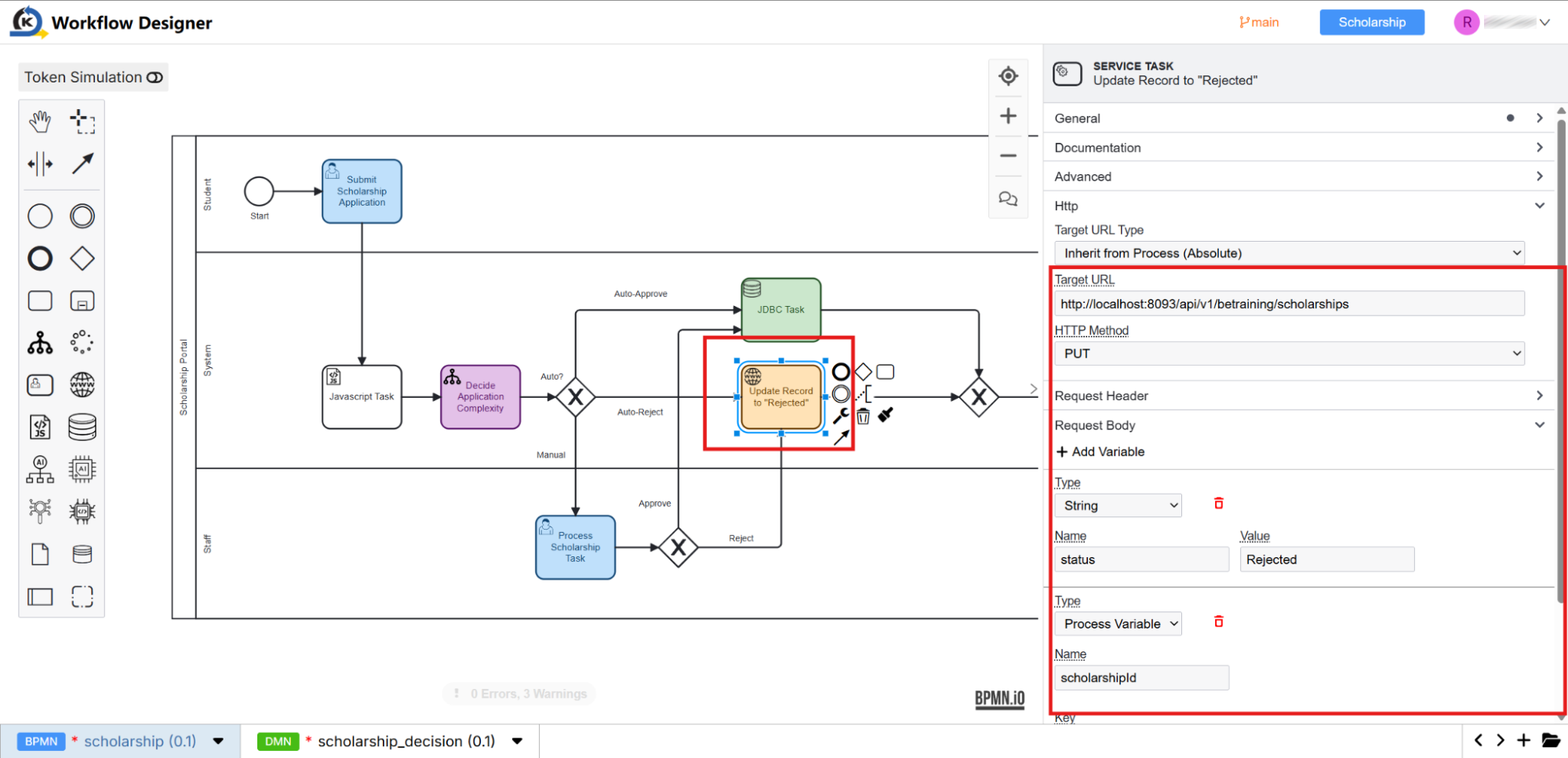
To demonstrate the platform's ability to communicate with outside services, if the application is "auto-rejected", it branches to the Update Record to "Rejected" HTTP Task.
-
Select the HTTP Service Task node on the canvas.
-
Look to the properties inspector on the right side under the Http tab.
-
Observe how KAIZEN configures API operations visually without developer setup overhead:
-
Target URL: Points directly to the destination REST endpoint (e.g., http://localhost:8093/api/v1/betraining/scholarships)
-
HTTP Method: Configured as a PUT request
-
Request Body Variable Mapping: Visually maps parameters such as sending the status "Rejected" alongside the candidate's custom scholarshipId inside the outgoing JSON payload
-
-
This visual API caller can be wired to contact internal services or external third-party software vendors instantly.
C. The Manual Route (Human Task Escalation)
If evaluated as "manual", the token bypasses automation tasks and navigates down to the Process Scholarship Task user node in the Staff swim lane. This securely assigns the record to back-office staff queues for manual reviews, enforcing active SLAs and organisational structures.
3.7 Task Routing, Groups & Queue Claiming
Goal
Inspect how manual human tasks are assigned, structured, and routed to departmental operational queues instead of single individual users.
Concept: Organisational Inboxes & Team-Based Routing
The first human task in our workflow (Submit Scholarship Application) is a simple transactional intake step mapped to the individual applicant.
However, the Process Scholarship Task human node at the bottom of the staff lane is entirely different. In a real-world enterprise setting, applications awaiting manual processing go to an entire department (such as an application processing department) consisting of several officers.
To facilitate this gracefully, KAIZEN provides visual Routing properties. Instead of hardcoding assignments to specific developers or staff members, tasks are routed to dynamic operational queues. KAIZEN supports multiple routing topologies:
-
Claim Routing (Currently Configured): Active tasks are routed to a shared team queue. Officers view a pending list and manually "claim" an application, locking it to their inbox to prevent double-processing.
-
Round Robin Routing: The engine automatically and evenly distributes incoming applications across available department members sequentially.
Inspection Tour
-
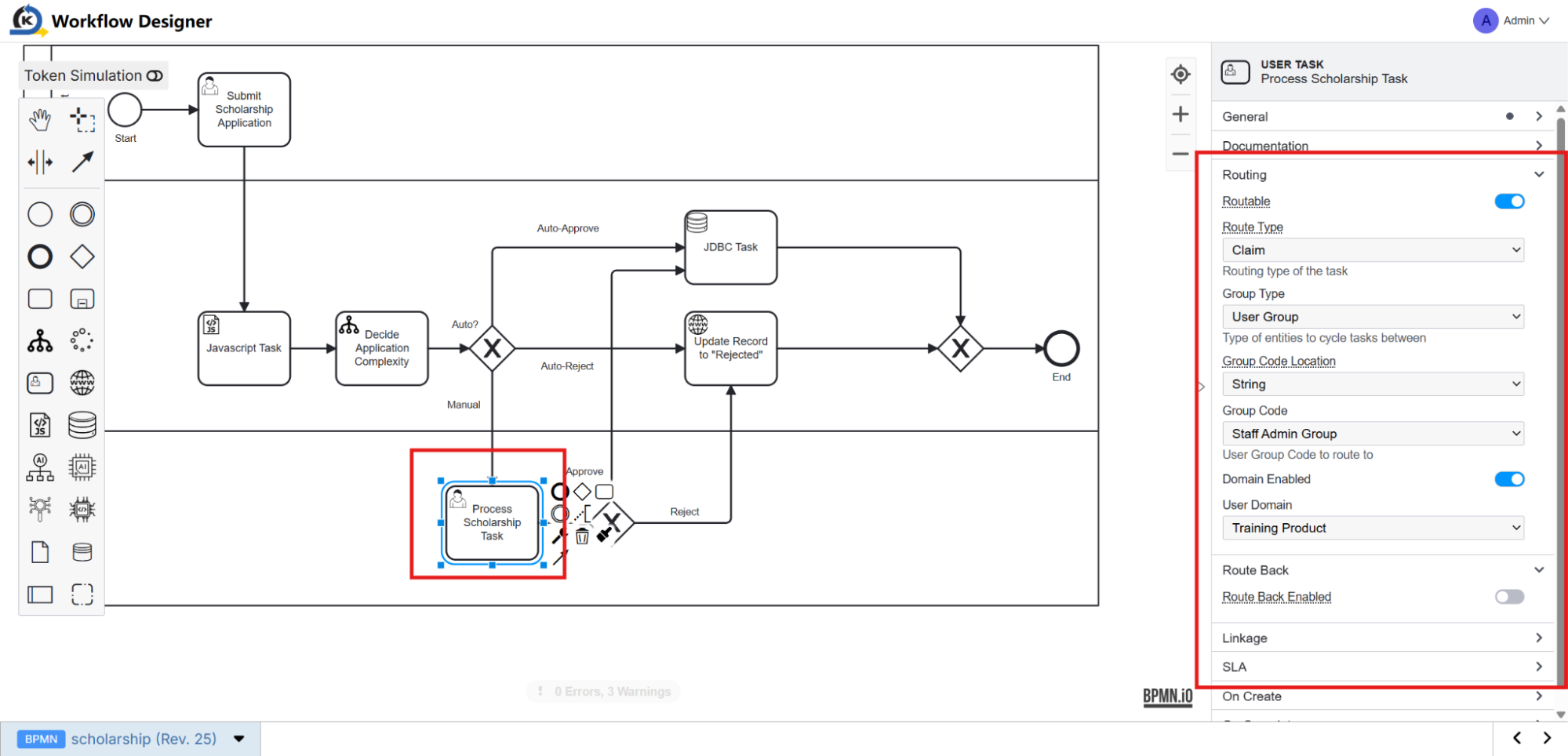
Select the Process Scholarship Task human task node situated in the bottom Staff lane.
-
Look at the properties inspector on the right side and expand the Routing section.
-
Observe the team queue properties configured visually:
-
Routable: Checked/Enabled. This establishes that the task is distributed programmatically to team queues.
-
Route Type: Configured as Claim (verifying that staff manually choose tasks from their shared dashboard list).
-
Group Type: Set to User Group, signifying a department-wide distribution block.
-
Group Code Location: Set as String.
-
Group Code: Configured to point directly to
Staff Admin Group.
-
-
This visual routing ensures that any operational manager can easily onboard new officers to the Staff Admin Group using organisation management tools, and those new members will immediately receive access to claim pending workflow tasks without modifying the process code.
3.8 Triggering the Workflow from the Frontend
Goal
Understand how frontend form submissions programmatically trigger active process instances in KAIZEN's workflow engine.
Concept: Programmatic Invocation from Code
While we saw that visual workflows are built of automated gateway paths, they do not launch on their own. They require an initial execution trigger. In KAIZEN, this bridge is formed cleanly on the code level.
When a user submits a form, they dispatch a structured database model containing a designated workflow flag. The backend script catches this flag, matches it to the visual schema properties, and contacts the workflow orchestration suite to trigger the process instance.
Inspection Tour
-
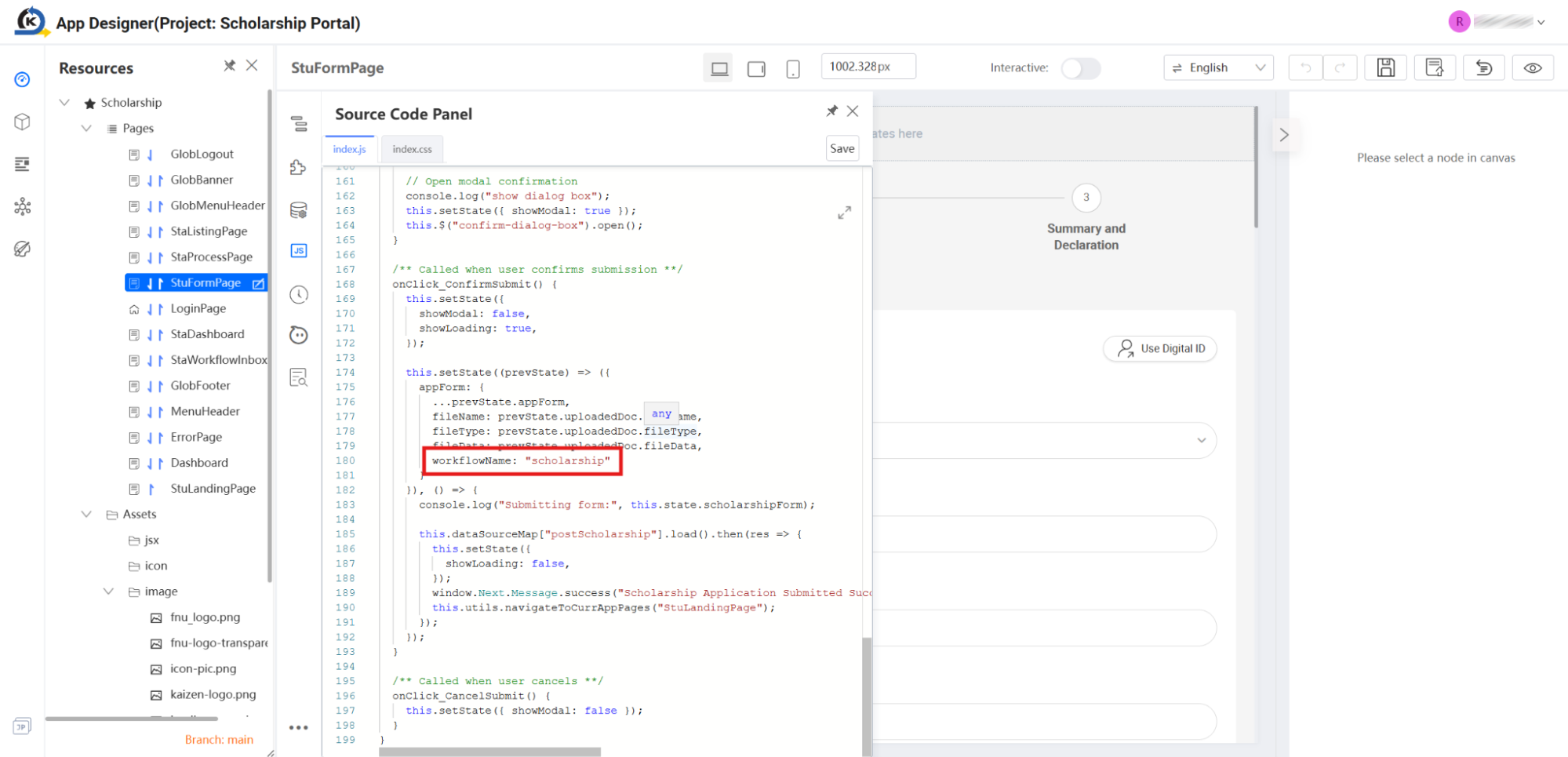
From the App Designer workspace, open the Source Code Panel inside the StuFormPage screen.
-
In the code panel, scroll down to the
onClick_ConfirmSubmit()handler function around line 167. -
Look closely at line 180 inside the appForm compilation block:
workflowName: "scholarship" -
This parameter explicitly maps the workflow diagram target.
-
Below that definition on line 185, notice the trigger:
this.dataSourceMap["postScholarship"].load().then(res => { ... }) -
Runtime Mechanics: When the visual datasource submits this dataset payload to our backend server, our custom backend controller intercepts the "scholarship" workflow key and automatically triggers a process engine API invoke on the background, starting the lifecycle instance automatically.
-
For a complete catalog of workflow-controlling REST endpoints, refer directly to the View the API documentation article.
Last updated on 21 Sep 2026