External API integration
Use an external datasource to call a third-party API from a KAIZEN application or custom backend service. Configure the provider, environment, authentication, and datasource in Service Designer before using it in App Designer preview or Runtime.
Prerequisites
Before you configure the external datasource, obtain the following details from the third-party API documentation:
- Base URL and API path.
- HTTP method:
GET,POST,PUT,PATCH, orDELETE. - Authentication method, request headers, and query parameters.
- JSON request body fields, if required.
The following shows an example:
- Base URL:
https://www.tlsversion.com - API path:
/v1/version.json - HTTP method:
GET
If the API uses an HTTPS certificate that the Runtime Java Virtual Machine (JVM) does not trust, you also need to prepare the trust store file and password.
Configure an external API
1. Create a provider
-
In Service Designer, open the target project and branch.
-
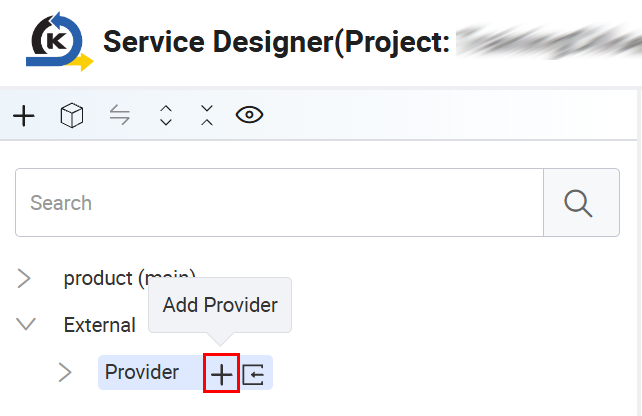
On the left menu, expand External and select Provider.
-
Click the + sign to add a provider e.g.,
tls-test, which will group the configurations for the external API. -
Click Apply to save the changes.
When calling the API through Runtime Gateway, use the provider name in the Provider-Name request header.
2. Configure the environment
Prerequisite: The tls-test provider has been created.
To create or select a project environment, perform the following:
-
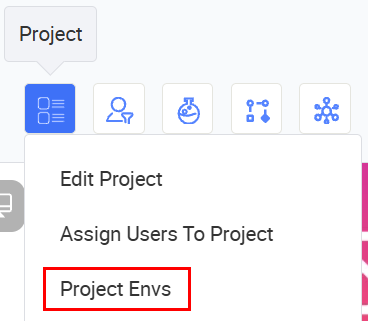
On the project toolbar, click Project > Project Envs.
-
In the Project Env window, click Create. The Create Project Env window opens.
-
Enter the Project Env name, e.g.,
runtime. Set the status to Active, and the In Use option to Yes.The environment marked In Use is to access the third-party URL.
-
In Service Designer, expand External > Provider >
tls-testand select Env Config. On the right side, select the environment in the Env dropdown, and enter the base URL of the external API. For example:- Environment name:
runtime - Base URL:
https://api.example.com
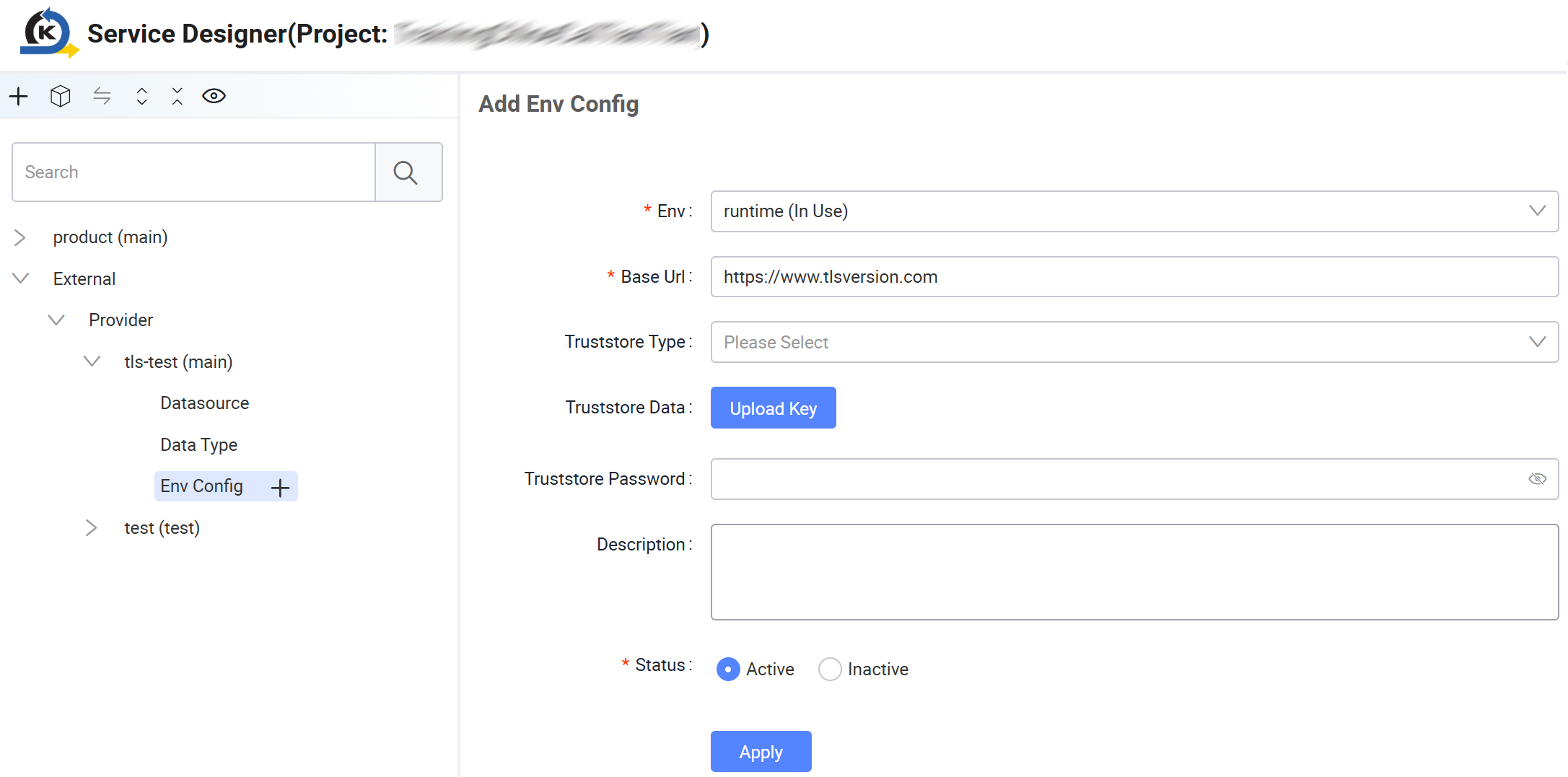
Use a base URL that begins with
https://for HTTPS APIs. - Environment name:
-
If the API certificate is not trusted by the Runtime JVM, configure the trust store for this environment.
-
Click Apply to save the changes.
3. Configure authentication
To create the authentication configuration under the provider environment, perform the following:
Do not hardcode third-party API credentials in custom backend service code.
-
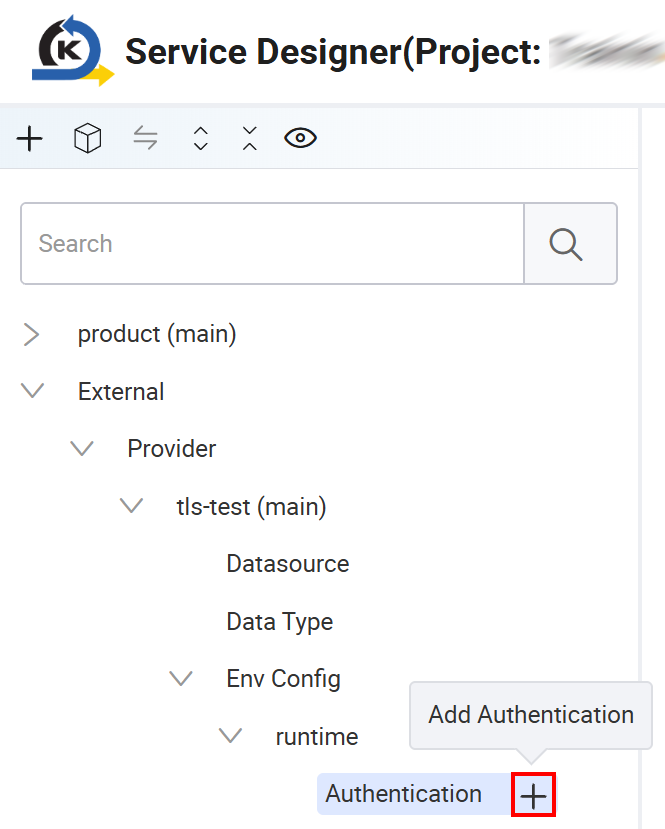
In Service Designer, expand External > Provider >
tls-test> Env Config >runtimeand select Authentication. -
Click the + sign to add authentication.
KAIZEN supports the following authentication types:
| Authentication type | Configuration | Field description | Request format |
|---|---|---|---|
BEARER | token: ${token} | Token issued by the external API provider. | Authorization: Bearer ${token} |
BASIC | username: ${username}, password: ${password} | Login account and password. | Authorization: Basic ${base64} |
APIKEY (header) | key: ${parameterName}, value: ${apiKeyValue}, addTo: header | Header name from the API documentation, API key value, and add the API key to the request header. | ${key}: ${value} |
APIKEY (query) | key: ${parameterName}, value: ${apiKeyValue}, addTo: query | Query parameter name from the API documentation, API key value, and add the API key to the URL query. | ?${key}=${value} |
JWT | token: ${jwtToken}, optional headerName: ${headerName} and prefix: ${prefix} | JWT token, header name (default: Authorization), and prefix such as Bearer or JWT. | ${headerName}: ${prefix} ${token} |
OAUTH2 | token: ${token} | OAuth2 access token. | Authorization: Bearer ${token} |
NO_AUTH | None | No authentication is required. | None |
4. Configure a data type
Create an external data type when a POST, PUT, or PATCH request needs a JSON request body. The data type defines the request parameter structure.
-
In Service Designer, expand External > Provider >
tls-testand select Data Type. -
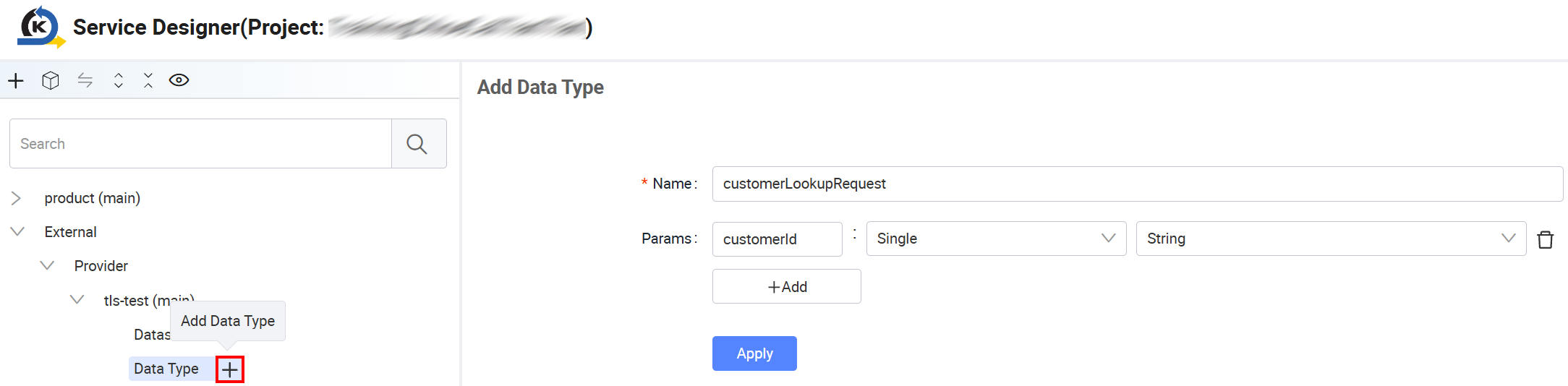
Click the + sign to add a data type. On the right side, enter the data type name and parameters. For example:
- Data Type name:
customerLookupRequest - Field name:
customerId - Field type:
String
- Data Type name:
-
Click Apply to save the changes.
5. Configure an external datasource
To create the datasource under the provider, perform the following:
-
In Service Designer, expand External > Provider >
tls-testand select Datasource. -
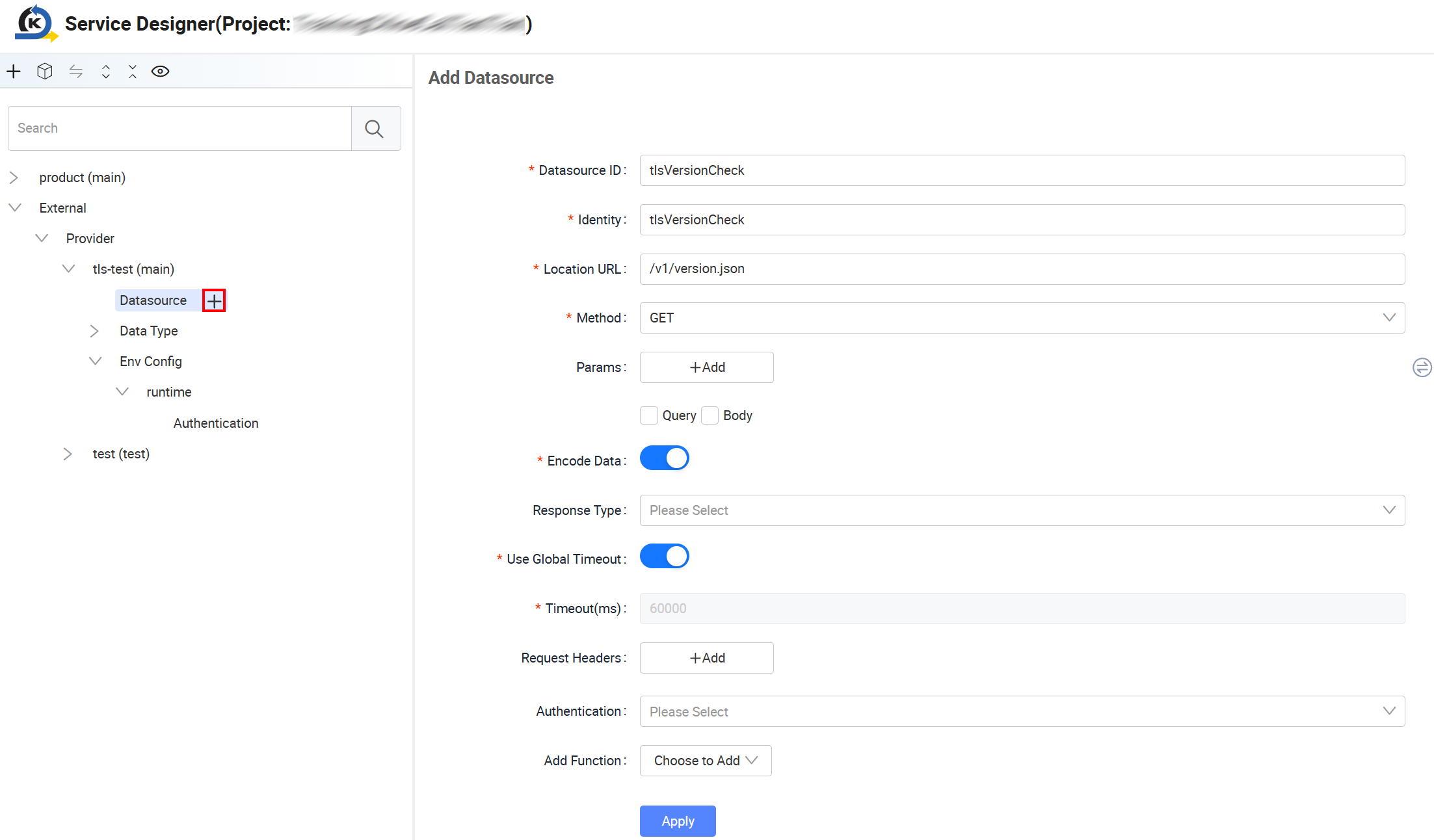
Click the + sign to add a datasource. On the right side, configure the datasource ID, identity, location URL, HTTP method, and all other mandatory fields that KAIZEN can forward.
For example:
- Datasource ID and identity:
tlsVersionCheck - Location URL:
/v1/version.json - Method:
GET
- Datasource ID and identity:
-
Click Apply to save the changes.
Datasource identity is the identifier used by custom backend services when calling Gateway:
/bridge/tlsVersionCheck
Allowed request fields:
- Allowed headers:
Content-Type,Accept - Allowed query parameters:
page,size - Allowed body fields:
customerId,status
Configure the allowed request headers, query parameters, and JSON body fields.
KAIZEN Gateway forwards only the fields configured in the datasource. It removes all other fields from the request.
Use an external datasource in App Designer preview
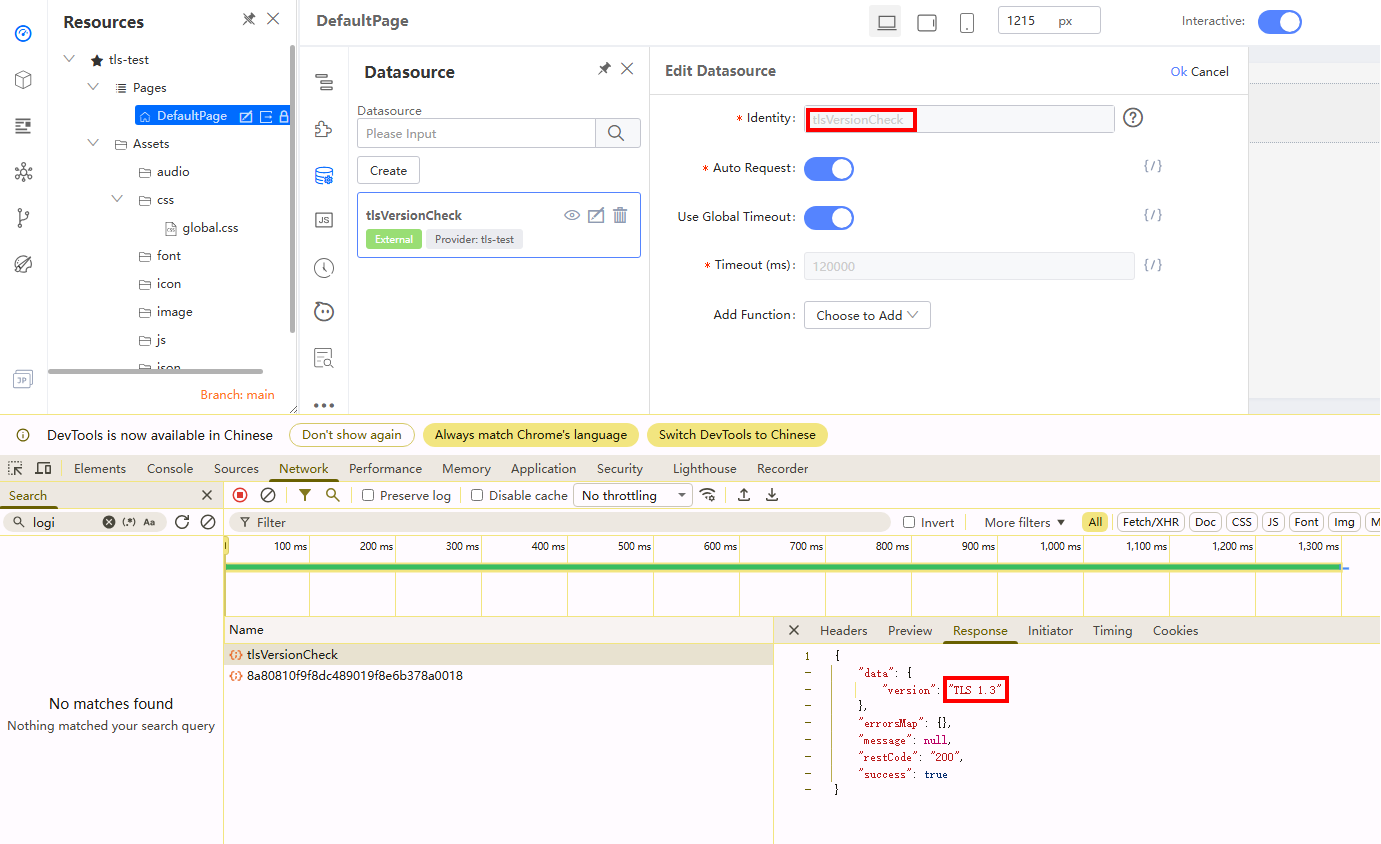
Use the App Designer preview mode to verify the configuration before publishing it to Runtime. Refer to Manage external APIs on how to use an external datasource in Runtime.
-
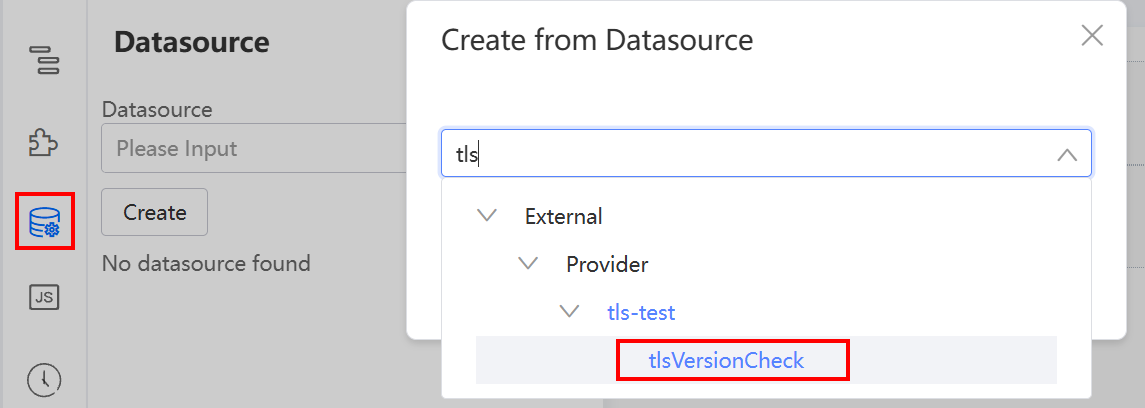
Create a corresponding datasource in the App Designer.
-
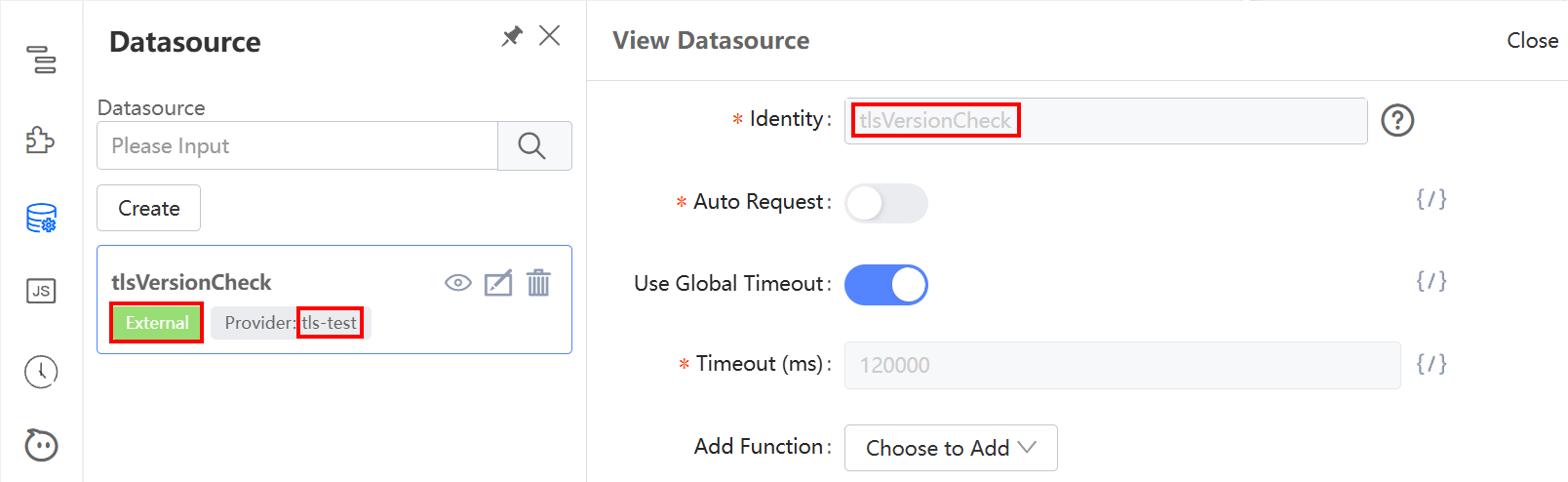
Make sure the datasource type shows as External.
-
Select the provider (e.g.,
tls-test) and datasource identity (e.g.,tlsVersionCheck). -
Click Preview to send the request.
-
Confirm that the returned response matches the response from the external API.
The following shows the expected response from the TLS 1.3 test endpoint:
{
    "version": "TLS 1.3"
}
HTTPS and TLS
The TLS protocol version is negotiated between the WebClient used by Gateway and the external API endpoint. If both the runtime and the external endpoint provide support, TLS 1.3 can be negotiated.
KAIZEN External Datasource does not provide a datasource-level switch to force outbound calls to use TLS 1.3 only. This article uses https://www.tlsversion.com/v1/version.json as the test endpoint and checks the negotiated result through the version field in the response.
Last updated on 21 Sep 2026