Profile testing
Connecting to profiles helps you save connection settings for different runtime environments and user roles. In App Designer, use profiles to switch between accounts, such as student and staff users, and verify that pages and APIs are correct for each role without repeating the connection details.
Before you begin
Be sure to meet the following prerequisites:
- The target application is available in App Designer.
- The required user accounts and Role-Based Access Control (RBAC) permissions have been configured, e.g., in the Training Environment. Refer to Manage users for more information.
- Obtain the account credentials from your administrator.
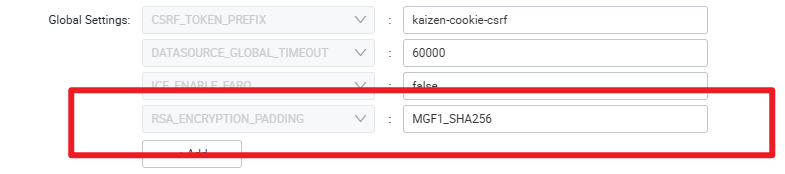
- Ensure that the application's encryption method matches the encryption method used by the profile you want to connect. If the encryption methods are different, the profile connection will fail. You can check or update the application encryption method in Edit Application > Global Settings.
Create a student profile
-
Open your application, e.g., Scholarship Portal.
-
In App Designer, select Profiles, then click Add.
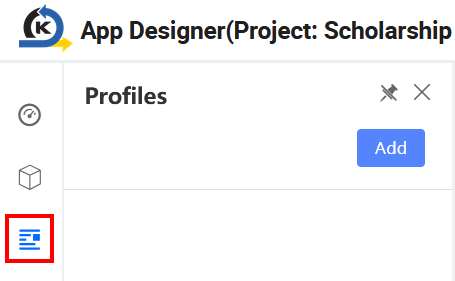
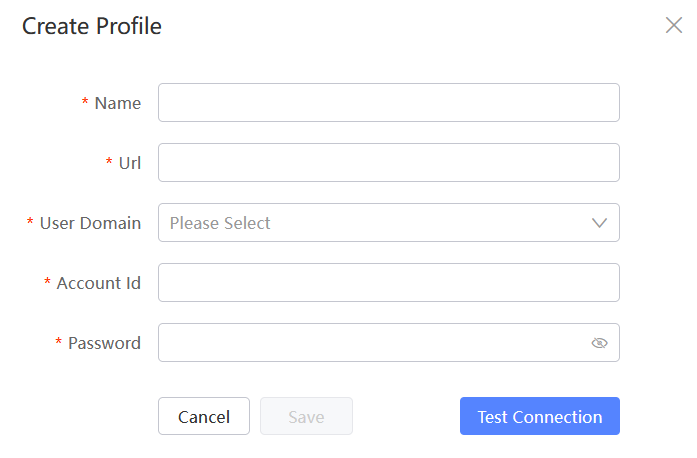
The Create Profile window opens.
-
In the Create Profile window, enter the connection details for the student user profile.
Field Value Name Training Env Student UserURL https://sandbox.onekaizencloud.com/gwproxyUser Domain scholarship_trainingAccount Your username Password Your password -
Save the profile, then select Training Env Student User to make it the active profile.
-
Confirm that a success message indicates that the profile was switched successfully.
Create a staff profile
Create a separate profile for staff-only pages and workflows.
-
Select Profiles, then click Add.
-
In the Create Profile window, enter the staff profile connection details.
Field Value Name Training Env Staff UserURL https://sandbox.onekaizencloud.com/gwproxyUser Domain scholarship_trainingAccount staffPassword The staff password provided by your administrator -
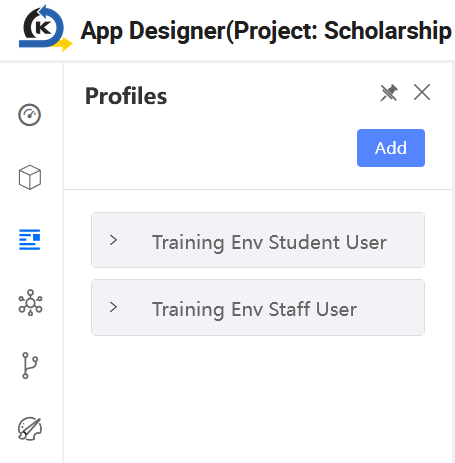
Save the profile. Both student and staff profiles will appear in App Designer.
Test the profiles
Switch to the appropriate profile before previewing the page. Preview the application as the student user to verify student pages and submission flows, then switch to the staff profile to verify staff pages and role-based access. This helps confirm that each user role can access the intended pages and call the required APIs in the selected environment.
Last updated on 21 Sep 2026