Data integration
Use a datasource to connect an application page to an API exposed by a KAIZEN service. This guide shows how to create GET and POST datasources in Service Designer, then make them available to a page in App Designer. The scholarship examples are for illustration purposes; you need to use the datasource IDs, endpoint, parameters, and page names that apply to your application.
Create a datasource in Service Designer
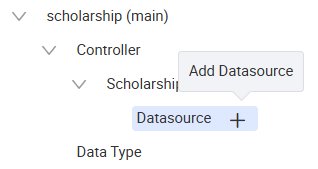
In Service Designer, select Add Datasource under the required controller. Configure the datasource to match the API endpoint that the application page needs to call.
Create a GET datasource
The following example retrieves a list of scholarship applications. Create a datasource with the following configuration.
| Field | Value |
|---|---|
| Datasource ID | getScholarships |
| Identity | getScholarships |
| Location URL | /gateway/scholarship/api/v1/betraining/scholarships |
| Version | 1 |
| Method | GET |
| Params |
|
| Query | Enabled |
| Encode Data | Disabled |
| Response Type | Default |
| Use Global Timeout | Enabled |
| Timeout (ms) | Default |
| Request Headers | Default |
| Add Function | Default |
Click Apply to create the datasource.
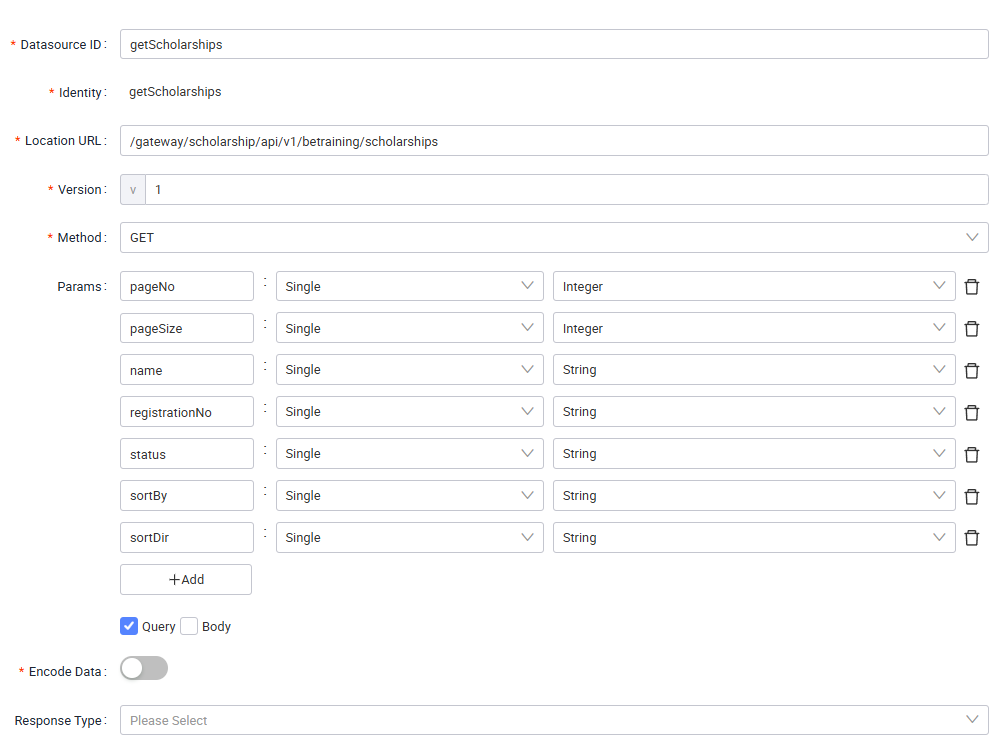
For query and body parameters, choose Query when the API receives values as request parameters, which is typical for a GET request. Choose Body when the API receives a request body, which is typical for a POST request.
The location URL must use the internal gateway format /gateway/<service>/api/v1/..., where <service> is the target microservice name. Datasources currently support internal or self-hosted endpoints only; external API calls are not supported.
Create a POST datasource
Use a data type when a POST request sends a structured object.
-
In Service API Designer, select Add Data Type and create a data type named
ScholarshipVO. Add the fields required by the endpoint, for examplesalutation,name,nric,email,contactNo,registrationNo,currentSchool,studyLevel,studyField,gpa,graduationDate,awards,fileName,fileType,fileData, andworkflowName.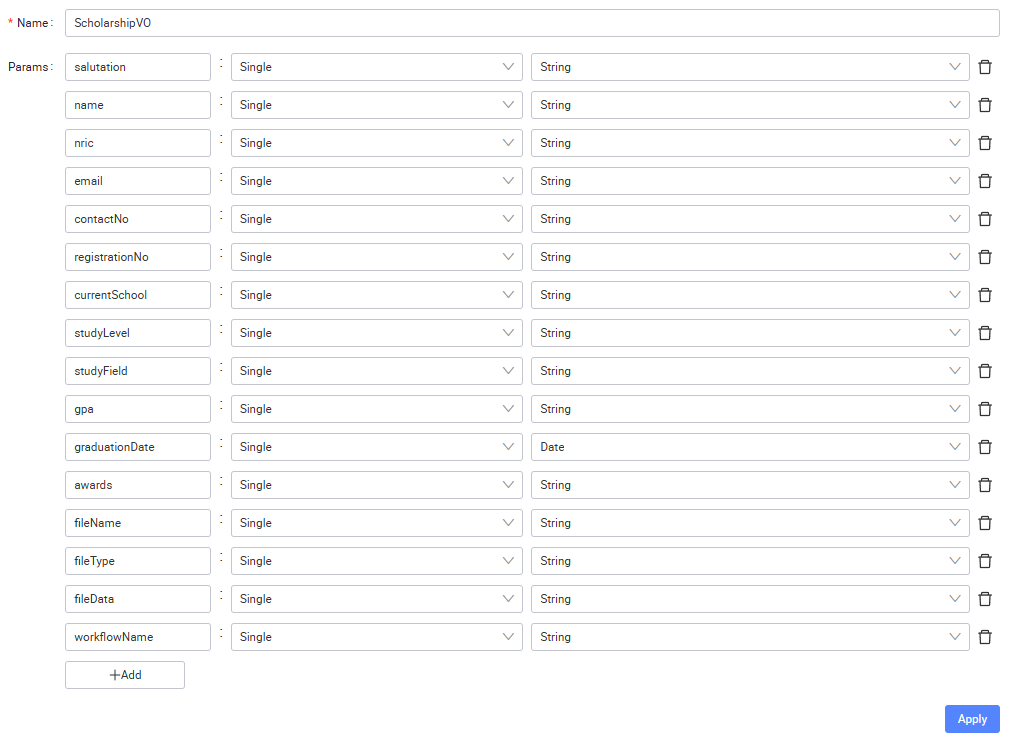
-
Select Add Datasource under the controller and configure the POST datasource.
Field Value Datasource ID postScholarshipIdentity postScholarshipLocation URL /gateway/scholarship/api/v1/betraining/scholarshipsVersion 1Method POSTParams ScholarshipVOas a single-value parameterEncode Data Disabled Response Type Default Use Global Timeout Enabled Timeout (ms) Default Request Headers Content-Type: application/jsonAdd Function Default -
To be able to select the
ScholarshipVOparameter, click Switch Mode in the Params section. Click Apply when the configuration is complete.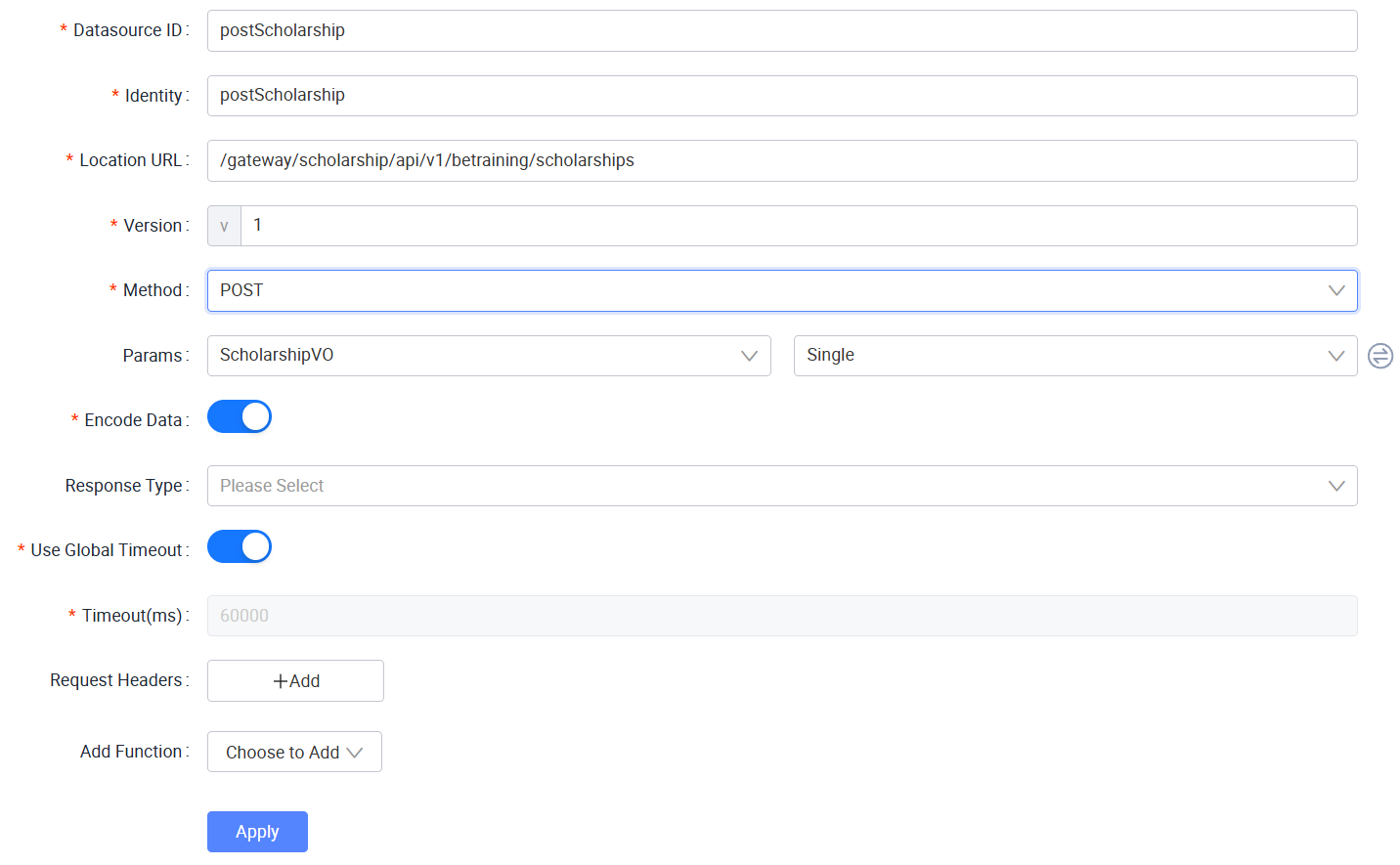
Add the datasource in App Designer
After the datasource is created in Service Designer, add it to the page that will call the API.
Add the GET datasource to a listing page
-
For a page that displays scholarship results, for example
StaListingTable, select Datasource, then click Create. Search forgetScholarships, select it, and click Next. -
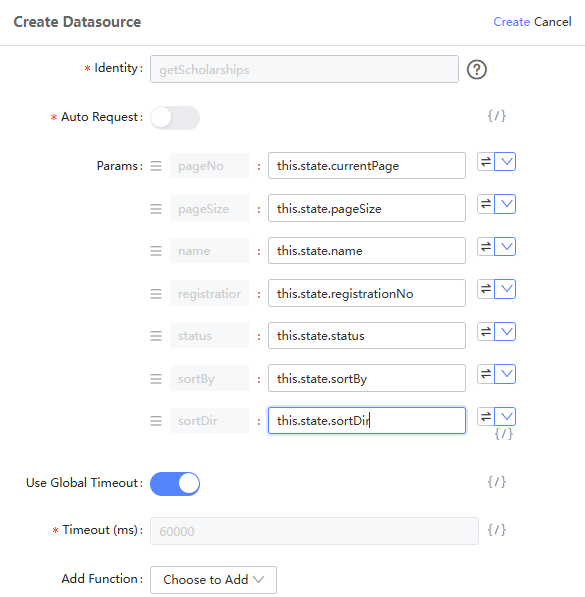
In the Create Datasource window, map the datasource parameters to the page state.
Parameter Value pageNothis.state.currentPagepageSizethis.state.pageSizenamethis.state.nameregistrationNothis.state.registrationNostatusthis.state.statussortBythis.state.sortBysortDirthis.state.sortDir -
Click Create. The page can now use the datasource to retrieve a filtered, sorted, and paginated list from the service.
-
Save the draft and click Preview to verify the integration. For a GET datasource, confirm that the page loads the expected data and that filtering, sorting, and pagination work.
Add the POST datasource to a form page
-
For a page that contains the scholarship application form, for example
StuFormPage, select Datasource, then click Create. Search forpostScholarship, select it, and choose Next. -
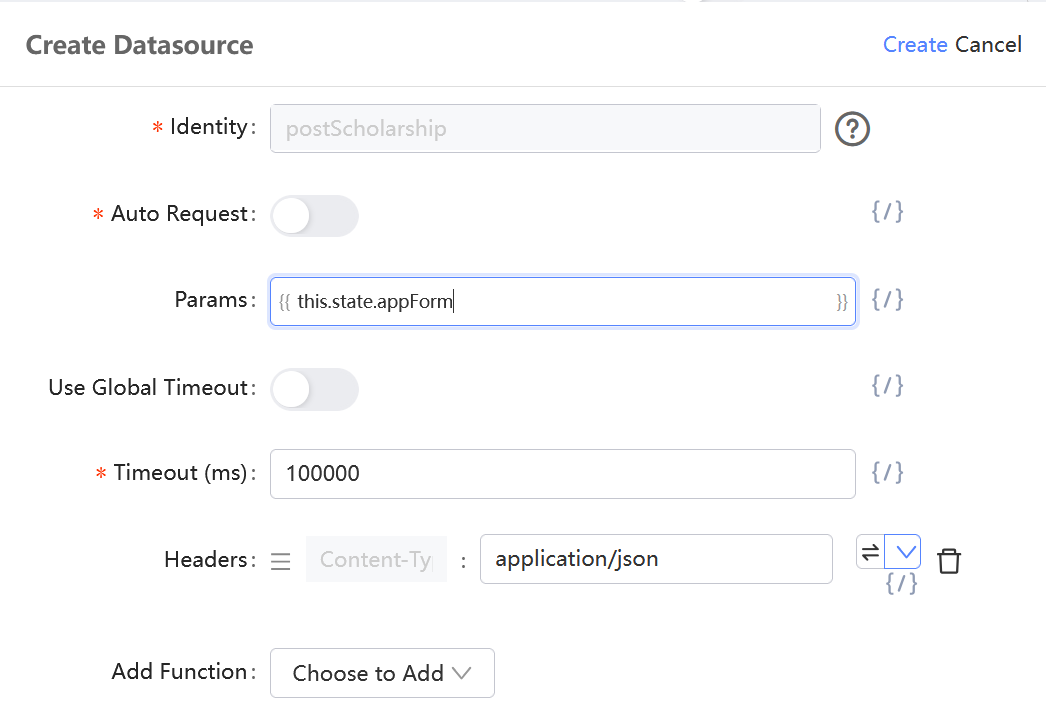
In the Create Datasource window, select the expression icon beside Params and enter the form state as a JavaScript expression:
this.state.appFormThis passes the application form object as the
ScholarshipVOrequest body instead of mapping each field individually.- Disable Use Global Timeout.
- Set Timeout (ms) to
100000. - Enter
application/jsonto the Headers field, then click Create.
-
Save the draft and click Preview to verify the integration. For a POST datasource, submit the form and confirm that the request completes successfully.
By defining datasources in Service Designer and binding them to the appropriate App Designer pages, you can connect application interfaces to backend services with minimal custom code. Reuse this pattern for other GET requests, form submissions, and service endpoints in your application.
Last updated on 21 Sep 2026