Configure the virtual database
A virtual database in KAIZEN is a metadata-based database model created in the Database Designer. Unlike a real database connection, a virtual database does not connect to a database server and does not store business data rows. It stores the table, column, index, foreign key, and view definitions that make up the data structure.
Use a virtual database when you want to design the physical model before a real database environment is available. After the structure is ready, you can bind the virtual database to a real database and apply the selected structure changes.
Virtual database versus real database
The table below compares the two database types across main aspects:
| Main Aspect | Real database | Virtual database |
|---|---|---|
| Creation method | Created by connecting to an existing database server. | Created directly in the Database Designer. |
| Required connection details | Requires host, port, database, and credentials. | Does not require host, port, or credentials during creation. |
| Stored content | Stores real tables and business data. | Stores structure metadata only. |
| Schema behaviour | Depends on the connected database platform. | Uses the virtual database as one logical schema. |
Create a virtual database
To create a virtual database, perform the following:
-
In KAIZEN Studio Console, find the project and click Database Designer.
-
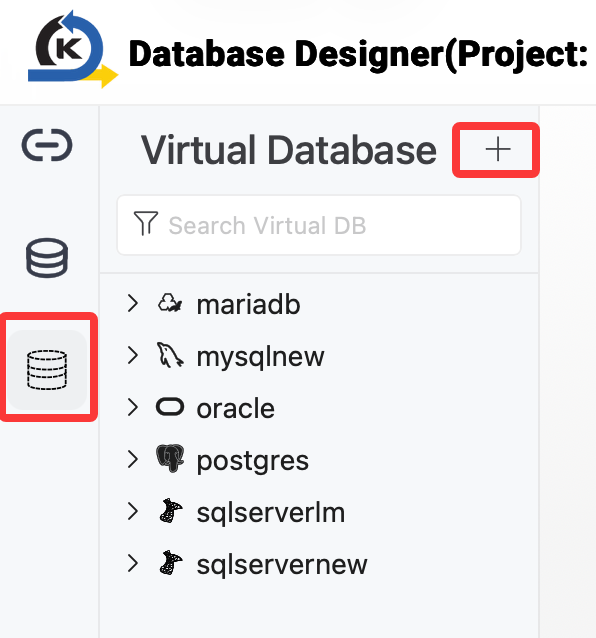
In the designer, click Virtual Database on the navigation bar, then click the + sign.
-
In the Create Virtual Database dialog, enter the virtual database details.
Field Mandatory Description Name Yes A unique name for the virtual database in the project. Database Type Yes The database platform to model, such as PostgreSQL, MySQL, SQL Server, Oracle, or MariaDB. This determines the available data types and generated DDL style. Comment No An optional description of the virtual database. 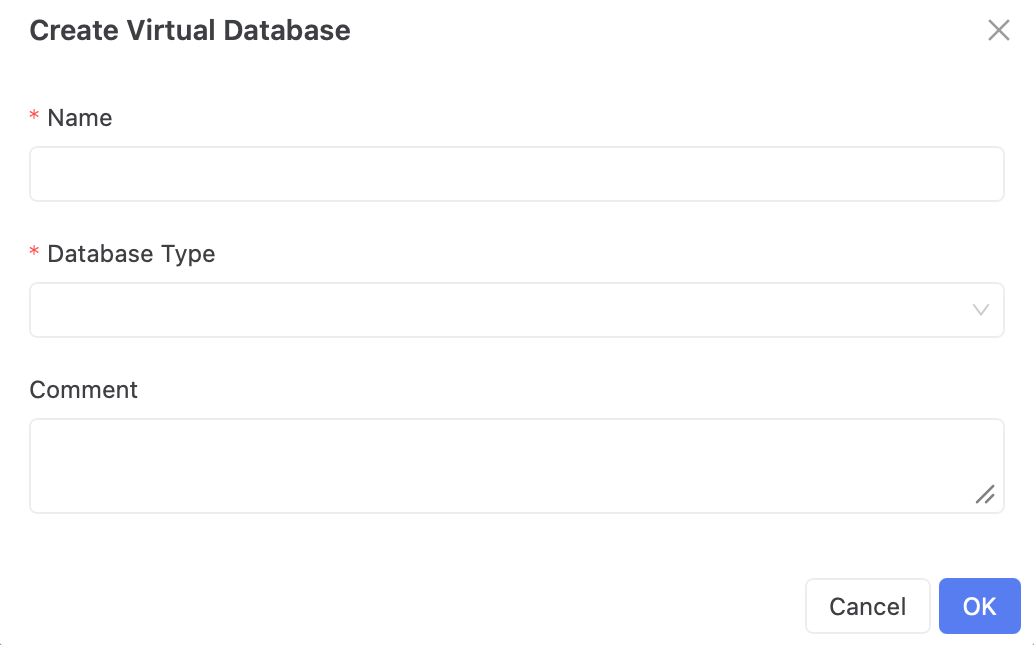
-
Click OK to create the virtual database.
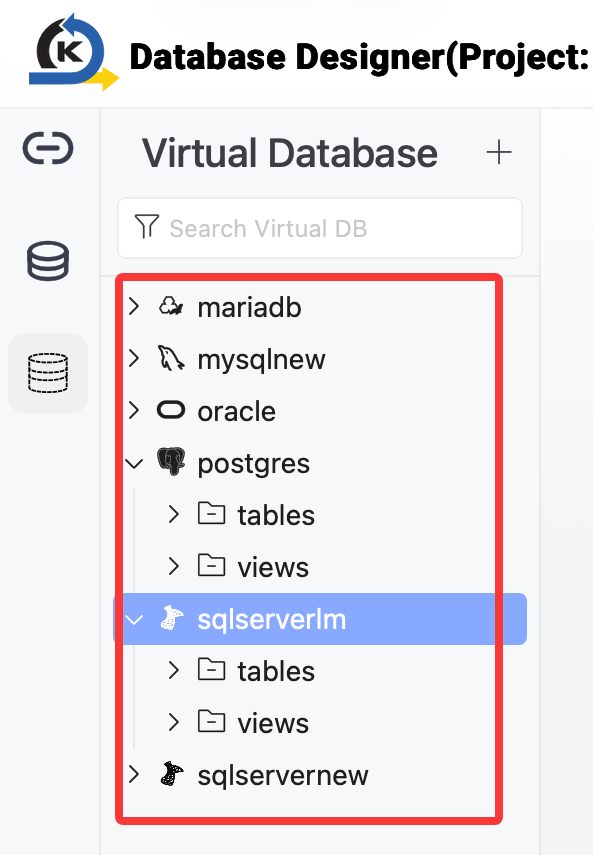
The new virtual database is listed in the database tree. Expand the virtual database to view its tables and views sections.
Design tables
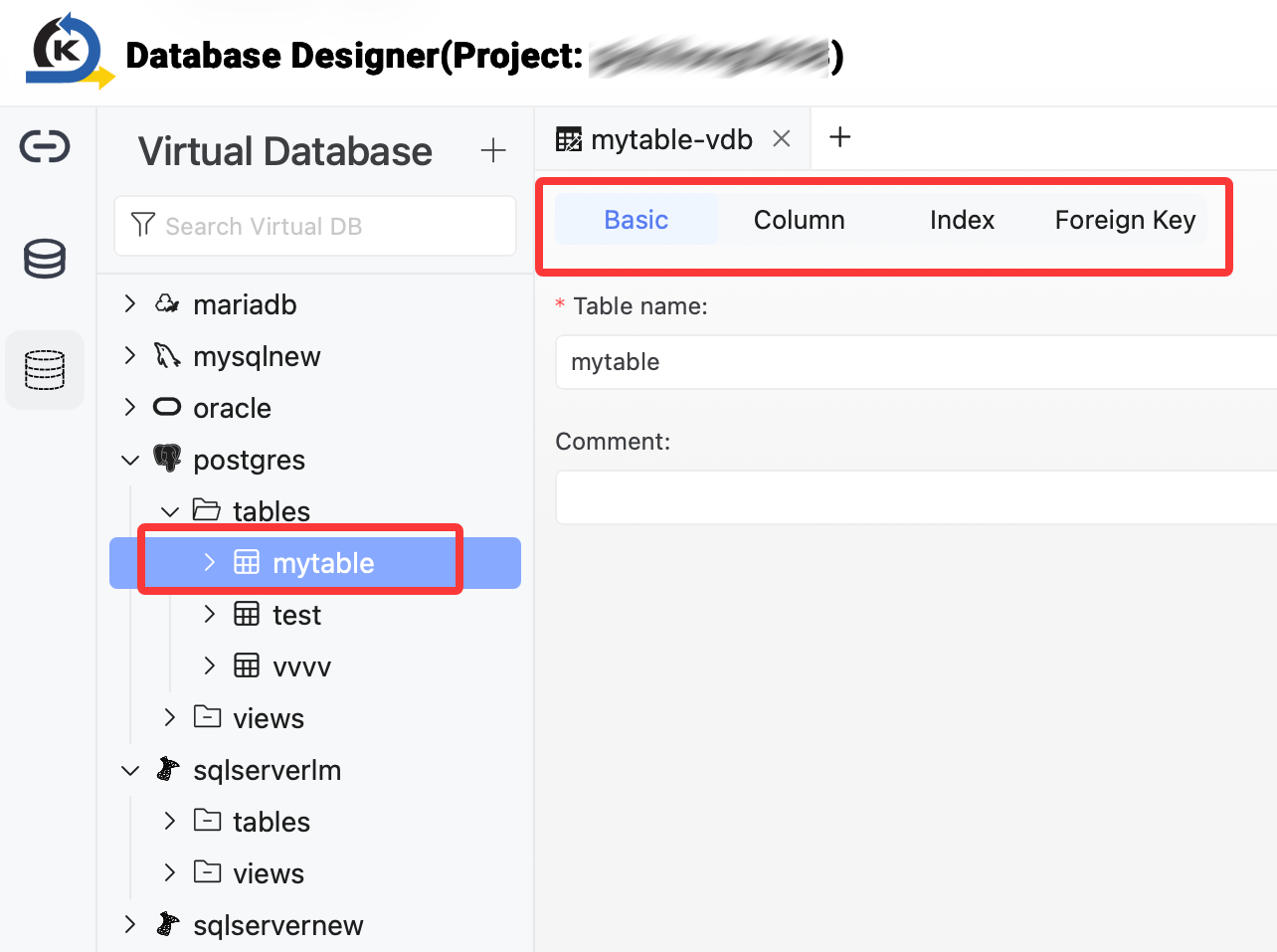
After creating a virtual database, you can define tables in the designer. The table design process is similar to creating a table in a real database, but the changes are saved as metadata instead of being executed on a database server.
In a virtual table, you can configure:
-
Table name and comment
-
Columns, data types, length, whether it accepts
null, default values, and auto-increment behaviour -
Primary keys
-
Indexes
-
Foreign keys to other tables in the same virtual database
Design views
You can also create and manage views in a virtual database. Right-click the views section and select Create View.
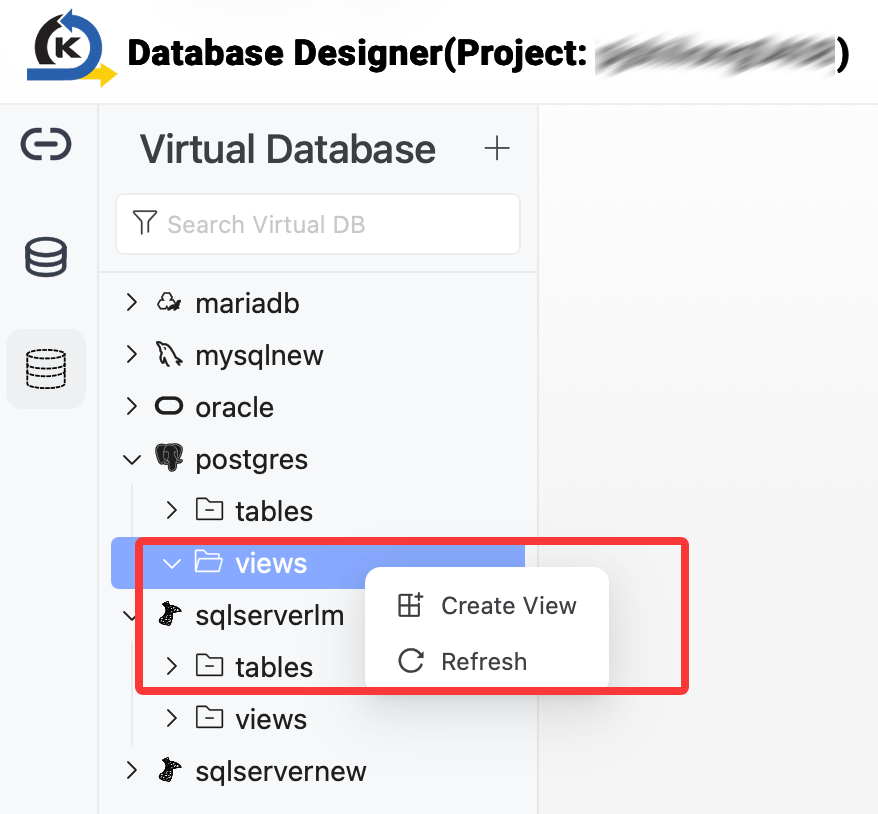
When creating a view, KAIZEN validates the view definition and checks that the view name is unique within the virtual database.
Bind to a real database
After the virtual database structure is ready, bind it to a real database to apply the selected structure changes.
Before binding, make sure the target real database connection is already configured. Refer to Connect to the database server.
To bind a virtual database to a real database, perform the following:
-
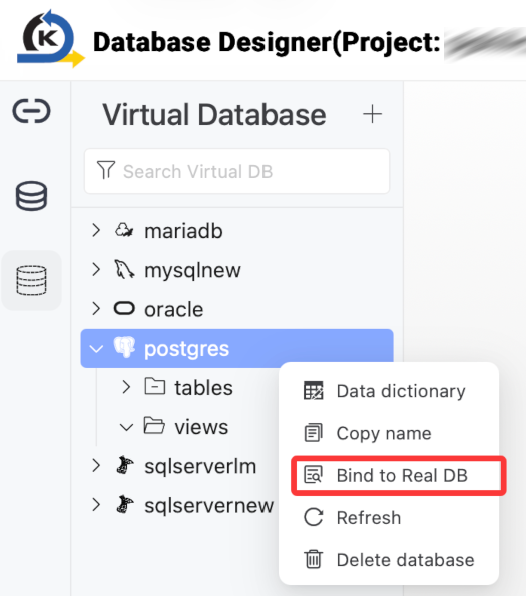
Right-click the virtual database and select Bind to Real DB.
-
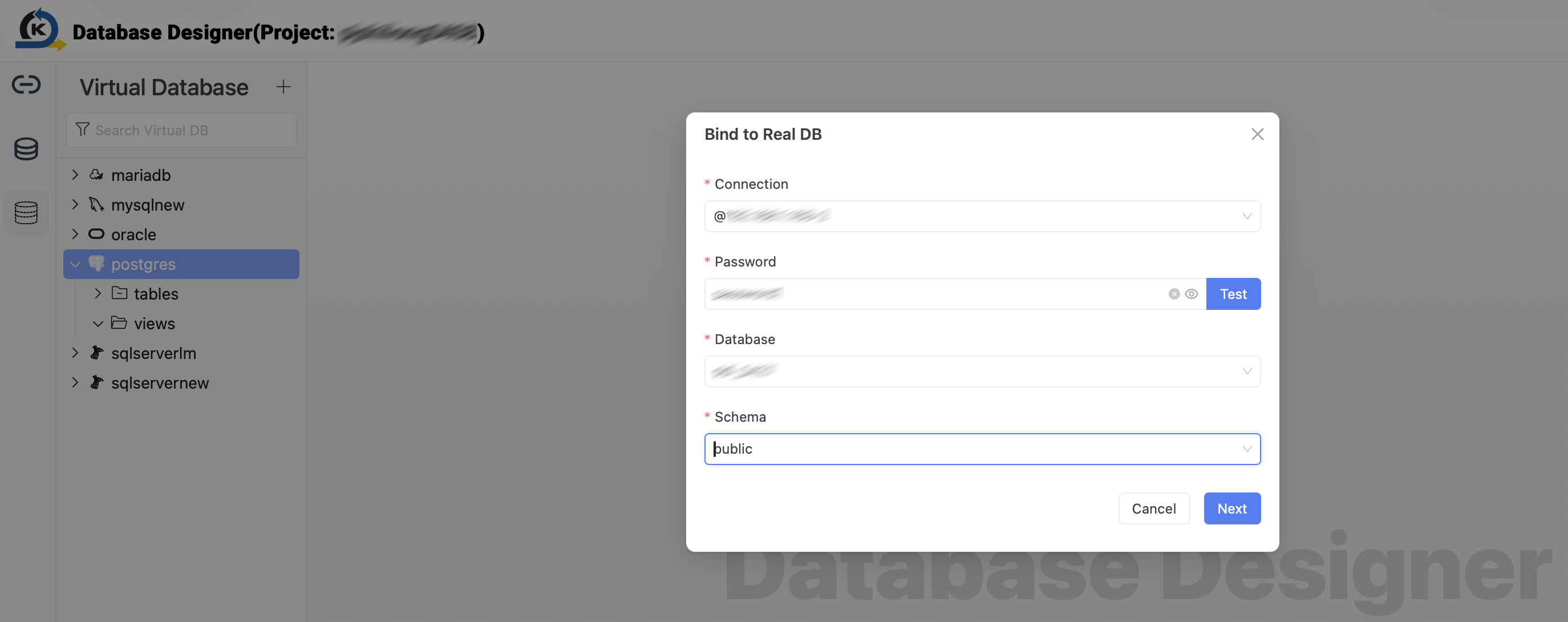
In the Bind to Real DB dialog, select the target connection, database, and schema.
-
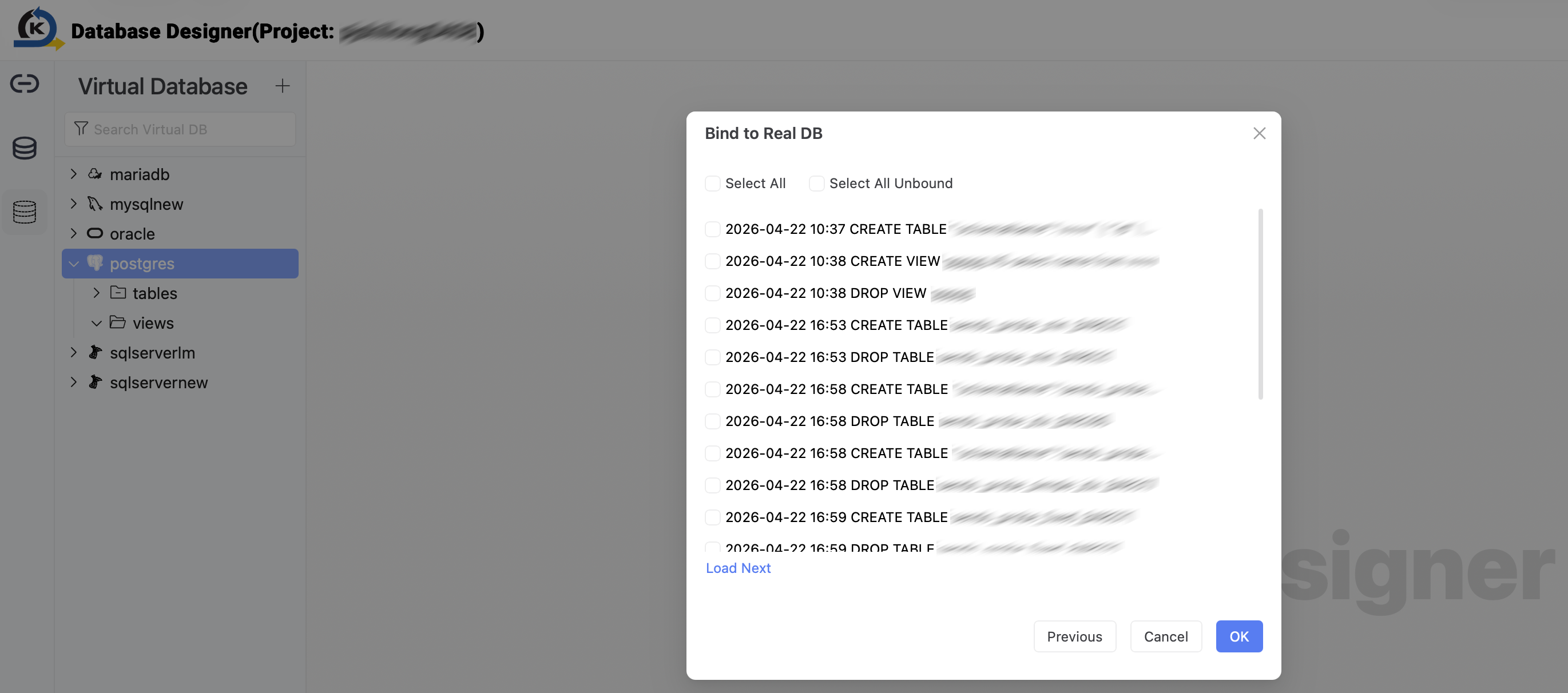
Select the structure changes, then click OK to apply them into the real database.
View data dictionary
You can open the data dictionary to review the structure of a virtual database in one place.
To view the data dictionary, perform the following:
-
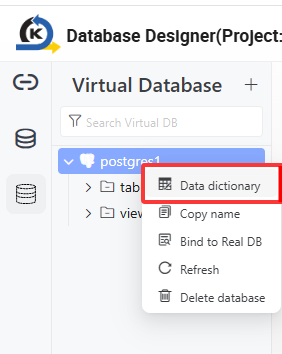
Right-click the virtual database, then select Data dictionary.
-
The data dictionary opens in a new tab and displays the virtual database structure.
You can review the tables, columns, column types, nullable settings, constraints, sorting order, referenced schemas, referenced tables, referenced fields, and view definitions.
Delete database
Deleting a virtual database is a permanent action. Once you delete it, it cannot be recovered.
You can delete a virtual database from the database tree. This action permanently removes the selected virtual database and its structure metadata.
To delete a virtual database, perform the following:
-
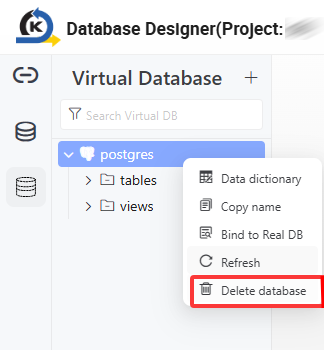
Right-click the virtual database you want to delete, then select Delete database.
-
In the confirmation dialog, review the database name to make sure you selected the correct database.
-
Select the confirmation checkbox, then click OK to perform deletion.
Supported capabilities
Virtual databases support the following capabilities:
- PostgreSQL, MySQL, SQL Server, Oracle, and MariaDB model types
- Direct virtual database creation without a database server connection
- Table creation, update, and deletion
- Column, primary key, index, and foreign key configuration
- View creation, update, and deletion
- Binding selected structure changes to a real database
Limitations
The following limitations apply to virtual databases:
- Virtual databases store structure metadata only. They do not store business data rows.
- You cannot query, insert, update, or delete row data in a virtual table.
- A virtual database does not provide a JDBC query environment.
- Each virtual database is treated as one logical schema.
- Binding applies structure changes only. It does not migrate business data.
- Virtual database names must be unique within the same project.
Last updated on 21 Sep 2026