Trigger an API call
Datasources are designed and configured in the Service Designer. To make a datasource available to the frontend, you need to trigger an API call from within the App Designer.
Trigger the API call
Every API call is triggered by a specific event. There are two primary ways to initiate these calls:
On page load
You can configure a datasource to run automatically when the page loads. This is useful for populating components, such as tables and lists with initial data.
To enable this, perform the following:
-
Select the datasource in the App Designer.
-
In the configuration panel, locate the Auto Request toggle. This toggle is off by default.
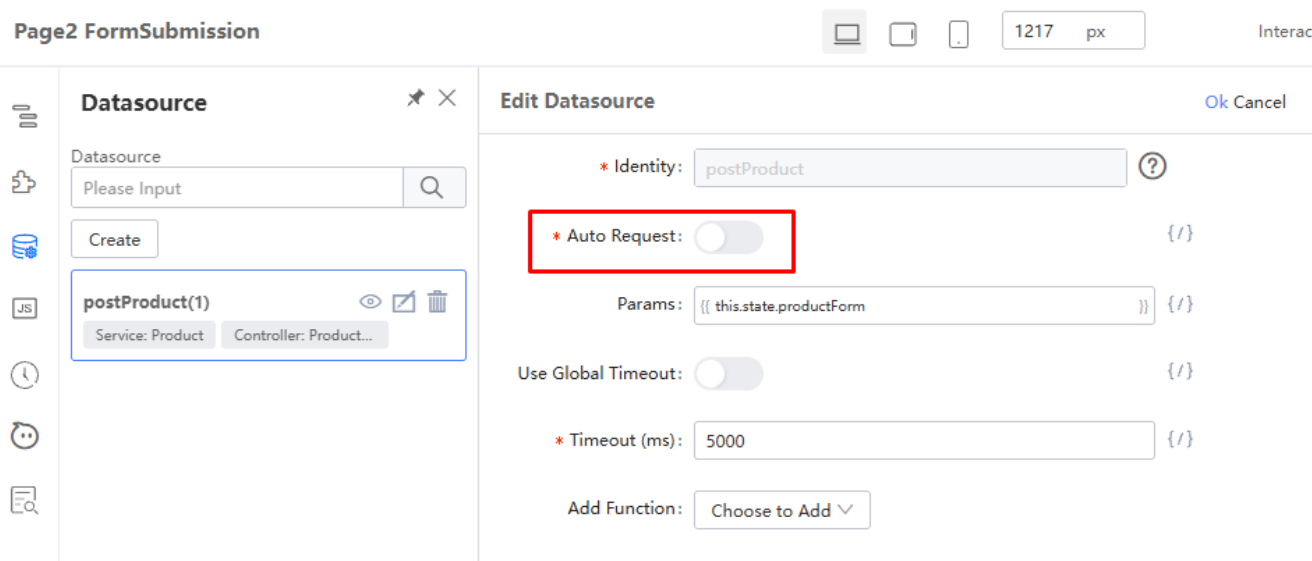
-
Enable the toggle. The API will then be called automatically every time the page loads.
On user action
For an action such as submitting a form or clicking a button, you can bind the API call to a component event (e.g., an onClick event). In the JavaScript function for that event, call the datasource's load() method to trigger the API request.
The following is a code sample on how to call the load() method:
onSubmit(value, errors, field) {
  if (!errors) {
    const updatedForm = {
      ...value,
      workflowName: "YourWorkflowName"  // Change to your workflow name
    };

    this.setState({
      productForm: updatedForm,
    }, () => {
      console.log(this.state.productForm);

      // Datasource mapping, postProduct is datasource identity
      this.dataSourceMap['postProduct'].load().then(res => {
        window.Next.Message.success("Product Added Successfully!");  // Success message
      });
    });
  }
}
Last updated on 21 Sep 2026