Manage AI agent settings
Use the AI Agent Builder settings to manage general configuration options such as global variables, keyboard shortcuts, and message records.
Access the settings
To open the Settings menu, perform the following:
-
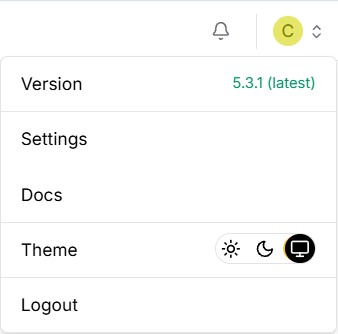
In AI Agent Builder, click your user profile menu.
-
Click Settings.
-
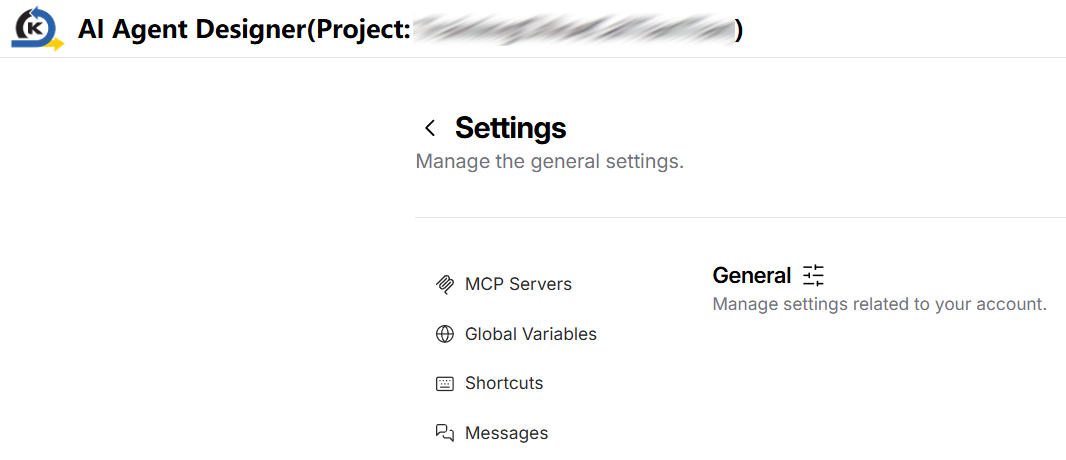
On the Settings page, select the item you want to manage:
- MCP Servers
- Global Variables
- Shortcuts
- Messages
MCP Servers
Use MCP Servers to manage Model Context Protocol (MCP) servers for use in your flows.
From this page, you can:
- View the MCP servers that have been added. If no servers have been configured, the page displays No MCP servers added.
- Click Add MCP Server to add a new server.
- Manage added servers from Settings.
When adding a server, select one of the following configuration methods:
| Method | Configuration |
|---|---|
| JSON | Paste a JSON configuration into Paste in JSON config, then click Add Server. |
| STDIO | Enter the server Name, Command, optional Arguments, and optional Environment Variables, then click Add Server. |
| Streamable HTTP/SSE | Enter the server Name, Streamable HTTP/SSE URL, optional Headers, and optional Environment Variables, then click Add Server. |
Global Variables
Use Global Variables to manage global variables and assign them to fields.
From this page, you can:
- Click Add New to create a global variable.
- Click Import to import global variables. The supported file format is
JSON. - Click Export All to export all global variables. The exported file is in
JSONformat.
Create a global variable
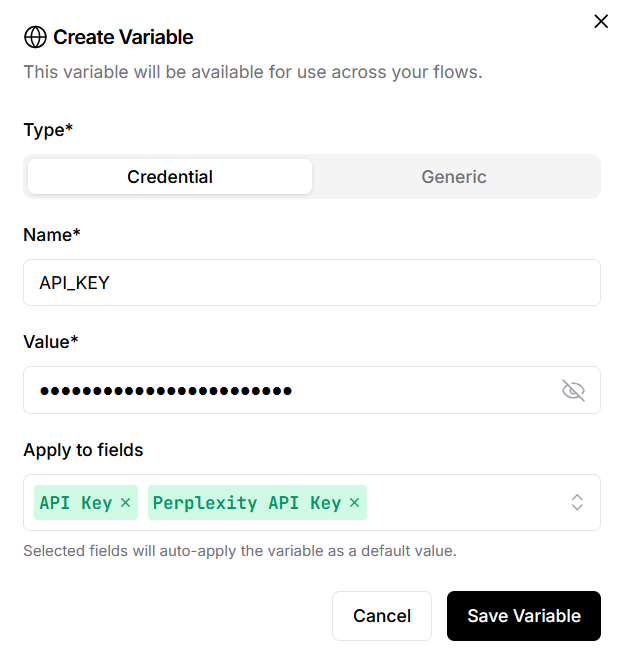
The following shows an example on how to create a new global variable API_KEY:
-
Go to Settings > Global Variables, click Add New.
-
For Type, select Credential for sensitive values. Otherwise, select Generic.
-
For Name, enter the variable name e.g.,
API_KEY. -
For Value, enter the API key value.
-
For Apply to fields, select the fields where this variable should be applied by default.
In this example, the variable is applied to API Key and Perplexity API Key.
-
Click Save Variable.
After the variable is saved, it appears in the Global Variables list with its variable name, type, masked value, and applied fields.

Export all global variables
To export all global variables:
- Go to Settings > Global Variables.
- Click Export All
 . A
. A JSONfile will be downloaded to your local machine.
Import global variables
To import global variables:
-
Go to Settings > Global Variables.
-
Click Import
 .
. -
In the file explorer window, select the
JSONfile that contains the global variable information. Click Open.If the imported file contains variables with the same name as existing variables in the project, the Overwrite Global Variables warning appears. Choose one of the following options:
- Click Overwrite to replace the existing variables with the imported values.
- Click Cancel to stop the import without changing the existing variables.
Shortcuts
Use Shortcuts to view keyboard shortcuts for frequently used actions.
The shortcuts table lists each Functionality with its corresponding Keyboard Shortcut. Click Restore to return shortcuts to default.
Messages
Use Messages to inspect, edit, and remove messages so that you can explore and refine model behaviours.
The messages table includes details such as timestamp, sender, sender name, session ID, files, and ID.
Last updated on 21 Sep 2026