Task assignment
You need the admin rights to use this feature.
Task Assignment helps the admin assign user tasks that use weighted round robin routing. Refer to Task Weightage.
Manage task assignments
To manage task assignments, perform the following:
-
In the KAIZEN studio console, on the left panel, click Workflow > Task Assignment.
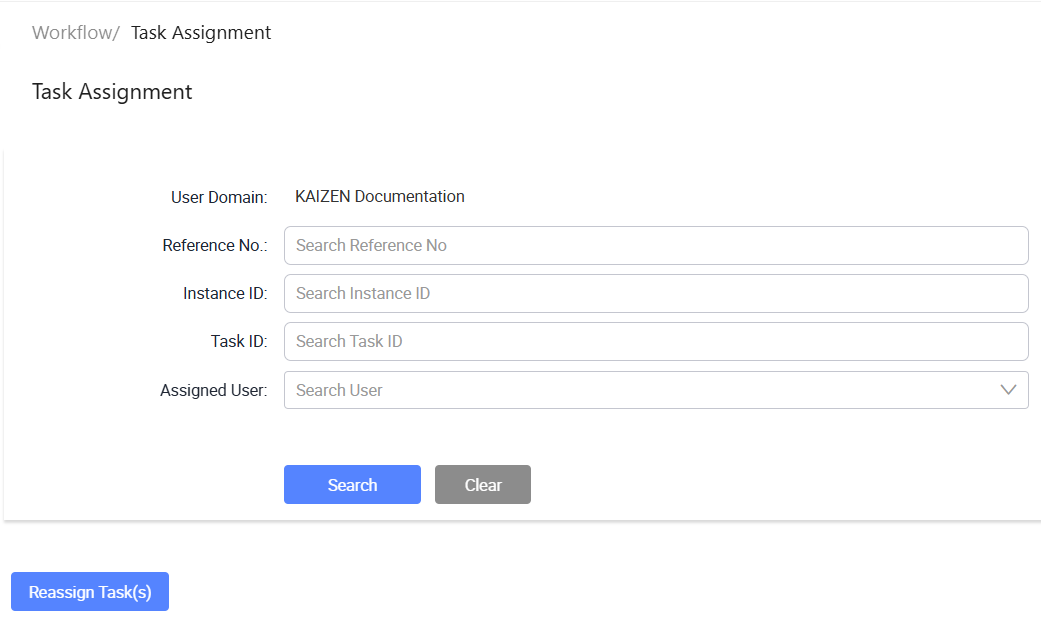
The Workflow/ Task Assignment page displays.
-
From here, you can search for user tasks and reassign tasks to specific users. When a user task first appears in the list, it may be unassigned. The admin can assign it from the task row.
Search task assignments
To search for task assignments, perform the following:
-
In Workflow/ Task Assignment, enter or select the search criteria.
Field Description User Domain Displays the user domain for the current session. Reference No. Search for tasks by reference number. Instance ID Search for tasks by workflow instance ID. Task ID Search for tasks by task ID. Assigned User Search for tasks by assigned user. -
Click Search to find the result.
Reassign a task
To reassign a user task, perform the following:
-
In Workflow/ Task Assignment, find the task to assign.
Unassigned tasks show a blank value in the Assigned User column.
-
On the same row as the task, click Actions > Reassign.
-
Select the user to assign the task to. Click Reassign.
After the task is reassigned, the selected user appears in the Assigned User column.
Last updated on 21 Sep 2026