Instances
You need the admin rights to use this feature.
For Workflow Admins, observability tools such as instance tracking and execution timeline provide deep insights into the automated backend processes.
View instance
This is a visual debugging tool for deep diving into a specific workflow.
To look into a workflow for debugging, perform the following:
-
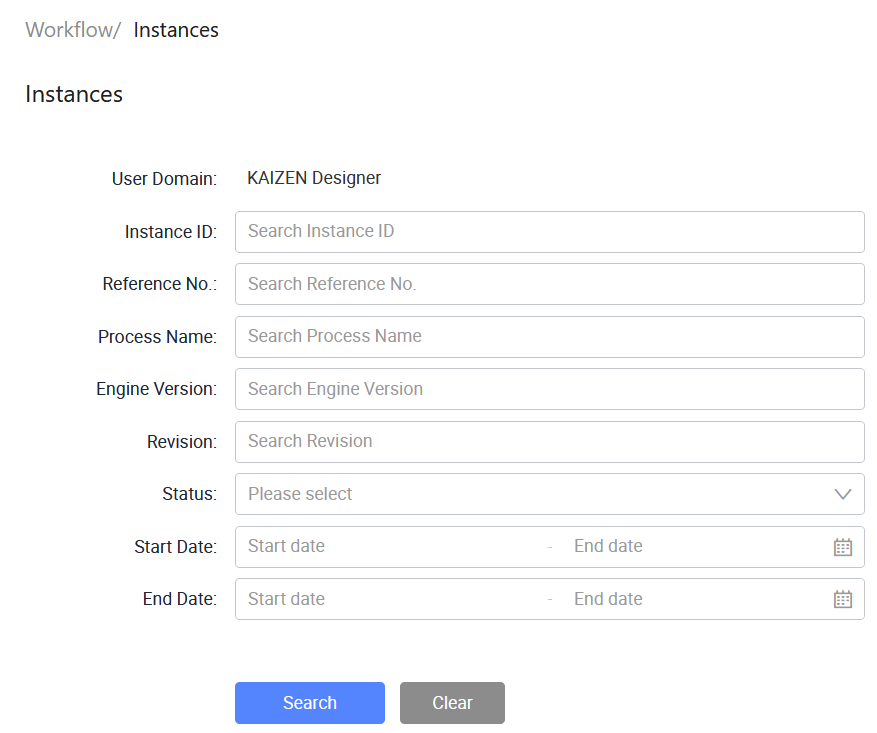
In KAIZEN studio console, on the left panel, click Workflow > Instances.
-
Find the specific workflow instance to investigate. On the same row under Actions, click View Instance.
-
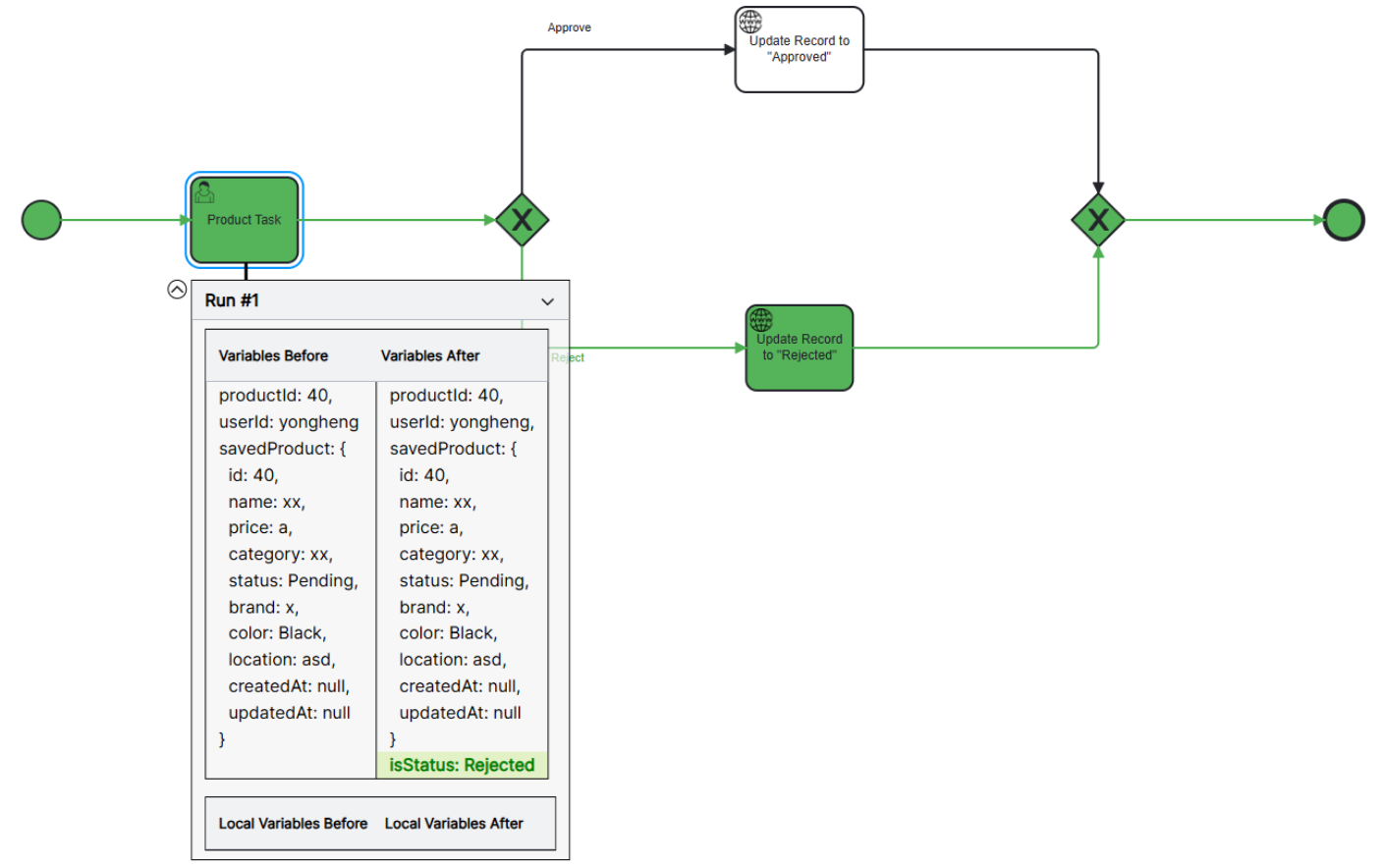
A visual diagram of the workflow displays, with colour-coded indicators showing the exact path that the execution took. In general, green indicates correct and red indicates incorrect.
-
Click any task element in the diagram. This reveals the state of all process variables before and after the task is executed, allowing you to track the flow of data and pinpoint where a variable might be changed incorrectly. This helps you identify any errors in the workflow and debug complex logic.
Workflow instance colour code
When viewing a workflow instance, the designer overlays colour-coded indicators on the diagram:
- Yellow: Currently running or active tasks.
- Green: Completed tasks (executed once).
- Purple: Completed tasks (executed multiple times). A counter displays how many times the element was executed.
- Red: Tasks that encountered errors. Hover over the error icon to view details.
The instance viewer also provides:
- Variable history (left panel): Inspect process variables before and after each task execution. Expand individual tasks to view variable differences, including any manual edits.
- Properties panel (right panel): View the read-only configuration of any selected element.
- Retry and edit controls: For tasks with errors, click the retry button to re-execute. For running tasks, click the edit button to modify variables.
View variables
-
On the Workflow/ Instances page, find the specific workflow instance to investigate. On the same row under Actions, click View Variables.
-
In the Process Variables window, it will show any process variables used in the workflow instance, or a message "Instance has no process variables".
-
After viewing, click Close.
Suspend instance
You can suspend workflow instances that are in Running status.
To suspend a workflow instance, use either of the following methods:
- On the same row as the workflow instance, click Actions > Suspend.
- Select one or more workflow instances, then click Suspend Instance(s).
After that, the instance status changes to Suspended.
Workflow execution timeline view
The execution timeline view allows you to identify performance bottlenecks in the backend logic, by displaying a timeline to show how much time each individual activity within a workflow takes before completion. If a workflow is running slowly, the view enables developers to immediately identify which specific task (e.g., a slow database query in a JDBC Task) is causing the delay.

Last updated on 21 Sep 2026