Frequently asked questions
1. Platform
1.1 What is the KAIZEN Digital Platform and who is it for?
KAIZEN Digital Platform is a rapid low-code development stack built by TOPPAN Ecquaria that accelerates software application delivery across the full Software Development Lifecycle (SDLC). It is designed for UI/UX designers, business analysts, developers, and project managers who want to build enterprise-grade web applications using visual tools, without writing boilerplate code from scratch.
The platform provides a visual Studio Console where teams can design frontends (App Designer), configure backend APIs (Service Designer), model database schemas (Database Designer), automate business processes (Workflow Designer), and manage branding (Theme Designer), all from a single integrated environment.
2. Application Designer
2.1 What types of applications can I build with KAIZEN?
KAIZEN supports four application types:
- Standalone App: A single codebase with a single deployment, ideal for small projects or MVPs where all modules are tightly coupled.
- Main App: A shell or host application in a micro-frontend architecture. It manages navigation, headers, footers, global state, and dynamically loads Micro Apps.
- Micro App: An independent feature module with its own UI, logic, lifecycle, and deployment pipeline that is loaded into a Main App at runtime.
- React Native App: A React-based application category for mobile-oriented use cases.
You can start from a blank canvas or use pre-built templates in categories such as Dashboards, Mobile UI, Charts, and Websites.
2.2 How do I make my application responsive across devices?
KAIZEN supports responsive design through several mechanisms:
- Canvas preview modes: Toggle between PC, Tablet, and Mobile views while designing in the App Designer.
- Layout hierarchy: Pages use a Section -> Block -> Cell structure. Sections are always full-width, Blocks create column layouts, and Cells hold your UI components.
- Breakpoints: Predefined screen-width thresholds that control when layouts change.
- Advanced Responsive mode: When enabled per application, it allows per-component Global or Device-specific style overrides in the Styles tab.
- Viewport Settings: Configurable per application to control the HTML viewport meta tag (width, initial-scale, maximum-scale, user-scalable, viewport-fit).
- Page CSS Isolation (v5.3.0): Prevents CSS styles on one page from leaking to other pages.
Best practice is to design mobile-first, use relative units (percentages, viewport units), and test on actual devices.
3. Code generation and version control
3.1 How does code generation work?
KAIZEN generates standard, open-source technology code:
- Frontend: ReactJS components generated from your App Designer page designs.
- Backend: Spring Boot (Java/Maven) projects generated from your Service Designer and Database Designer configurations, including Controllers, Service Layer classes, DAOs, and Value Objects.
Generated code can be downloaded as a ZIP file or pushed directly to your Git repository (GitHub or GitLab).
You can choose to generate from the Latest Revision (most recent draft) or the Latest Published Revision (last explicitly published version) depending on your workflow.
3.2 How does the built-in Git integration work?
KAIZEN has built-in Git version control supporting GitHub and GitLab. You do not need a separate Git client.
Key capabilities include:
- Branch management: Create, switch, deactivate, and reactivate branches directly from the App Designer or Service Designer.
- Merging: Visual diff comparison (green for additions, red for modifications) with click-to-accept controls.
- Code push: Generated frontend and backend code can be pushed to your repository with a commit message.
- Branch switching is personal and does not affect other team members' views.
- You cannot push generated code to an application that does not have a matching branch.
- All user domains referenced in a source branch must exist in the target branch before merging.
4. Database Designer
4.1 How do I connect my application to a database?
Use the Database Designer to visually model your database schema. It supports PostgreSQL, MySQL, MariaDB, SQL Server, and Oracle.
Within the Database Designer, you can:
- Create and modify tables, columns, data types, constraints, primary keys, foreign keys, and indexes.
- Preview the generated DDL (CREATE/ALTER TABLE statements) before executing them.
- Browse existing database objects (schemas, tables, views, functions, stored procedures, triggers).
- Run SQL queries using the built-in query console with support for saved queries.
- Export ER diagrams (SVG) and data dictionaries (Excel/PDF).
- Auto-generate DAOs (Data Access Objects) from your table definitions for use in the backend.
4.2 Do I need a data source connection to create a virtual database?
No. You can create a virtual database directly in the Database Designer and start designing tables without first creating a data source connection.
You only need a connectable real data source when you bind the virtual database to a real database and apply the selected structure changes.
4.3 Why are tables missing after binding a virtual database to a real database?
If tables are missing after binding, check the following:
- Only some pending changes may have been selected.
- The target database or schema name may be incorrect.
- The real database account may not have the required DDL privileges.
Binding applies selected structure changes only. It does not migrate business data.
4.4 Which database types support virtual database modelling?
Virtual database modelling supports PostgreSQL, MySQL, SQL Server, Oracle, and MariaDB.
5. Workflow Designer
5.1 How do I build workflows and automate business processes?
The Workflow Designer provides visual BPMN 2.0 process modelling and DMN decision modelling tools. You can build workflows by dragging tasks onto a canvas, connecting them with sequence flows, and configuring each task in the properties panel.
Available BPMN tasks include:
- Sequence Flow: Connects elements and defines the order in which they execute.
- User Task: Pauses the process for human review, approval, or form submission.
- HTTP Task: Calls external or internal REST APIs.
- JavaScript Task: Runs server-side JavaScript with access to process variables.
- JDBC Task: Executes SQL queries against a configured datasource.
- Decision Task: Evaluates a DMN decision model.
- WaitForTrigger Task: Pauses the workflow until an external trigger or configured cron schedule continues it.
- AI Agent Task: Executes an AI agent workflow (requires advanced subscription).
- AI Prompt Task: Executes a prompt with an AI model (requires advanced subscription).
- Retrieve Embedding Task: Retrieves vector embeddings from a vector database (requires advanced subscription).
- Generate Store Embedding Task: Generates and stores vector embeddings (requires advanced subscription).
Available DMN tasks include:
- Decision: Defines decision logic that produces an output from one or more inputs.
- Input Data: Provides external information used by decisions.
- Knowledge Source: References an authority, such as a policy document or regulation.
- Business Knowledge Model: Encapsulates reusable decision logic.
Use Token Simulation to visually preview how tokens flow through your BPMN process before deploying. Workflow and decision models are saved as .bpmn and .dmn XML files and deployed via Workflow Admin.
6. Service Designer
6.1 Can I integrate KAIZEN with external APIs and services?
Yes. The Service Designer supports External Providers, which are configured connections to external REST APIs with environment-specific settings.
For each External Provider, you can define Env Configs that specify different base URLs, SSL/TLS certificates, and other settings per environment (development, staging, production). This allows the same service definition to seamlessly connect to different external endpoints depending on where your application is deployed.
Within workflows, HTTP Tasks can call any external or internal API. JavaScript Tasks offer additional flexibility for data transformation and custom logic. The platform also supports OIDC for federated authentication with external identity providers.
For AI integrations, KAIZEN provides dedicated workflow tasks for AI prompts, AI agents, and vector embedding operations (with advanced subscription).
7. Security
7.1 How does Identity and Access Management (IAM) work?
KAIZEN uses Role-Based Access Control (RBAC) with a layered hierarchy:
- User Domain: The top-level security boundary (e.g., "Internal Staff Portal" vs. "Public Customer Portal").
- User: Assigned to one domain and can hold multiple roles.
- Role: A collection of privileges representing a job function.
- Privilege: Granular permissions (e.g.,
can_view_reports). - Resources: Protected assets including Pages, API Endpoints, and Navigator Menus.
Security features include JWT-based authentication (configurable token expiry), RSA-encrypted passwords, configurable password hashing (BCRYPT, SCRYPT, or SHA-256), account lockout policies, password expiry, single-session enforcement, and user inactivity controls. The platform also supports Azure AD, Windows AD/LDAP, and OpenID Connect (OIDC) integration for enterprise single sign-on.
An Audit Trail logs all user activities with full details, including who, what, when, before/after data, IP address, and user agent.
8. Deployment
8.1 What should I know before deploying my KAIZEN application?
KAIZEN applications are deployed to Kubernetes clusters. Key considerations include:
- Deployment order matters: The
kaizen-fe-app-gatewaymust be deployed last. Deploying it before other services causes broken links and images. - Post-setup cleanup: After the initial setup wizard completes, shut down
kaizen-setup, but first comment out the/setup/path in the gateway configuration to prevent startup failures. - Password hashing is permanent: The hashing algorithm (BCRYPT, SCRYPT, or SHA-256) selected during initial setup cannot be changed afterwards.
- Feature flags: Mobile app creation (
ENABLE_MOBILE) and AI tasks (AI_AGENT_ENABLE) are disabled by default and must be explicitly enabled inconfig.json. - Datasource URL format: All backend datasource Location URLs must follow the
/gateway/<service-name>/api/v1/...pattern for proper gateway routing. - Case sensitivity: Search across all KAIZEN modules is case-sensitive, so consistent naming conventions are essential.
- Import uniqueness: When importing applications, the Application Identity must be unique, because duplicates will be rejected.
The platform supports full import/export of applications (ZIP), services (XML), workflows (BPMN/SVG), themes, and project configurations for easy backup and environment migration.
9. AI Agent Builder
9.1 What are the recommended steps to deploy a flow?
Follow these steps to deploy a flow:
-
Export the flow
- From your project toolbar, open AI Agent Builder.
- Design and finalise the flow, then export it as a
JSONfile. Refer to Export the flow.
-
Deploy the flow
noteThis feature is only available for
kaizenadmin. If anyone else wants to use it, the admin should grant access.- Navigate to the Agent Builder Admin menu in Studio Console to open AI Agent Admin.
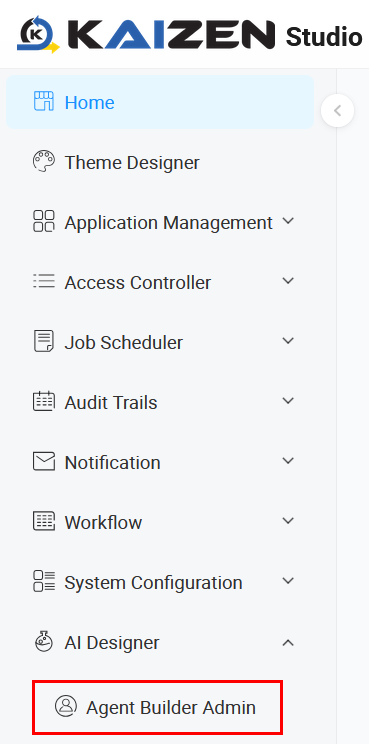
- Upload the exported
JSONfile to deploy it.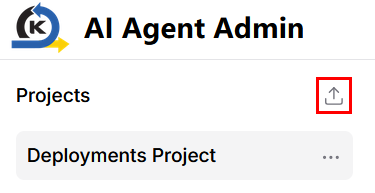
- The deployed flow will appear in the Deployments Project list.

- Note the
flow_idassigned by default to the deployed flow, which is a string at the end of the API endpoint URL, showing in the API Access window > Python tab.- If you want to add an alias (
endpoint_name) to theflow_id, you can change this value by clicking Share > API Access.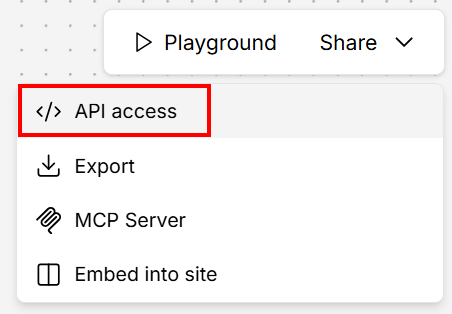
- In the API Access window, click Input Schema.
- In the Input Schema window, change the value in the Endpoint Name field. This example uses
test-endpoint-name.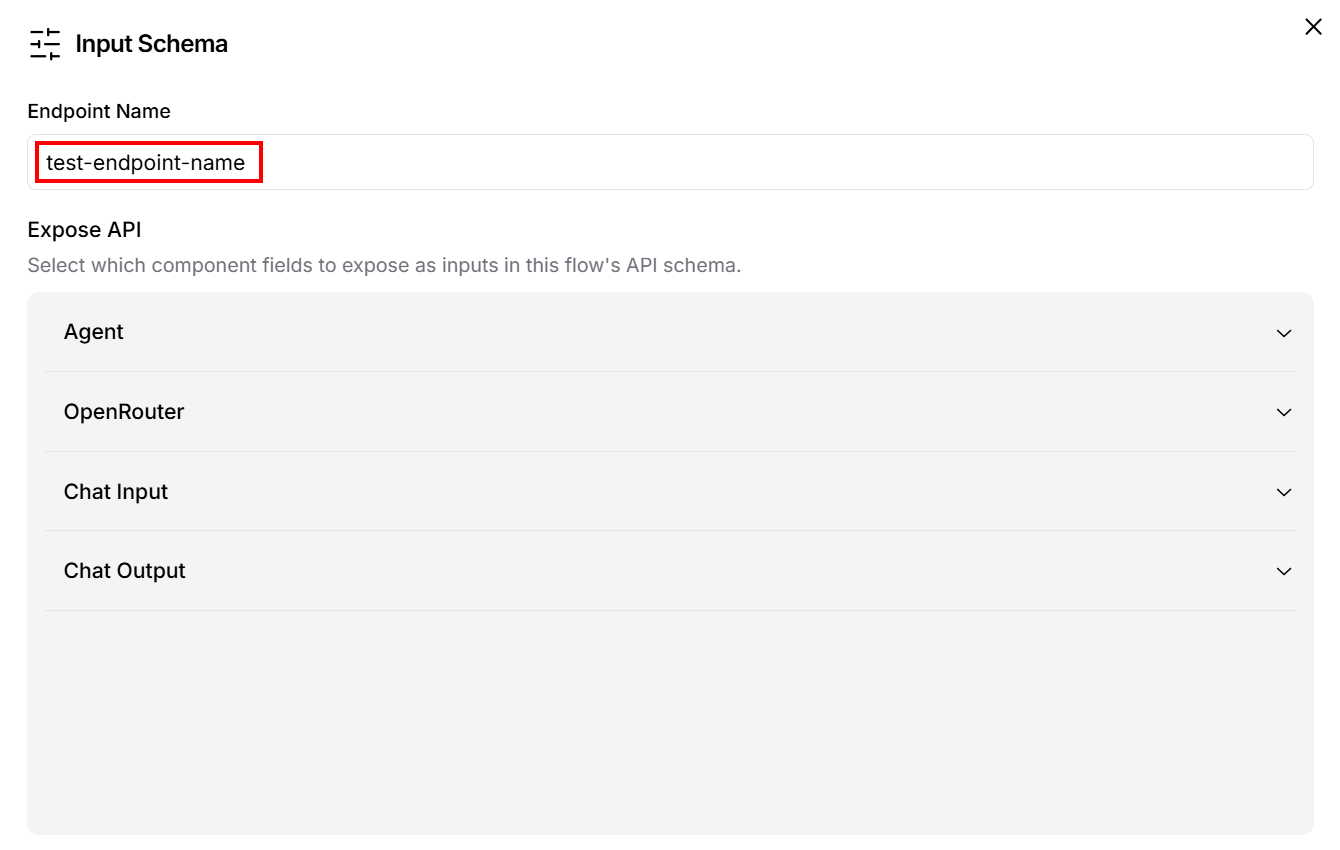
- After closing the window, you can view the new
endpoint_nameorflow_id.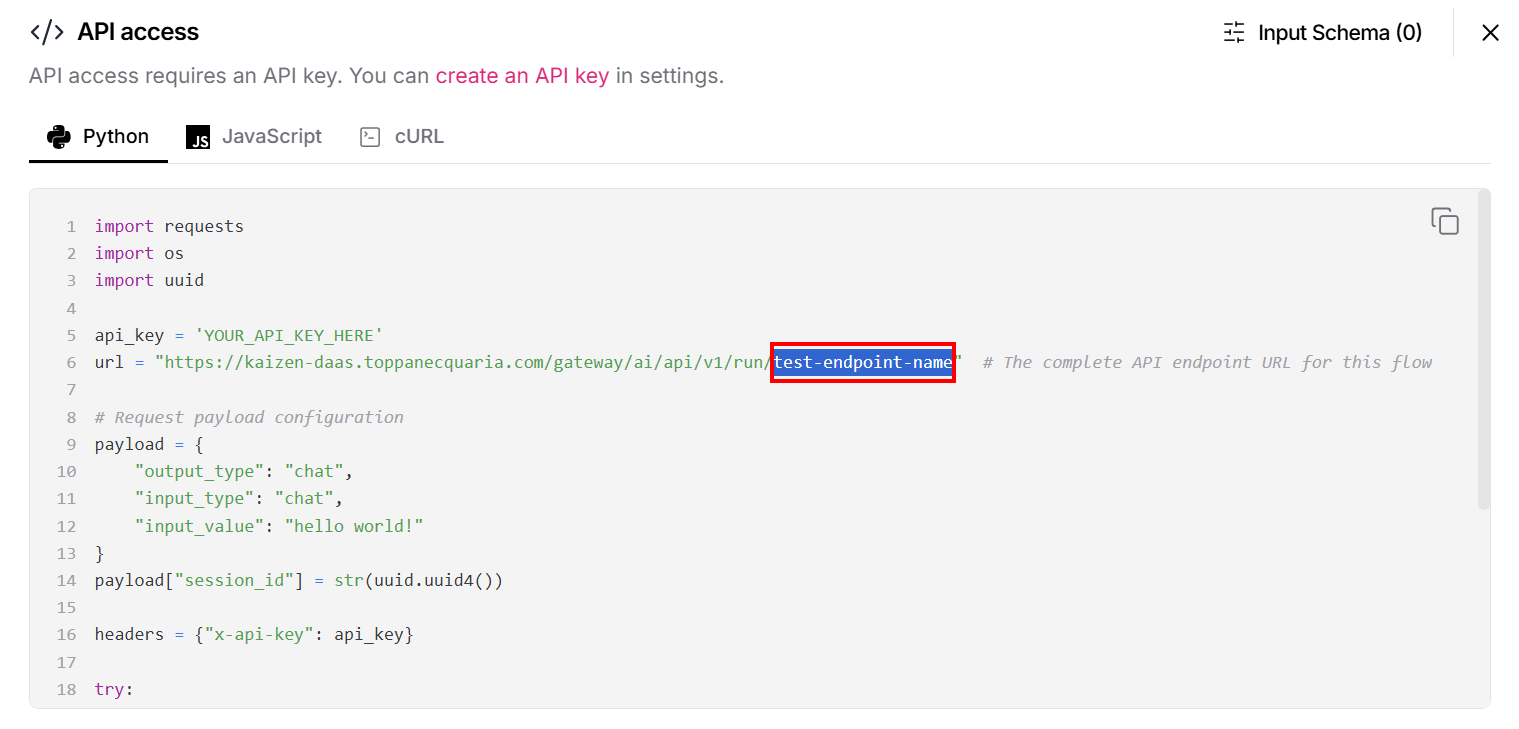
- If you want to add an alias (
- Navigate to the Agent Builder Admin menu in Studio Console to open AI Agent Admin.
9.2 What's the recommended way to configure permissions, so that users with no access to the project where the flow was created can still use the deployed flow?
The recommended way is to grant access to end users:
- The admin user assigns the role
agp_ai_flw_adminto any user who needs to trigger or deploy the flow. - These users do not need access to the project where the flow was created.
Last updated on 21 Sep 2026