Configure privileges
Privileges are granular permissions that control access to specific resources within an application. You can create and manage privileges from the Config Privileges window.
Create a privilege
To create a privilege for your application, perform the following:
-
On the application card, click the three-dot icon
 and select Config Privileges.
-
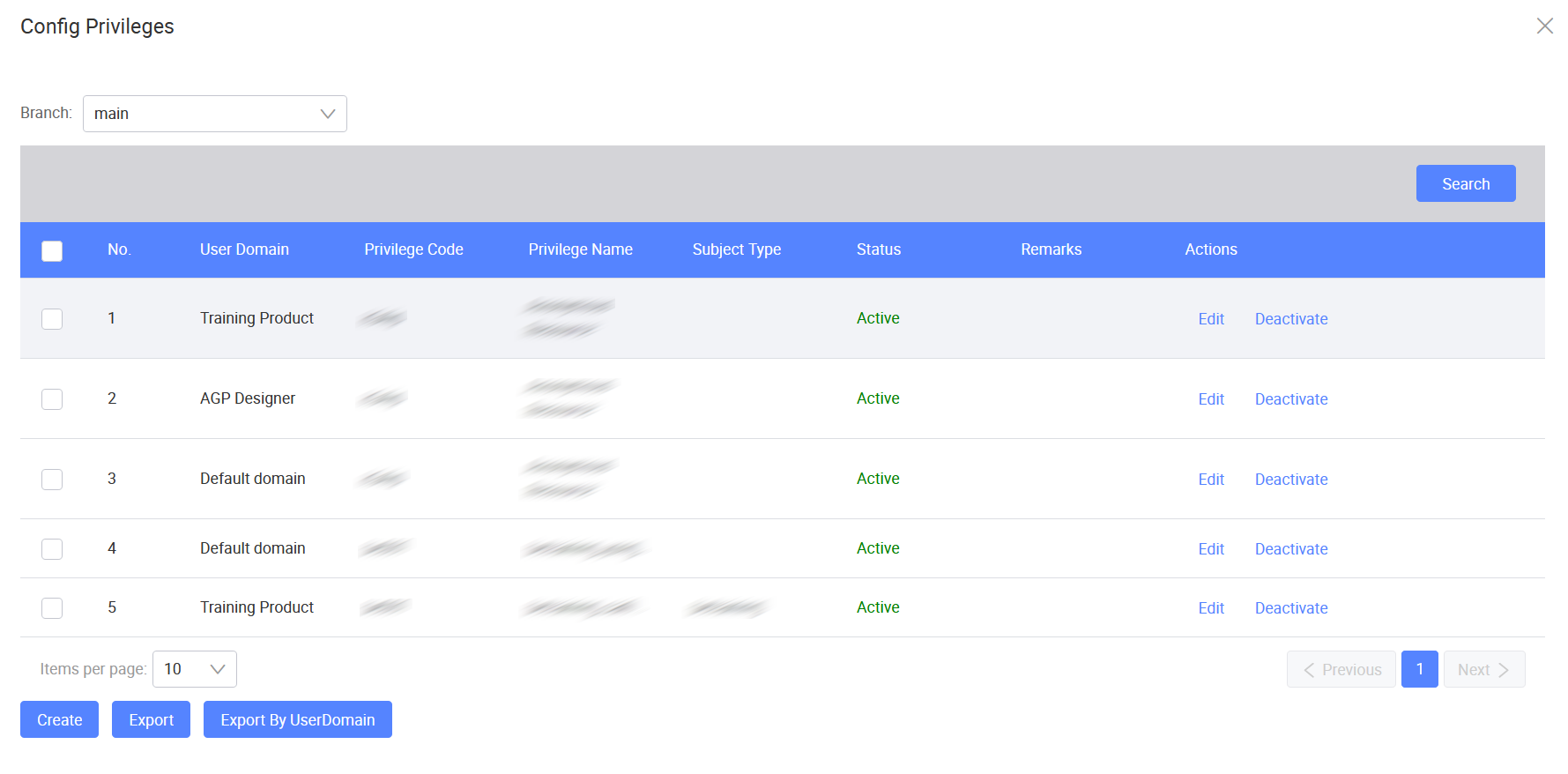
In the Config Privileges window, select the target branch from the Branch dropdown.
-
To add a new privilege, click Create.
-
In the Create Privilege window, fill in the following fields:
Field Mandatory Description User Domain Yes Select a user domain from the dropdown. Privilege Code Yes Enter a unique code for the privilege. Privilege Name Yes Enter a display name for the privilege. Subject Type Yes Select the subject type for the privilege. Defaults to General. Status Yes Select Active or Inactive. Defaults to Active. Remarks No Enter any additional notes. -
Click Save. The privilege will appear in the Config Privileges window.
Search privileges
To search privileges, perform the following:
-
On the application card, click the three-dot icon
and select Config Privileges. -
In the Config Privileges window, select the target branch from the Branch dropdown.
-
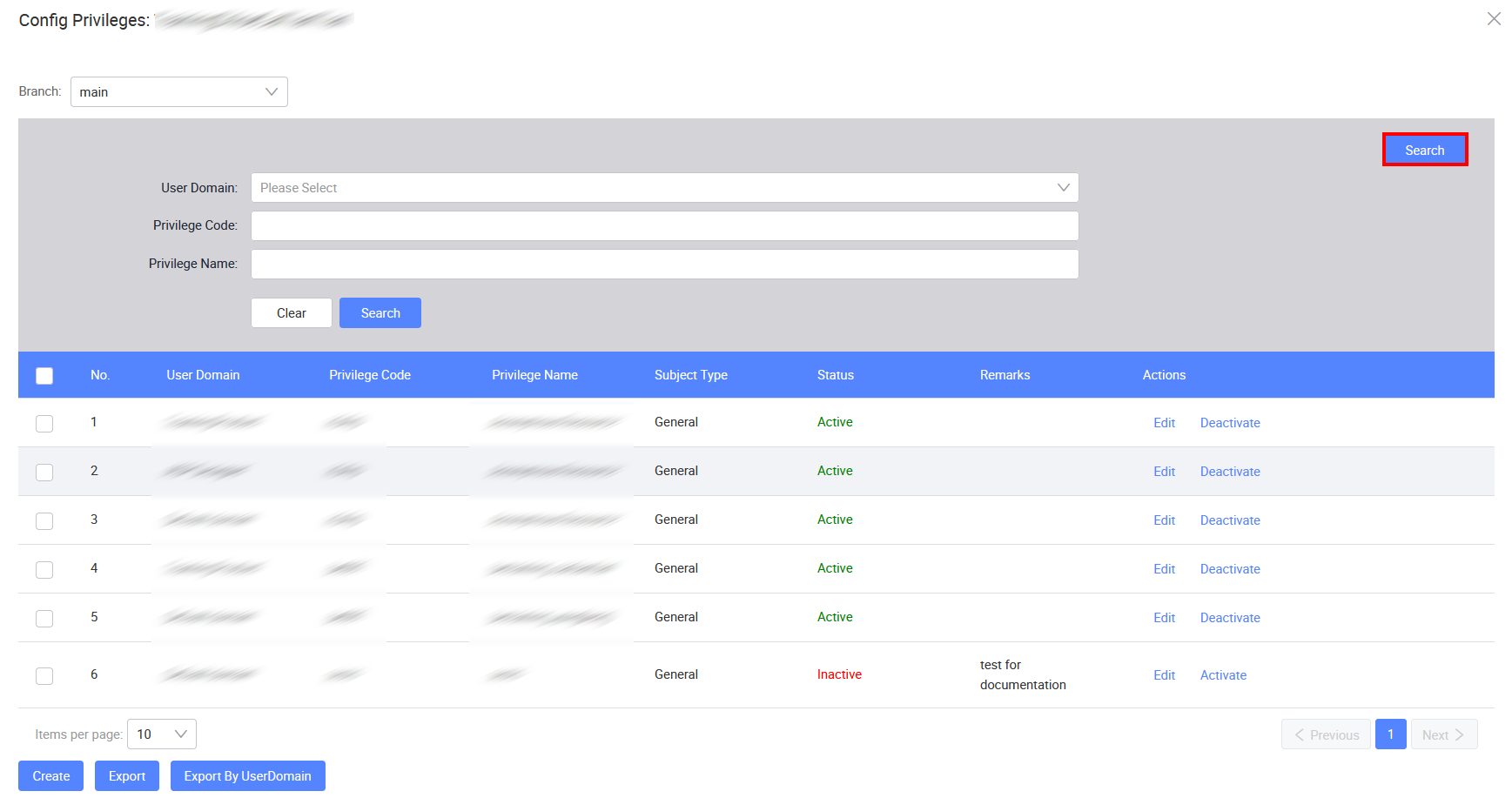
In the search panel, select a User Domain or enter a Privilege Code or Privilege Name. You can use one or more search criteria.
-
Click Search. The matching privileges will display in the list.
Export a privilege
To export privileges as an XML file, perform the following:
-
In the Config Privileges window, select the privileges you want to export and click Export.
-
In the Confirm dialog, click OK.
An XML file containing the privilege information will be downloaded to your local machine.
Export privileges by user domain
To export all privileges under a specific user domain as an XML file, perform the following:
-
In the Config Privileges window, click Export By UserDomain.
-
In the Select Domain window, select a User Domain from the dropdown.
Optionally, check Only export active data to exclude inactive privileges.
-
Click Export.
An XML file containing the privilege information for the selected domain will be downloaded to your local machine.
Edit a privilege
After creating a privilege, you can edit the privilege information by clicking the Edit button on the same row.
Except User Domain and Privilege Code, most fields can be updated. Refer to this table for more details.
After making the changes, click Save.
Deactivate a privilege
To deactivate a privilege, perform the following:
-
In the Config Privileges window, click Deactivate on the same row.
-
In the confirmation dialog, click OK. A success message will confirm that the privilege has been deactivated.
After the deactivation, you have the option to reactivate it following the on-screen instructions.
Last updated on 21 Sep 2026