Configure notification templates
Notification templates define the content and format of messages that KAIZEN sends to users for events such as workflow task assignments, approvals, or system alerts. By configuring templates at the project level, you can standardise the messaging across your applications and ensure that notifications are consistent, localised, and relevant to your users.
Create a notification template
To create a notification template, perform the following:
-
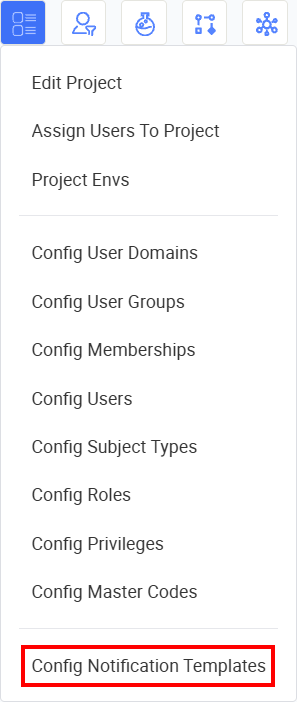
Click the Project icon on the project toolbar and select Config Notification Templates.
-
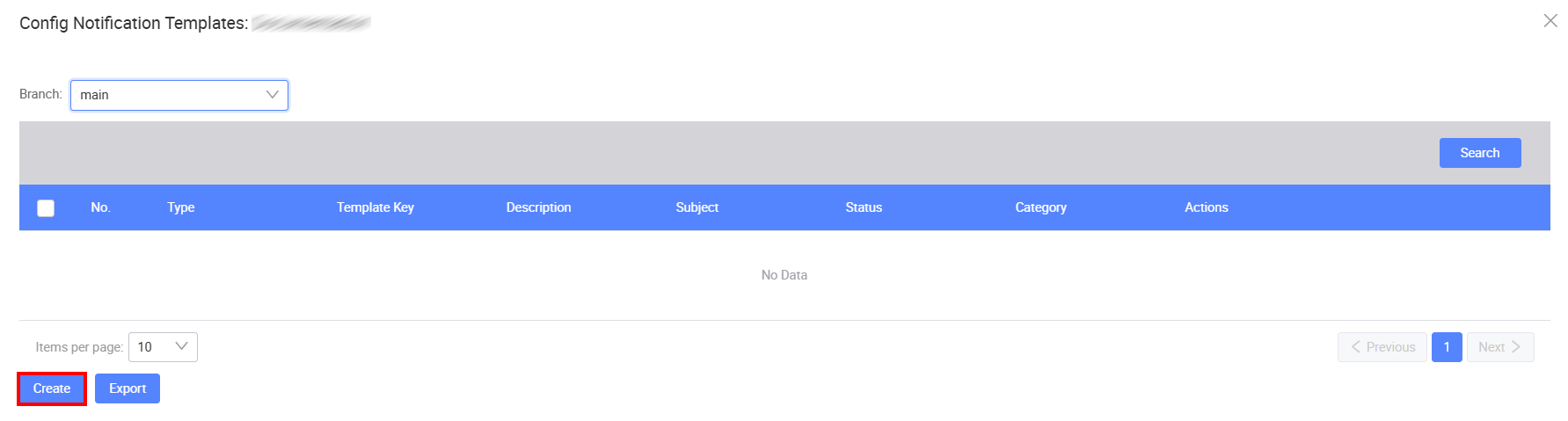
In the Config Notification Templates window, select the target branch from the Branch dropdown.
-
Click Create.
-
In the Create Notification Template window, fill in the following fields:
Field Mandatory Description Type Yes Select the delivery channel for the notification from the dropdown (for example, email or SMS). Category Yes Enter a category to group related notification templates. Template Key Yes Enter a unique key to identify the template. Description No Enter an optional description of the template's purpose. Status Yes Select Active or Inactive. Defaults to Active. Subject Yes (Conditional) - This field appears only when Type is Email.
- Enter the subject of the email notification.
Content Yes Enter the body of the notification message. You can include placeholders for dynamic values. -
Optionally, click Parameters to define dynamic parameters that can be inserted into the notification content.
-
Click Save. The template will appear in the Config Notification Templates window.
Search notification templates
To search notification templates, perform the following:
-
Click the Project icon on the project toolbar and select Config Notification Templates.
-
In the Config Notification Templates window, select the target branch from the Branch dropdown.
-
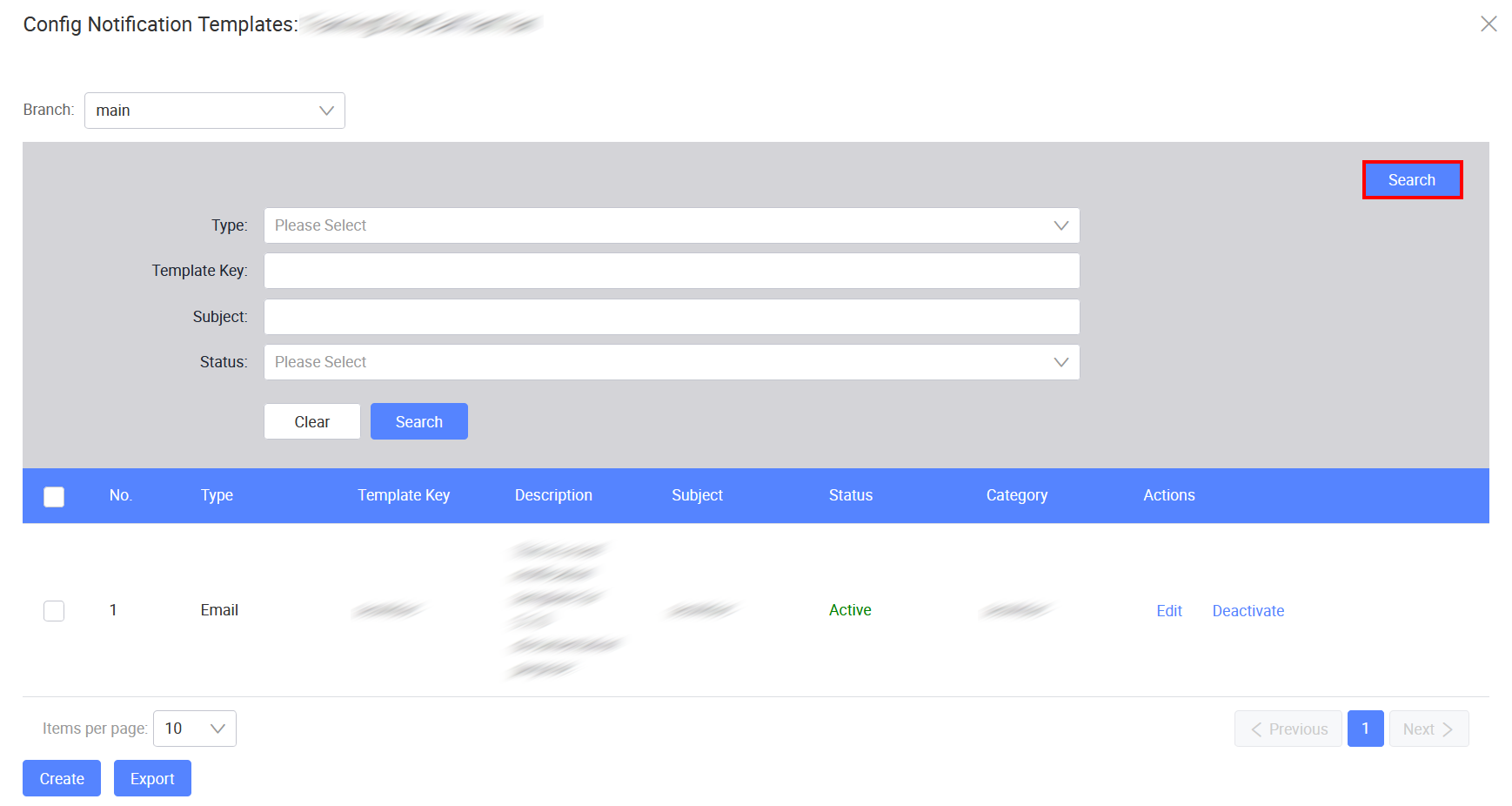
In the search panel, select a Type or Status, or enter a Template Key or Subject. You can use one or more search criteria.
-
Click Search. The matching notification templates will display in the list.
Edit a notification template
To update an existing notification template, perform the following:
-
In the Config Notification Templates window, click Edit on the same row as the template you want to update.
-
Make your changes in the Edit Notification Template window. Refer to the field descriptions above for guidance.
-
In the Edit Notification Template window, there is a field for you to specify the subject of the notification.
-
You can also click Parameters to open the Create Parameter window, where you need to specify the parameter key, status, and description.
-
-
Click Save to apply the changes.
Export notification templates
To export notification templates, perform the following:
-
In the Config Notification Templates window, select the notification templates you want to export and click Export.
-
In the confirmation dialog, click OK.
An
XMLfile containing the notification template information will be downloaded to your local machine.
Deactivate a notification template
To deactivate a notification template that is no longer in use, perform the following:
-
In the Config Notification Templates window, click Deactivate on the same row.
-
In the confirmation window, click OK to proceed.
A success message will confirm that the template has been deactivated.
Deactivated templates remain visible in the list but will not be used for sending notifications. After the deactivation, you have the option to reactivate it following the on-screen instructions.
Last updated on 21 Sep 2026