Import or export project configuration
You can export project configuration as an encrypted ZIP package and import it into another project, without manually duplicating the settings or repeating your work.
The configuration information includes project settings such as user domain, user, group, membership, role, privilege, menu, subject, notification template, project environment, MasterCode and more.
Export project configuration
To export the project configuration, perform the following:
-
Navigate to the KAIZEN Studio Console.
-
Locate the project that contains the configuration to be exported. Click
 and select Export Config.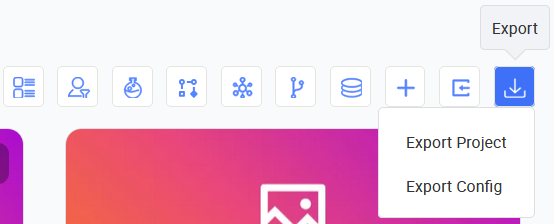
-
Enter the encryption key. Its length is only allowed to be 16, 24, or 32.
noteIn KAIZEN version 5.3.0, when no user data is involved, the import/export process will not require the encryption key.
-
The project configuration package will be generated and downloaded in a
ZIPpackage.The exported file contains all configurations within the project in
XMLandJSONfiles.
Import project configuration
To import the project configuration from an existing ZIP file, perform the following:
-
In KAIZEN Studio Console, find the project where you want to import the configuration.
-
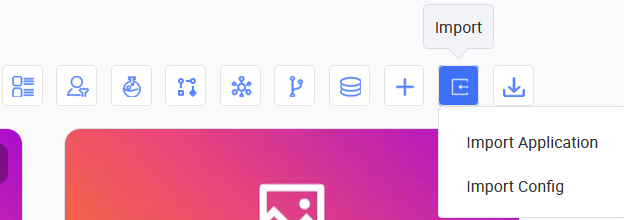
At the project's top right menu, click Import, then click Import Config.
-
In the Import Config window, select a branch as the import destination, click the Select File button, and browse to the
ZIPfile. Click Open.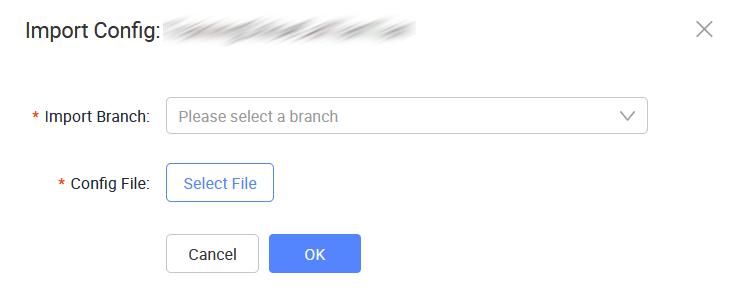
-
The Import Config window will refresh and display the Encryption Key field. Enter the same encryption key you set for exporting the configuration. Click OK.
If you see a success message, that means the project configuration has been successfully imported.
Last updated on 21 Sep 2026