Theme Designer overview
KAIZEN Theme Designer lets you define a consistent look and feel for your application. From a global colour palette to a specific corner radius, Theme Designer covers all the style customisation tasks and reinforces your organisation's brand identity.
Access the Theme Designer
In KAIZEN studio console, find the left menu and click  to open the Theme Designer.
-
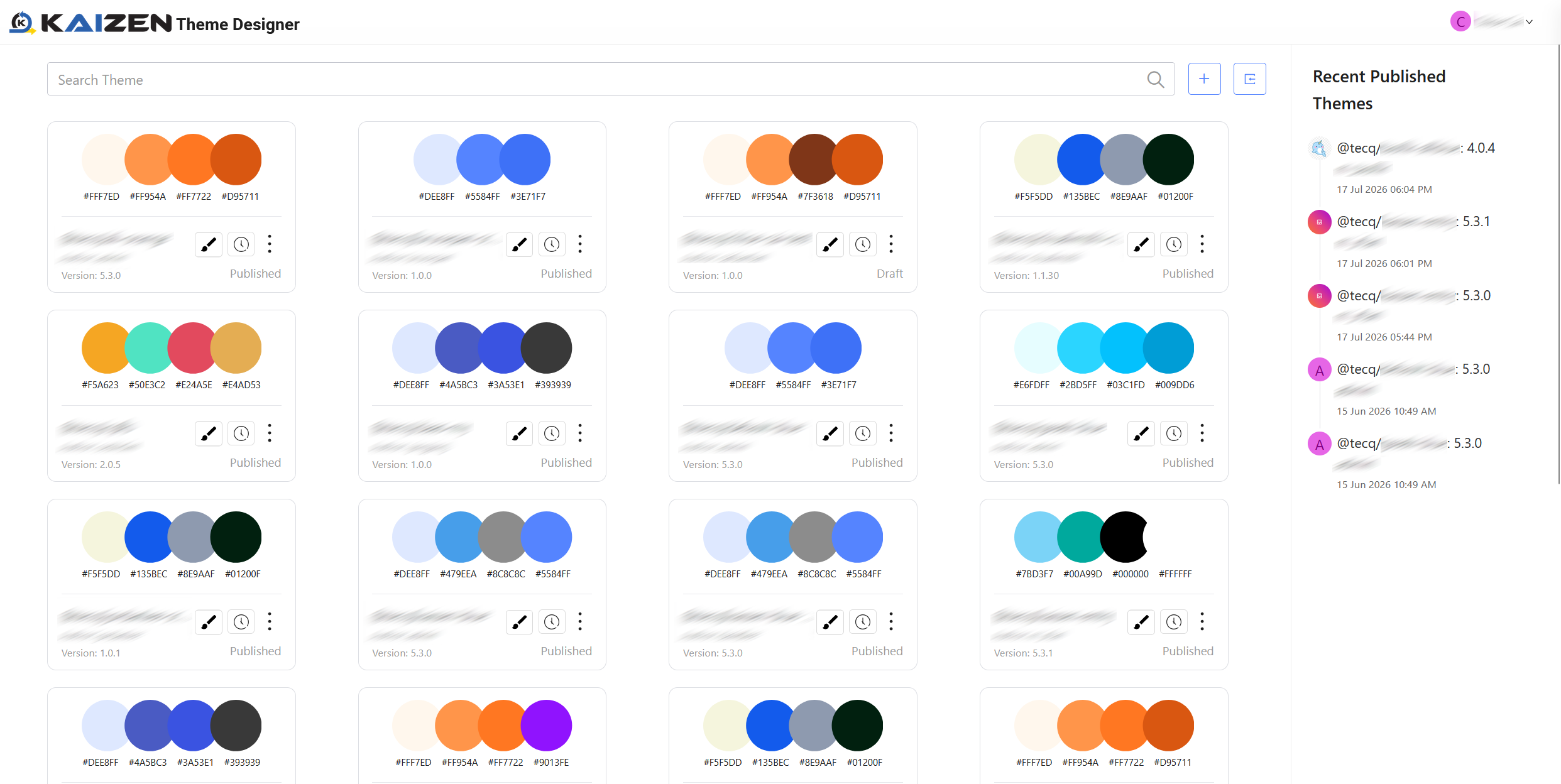
Search Theme: Enter the keywords to search for themes by name. Results automatically appear.
-
 Design or Create: For more details, refer to Design a theme.
 -
 Import or Export: For more details, refer to Import or export a theme.
 -
 View Publish History: View the current version and a list of previous versions in the Publish History.
 -
Edit: Click the three-dot icon
 to choose this option. Specify the authorised users, upload thumbnails, and enter a description if you want. Click Save.
 -
Delete: Click the three-dot icon
to choose this option. When you click Delete, confirm in the popup window if the theme in the published state should be deleted together, and then click Delete.
Last updated on 21 Sep 2026