Theme Designer overview
KAIZEN Theme Designer lets you define a consistent look and feel for your application. From a global colour palette to a specific corner radius, Theme Designer covers all the style customisation tasks and reinforces your organisation's brand identity.
Access the Theme Designer
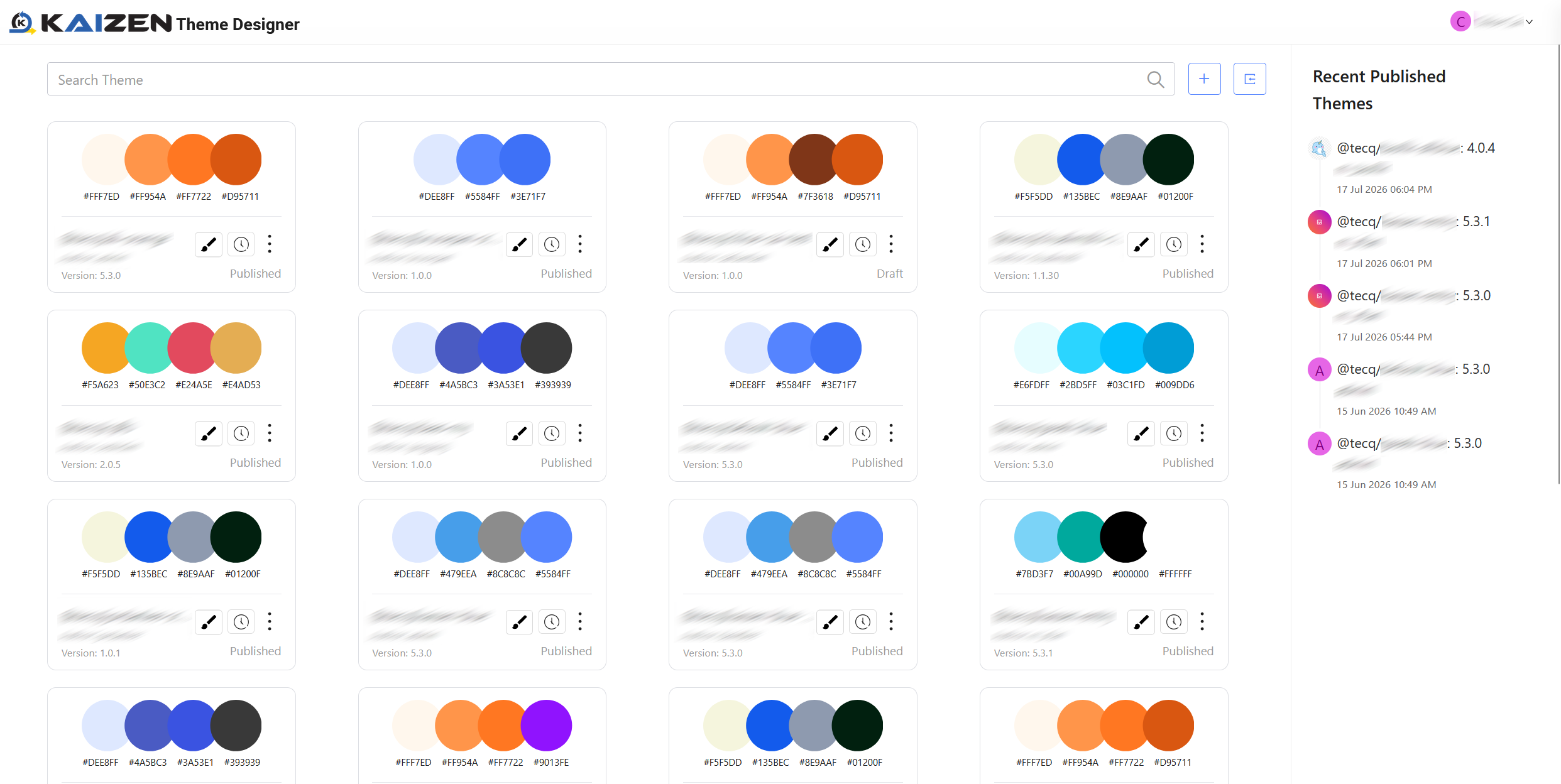
In KAIZEN studio console, find the left menu and click  to open the Theme Designer.
-
Search Theme: Enter the keywords to search for themes by name. Results automatically appear.
-
 Design or Create: For more details, refer to Design a theme.
 -
 Import or Export: For more details, refer to Import or export a theme.
 -
 View Publish History: View the current version and a list of previous versions in the Publish History.
 -
Edit: Click the three-dot icon
 to choose this option. Specify the authorised users, upload thumbnails, and enter a description if you want. Click Save.
 -
Delete: Click the three-dot icon
to choose this option. When you click Delete, confirm in the popup window if the theme in the published state should be deleted together, and then click Delete.
Theme Designer workspace layout
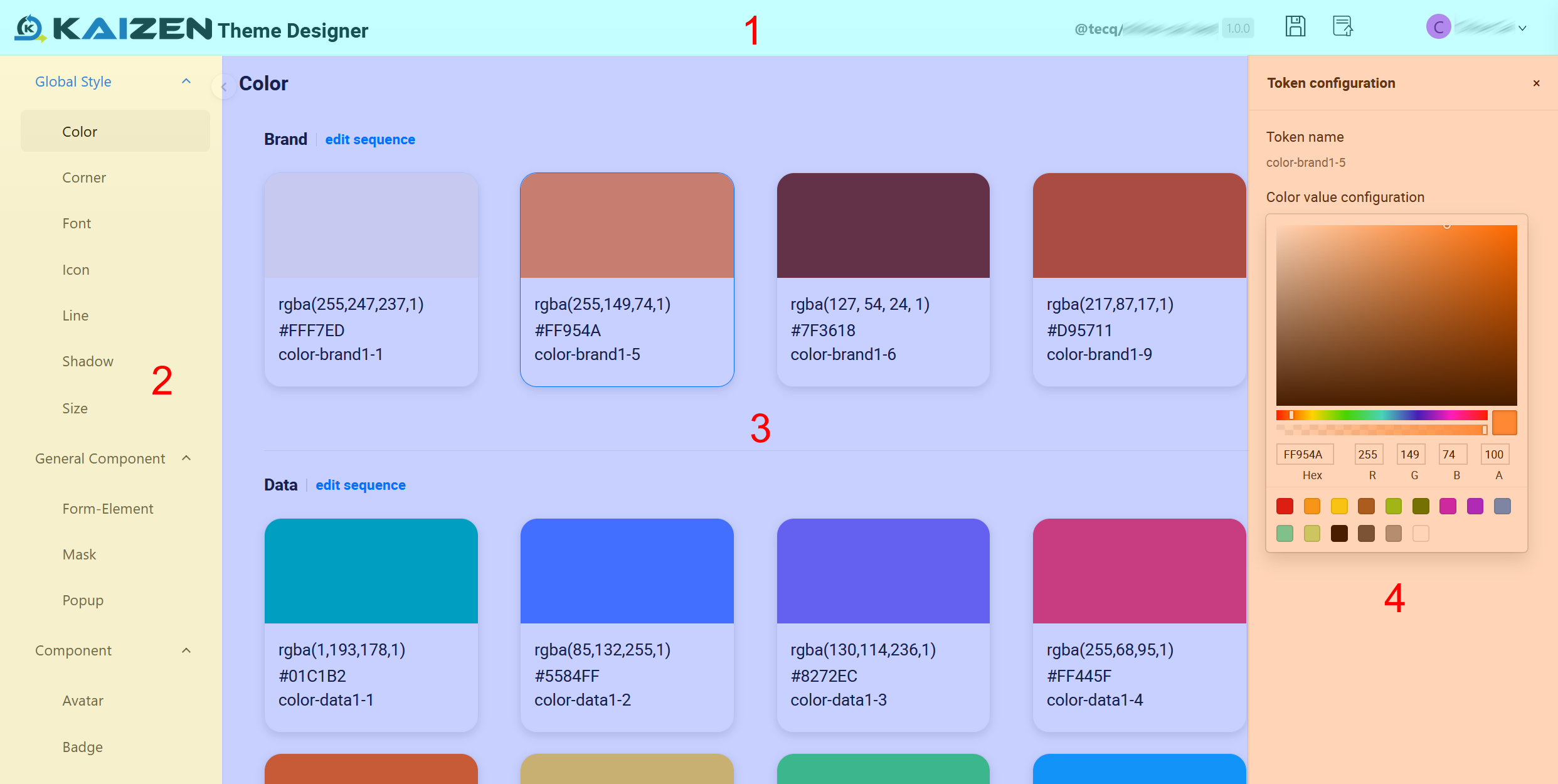
The Theme Designer workspace is organised into four main areas:
-
Top menu: This is at the top of the Theme Designer. Use it to save your draft or publish the theme.
-
Sidebar: This lists all style categories and component categories. Click a category, such as Corner, Font, or Icon, to display its available tokens in the central panel.
-
Central panel: This shows the predefined tokens for the selected category. Each token card includes a visual preview, token name, and current value. Click a token card to select it for configuration.
-
Token configuration panel: This opens on the right after you select a token. Use it to review the token name and customise the token value, such as a border radius, preferred font, icon size and more.
Use the sidebar to choose a style category, then select a token in the central panel to configure it. You can save changes as a draft while you are still working, or publish the theme when it is ready for the application.
Last updated on 19 Oct 2026