Design a theme
Theme Designer helps you design themes to apply a consistent look and feel to your applications. You can create a new theme or customise an existing one, then publish it for sharing.
Create a theme
To create a theme, perform the following:
-
In Theme Designer, at the top right corner, click the + sign.
The Create Theme window opens, with the author name pre-filled.
-
Provide the following information:
- Theme Name: Enter the name of the theme for easy recognition.
- Version: Enter the version number of the theme.
- Inherit: Select an existing theme from the dropdown to inherit the styles.
- Description: Enter a comment to describe the theme.
-
Click Save. It will appear in the Theme Designer.
Customise a theme
After creating a theme, perform the following for customisation:
-
In Theme Designer, find the theme you want to customise.
-
From the theme's bottom right corner, click Design
 to access the components.
 -
On the left side, the Global Style list contains the preset configurations for the app's appearance, and the Component list defines the default style of each component, which you drag from the App Designer's Components Library and drop onto the canvas.
-
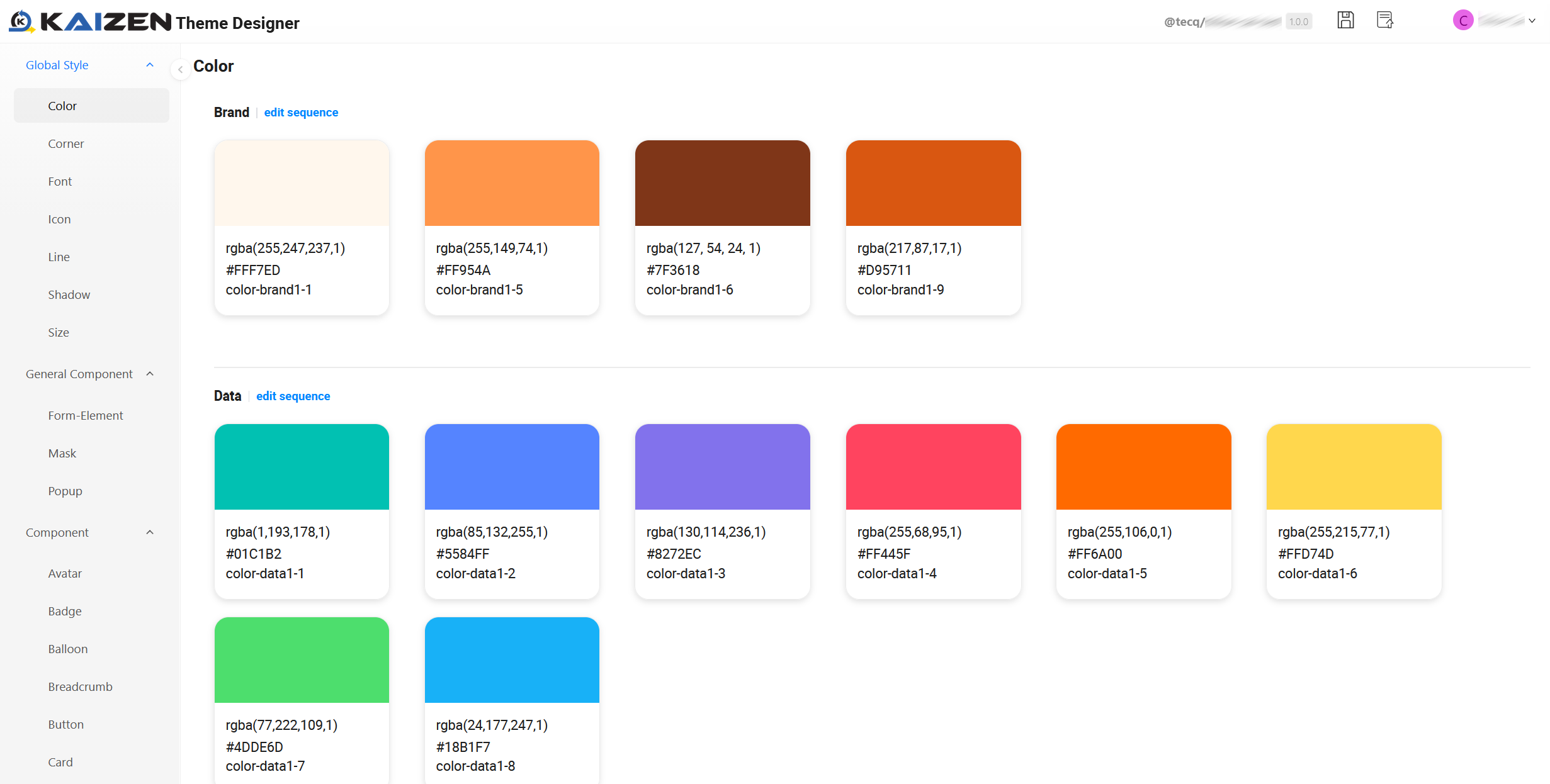
Global Style: Set the colour palette, corner radius, font, icon size, line weight, shadow, and overall size.
- Token Configuration: When you select a global style, this panel appears. It provides relevant options to fine-tune the style properties.
-
General Component: Specify the style for common interface elements, such as form elements, masks, and popups. You can configure the default appearance of input fields, selection lists, time pickers, overlay masks, and popup menus.
- Token Configuration: When you select a general component style, this panel appears. It provides relevant options to fine-tune the component properties, such as corner radius, height, icon size, text size, background colour, and opacity.
-
Component: Specify the style for each component, such as button, card, form and more.
noteTheme support has been added for new components, including Badge, Progress, Collapse, Avatar, and Range.
- Token Configuration: When you select a component style, this panel appears. It provides relevant options to fine-tune the style properties.
-
-
Once you made any change, it will immediately display for your preview.
-
To apply any global style to a component, select it and choose a sub-component.
-
From the Token Configuration panel, specify from the dropdown any preset configuration you want.
-
Specify the preset configuration for all sub-components.
-
Publish a theme
When you finish making changes to a theme, perform the following for publishing:
-
In Theme Designer, at the top right corner, click Save Draft
 . The Save draft window opens and the author name is pre-filled.
Provide the following information:
- Theme Name: Enter a name of your theme for easy recognition.
- Version: Enter the version number.
- Comment: Enter a comment to describe the changes you made.
Click Save.
-
Click Publish
 . The Publish window opens.
 -
Review and complete the required fields:
Field Mandatory Description Theme Name Yes Review the name of the theme you want to publish. Version Yes Specify the version number to publish. Use a version number that has not already been published. Author Yes Displays the pre-filled author name. Comment Yes Enter a comment describing the changes included in this version. -
Click Save. The theme will be published and become available to all users or viewers across the App Designer.
Each theme version can only be published once. If you attempt to publish a version that has already been published, the system will display an error message. To publish again, create a new version with an updated version number.
Last updated on 19 Oct 2026