Workflow integrations
You need the admin rights to use this feature.
Workflow integrations allow the admin to manage the external services and connection settings used by workflows. From this section, you can configure AI providers, datasources, vector databases, and keystores for the selected user domain.
AI Provider
AI Provider allows the admin to manage the AI services used by workflow integrations.
To manage AI providers, perform the following:
-
In the KAIZEN studio console, on the left panel, click Workflow > Integrations > AI Provider.
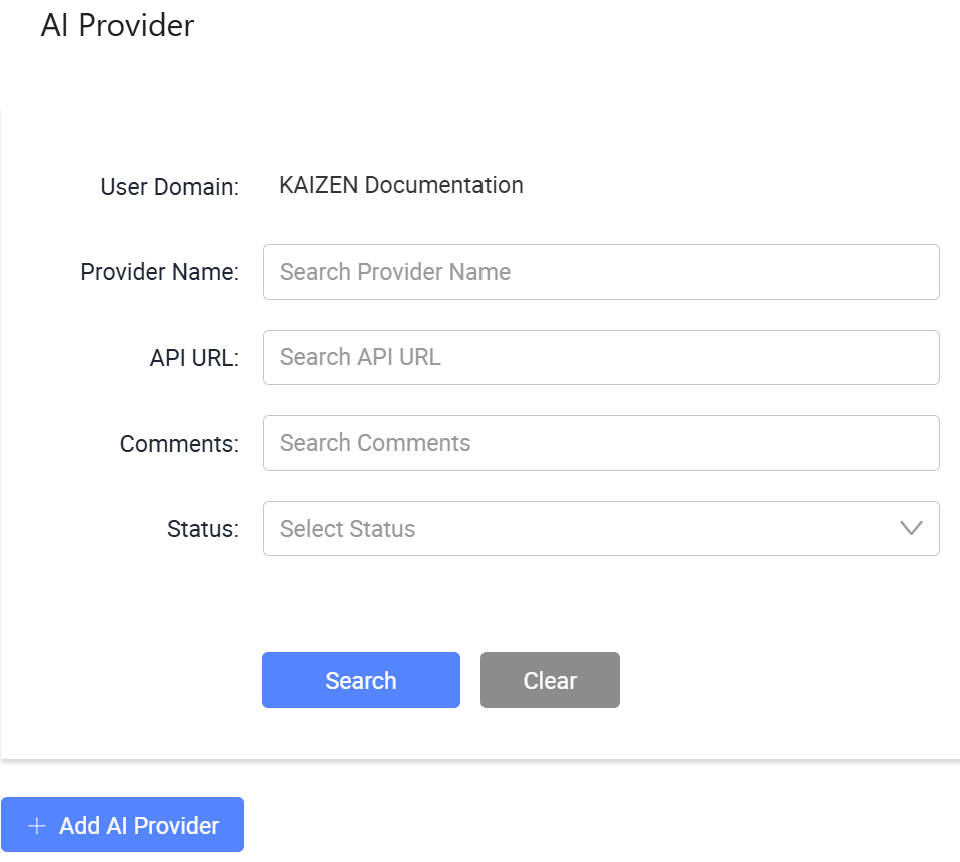
The Workflow/ Integrations/ AI Provider page displays.
-
From here, you can search for existing AI providers, add AI providers, edit provider details, deactivate or activate providers, and change the API key. Each row in the table provides the following actions under the Actions column:
- Edit: Opens the AI provider details for editing.
- More: Expands a dropdown with additional actions, including Deactivate and Change API Key.
Add an AI provider
To create an AI provider, perform the following:
-
In Workflow/ Integrations/ AI Provider, click Add AI Provider.
-
In the Add AI Provider window, provide the required details:
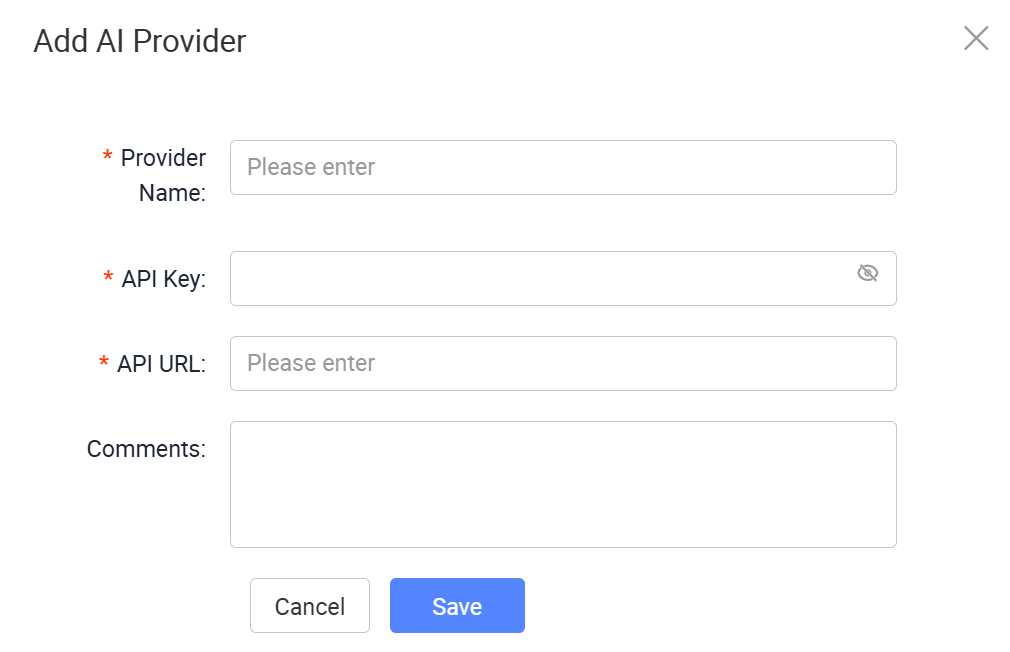
The following table describes each field from the window above:
Column Description Provider Name The AI provider name shown to administrators. API Key The API key used to connect to the AI provider. API URL The API endpoint used by the AI provider. Comments Optional remarks for the AI provider. -
Click Save.
Search AI providers
To search for AI providers, perform the following:
-
In Workflow/ Integrations/ AI Provider, enter or select the search criteria.
Field Description User Domain Displays the user domain for the current session. Provider Name Search for AI providers by provider name. API URL Search for AI providers by API URL. Comments Search for AI providers by comments. Status Filter AI providers by status, which can be Active or Inactive. -
Click Search to find the result.
Deactivate an AI provider
To deactivate an AI provider, perform the following:
-
In Workflow/ Integrations/ AI Provider, click More on the same row as the AI provider.
-
Click Deactivate.
-
In the confirmation dialog, click OK.
A success message will confirm that the AI provider has been deactivated. The AI provider status will change from Active to Inactive.
After the deactivation, you have the option to reactivate it by clicking More > Activate.
Change API Key
To change the API key for an AI provider, perform the following:
-
In Workflow/ Integrations/ AI Provider, click More on the same row as the AI provider, then click Change API Key.
-
In the Change API Key window, enter the new API key.
-
Click Save.
Datasource
Datasource allows the admin to manage database connection details used by workflow integrations.
To manage datasources, perform the following:
-
In the KAIZEN studio console, on the left panel, click Workflow > Integrations > Datasource.
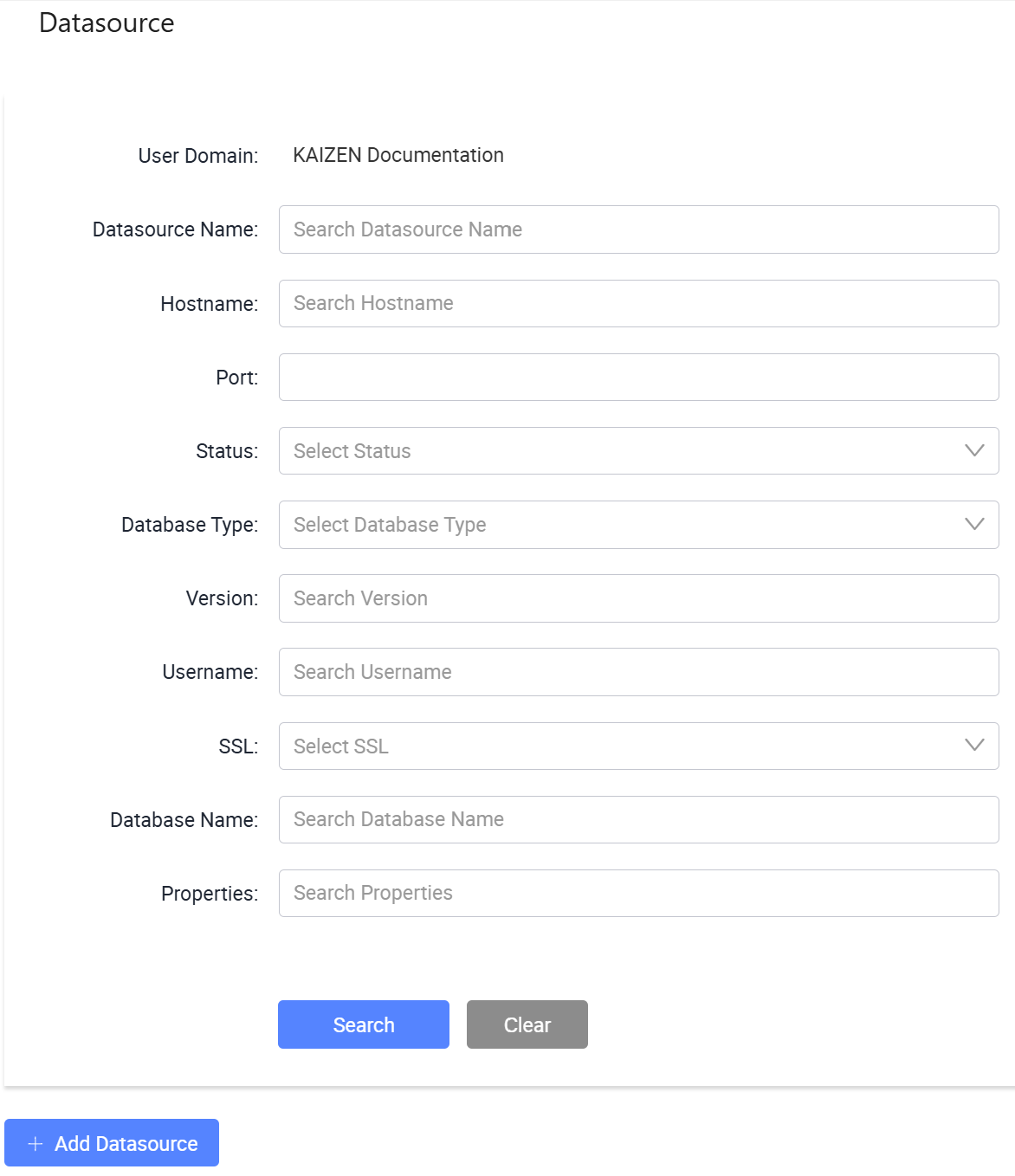
The Workflow/ Integrations/ Datasource page displays.
-
From here, you can search for existing datasources, add datasources, edit datasource details, deactivate or activate datasources, change the password, and view the connection string. Each row in the table provides the following actions under the Actions column:
- Edit: Opens the datasource details for editing.
- More: Expands a dropdown with additional actions, including Deactivate, Change Password, and View Connection String.
Add Datasource
To create a datasource, perform the following:
-
In Workflow/ Integrations/ Datasource, click Add Datasource.
-
In the Add Datasource window, provide the required details:
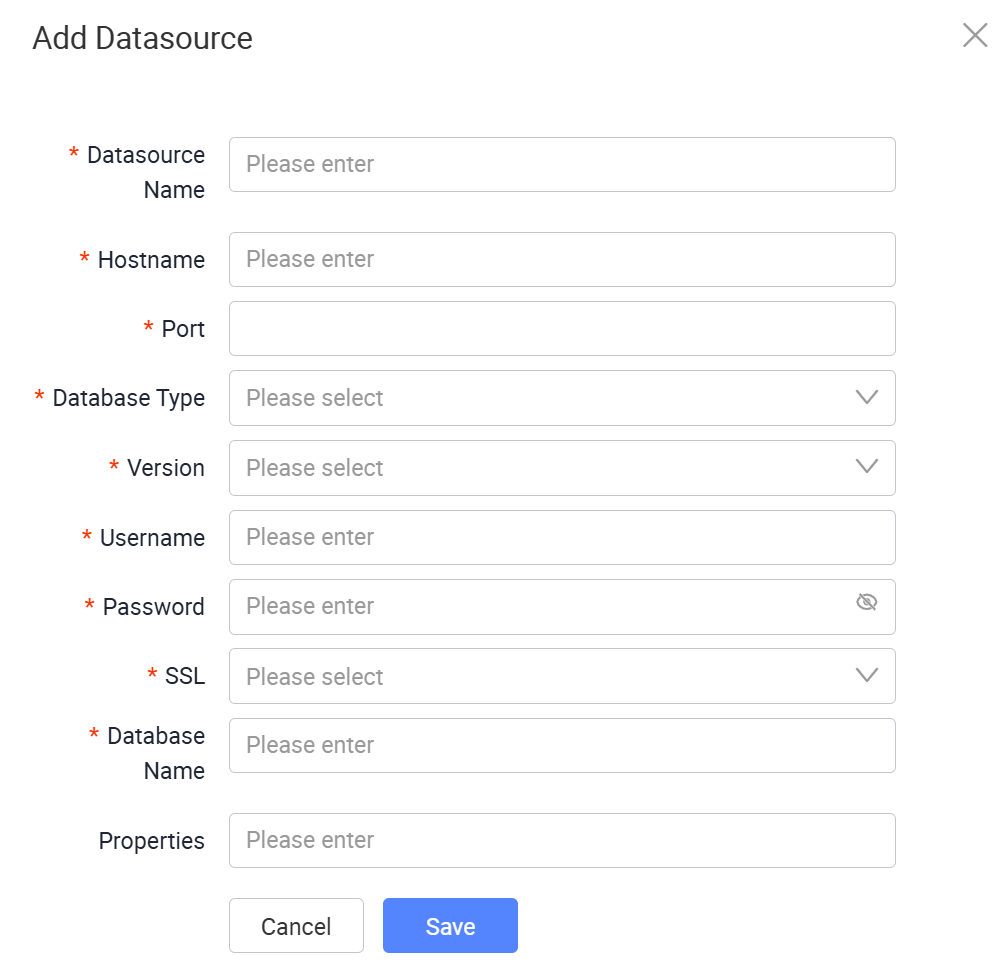
The following table describes each field from the window above:
Field Required Description Datasource Name Yes Enter the datasource name shown to administrators. Hostname Yes Enter the database host name or IP address. Port Yes Enter the database port number. Database Type Yes Select the database type. Version Yes Select the database version. Username Yes Enter the username used to connect to the database. Password Yes Enter the password used to connect to the database. SSL Yes Select whether SSL is used for the database connection. Database Name Yes Enter the database name. Properties No Enter optional connection properties for the datasource. -
Click Save.
Search Datasource
To search for datasources, perform the following:
-
In Workflow/ Integrations/ Datasource, enter or select the search criteria.
Field Description User Domain Displays the user domain for the current session. Datasource Name Search for datasources by datasource name. Hostname Search for datasources by hostname. Port Search for datasources by port number. Status Filter datasources by status, which can be Active or Inactive. Database Type Filter datasources by database type. Version Search for datasources by database version. Username Search for datasources by username. SSL Filter datasources by SSL setting. Database Name Search for datasources by database name. Properties Search for datasources by connection properties. -
Click Search to find the result.
Deactivate Datasource
To deactivate a datasource, perform the following:
-
In Workflow/ Integrations/ Datasource, click More on the same row as the datasource.
-
Click Deactivate.
-
In the confirmation dialog, click OK.
A success message will confirm that the datasource has been deactivated. The datasource status will change from Active to Inactive.
After the deactivation, you have the option to reactivate it by clicking More > Activate.
Change Password
To change the password for a datasource, perform the following:
-
In Workflow/ Integrations/ Datasource, click More on the same row as the datasource, then click Change Password.
-
In the Change Password window, provide the new password and confirm it.
-
Click Save.
View Connection String
To view the connection string for a datasource, perform the following:
-
In Workflow/ Integrations/ Datasource, click More on the same row as the datasource, then click View Connection String.
-
Review the connection string and click Ok.
Vector DB
Vector DB allows the admin to manage vector database connections used by workflow integrations.
To manage vector databases, perform the following:
-
In the KAIZEN studio console, on the left panel, click Workflow > Integrations > Vector DB.
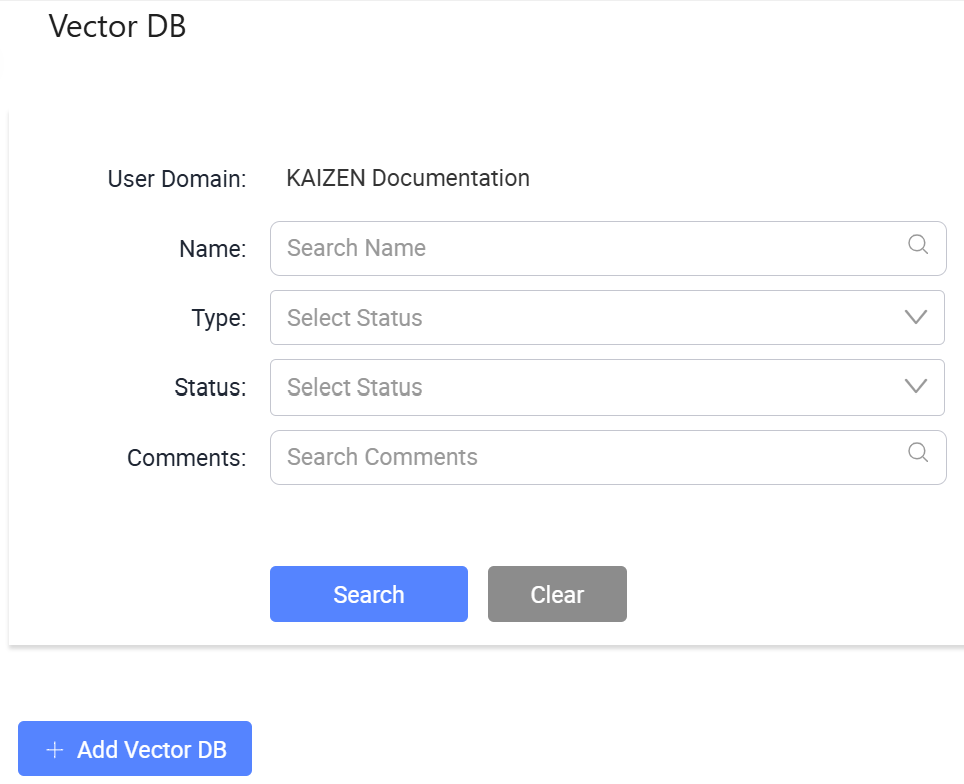
The Workflow/ Integrations/ Vector DB page displays.
-
From here, you can search for existing vector databases, add vector databases, view details, edit details, deactivate or activate vector databases, and change the API key. Each row in the table provides the following actions under the Actions column:
- View: Opens the vector database details in read-only mode.
- Edit: Opens the vector database details for editing.
- More: Expands a dropdown with additional actions, including Deactivate and Change API Key.
Add Vector DB
To create a vector database, perform the following:
-
In Workflow/ Integrations/ Vector DB, click Add Vector DB.
-
In the Add Vector DB window, provide the required details:
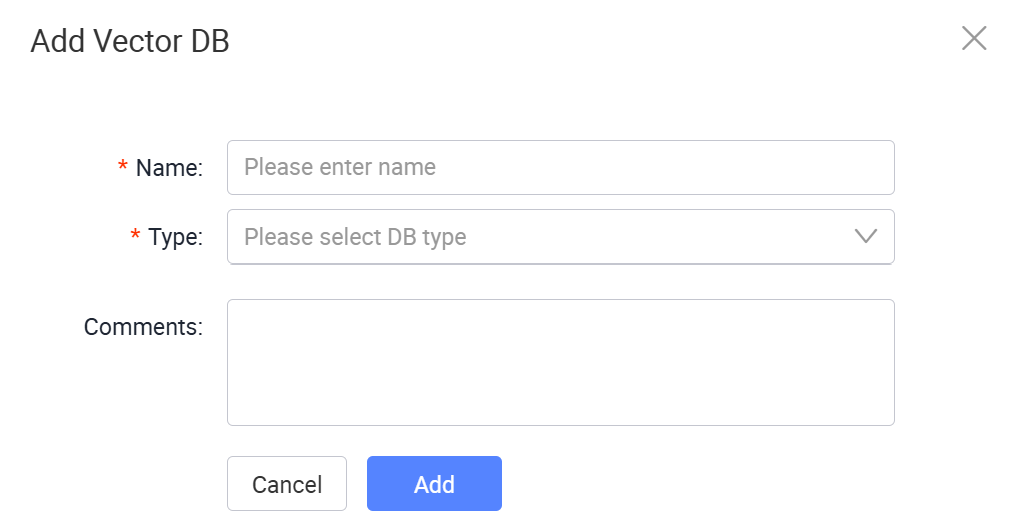
The following table describes each field from the window above:
Field Required Description Name Yes Enter the vector database name shown to administrators. Type Yes Select the vector database type, which can be pgVector or Pinecone. Comments No Enter optional remarks for the vector database. -
Click Add.
Search Vector DB
To search for vector databases, perform the following:
-
In Workflow/ Integrations/ Vector DB, enter or select the search criteria.
Field Description User Domain Displays the user domain for the current session. Name Search for vector databases by name. Type Filter vector databases by type, which can be pgVector or Pinecone. Status Filter vector databases by status, which can be Active or Inactive. Comments Search for vector databases by comments. -
Click Search to find the result.
Deactivate Vector DB
To deactivate a vector database, perform the following:
-
In Workflow/ Integrations/ Vector DB, click More on the same row as the vector database.
-
Click Deactivate.
-
In the confirmation dialog, click OK.
A success message will confirm that the vector database has been deactivated. The vector database status will change from Active to Inactive.
After the deactivation, you have the option to reactivate it by clicking More > Activate.
Change API Key
To change the API key for a vector database, perform the following:
-
In Workflow/ Integrations/ Vector DB, click More on the same row as the vector database, then click Change API Key.
-
In the Change API Key window, enter the new API key.
-
Click Save.
Keystore
Keystore allows the admin to manage keystores used by workflow integrations.
To manage keystores, perform the following:
-
In the KAIZEN studio console, on the left panel, click Workflow > Integrations > Keystore.
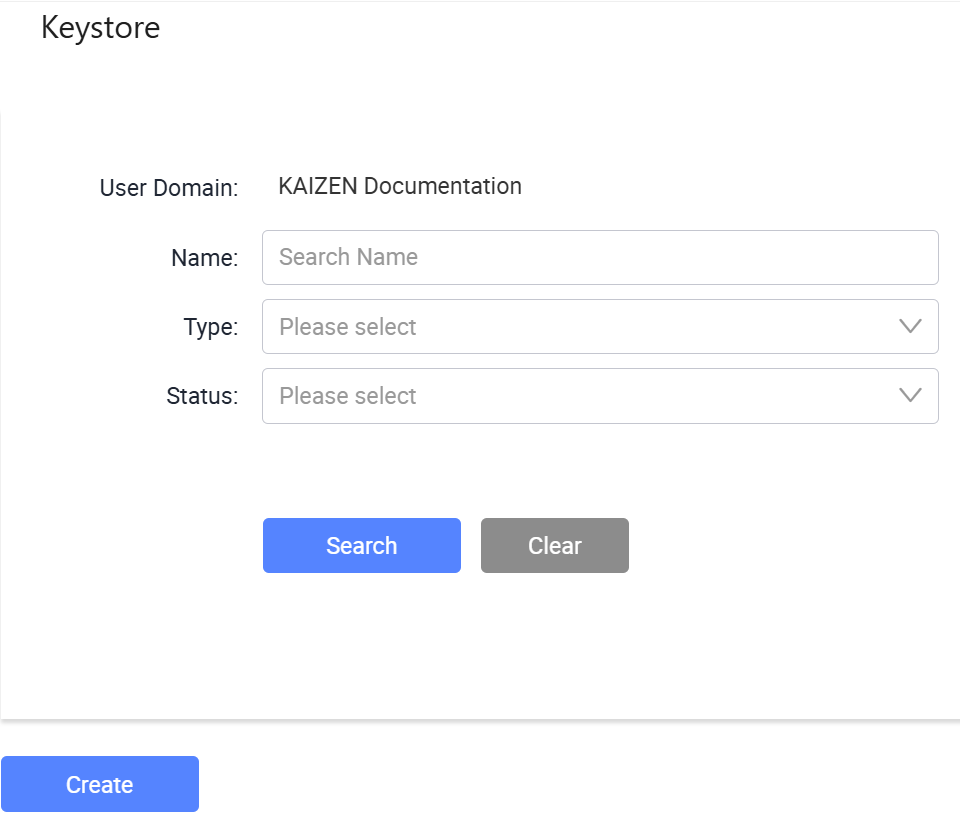
The Workflow/ Integrations/ Keystore page displays.
-
From here, you can search for existing keystores, create keystores, edit keystore details, and delete keystores. Each row in the table provides the following actions under the Actions column:
- Edit: Opens the keystore details for editing.
- Delete: Deletes the keystore.
Create a Keystore
To create a keystore, perform the following:
-
In Workflow/ Integrations/ Keystore, click Create.
-
In the Add Key Store window, provide the required details:
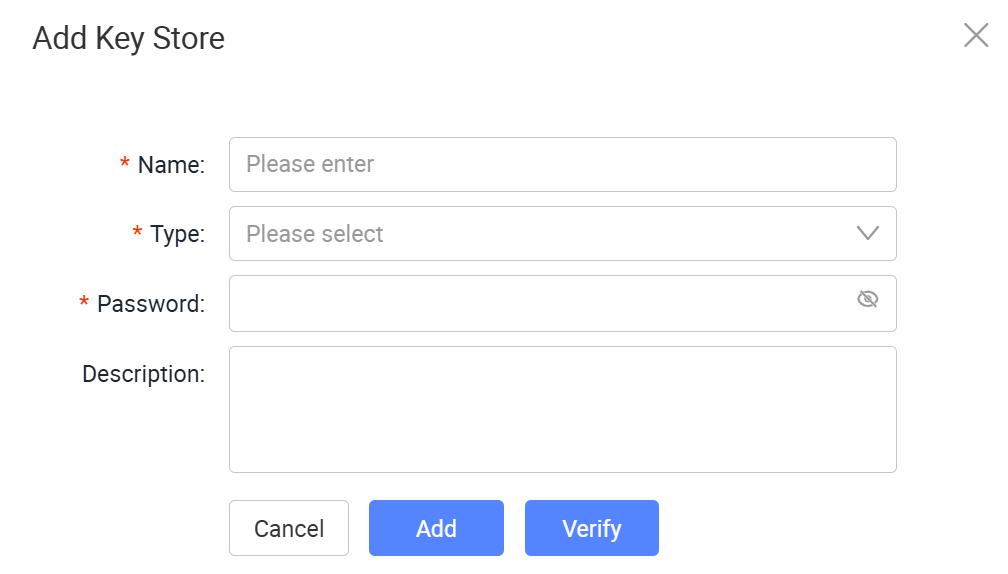
The following table describes each field from the window above:
Field Required Description Name Yes Enter the keystore name shown to administrators. Type Yes Select the keystore type, which can be PKCS12 or JKS. Password Yes Enter the keystore password. Description No Enter optional remarks for the keystore. -
Click Verify to check the keystore details are valid.
-
Click Add.
Search Keystore
To search for keystores, perform the following:
-
In Workflow/ Integrations/ Keystore, enter or select the search criteria.
Field Description User Domain Displays the user domain for the current session. Name Search for keystores by name. Type Filter keystores by type, which can be PKCS12 or JKS. Status Filter keystores by status. -
Click Search to find the result.
Delete Keystore
Deleting a keystore is a permanent action. Once you delete it, it cannot be recovered.
To delete a keystore, perform the following:
-
In Workflow/ Integrations/ Keystore, click Delete on the same row as the keystore.
-
In the confirmation dialog, click OK. The keystore will be removed.
Last updated on 19 Oct 2026