Workflow dashboard
You need the admin rights to use this feature.
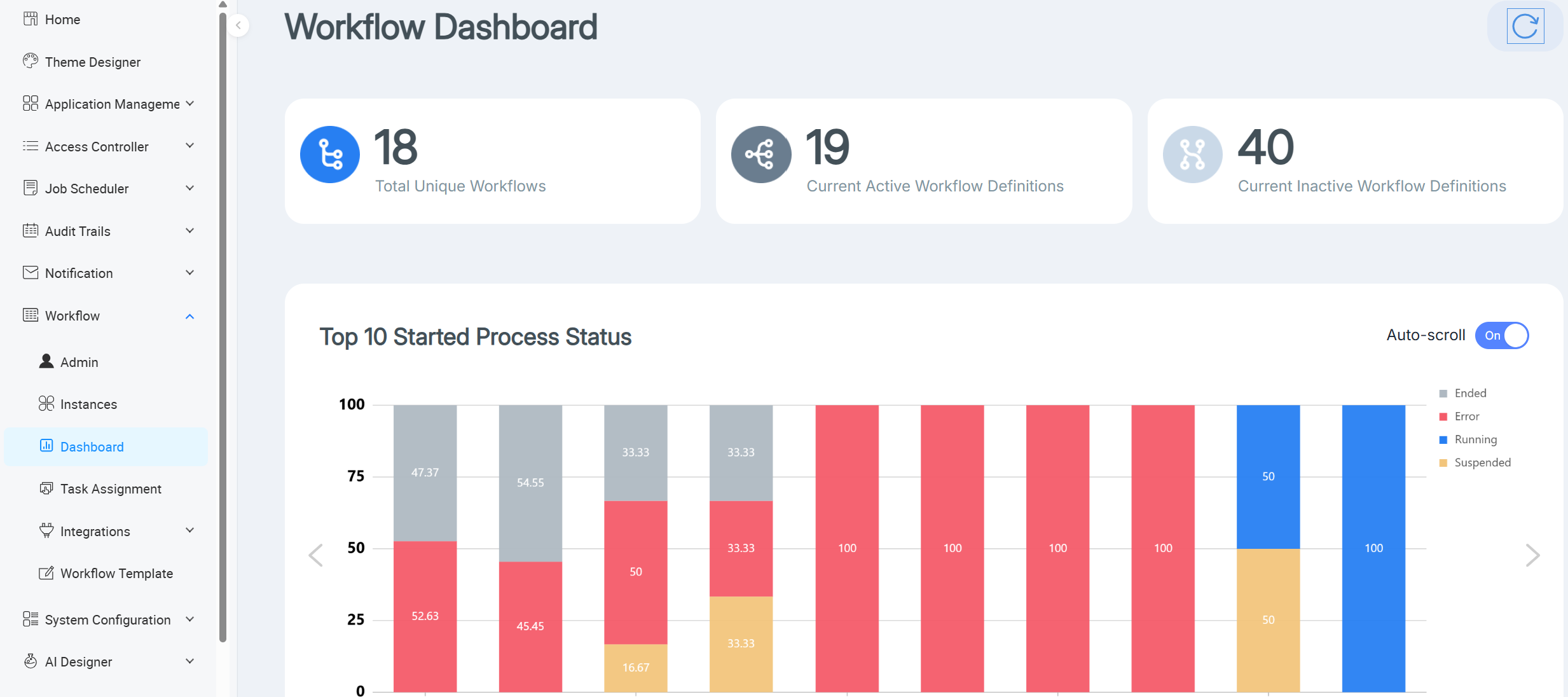
The Workflow dashboard provides administrators with a summary of workflow definitions and started process statuses in KAIZEN. Use this page to monitor the overall number of workflows, compare active and inactive workflow definitions, and review the status distribution for the top started processes.
To access this page, in the KAIZEN studio console, on the left panel, click Workflow > Dashboard.
Summary cards
As shown in above screenshot, the dashboard displays the following summary cards at the top:
| Card | Description |
|---|---|
| Total Unique Workflows | Shows the total number of unique workflows. |
| Current Active Workflow Definitions | Shows the number of workflow definitions that are currently active. |
| Current Inactive Workflow Definitions | Shows the number of workflow definitions that are currently inactive. |
Top 10 Started Process Status
As shown in above screenshot, the Top 10 Started Process Status chart displays the status distribution of started processes. This chart uses stacked bars to display process statuses such as Ended, Error, Running, and Suspended.
Turn on Auto-scroll to allow the chart to scroll automatically. Click the Refresh icon at the top-right corner to refresh data.
Most Frequently Ended Workflows
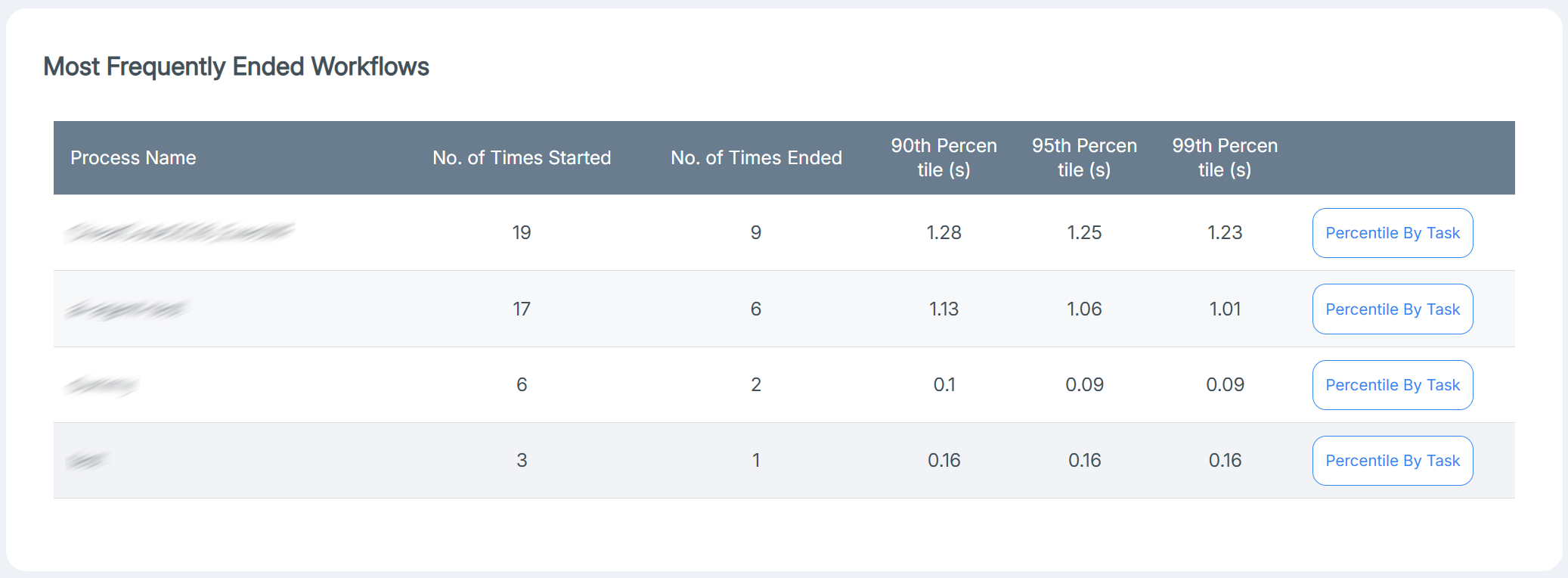
The Most Frequently Ended Workflows table lists workflows with their start and end counts and their 90th, 95th, and 99th percentile values.
Click Percentile By Task for a workflow to open a dialog showing its task names, task types, and percentile values in seconds. Use the Revision selector to view the data for a specific workflow revision.
Recently Failed and Suspended Instances
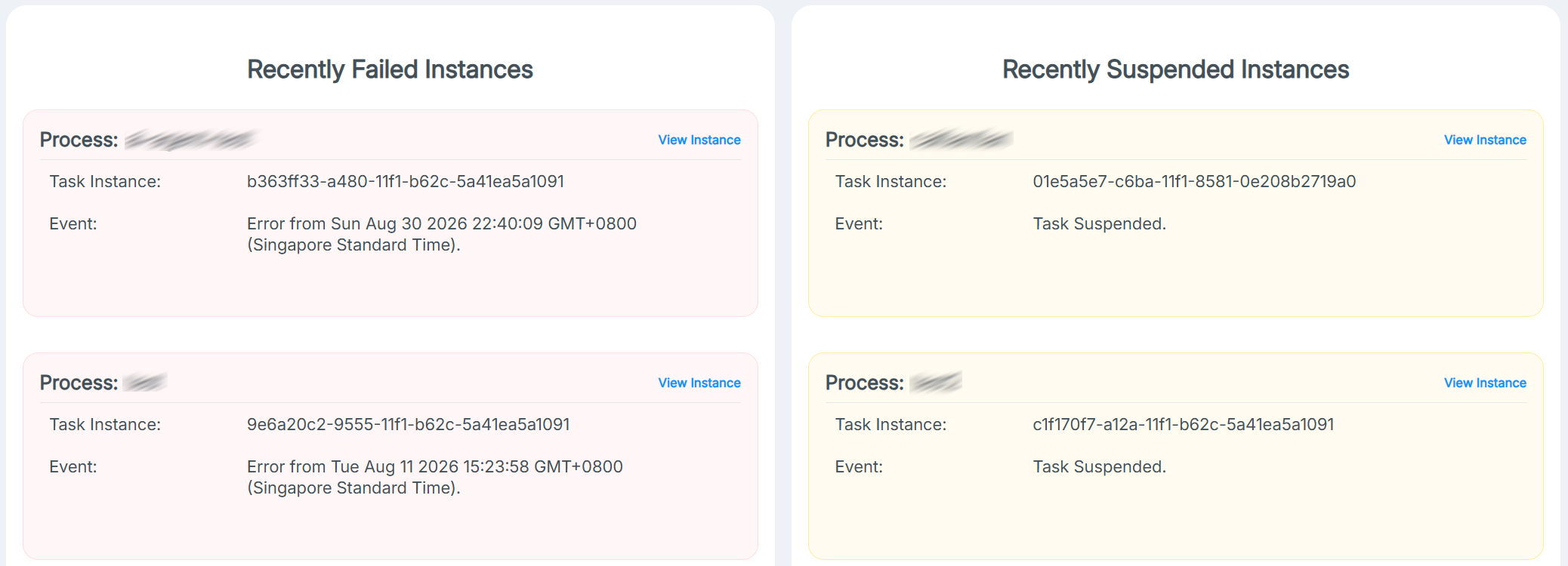
The Recently Failed Instances and Recently Suspended Instances panels list workflow instances that have recently failed or suspended. Each entry shows the process name, task instance ID, and event details.
Click View Instance to open the corresponding workflow instance in Workflow Viewer.
Last updated on 19 Oct 2026