Job
You need the admin rights to use this feature.
Jobs allow administrators to manage scheduled backend tasks. Each job links an executor, a backend job handler, and a cron schedule so KAIZEN can trigger the handler automatically.
Before creating a job, make sure that:
- An executor exists for the backend service.
- The backend service contains a job handler.
- You know the job handler ID configured in the
@JobHandlerannotation.
Manage jobs
To manage jobs, perform the following:
-
In the KAIZEN studio console, on the left panel, click Job Scheduler > Job.
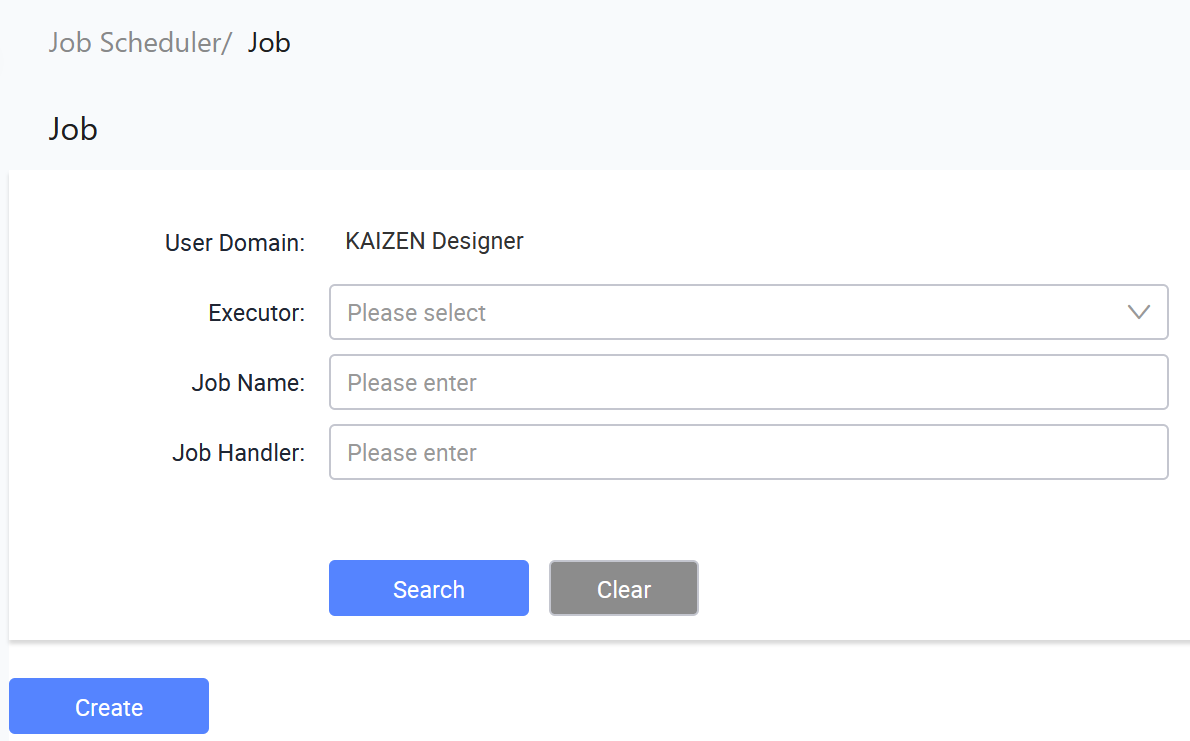
The Job Scheduler/ Job page displays.
-
From here, you can create jobs, search for existing jobs, view job details, edit jobs, run jobs, and start jobs. Each row in the table provides the following actions under the Actions column:
- View: Opens the job details in read-only mode.
- Edit: Opens the job details for editing.
- More: Expands a dropdown with additional actions, including Run and Start.
- Run: Triggers the job once.
- Start: Registers the job so it runs according to the configured schedule.
The job table shows the following columns:
Column Description User Domain The user domain where the job is configured. Job Name The job name shown to administrators. Executor The executor that runs the job. Job Handler The backend job handler ID. Cron The cron expression that defines the schedule. Validity Start The date and time when the job becomes active. Validity End The date and time when the job becomes inactive. Description The job description. Status The job registration status, such as Registered. Actions Actions available for the job.
Search jobs
To search for jobs, perform the following:
-
In Job Scheduler/ Job, enter or select the search criteria.
Field Description User Domain Displays the user domain for the current session. Executor Search for jobs by executor. Job Name Search for jobs by job name. Job Handler Search for jobs by job handler ID. -
Click Search to find the result.
Create a job
To create a job, perform the following:
-
In Job Scheduler/ Job, click Create.
-
In the Create Job window, provide the details:
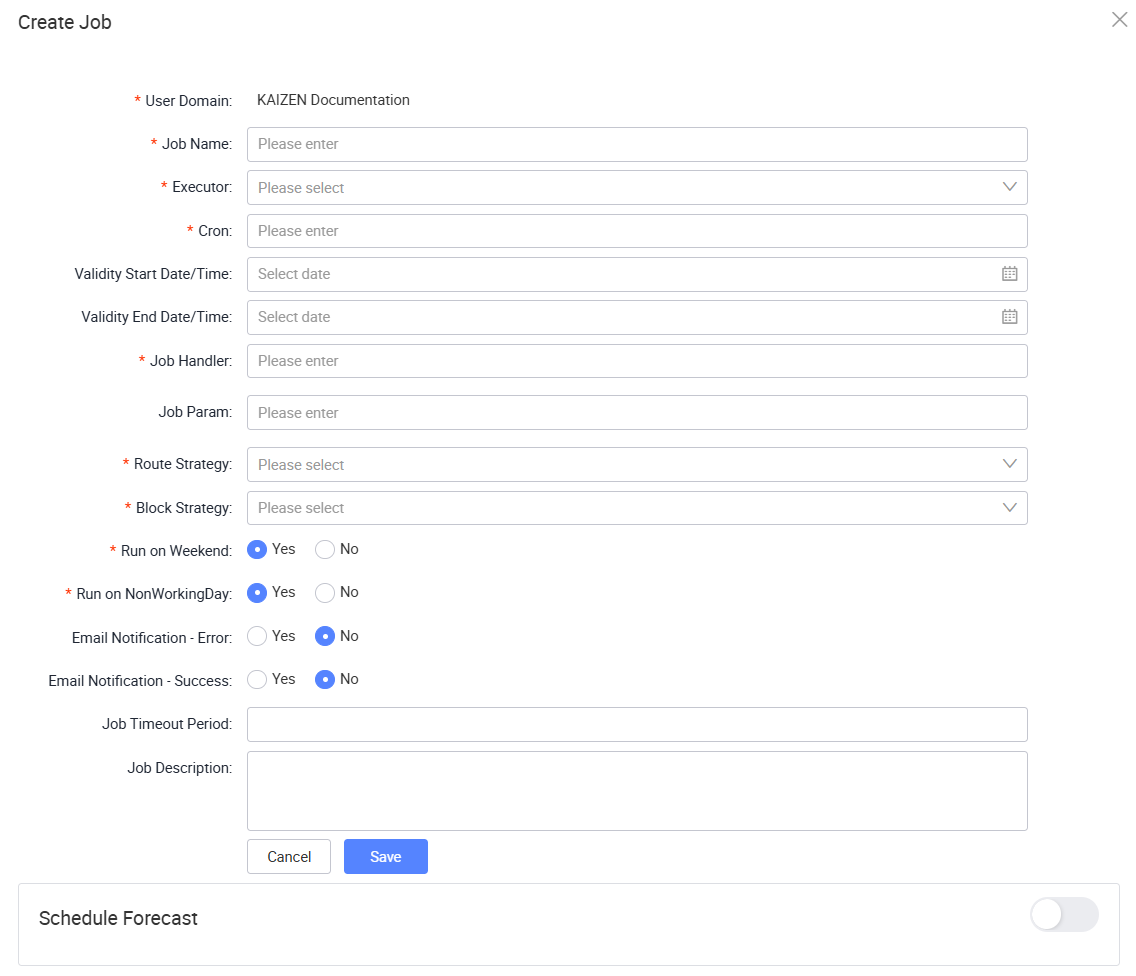
The following table describes each field from the window above:
Field Required Description User Domain Yes Displays the user domain where the job is created. Job Name Yes Enter the display name of the scheduled job. Executor Yes Select the executor service responsible for executing the job. Cron Yes Enter the Quartz cron expression that defines the job schedule. Validity Start Date/Time No Select when the job becomes active. Validity End Date/Time No Select when the job becomes inactive. Job Handler Yes Enter the backend job handler ID. This must match the value defined in the @JobHandlerannotation.Job Param No Enter optional parameters to pass to the job handler when the job runs. Route Strategy Yes Select the strategy used to route the job to an executor. Block Strategy Yes Select the strategy used to handle conflicts when a previous execution is still running. Job Timeout Period No Enter the maximum duration, in seconds, that the job is allowed to run before timing out. Job Description No Enter optional remarks or notes for the job. Schedule Forecast No Shows predicted upcoming execution times for the configured cron expression. -
Click Save.
Route strategies
| Strategy | Description |
|---|---|
| Round Robin | Distributes jobs sequentially to executors across application instances. Use this for high availability setups with multiple instances. |
| Sticky | Assigns the job to an executor for consistent handling. |
| Broadcast | Executes the job on all executors across all application instances simultaneously. Use this when the task must run across every instance. |
Block strategies
| Strategy | Description |
|---|---|
| Serial Execution | Waits for the current execution to finish before running the next one. |
| Discard Later | Discards the incoming execution if the previous execution has not finished. |
If a job is blocked and cannot complete, the Job Timeout Period controls when KAIZEN terminates the job.
Preview the schedule
To preview the schedule, perform the following:
-
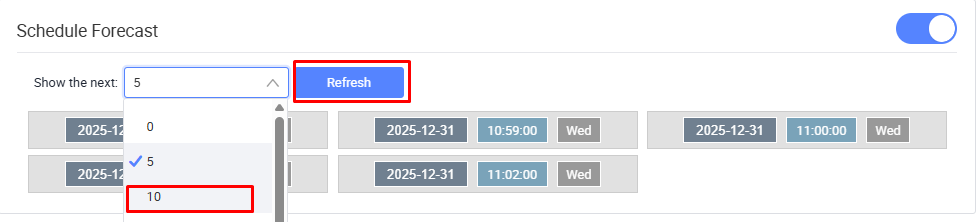
In the Create or Edit Job window, turn on Schedule Forecast.
-
Select the number of upcoming execution times to display.
-
Click Refresh.
Run or start a job
Administrators can run a job once or start a job according to its configured schedule.
To run or start a job, perform the following:
-
In Job Scheduler > Job, select the job.
-
Click More, then select one of the following actions:
Action Description Run Triggers the job once. Start Registers the job so it runs according to the configured schedule.
After a job is started, its status changes to Registered.
Last updated on 19 Oct 2026