Executors
You need the admin rights to use this feature.
Executors allow administrators to define the backend services that can execute scheduled jobs. Create an executor before creating a Job that uses a job handler from that service.
Manage executors
To manage executors, perform the following:
-
In the KAIZEN studio console, on the left panel, click Job Scheduler > Executors.
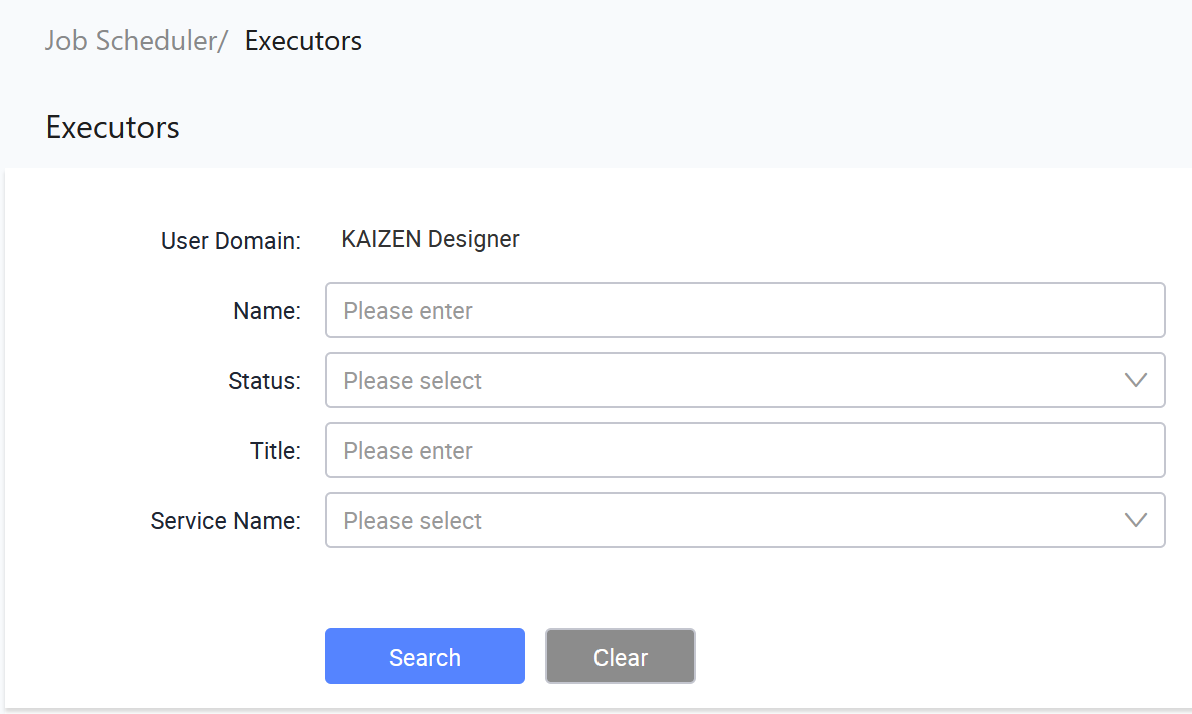
The Job Scheduler/ Executors page displays.
-
From here, you can create executors, search for existing executors, view executor details, edit executors, import executors, and export executors. Each row in the table provides the following actions under the Actions column:
- View: Opens the executor details in read-only mode.
- Edit: Opens the executor details for editing.
- More: Expands a dropdown with additional actions, including Export and Deactivate.
The executor table shows the following columns:
Column Description User Domain The user domain where the executor is configured. Name The executor name. Title The display title of the executor. Service Name The backend service that runs jobs for this executor. Executor Group The executor group that receives jobs for this executor. Status The executor status, such as Active. Actions Actions available for the executor.
Executor Group routes scheduled jobs to a specific group of executor services. Keep the value as DEFAULT unless your environment uses separate executors.
Search executors
To search for executors, perform the following:
-
In Job Scheduler/ Executors, enter or select the search criteria.
Field Description User Domain Displays the user domain for the current session. Name Search for executors by executor name. Status Filter executors by status. Title Search for executors by display title. Service Name Search for executors by backend service name. -
Click Search to find the result.
Create an executor
To create an executor, perform the following:
-
In Job Scheduler/ Executors, click Create.
-
In the Create Executor window, provide the details:
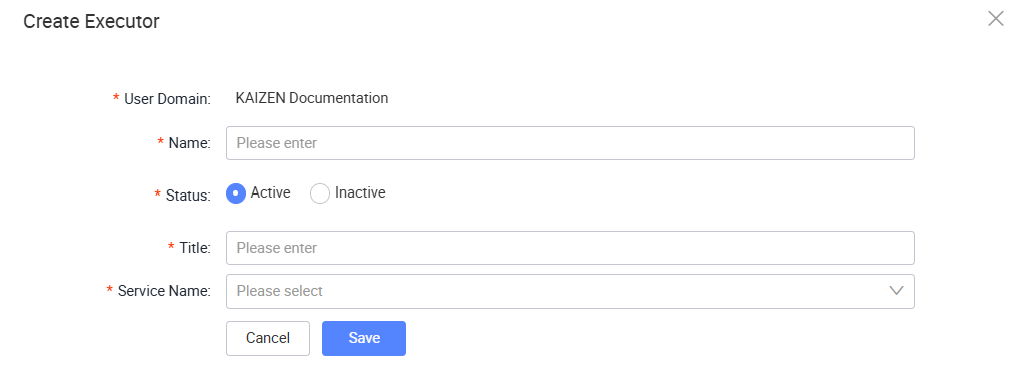
The following table describes each field from the window above:
Field Required Description User Domain Yes Displays the user domain where the executor is created. Name Yes Enter the executor name. Use a name that helps administrators identify the service that runs the jobs. Status Yes Select Active or Inactive. Only active executors should be used for scheduled jobs. Title Yes Enter the display title shown in Runtime. Service Name Yes Enter the backend service name that this executor represents. -
Click Save.
Edit an executor
To edit an executor, perform the following:
-
In Job Scheduler/ Executors, click Edit on the same row as the executor.
-
In the Edit Executor window, update the executor details.
-
Click Save.
Set the executor status to Inactive when the service should no longer receive scheduled job executions.
Export executors
To export an executor, perform the following:
-
In Job Scheduler/ Executors, select the executor you want to export.
-
Open the Export function using one of the following methods:
- Click Export at the top of the page.
- Click More on the same row as the executor, then click Export.
-
The Confirm window pops up, asking for confirmation. Click OK.
An
XMLfile containing the selected executor information will be downloaded in your browser.
Export all executors
To export all executors, perform the following:
-
In Job Scheduler/ Executors, click Export All.
-
The Confirm window pops up, asking for confirmation. Click OK.
An
XMLfile containing the information of all executors will be downloaded in your browser.
Import executors
To import executors from an existing XML file, perform the following:
-
In Job Scheduler/ Executors, click Import. The File Explorer window opens.
-
Browse to the
XMLfile that contains the executor information. Click Open.A message will pop up, showing the import is successful.
Deactivate an executor
To deactivate a executor, perform the following:
-
Click More on the same row as the executor, then click Deactivate.
-
In the confirmation dialog, click OK.
A success message will confirm that the executor has been deactivated. The executor status will change from Active to Inactive.
After the deactivation, you have the option to reactivate it by clicking More > Activate.
Last updated on 19 Oct 2026