Job log
You need the admin rights to use this feature.
Job logs allow administrators to review scheduled job executions. Use this page to confirm when a job was triggered, whether the trigger succeeded, whether the handler completed successfully, and what custom log messages were written by the backend job handler.
Manage job logs
To manage job logs, perform the following:
-
In the KAIZEN studio console, on the left panel, click Job Scheduler > Job Log.
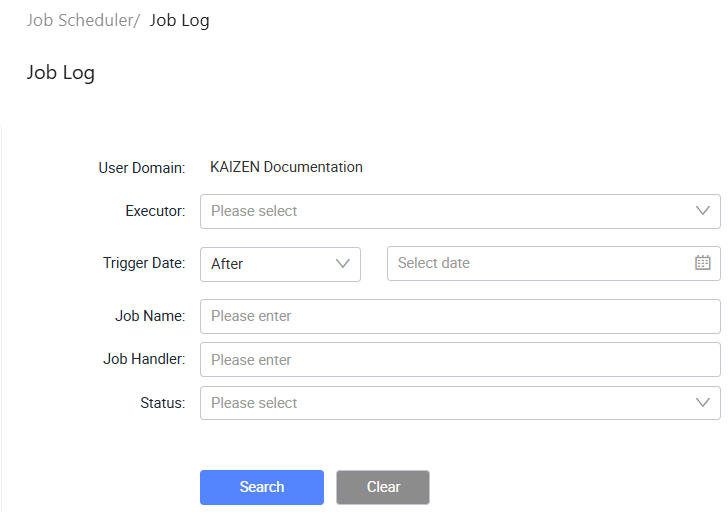
The Job Scheduler/ Job Log page displays.
-
From here, you can search for job logs, view log records, and open detailed execution messages. Each row in the table provides the following actions under the Actions column:
- View: Opens the job log details in read-only mode.
- View Log: Opens the detailed execution log for the record.
The job log table shows the following columns:
Column Description User Domain The user domain where the job ran. Job Name The configured job name. Executor The executor used to run the job. Trigger Date The date and time when the job was triggered. Job Handler The job handler ID that was executed. Handler Date The date and time when the handler ran. Trigger Result The result of triggering the job. Handler Result The result returned by the job handler. Status The execution status. Actions Actions available for the log.
Search job logs
To search for job logs, perform the following:
-
In Job Scheduler/ Job Log, enter or select the search criteria.
Field Description User Domain Displays the user domain for the current session. Executor Search for logs by executor. Trigger Date Search for logs by trigger date. Select a comparison option and date. Job Name Search for logs by job name. Job Handler Search for logs by job handler ID. Status Filter logs by execution status. -
Click Search to find the result.
Review log records
For scheduled jobs, review the Trigger Date column and compare it with the job cron expression to confirm that the job is triggered at the expected interval.
View log details
To view log details, perform the following:
-
In Job Scheduler/ Job Log, click View Log on the same row as the log record.
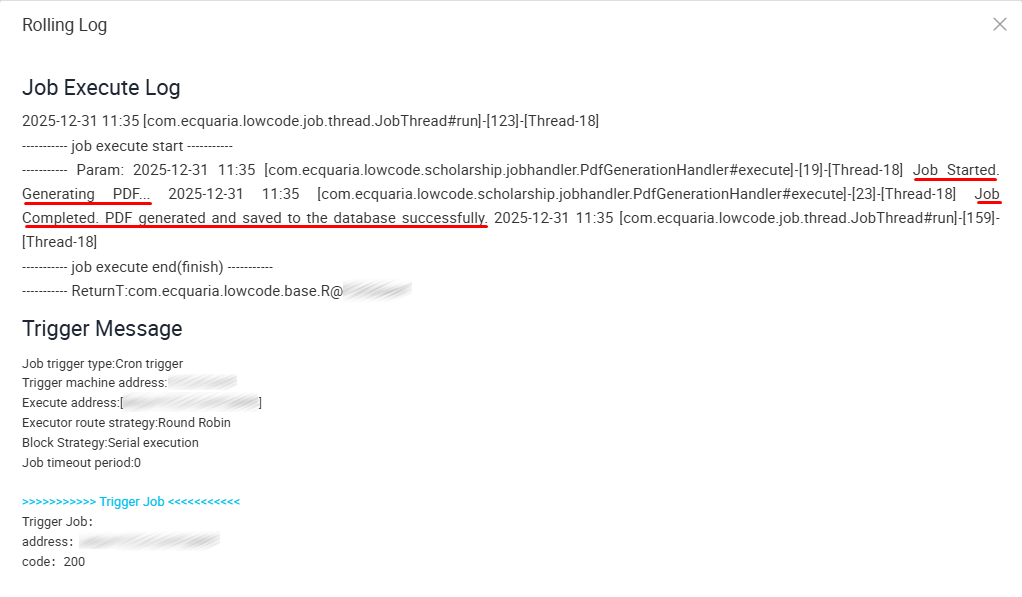
The detailed execution log displays.

-
Review the execution messages from the job handler.
If the backend job handler uses JobLogger, those custom messages appear in the log details.
Last updated on 19 Oct 2026