Work on the AI agent flow
After creating a flow in AI Agent Builder, you can continue building it on the canvas. Add components, connect them in sequence, and configure each step to define how the AI agent receives input, processes data, and returns a result.
You can start with a blank flow or a template, then test and refine the flow before using it in your application. When the flow is ready, call it from Workflow Designer or through KAIZEN-provided API endpoints to include AI-generated responses or agent actions in a business process.
Create a basic flow
The following shows an example on how to create a basic flow using the OpenRouter model.
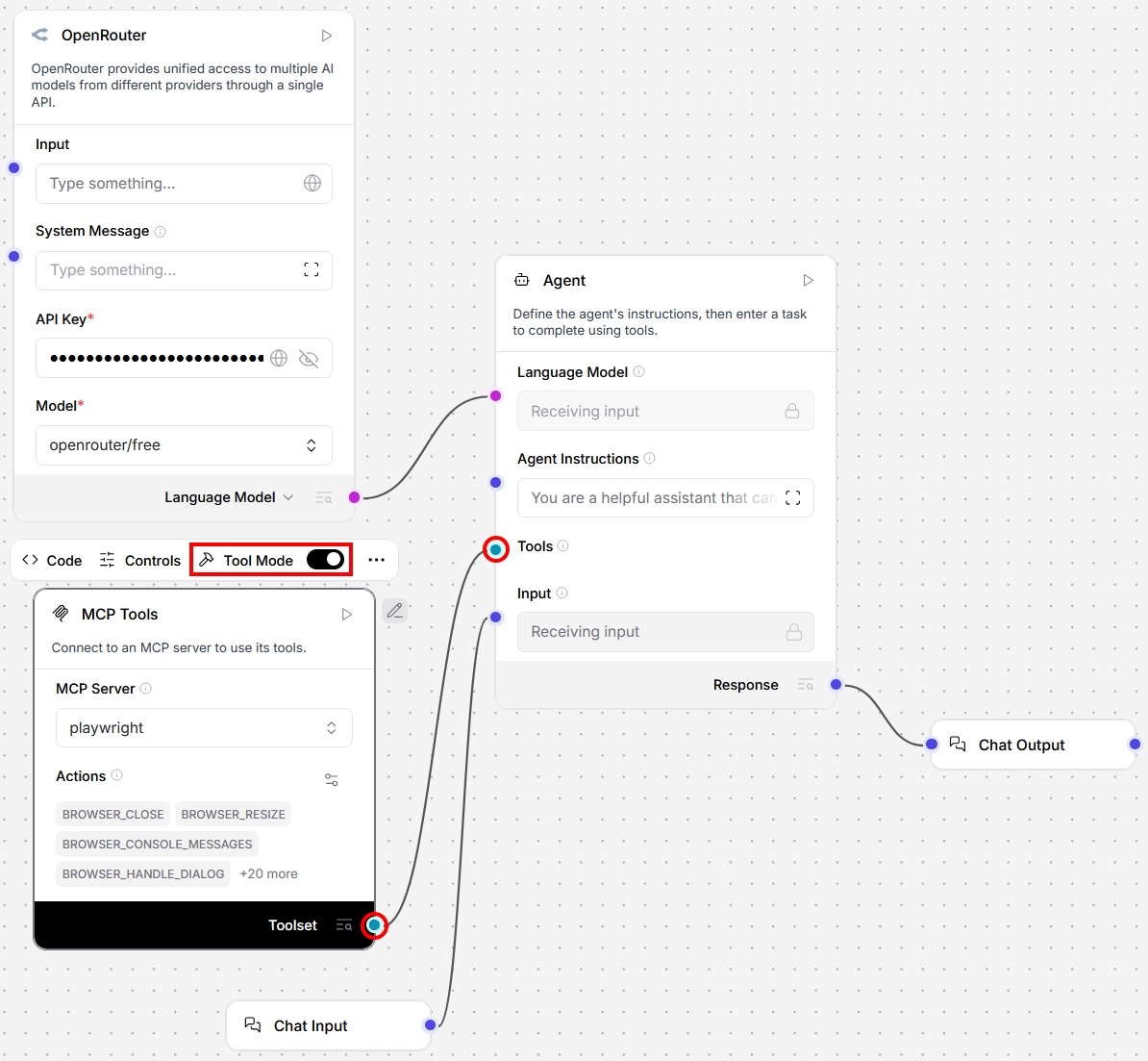
In this flow, OpenRouter provides the model connection and API credentials, while the Agent controls how the prompt is handled and how the response is generated.
Use this example to learn the basic pattern for building an AI agent flow. After the basic flow works, you can update the Agent Instructions or add more components.
Before you start, obtain the API key of OpenRouter or your preferred language model.
-
On your project toolbar, click AI Agent Builder
 .
. -
Click New Flow. On the template screen, click Blank Flow.
-
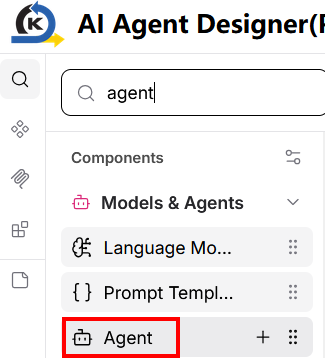
Search for Agent in the Components panel. Drag Agent and drop it onto canvas.
-
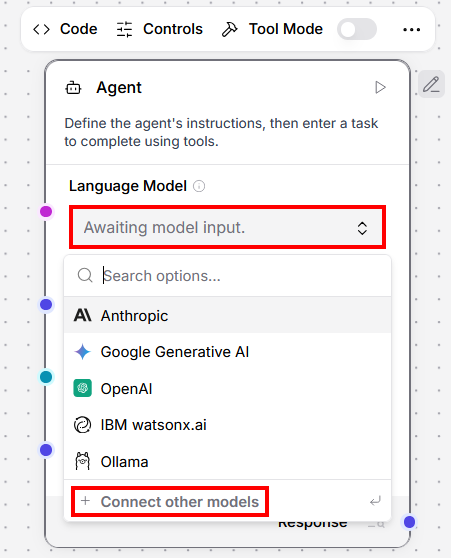
In the Agent, click the field below Language Model, then select + Connect other models.
-
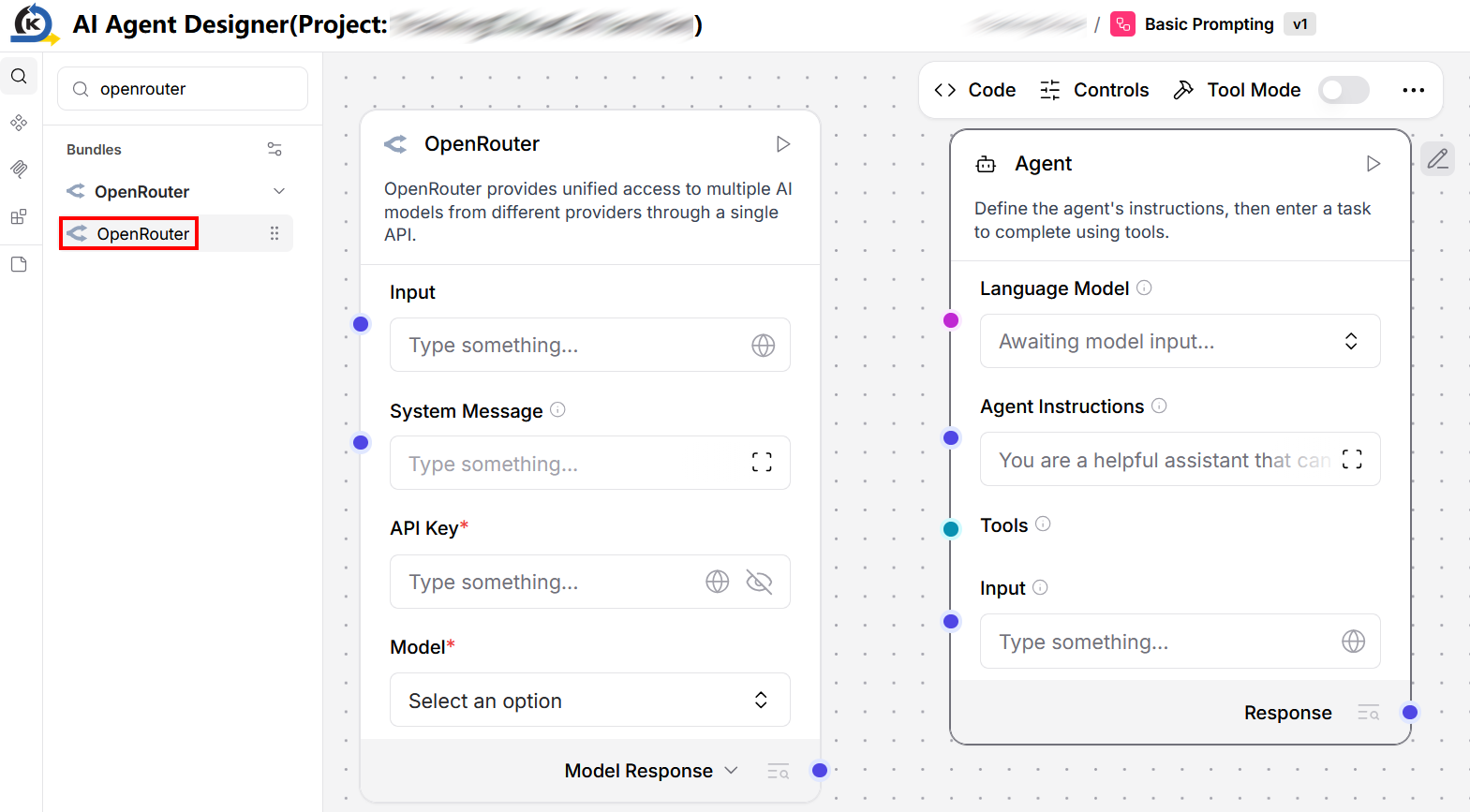
Search for OpenRouter in the Components panel. Drag OpenRouter and drop it onto canvas. Place it at the left side of the Agent.
-
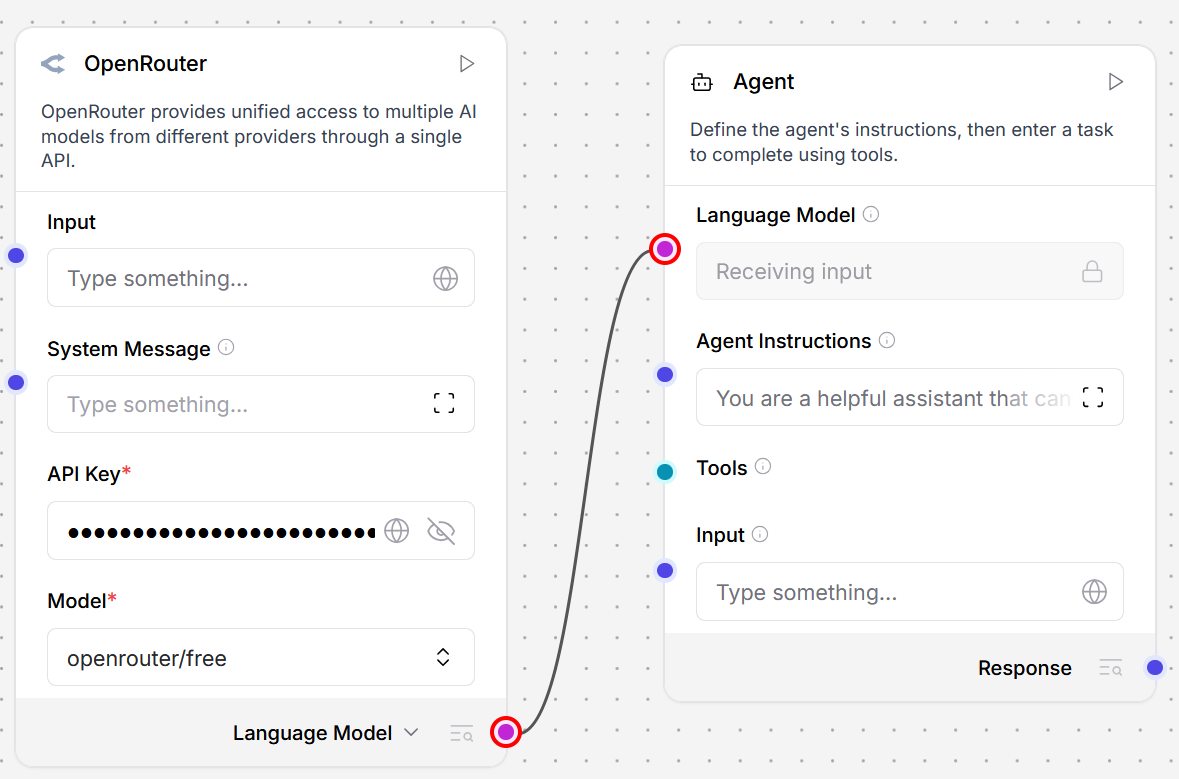
In OpenRouter, enter its API Key and select a model.
This example uses
openrouter/free. You can choose other models for your project. -
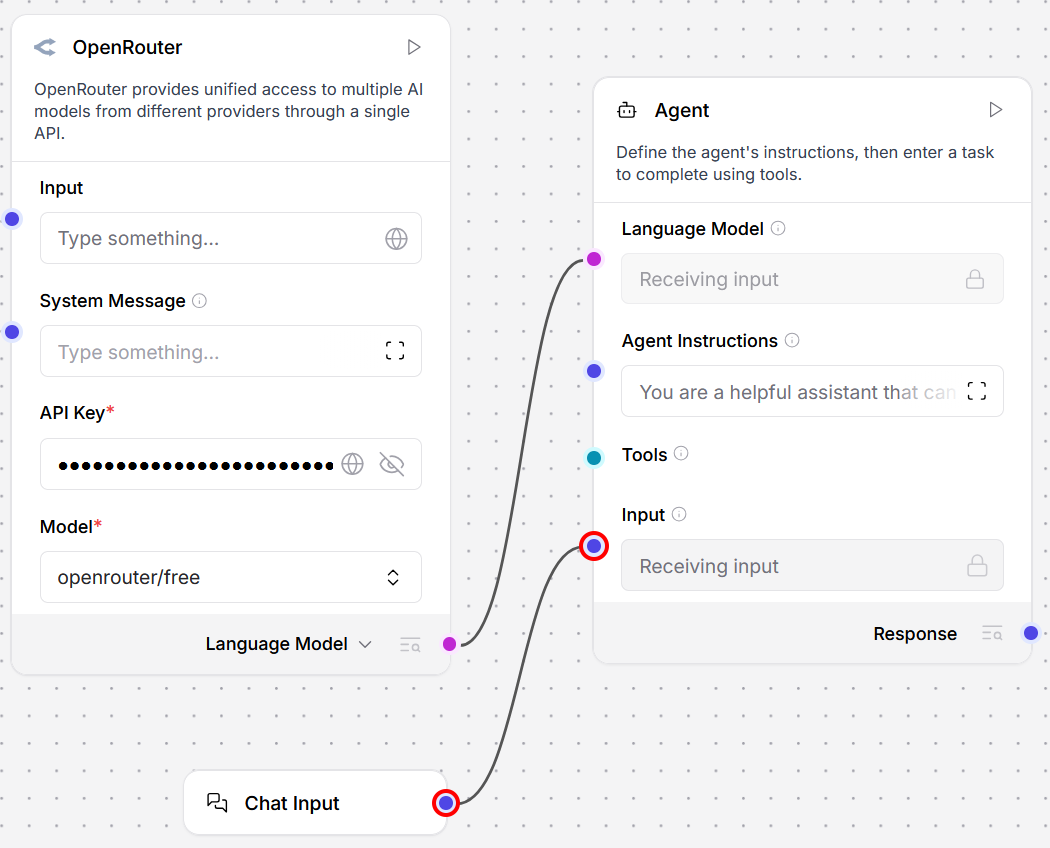
Connect the OpenRouter output to the input of the Agent's Language Model input.
-
Optionally, you can click the Agent then the pencil icon
 to rename it.
 -
Drag Chat Input from the Components panel and drop it onto canvas. Place it below OpenRouter.
-
Connect the Chat Input to the Agent's Input.
-
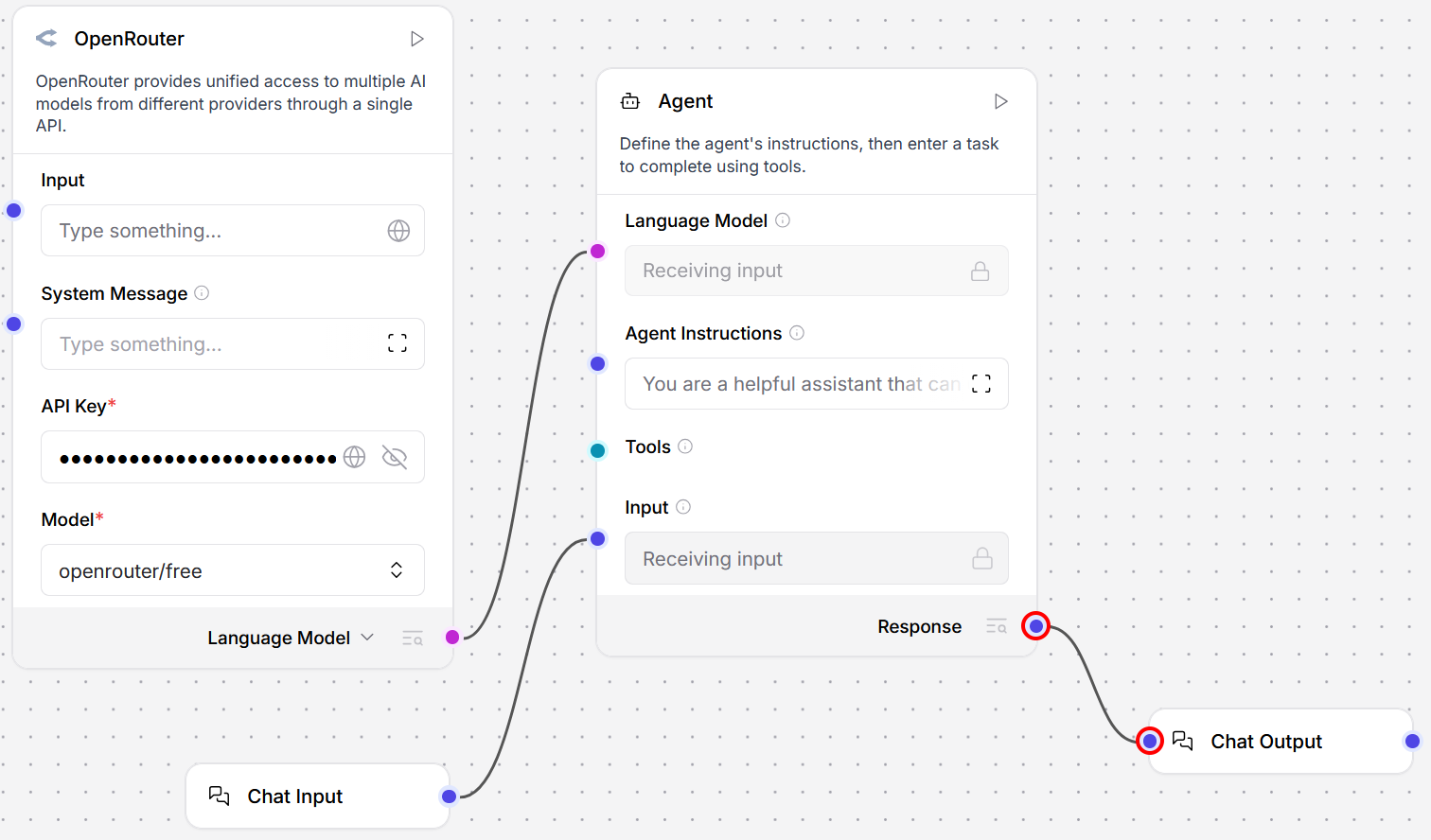
Drag Chat Output from the Components panel and drop it onto the canvas. Place it at the right side of the Agent.
-
Connect the Chat Output to the Agent's Response.
-
Click the field below Agent Instructions to customise the instructions. Click Finish Editing to apply your edits.
-
Click Playground at the top right corner of canvas to start testing.

Add a MCP server
The following example shows how to add a Playwright MCP server.
Model Context Protocol (MCP) is a standard way to connect an AI agent to external tools and services. By adding an MCP server, you give the agent access to actions that are provided outside the basic flow, such as using Playwright to inspect web pages, interact with browser elements, or support browser-based testing tasks.
In this example, the MCP Tools component stores the Playwright server configuration and exposes its tools to the Agent.
Before your start, obtain the following:
- API key of OpenRouter or your preferred language model
- System prompt for the AI Agent
- Playwright installation instructions in
JSONfrom Playwright official site
-
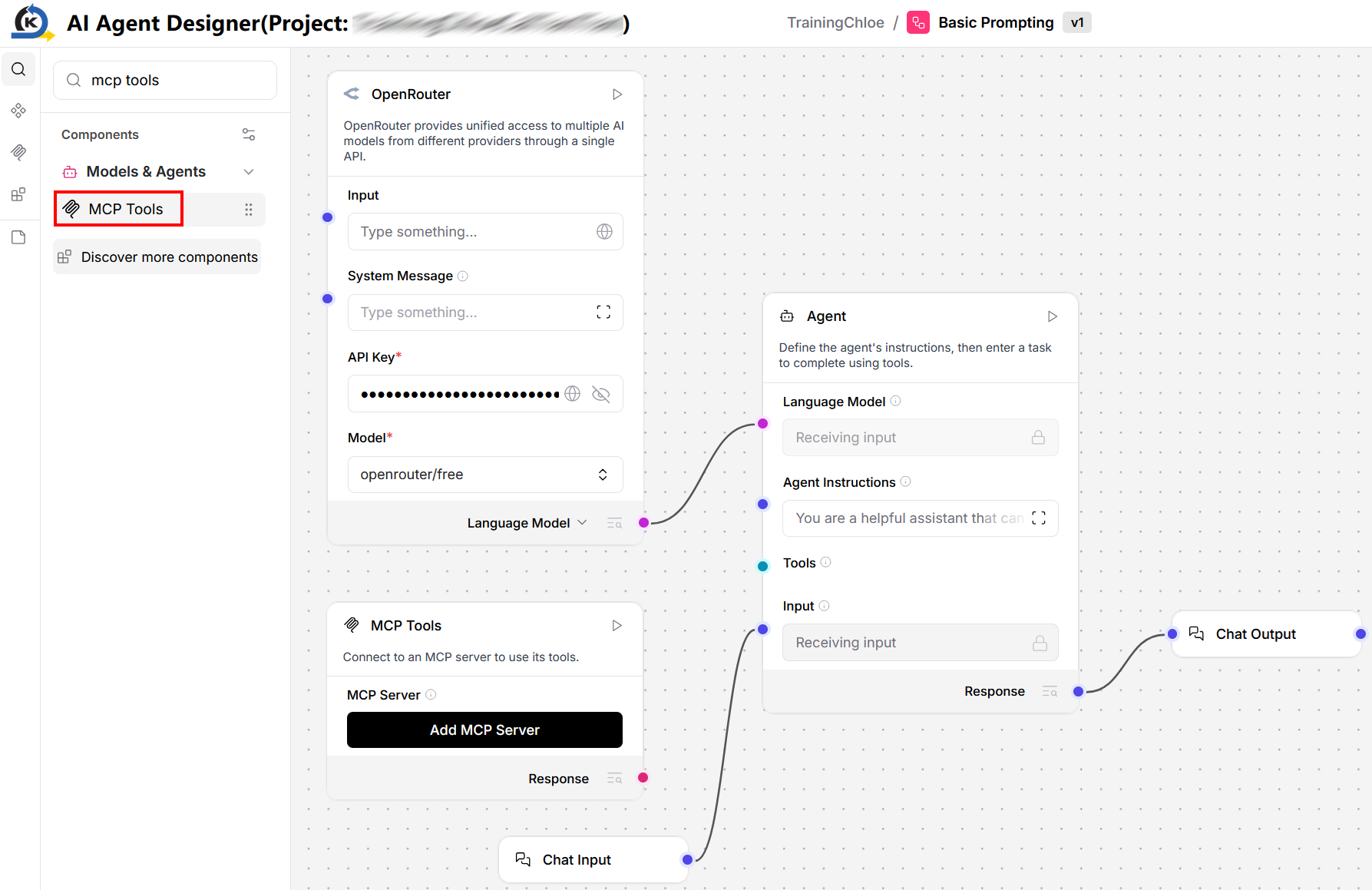
Search for MCP Tools in the Components panel. Drag MCP Tools and drop it on canvas. Place it below the OpenRouter component.
-
In MCP Tools, click Add MCP Server.
-
Copy the Playwright installation instructions in
JSONformat and paste it into the Add MCP Server window, JSON tab. Click Add Server.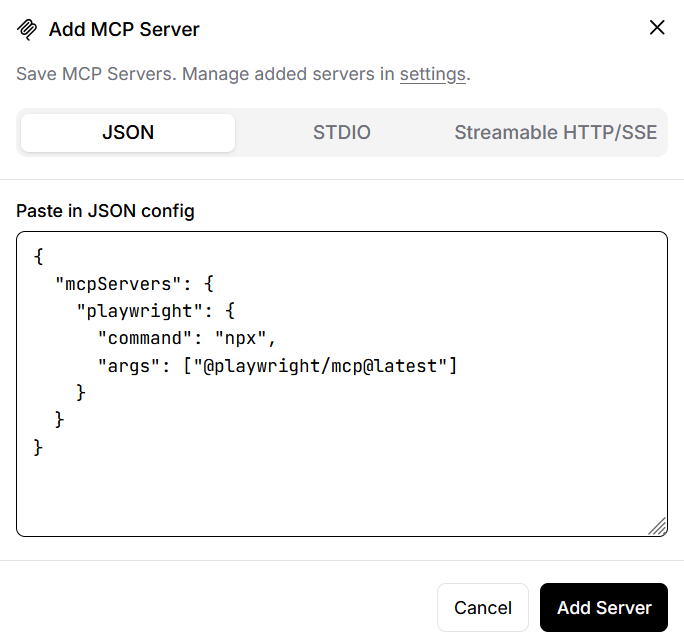
-
Click the MCP Tools component. Turn on Tool Mode.
-
Connect Toolset with the Agent's Tools.
-
In the field below Agent Instructions, add the system prompt.
A system prompt is the instruction that defines how the agent should behave, what tools it can use, and any rules it should follow when responding to users. For example:
You are a browser automation assistant. Use the Playwright MCP tools to inspect web pages, interact with browser elements, and report clear test results. Ask for clarification before submitting forms or changing data. -
Click Playground at the top right corner of canvas to start testing.
AI agent components
Use these components below when your flow needs to call KAIZEN APIs, run complex tasks, or add lifecycle control on agent tools.
The components below are not exhaustive. To use any other component, search for it in AI Agent Builder.
Call KAIZEN Service
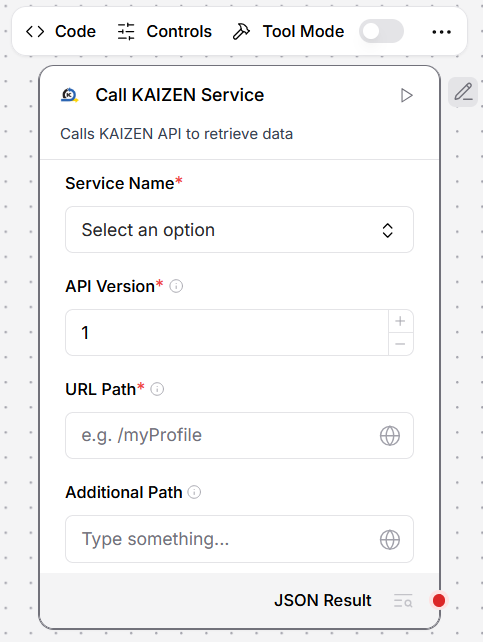
Use Call KAIZEN Service to call a KAIZEN API from an AI agent flow and return the API response as JSON Result.
To configure the component:
-
In Service Name, select the KAIZEN service that owns the API.
The available service options include Ai, Setup, Gateway, Iam, Common, Job, Workflow, Console, Pagescan, Theme, Dbeditor, Report, and Uirenderer.
-
In API Version, enter the endpoint version, e.g.,
1forv1. -
In URL Path, enter the path to call, e.g.,
/myProfile. -
Optionally, in Additional Path, enter an extra path segment to append to the base URL.
Use Additional Path when the API endpoint requires a request parameter in the path. This value can be provided by the Agent. For example, to retrieve a specific project from Console service, set URL Path to
/api/v1/console/projectsand Additional Path to/{project_id}. The full endpoint becomes/api/v1/console/projects/{project_id}, where{project_id}is the request parameter. -
Use JSON Result as the component output or response.
CUGA
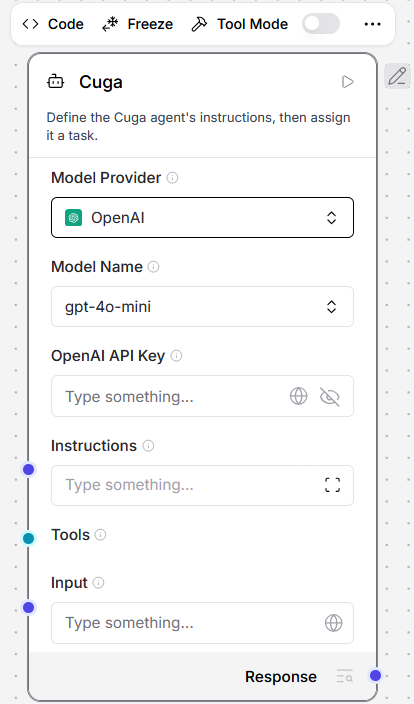
The CUGA (Configurable Generalist Agent) component is an advanced AI agent that executes complex tasks using tools, optional browser automation, and structured output generation.
You can use the CUGA component in flows in place of an Agent component. Like the core Agent component, CUGA can use tools connected to its Tools port and can be used as a tool itself. It also includes additional features:
- Browser automation for web scraping with Playwright.
- To enable web scraping, set the component's
browser_enabledparameter totrue.
- To enable web scraping, set the component's
- Custom instructions for the agent to execute.
- To use this feature, in the component's Instructions input, attach Markdown files containing agent instructions.
Refer to LangFlow > CUGA and GitHub > CUGA for more information.
To configure the component:
-
In Model Provider, select the language model.
Options include OpenAI, Anthropic, Google Generative AI, IBM watsonx.ai, Ollama, and Custom.
You may also need to provide the model name, API key, and any other required configuration.
-
In Instructions, provide the instructions that the agent must follow.
-
In Tools, review the tools that the agent can use to complete tasks.
-
In Input, provide the input for the agent to process.
ALTK
ALTK (Agent Lifecycle Toolkit) is an open-source library from IBM Research that makes AI agents more reliable by adding small middleware checks at each stage of an agent's turn: before it calls a tool, after a tool returns, and before it answers. It is not a framework for building an entire agent; it is a set of components that you plug into an existing agent pipeline.
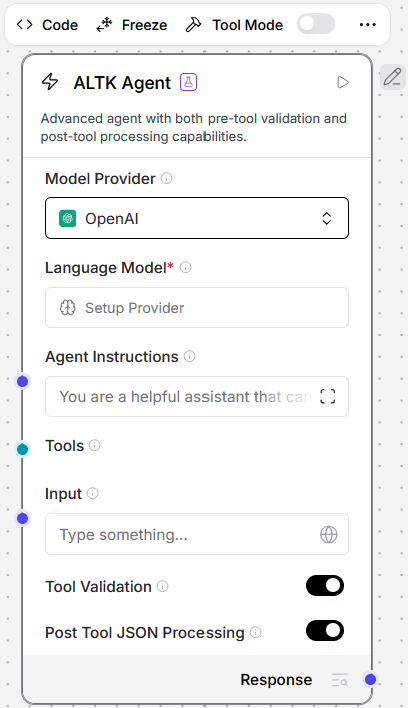
In AI Agent Builder, it appears as the ALTK Agent component, a drop-in replacement for the standard Agent that adds two of these checks to the tool-calling loop.
- Pre-tool validation (SPARC) reviews a candidate tool call against the conversation and the tool's spec before it runs, and sends the LLM a suggested fix if the call looks wrong.
- Post-tool JSON processing generates a quick Python snippet to pull out just the relevant fields from a large JSON tool response, so the agent is not given a huge blob that floods its context.
Both features are on by default and can be toggled independently. Using ALTK Agent instead of the standard Agent component gives you more reliable tool calls and a smaller context footprint with no other changes to the flow.
Refer to IBM Research > ALTK and GitHub > ALTK for more information.
To configure the component:
-
In Model Provider, select the language model.
Options include OpenAI and Anthropic.
-
In Language Model, configure the model, API key, and any other required settings.
-
In Agent Instructions, provide the system prompt with initial instructions and context to guide the agent's behaviour.
-
In Tools, review the tools that the agent can use to complete tasks.
-
In Input, provide the input for the agent to process.
-
Enable Tool Validation to validate tool calls using SPARC before executing.
-
Enable Post Tool JSON Processing to process tool output through JSON analysis.
Call the AI agent flow from Workflow Designer
To run an AI agent flow, kaizenadmin needs to update the endpoint name. Refer to this FAQ.
-
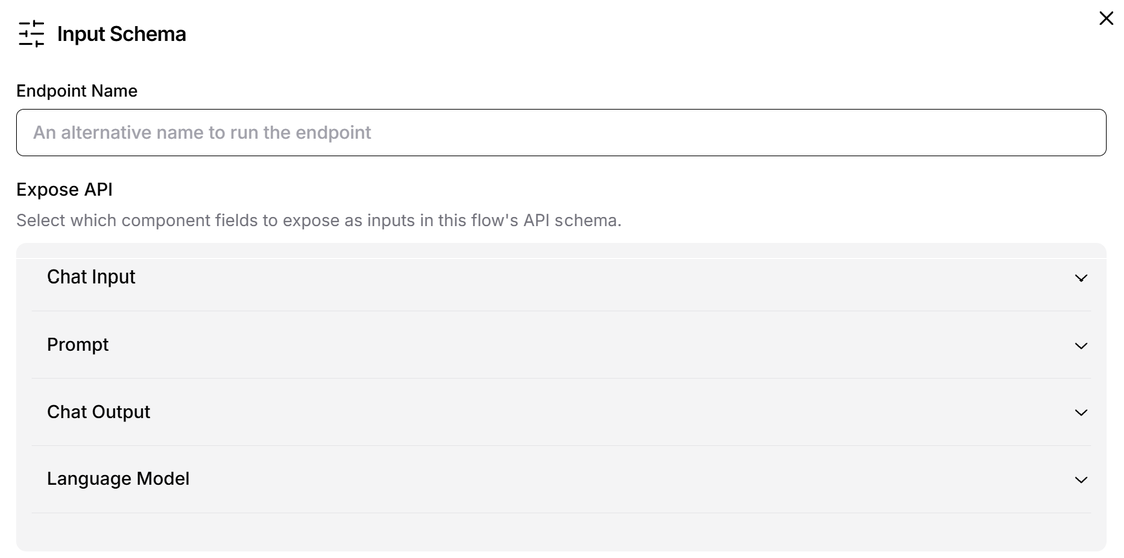
In AI Agent Builder, at the top right corner, click Share > API access > Input Schema.
-
In the Input Schema window, set the AI agent endpoint name.
-
Copy the endpoint name from AI Agent Builder.
-
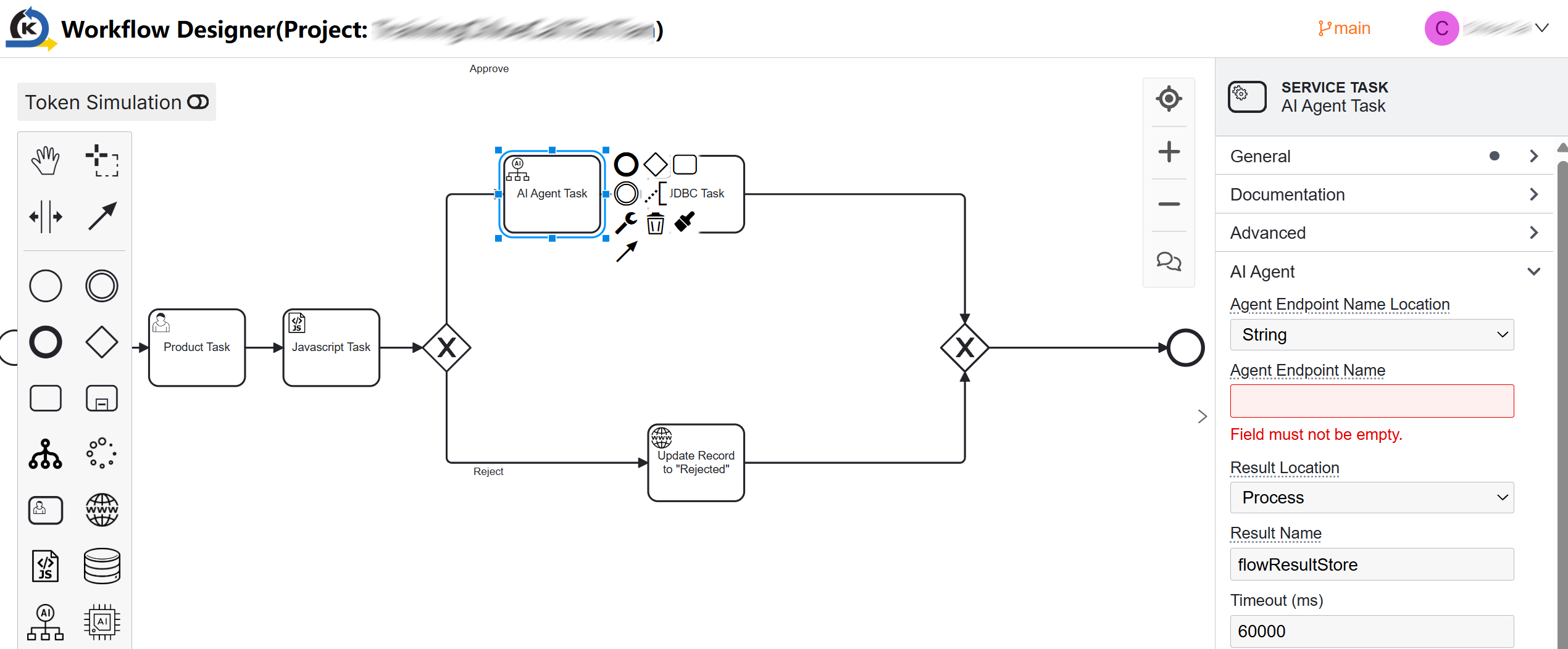
Open the Workflow Designer. Paste it into the Agent Endpoint Name property.
-
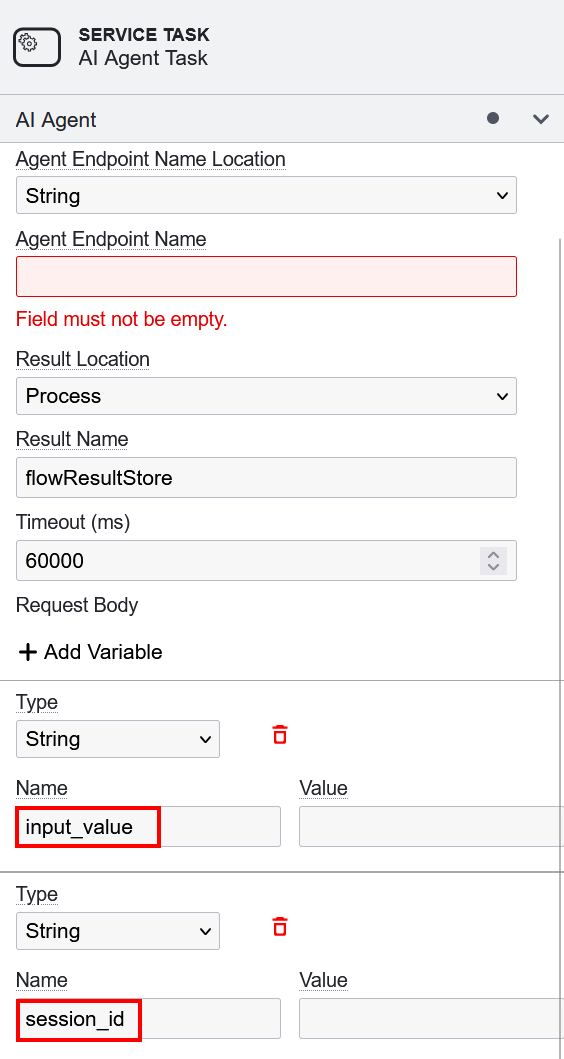
You can choose to add any of the following optional variables in Workflow Designer:
-
input_value: This stores your prompt for the AI Agent to perform tasks. -
session_id: This provides the chat context from a session of the AI agent flow.noteIt is optional to set the
session_idvalue. If you haven't set this, a random and unique value will be generated.
-
Call the AI agent flow through KAIZEN-provided API endpoints
To run an AI agent flow, kaizenadmin needs to update the endpoint name. Refer to this FAQ.
To call the AI agent flow through KAIZEN-provided API endpoints, perform the following:
1. Define the endpoint
-
In AI Agent Builder, at the top right corner, click Share > API access > Input Schema.
-
In the Input Schema window, set the AI agent endpoint name.
2. Create the service and datasource
-
Open the App Designer. On the Resources panel, click Services
 .
. -
On the Services panel, click Add Service to create a new service e.g.,
ai. -
Expand the new service and create a controller e.g.,
run_flow. -
Expand the controller and create a datasource.
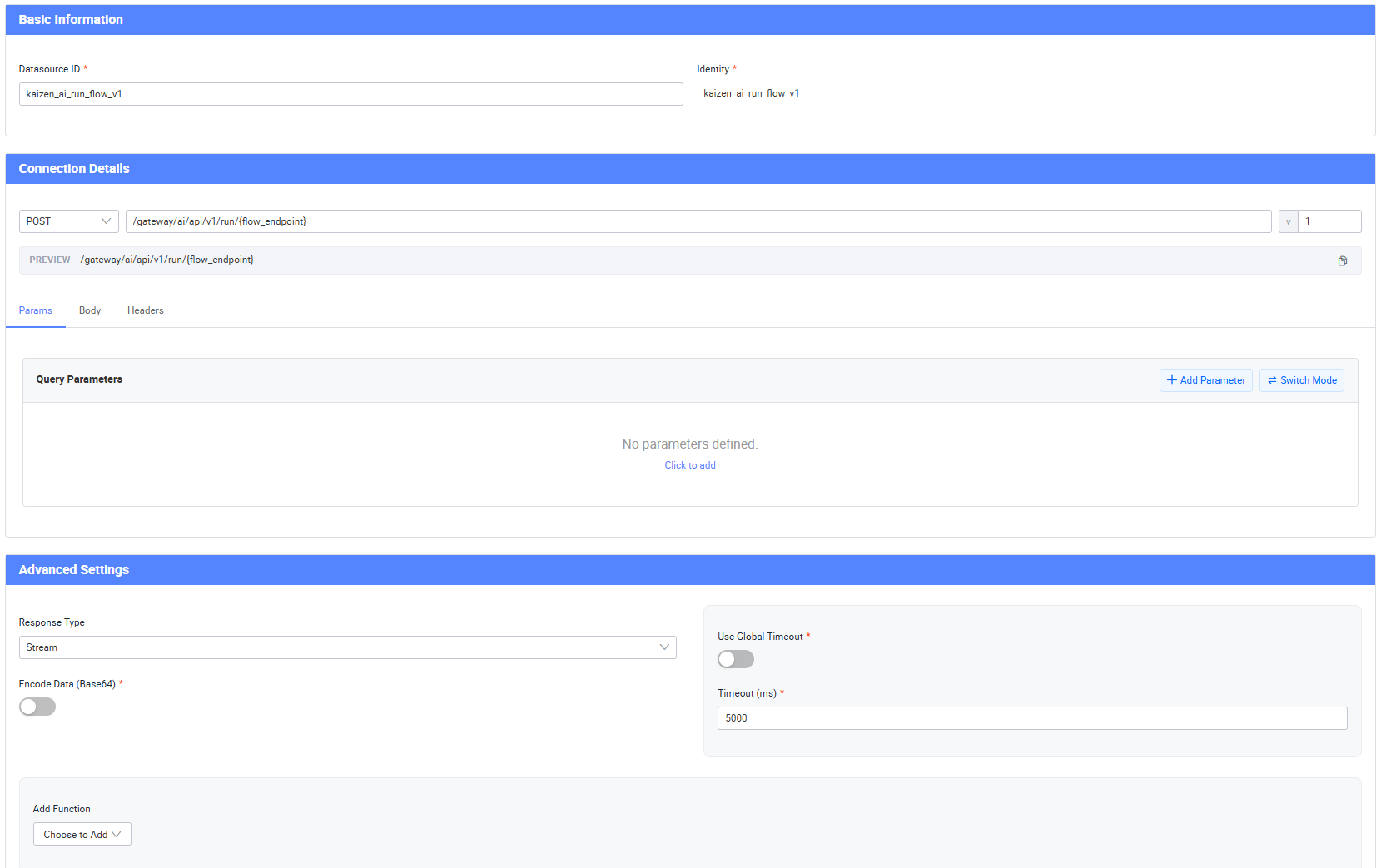
In the Create Datasource window, provide the following information:
-
Basic Information:
- Datasource ID: Enter the ID for datasource identity e.g.,
kaizen_ai_run_flow_v1
- Datasource ID: Enter the ID for datasource identity e.g.,
-
Connection Details:
- Method:
POST - Path:
/gateway/ai/api/v1/run/{flow_endpoint} - Version (v):
1 - Params: Leave as undefined
- Body: Leave as undefined
- Headers:
content-type
- Method:
-
Advanced Settings:
- Response Type:
Stream - Encode Data (Base 64):
Off - Use Global Timeout:
Off - Timeout (ms): Configurable by user, e.g.,
5000 - Add Function: Leave as unselected
- Response Type:
-
-
Click Apply.
3. Call the endpoint
-
In App Designer, click Datasource
 . The Datasource panel opens. Click Create.
 -
In the Create from Datasource window, search for
aiand selectkaizen_ai_run_flow_v1.
-
Click Next. The datasource information displays. Check that the identity should be the same with the datasource ID, and the path variables should display
flow_endpointas pre-defined.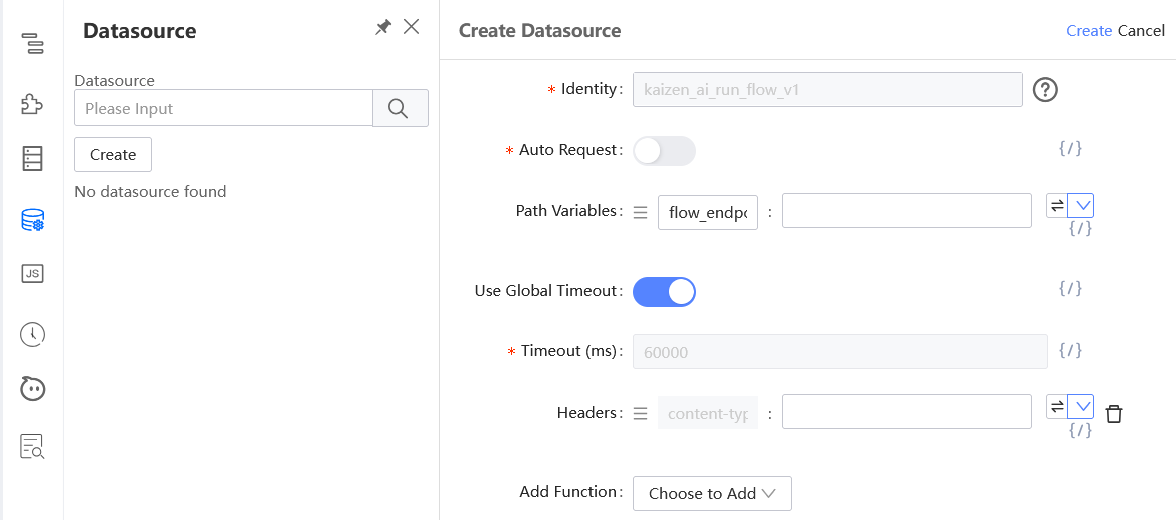
-
Add the same endpoint name defined in AI Agent Builder into the
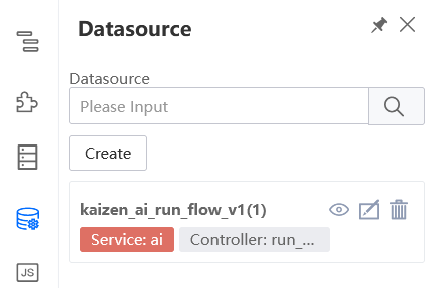
flow_endpointvalue. Click Create.The datasource will look like the following. From here, you can call the AI agent flow.
Last updated on 19 Oct 2026