Error handling
Error handling helps your application respond to exceptions. In KAIZEN, you can configure application-level error rules, handle specific errors locally, and redirect users to a pre-configured error page instead of exposing raw system errors.
Configure application error pages
To configure error handling for an application:
-
Find the application card and click Edit Application.
-
Select the Advance tab.
-
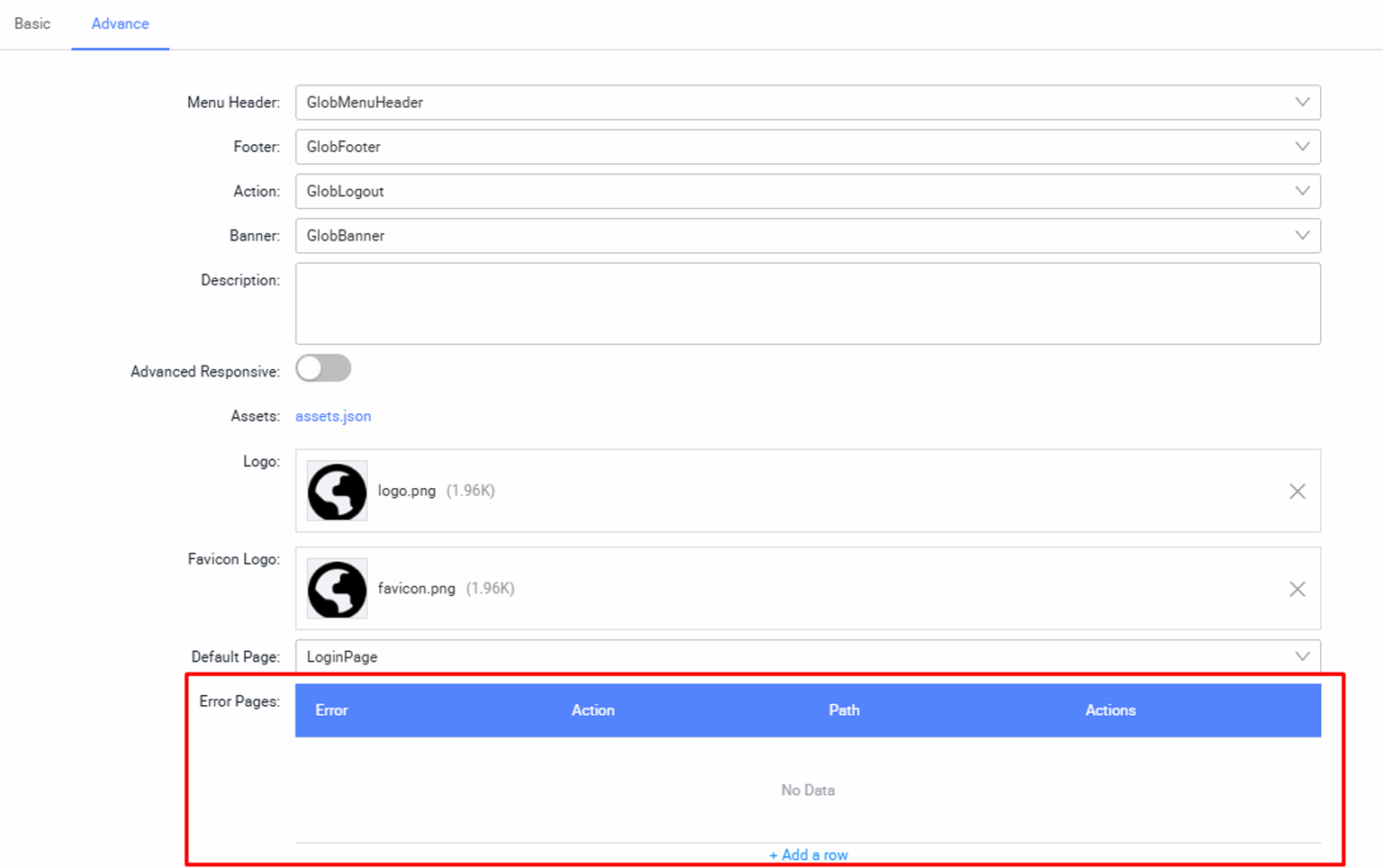
Locate the Error Pages table.
-
Click Add a row. The Create Error Page window opens, letting you create a new error handler.
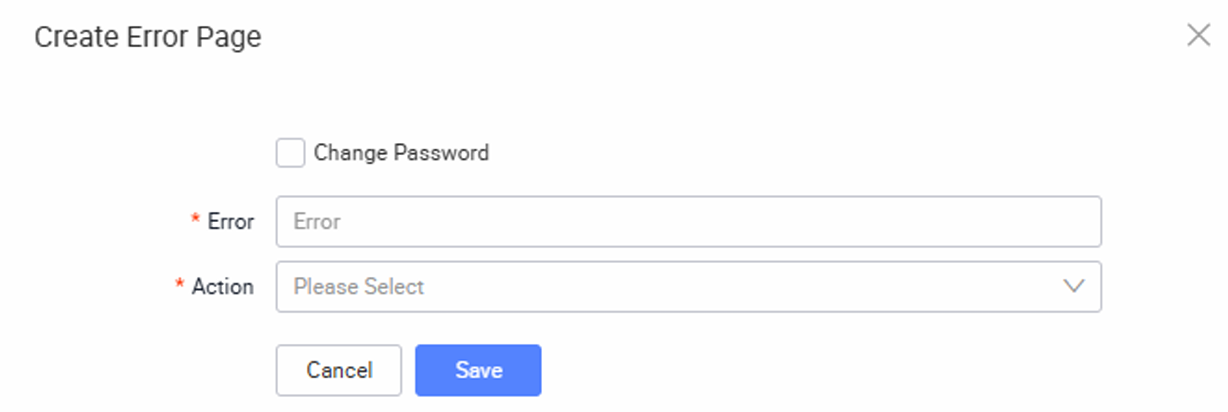
Each error handler uses the following settings:
| Field | Description |
|---|---|
| Change Password | Select this checkbox to set Error to a special condition that checks whether the user is logging in for the first time. Use it to redirect first-time users to a page where they must change their password. You must create and configure the destination page to handle the password change. |
| Error | The HTTP status code or status range that triggers the rule, such as 401, 404, 4XX, or 5XX. |
| Action | The handling behaviour KAIZEN should apply when the error occurs. |
KAIZEN supports two common actions:
| Action | Use case |
|---|---|
forwardError | Keeps the current request and URL, then lets the page or API error handler process the error locally. Use this when the page needs to respond directly, such as showing an invalid login message. |
toErrorPage | Redirects the user to a configured error page. Use this for general application errors such as 4XX and 5XX. |
If no matching error rule is configured, KAIZEN applies its default behaviour based on the application and runtime configuration. For example, a 401 Unauthorised error may redirect to the KAIZEN login page, while a 500 Internal Server Error may display an error popup in the application UI.
Recommended error rules
-
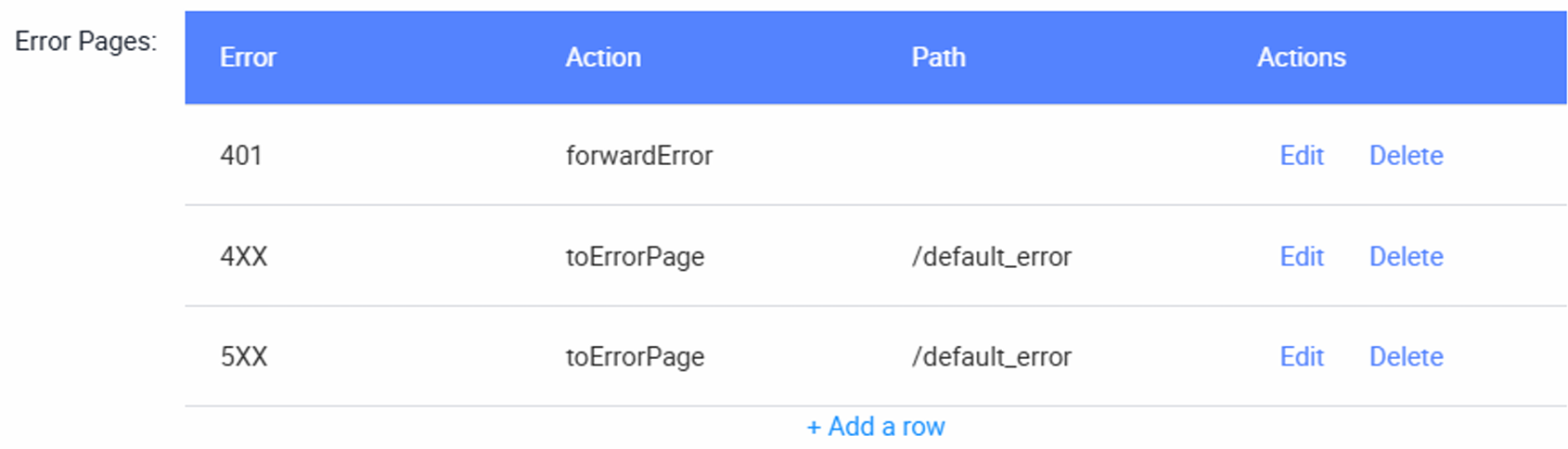
Add the following rows to the Error Pages table:
Error Action Path 401forwardError4XXtoErrorPage/default_error5XXtoErrorPage/default_errorLeave the Path blank for
forwardErrorbecause the error is handled by the current page, instead of redirected to another page. -
After adding the rules, click Save.
Handle login errors locally
Use forwardError for the 401 rule when you want the current page to decide how to handle the error.
For example, on a login page, a failed login attempt should show a clear message instead of redirecting the user to KAIZEN's default login page.
To handle the login error:
-
Open the Login Page in your project.
-
Open the page datasource that contains the login request.
-
Edit the login API used to authenticate the user.
-
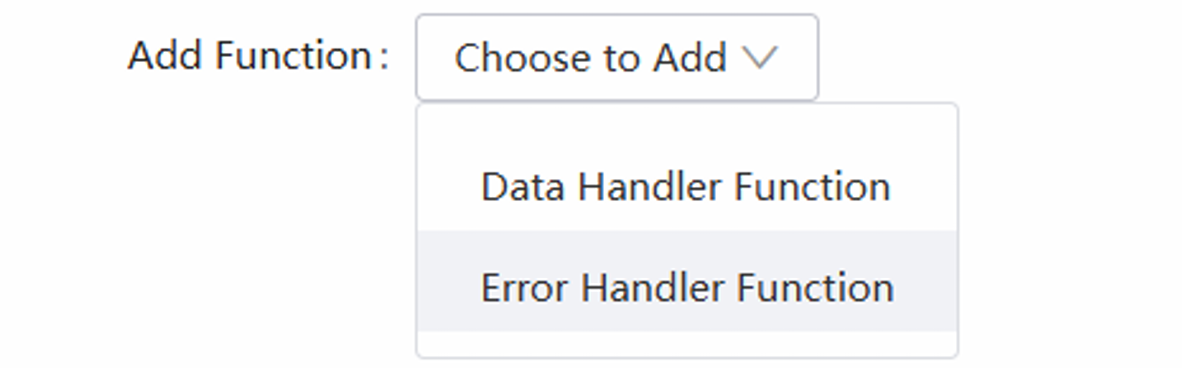
Under Add Function, select Error Handler Function.
-
Add the following handler:
function(err) {alert("Invalid User ID and/or Password!");} -
Click OK, then save and publish the application.
Use this pattern for expected authentication failures only. For other API errors, handle the error accordingly and show a message that matches the failed action.
Create a default error page
Use a generic error page for 4XX and 5XX errors. This gives users a clean fallback page when they encounter a missing resource, access issue, or server error.
The error page should use the same page ID configured in the Error Pages table. In this example, the path is:
/default_error
-
When importing or creating the page, use these settings:
Setting Value Name DefaultErrorPagePage ID default_errorType PageStatus ActiveDefault Page NoIs Protected NoComments Add new default error page -
Set Is Protected to No so that the error page can still load when the user is unauthenticated, does not have permission, or encounters another access-related error.
The imported DefaultErrorPage should look like this:
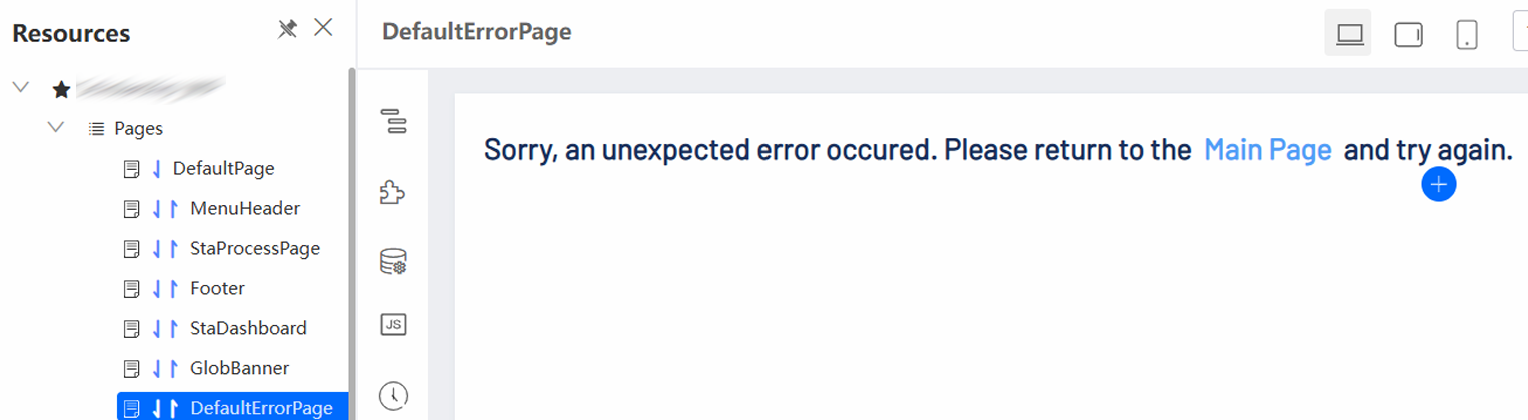
-
After the page is created:
- Preview it and click Settings.
- Turn off Enable Layout if the header and footer should not appear on the error page.
- Click Save to Page to apply the settings.
- Save and publish the page.
Validate the setup
After configuring the rules and publishing the application, test the error handling behaviour:
| Scenario | How to test | Expected result |
|---|---|---|
| Invalid login credentials | Sign in with an incorrect user ID or password. | The login page shows an invalid user ID or password alert. |
4XX error | Open an unavailable route, request a missing resource, or access a page without the required permission. | The user is redirected to /default_error. |
5XX error | Trigger an API or backend failure in a test environment. | The user is redirected to /default_error. |
This setup keeps common errors user-friendly, separates local handling from global fallback behaviour, and gives the application a consistent way to recover from failed requests.
Last updated on 19 Oct 2026