Design a form
Best practices
A form usually requires a stepper component and form items. To build the form with efficiency, it is recommended to use the following method:
-
Plan: Create an initial layout that a step form will need, a StepForm component.
-
Build one form item: Design a single form items with all the correct styling and the mandatory validations.
-
Duplicate the form item: Clone that form item and to rapidly build the rest of the form.
-
Repeat: Clone the entire form to create the next section of the form.
-
Customise: Modify the form item that requires special validation rules.
-
Design form submission: Allow the user to verify whether they want to submit the form by adding a modal via the Dialog component, as well as a Loading component.
-
Integrate: Bind form items and the corresponding inputs.
The following shows an example to design a form with dynamic rows.
Create a sample form
Design a StepForm
Form Title: Course Application Form
Form Description: Please complete the following questions so we can collect the course, instructor, location, and schedule details.
This form is divided into the following sections, each using a step in the StepForm component. The sections are:
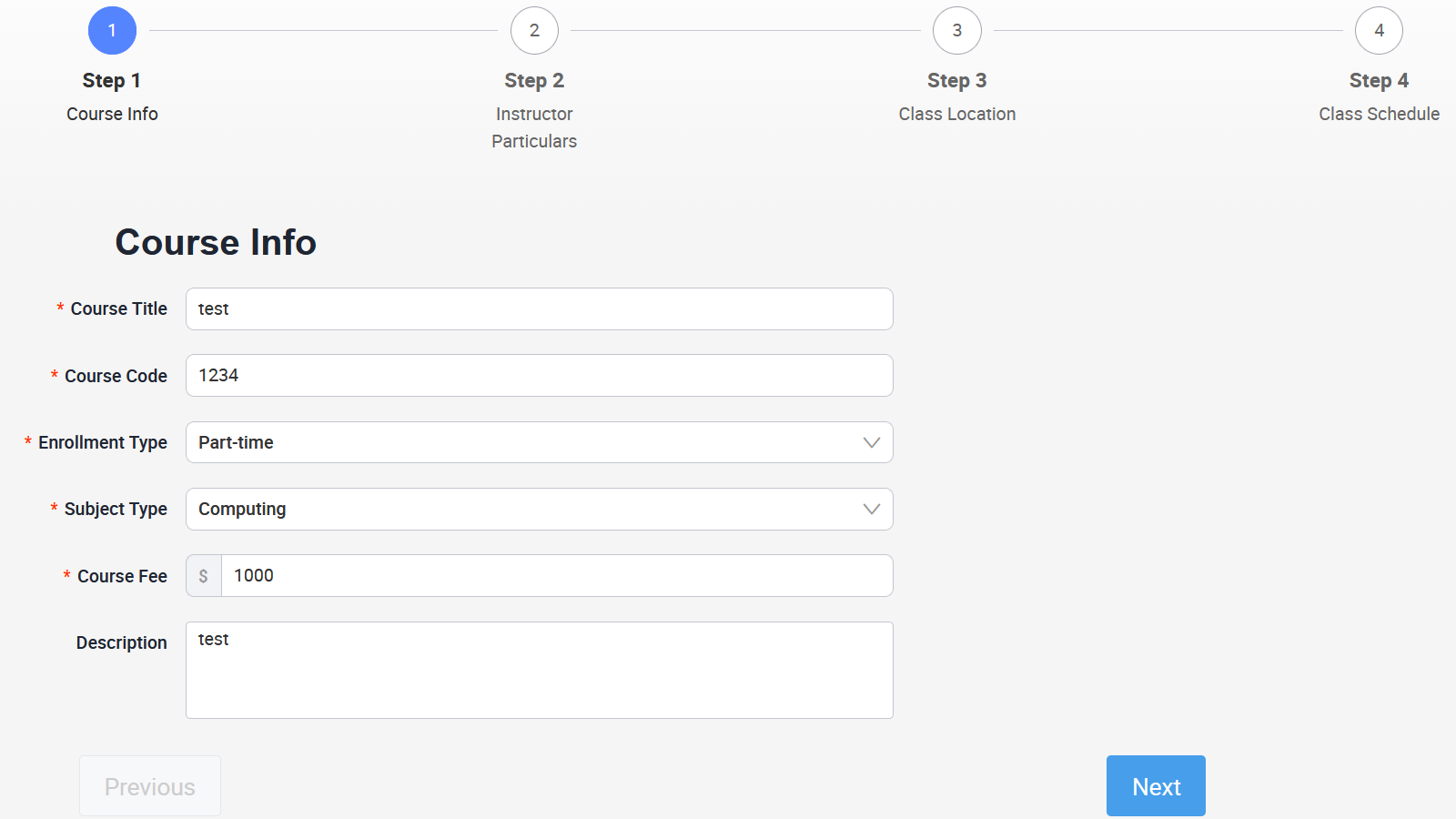
Step 1. Course Info
This section collects the basic course details. Use a Form Item for each field and place the relevant input component inside it.
| Field Name | Component Type | Required | Notes |
|---|---|---|---|
| Course Title | Input | Yes | Stores the course name. |
| Course Code | Input | Yes | Stores the unique course code. |
| Enrollment Type | Select | Yes | Use dropdown options such as Part-time, Full-time, and Online/Remote. Bind the onChange event to update the Subject Type options. |
| Subject Type | Select | Yes | Populate the options dynamically based on the selected Enrollment Type. |
| Course Fee | Input | Yes | Add $ as the prefix text. |
| Description | TextArea | No | Provides a larger text box for the course description. |
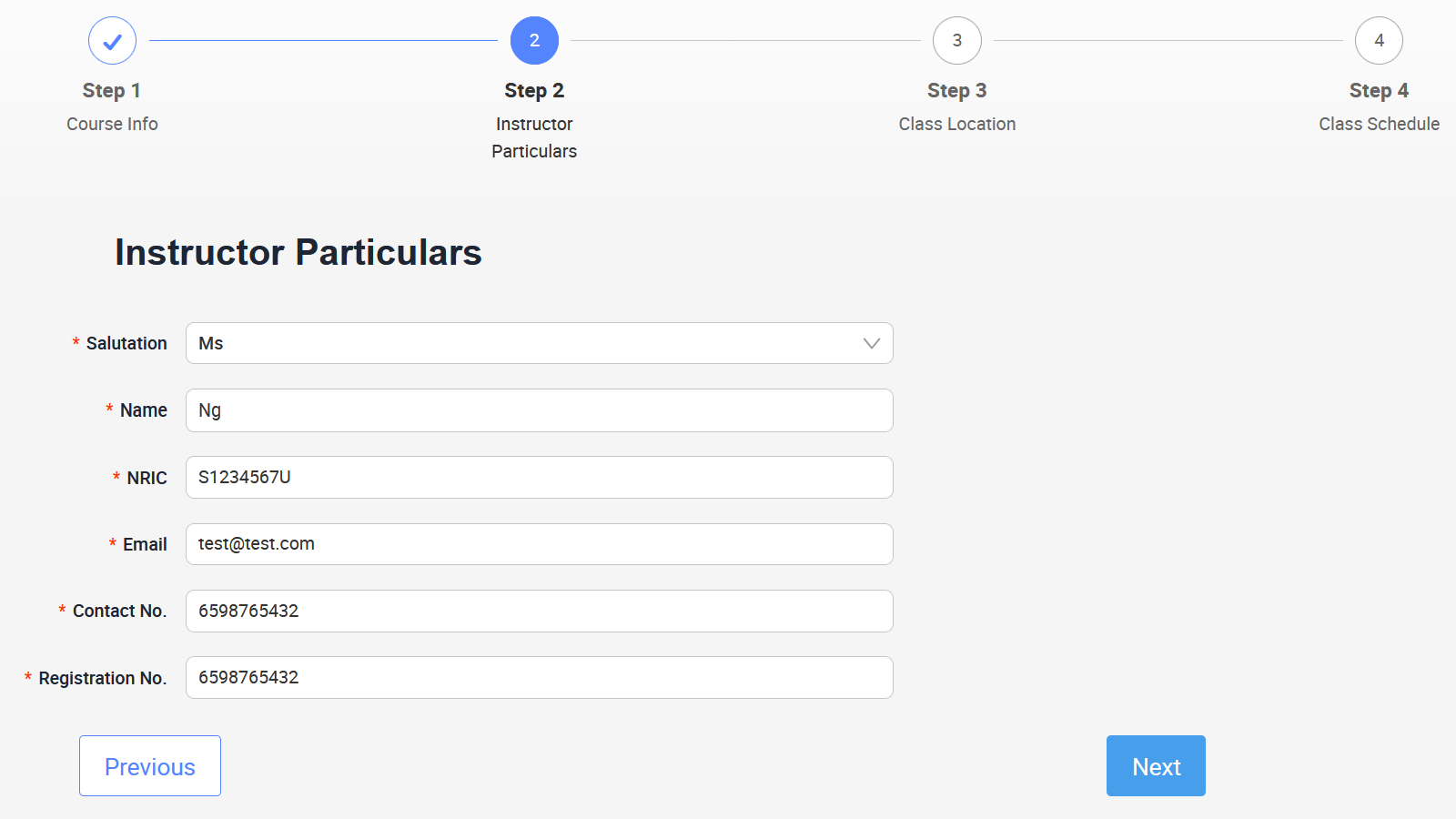
Step 2. Instructor Particulars
This section collects the instructor's personal and registration details.
| Field Name | Component Type | Required | Notes |
|---|---|---|---|
| Salutation | Select | Yes | Use dropdown options such as Mr, Mrs, Ms, and Dr. |
| Name | Input | Yes | Stores the instructor's full name. |
| NRIC | Input | Yes | Add NRIC validation if the form requires Singapore NRIC format checking. |
| Input | Yes | Add email format validation. | |
| Contact No. | Input | Yes | Add phone number validation where required. |
| Registration No. | Input | Yes | Stores the instructor's registration number. |
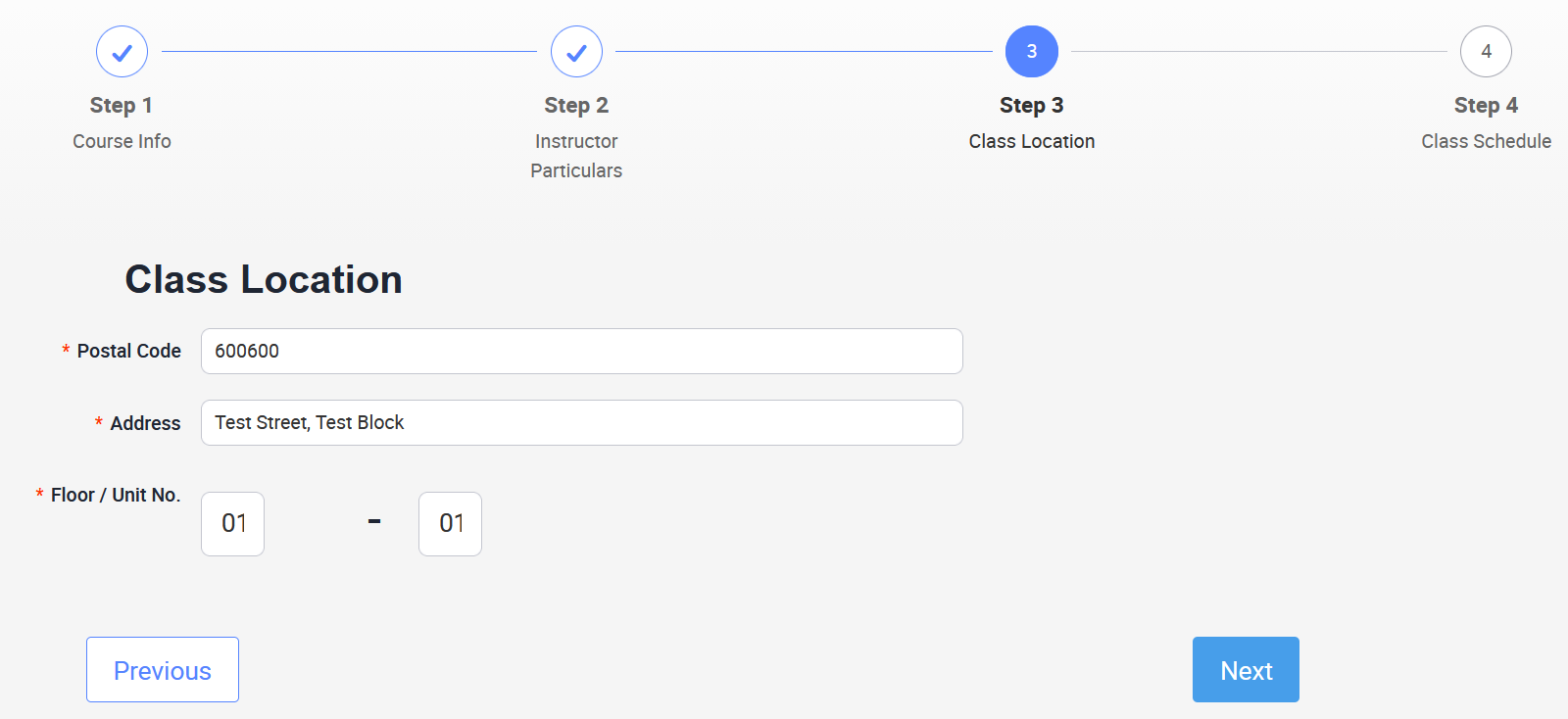
Step 3. Class Location
This section collects the venue details for the class.
| Field Name | Component Type | Required | Notes |
|---|---|---|---|
| Postal Code | Input | Yes | Stores the postal code for the class venue. |
| Address | Input | Yes | Stores the full address. |
| Floor / Unit No. | Input | Yes | Build this as two small Input components: one for the floor number and one for the unit number. Add custom validation to require both values. |
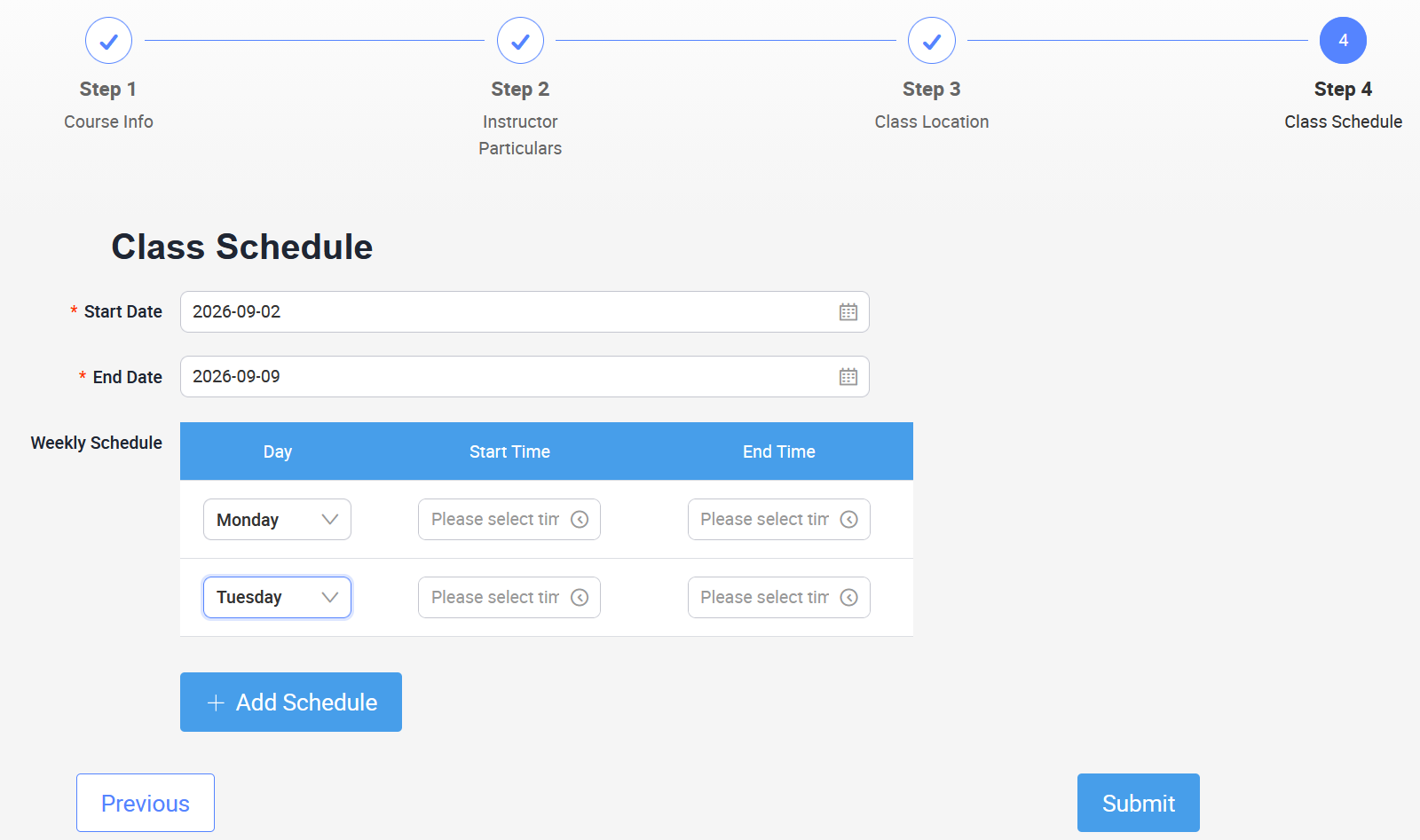
Step 4. Class Schedule
This section collects the class date range and weekly schedule. Use a dynamic table row so users can add multiple weekly schedule entries.
| Field Name | Component Type | Required | Notes |
|---|---|---|---|
| Start Date | DatePicker | Yes | Use the YYYY-MM-DD format. Add custom validation to make sure the start date is not after the end date. |
| End Date | DatePicker | Yes | Use the YYYY-MM-DD format. Add custom validation to make sure the end date is not before the start date. |
| Weekly Schedule | Table | No | Bind the table datasource to an array state, then add a button that appends a new schedule row. |
Define the following columns:
| Column (dataIndex) | Column Title | Format Type | Required | Notes |
|---|---|---|---|---|
| day | Day | Select | No | Use weekday options from Monday to Sunday. |
| start | Start Time | TimePicker | No | Use the HH:mm format. |
| end | End Time | TimePicker | No | Use the HH:mm format. |
Add an Add Schedule button below the table. Bind its click event to append a new object to the weekly schedule array, for example { day: undefined, start: undefined, end: undefined }.
Source code
The source code must be used together with the component bindings described in the Binding section. Copying the source code alone is not enough for validation, navigation, and data persistence to work.
Copy the following code and paste into the Source Code Panel, then click Save:
View code
class LowcodeComponent extends Component {
  state = {
    "currentStep": 0,
    "startError": '',
    "endError": '',
    "weekly": [{
      "day": undefined,
      "start": undefined,
      "end": undefined
    }],
    "enrollmentSubject": [{
      "enrollmentId": 1,
      "subjectId": ["Accounting", "Business", "Computing"]
    }, {
      "enrollmentId": 2,
      "subjectId": ["Accounting", "Business", "Computing", "Design", "Education"]
    }, {
      "enrollmentId": 3,
      "subjectId": ["Computing", "Education"]
    }],
    "confirmVisible": false,
    "subjectTypeArray": [],
    "showAll": false,

    // Used to store Field instances
    "courseInfoFormField": undefined,
    "instructorParticularsFormField": undefined,
    "classLocationFormField": undefined,
    "classScheduleFormField": undefined,

    // Used to store the specific data of each form (for data echoing/re-populating)
    "courseInfoData": {},
    "instructorParticularsData": {},
    "classLocationData": {},
    "classScheduleData": {}
  }

  checkDates(rule, value, callback) {
    if (this.state.classScheduleFormField.getValue("startDate") !== undefined && this.state.classScheduleFormField.getValue("endDate") !== undefined) {
      if (moment(this.state.classScheduleFormField.getValue("startDate"), 'YYYY-MM-DD').isAfter(this.state.classScheduleFormField.getValue("endDate"))) {
        this.setState({
          startError: 'error',
          endError: 'error'
        })
        callback("Start Date cannot be after End Date!");
      } else {
        this.setState({
          startError: 'default',
          endError: 'default'
        })
        callback();
      }
    } else {
      callback();
    }
    return;
  }

  checkFloorUnit(rule, value, callback) {
    const floor = this.state.classLocationFormField.getValue("floorField");
    const unit = this.state.classLocationFormField.getValue("unitField");

    if (!floor || !unit) {
      callback("Both Floor and Unit numbers are required.");
    } else {
      callback();
    }
  }

  onClick_AddSchedule() {
    this.setState({
      weekly: [...this.state.weekly, {
        "day": undefined,
        "start": undefined,
        "end": undefined
      }]
    })
  }

  onChange_EnrollmentType(...args) {
    const subjects = this.state.enrollmentSubject.find(x => x.enrollmentId == args[0]).subjectId;
    this.setState({
      subjectTypeArray: subjects
    });
  }

  isFormValid() {
    let errors = {};
    if (this.state.currentStep === 0 && this.state.courseInfoFormField) {
      errors = this.state.courseInfoFormField.getErrors();
    } else if (this.state.currentStep === 1 && this.state.instructorParticularsFormField) {
      errors = this.state.instructorParticularsFormField.getErrors();
    } else if (this.state.currentStep === 2 && this.state.classLocationFormField) {
      errors = this.state.classLocationFormField.getErrors();
    } else if (this.state.currentStep === 3 && this.state.classScheduleFormField) {
      errors = this.state.classScheduleFormField.getErrors();
    }

    for (const value of Object.values(errors)) {
      if (value !== null) {
        return false;
      }
    }
    return true;
  }

  // Extracted common method: Save the form data of the current step
  saveCurrentStepData() {
    if (this.state.currentStep === 0 && this.state.courseInfoFormField) {
      this.setState({ courseInfoData: this.state.courseInfoFormField.getValues() });
    } else if (this.state.currentStep === 1 && this.state.instructorParticularsFormField) {
      this.setState({ instructorParticularsData: this.state.instructorParticularsFormField.getValues() });
    } else if (this.state.currentStep === 2 && this.state.classLocationFormField) {
      this.setState({ classLocationData: this.state.classLocationFormField.getValues() });
    } else if (this.state.currentStep === 3 && this.state.classScheduleFormField) {
      this.setState({ classScheduleData: this.state.classScheduleFormField.getValues() });
    }
  }

  onClick_Next(e, v) {
    if (this.isFormValid()) {
      // Before leaving the current Step, extract and save the existing form values first
      this.saveCurrentStepData();

      const nextStep = this.state.currentStep + 1;
      this.setState({
        currentStep: nextStep
      });
    }
  }

  onClick_Previous(e, v) {
    // Even when returning to the previous step, it's better to save the filled content on the current page
    this.saveCurrentStepData();

    const prevStep = this.state.currentStep - 1;
    if (prevStep >= 0) {
      this.setState({
        currentStep: prevStep
      });
    }
  }

  onClick_Submit(e, v) {
    if (this.isFormValid()) {
      this.saveCurrentStepData();
      this.setState({
        confirmVisible: true
      });
      this.$("confirm-dialog-box").open();
    }
  }

  onClick_ConfirmSubmit() {
    this.utils.navigateTo('trainingfoundation', 'ListingPage');
  }

  // ---- Below are the bound saveField events ----
  // When the form component renders, it passes in its own field; when it unmounts, it may pass back null/undefined.
  // After receiving the field, we check if the state has previously saved data, and if so, use setValues directly to re-populate the form.

  courseInfoSaveField(field) {
    this.setState({ courseInfoFormField: field });
    if (field && Object.keys(this.state.courseInfoData || {}).length > 0) {
      field.setValues(this.state.courseInfoData);
    }
  }

  instructorParticularsSaveField(field) {
    this.setState({ instructorParticularsFormField: field });
    if (field && Object.keys(this.state.instructorParticularsData || {}).length > 0) {
      field.setValues(this.state.instructorParticularsData);
    }
  }

  classLocationSaveField(field) {
    this.setState({ classLocationFormField: field });
    if (field && Object.keys(this.state.classLocationData || {}).length > 0) {
      field.setValues(this.state.classLocationData);
    }
  }

  classScheduleSaveField(field) {
    this.setState({ classScheduleFormField: field });
    if (field && Object.keys(this.state.classScheduleData || {}).length > 0) {
      field.setValues(this.state.classScheduleData);
    }
  }
}
Binding
After the components are added to the page, bind the form, step, and table components to the functions and state values defined in the Source Code Panel.
Bind the StepForm
Bind the StepForm's current step value to:
this.state.currentStep
This allows the Next and Previous buttons to control which step is shown.
Bind each form section
For each Form component, bind both the field state and the Save Field event. The Save Field event is required because the source code uses the field instance to get values, set values, and check validation errors.
| Form section | Field binding | Save field event |
|---|---|---|
| Course Info | this.state.courseInfoFormField | courseInfoSaveField |
| Instructor Particulars | this.state.instructorParticularsFormField | instructorParticularsSaveField |
| Class Location | this.state.classLocationFormField | classLocationSaveField |
| Class Schedule | this.state.classScheduleFormField | classScheduleSaveField |
In the Advanced tab > Visible, click the Switch Setter, then select Variable Input. Set the following display condition for each Form, so that only the current step is shown:
| Form section | Condition |
|---|---|
| Course Info | this.state.currentStep == 0 || this.state.showAll |
| Instructor Particulars | this.state.currentStep == 1 || this.state.showAll |
| Class Location | this.state.currentStep == 2 || this.state.showAll |
| Class Schedule | this.state.currentStep == 3 || this.state.showAll |
The showAll value is useful when you want to preview or troubleshoot all sections at once.
Bind the form field names
Set the name property of each Form Item to match the keys used in the source code. These names are used when calling getValues(), setValues(), getValue(), and getErrors().
| Section | Form Item names in sequence |
|---|---|
| Course Info | courseTitle, courseCode, enrollmentType, subjectType, courseFee, description |
| Instructor Particulars | salutation, name, nric, email, contactNo, registrationNo |
| Class Location | postalCode, address, floorField, unitField |
| Class Schedule | startDate, endDate |
For the Floor / Unit No. row, bind the two input components with the names floorField and unitField. The checkFloorUnit function uses these names to validate that both values are entered.
A red required mark only shows that the field is visually required. To block users from moving to the next step, configure the Form Item validation rule, such as Required, for each mandatory field.
For each mandatory Form Item, configure the validation rule in the Form Item settings:
-
Select the Form Item.
-
Set the
nameproperty to the matching field name listed in the table above. -
Add a Required validation rule.
-
Enter a validation message, such as
Course Title is required.. -
Save the component settings.
Repeat these steps for each field marked as required in the form design.
For the Floor / Unit No. row, bind checkFloorUnit as the custom validator for both the floor input and the unit input.
Bind the dropdown behaviour
For Enrollment Type, configure the Select options with values that match the enrollmentId values in this.state.enrollmentSubject.
Then bind the Select onChange event to:
onChange_EnrollmentType
For Subject Type, bind the Select datasource to:
this.state.subjectTypeArray
When the user selects an enrollment type, onChange_EnrollmentType updates subjectTypeArray, and the Subject Type dropdown refreshes with the matching options.
The Subject Type datasource depends on the Enrollment Type selection. If the Subject Type dropdown does not refresh, confirm that the Enrollment Type option values match the enrollmentId values in the source code.
Bind the schedule table
For the Weekly Schedule table, bind the table data to:
this.state.weekly
Create the following table columns:
| Column title | Data key | Component |
|---|---|---|
| Day | day | Select |
| Start Time | start | TimePicker |
| End Time | end | TimePicker |
Set the Start Time and End Time TimePicker format to:
HH:mm
Bind the Add Schedule button onClick event to:
onClick_AddSchedule
This appends a new schedule object to this.state.weekly, which adds a new row to the table.
For Start Date and End Date, bind checkDates as the custom validator. This checks that the start date is not later than the end date.
Bind the navigation buttons
Bind the step navigation buttons as follows:
| Button | Event |
|---|---|
| Next | onClick_Next |
| Previous | onClick_Previous |
| Submit | onClick_Submit |
Configure Next and Submit as validating submit buttons. Configure Previous so that it does not validate the current step, because users should be able to return to an earlier step without completing the current one.
The source code also calls isFormValid() before moving to the next step or opening the confirmation dialog. This makes sure the current step is checked before the form continues.
If users can still move to the next step without filling mandatory fields, check the following:
- The required rules are configured on the Form Items.
- Each Form Item has the correct
namevalue. - The Form Items are placed inside the correct parent Form.
- The Next button is configured as a validating submit button.
If values disappear when returning to a previous step, check the following:
- Each Form has the correct field binding.
- Each Form has the correct Save Field event.
- The visibility condition for each Form uses
this.state.currentStep. - The Form Item
namevalues match the keys used in the source code.
Bind the confirmation dialog
Bind the confirmation dialog's visibility to:
this.state.confirmVisible
Bind the dialog's OK event to:
onClick_ConfirmSubmit
When the user confirms the submission, the form navigates to another listing page, which is beyond the scope of this article.
Preview the form
Save the page and open it in preview mode. The form should display one section at a time, with the StepForm indicator showing the current step.
Use the Next and Previous buttons to move between the four sections. When you return to a previous step, the values entered earlier should still be shown because each form section saves its data before the step changes.
In Step 1, select an Enrollment Type and confirm that the Subject Type dropdown is updated based on the selected enrollment type. In Step 4, click Add Schedule and confirm that a new row is added dynamically to the Weekly Schedule table.
The screenshots below use mockup data for illustration only. In preview mode, your form should look and behave similarly, but the actual values can be different.
The following shows how the steps look.
Step 1:
Step 2:
Step 3:
Step 4:
Last updated on 19 Oct 2026