Non-working day
You need the admin rights to use this feature.
Non-working day allows administrators to manage dates that are treated as unavailable working days in KAIZEN. Non-working days mainly affect job schedules and Workflow > User Task > SLA.
Use this page to review and update working and non-working days in a calendar, import non-working day records from a CSV file, and configure the weekdays.
To access this page, in the KAIZEN studio console, on the left panel, click System Configuration > Non Working Day.
Calendar
The Calendar tab displays non-working day settings in a monthly calendar view. Use the left and right arrow buttons to move between months, or click today to return to the current month.
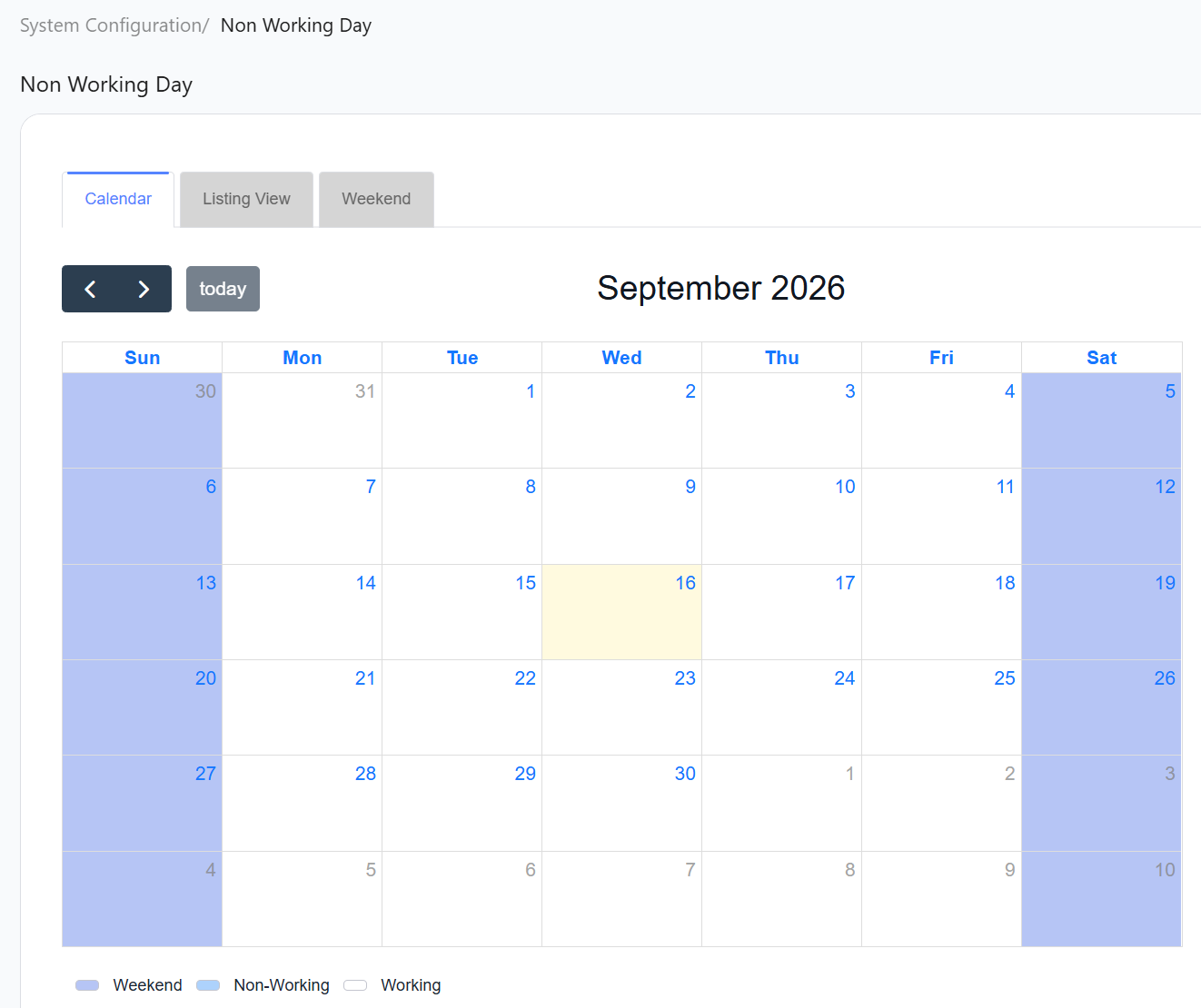
The calendar uses color indicators to show the type of each day:
| Indicator | Description |
|---|---|
| Weekend | Days configured as weekends. |
| Non-Working | Imported or manually configured non-working days. |
| Working | Regular working days. |
Update working or non-working days
To update a date or a date range, perform the following:
-
In the Calendar tab, click the date you want to update.
The Update Non-Working Day window opens.
noteIf you clicked a previous date, an error message will pop up, saying that the selected start date should not be before today.
-
Complete the following fields:
Field Mandatory Description User Domain - Pre-filled with the current user domain and unable to be changed. Type Yes Select Working Day or Non Working Day. Date Range No Pre-filled with the selected date as both the start and end dates. Change the start and end dates to update a range of dates. AM/PM No Select AM, PM, or Whole Day. The selected period applies to every date in the range for either type. Description No Enter additional information about the change. -
Click Update.
A success message confirms that the changes have been saved.
Listing View
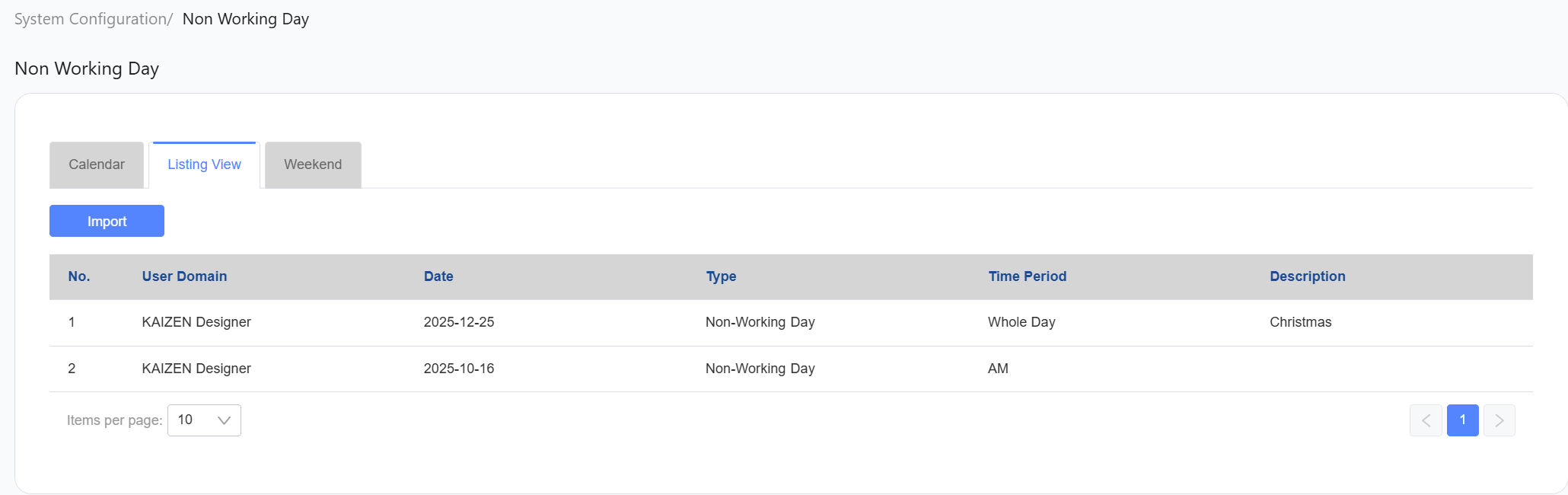
The Listing View tab displays imported non-working day records in a table. Click Import to import non-working day records from a CSV file.
The listing table shows the following columns:
| Column | Description |
|---|---|
| No. | The row number. |
| User Domain | The user domain where the non-working day record applies. |
| Date | The date configured as a non-working day. |
| Type | The type of day, such as Non-Working Day. |
| Time Period | The period covered by the record, such as Whole Day or AM. |
| Description | Additional information about the non-working day. |
Weekend
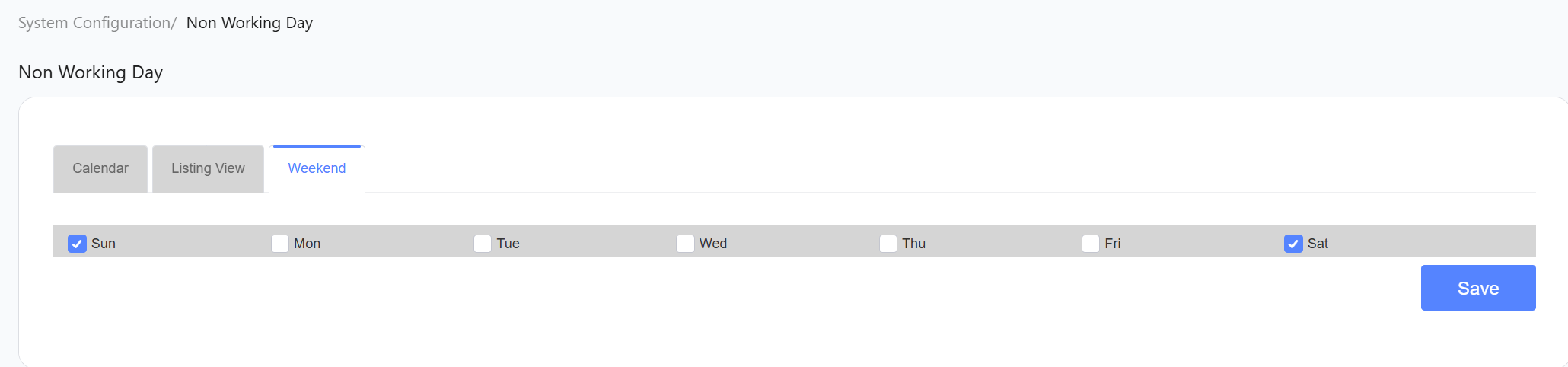
The Weekend tab allows administrators to configure which weekdays are treated as weekends. Select the checkbox for each weekend day, then click Save.
Last updated on 19 Oct 2026